
KOOSMILE KT-M9
KOOSMILE ミニPC KT-M9 ユーザーマニュアル
Model: KT-M9
1. はじめに
Thank you for choosing the KOOSMILE Mini PC KT-M9. This compact yet powerful desktop computer is designed for a wide range of applications, from demanding professional tasks to immersive home entertainment. Equipped with an Intel Core i9-12900HK processor, ample memory, and high-speed storage, it delivers exceptional performance in a small form factor. This manual provides essential information for setting up, operating, maintaining, and troubleshooting your Mini PC.
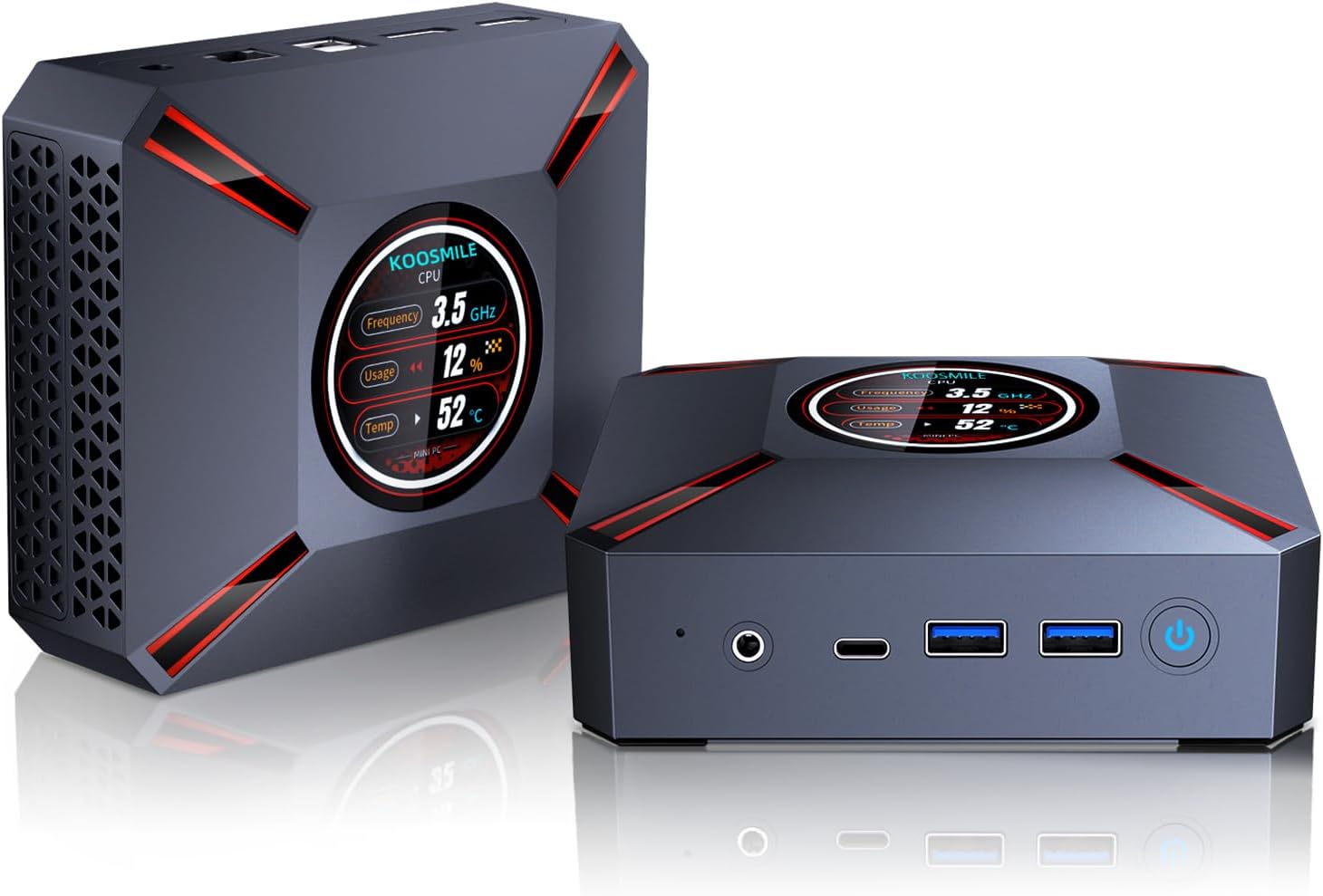
Figure 1.1: The KOOSMILE Mini PC KT-M9, showcasing its compact design and smart display.

図1.2:以上view of the Mini PC's core features, including its powerful processor, memory, storage, and connectivity options.
2. パッケージ内容
パッケージを開封した際には、すべての商品が揃っていること、また良好な状態であることをご確認ください。不足品や破損品がございましたら、カスタマーサポートまでご連絡ください。
- 1 x KOOSMILE Mini PC KT-M9
- HDMIケーブル x 1
- 電源アダプター x 1
- ディスプレイポート(DP)ケーブル×1
- USBハブ x 1
- 1 x Metal Sheet Bracket (for mounting)
- ユーザーマニュアル (本書) x 1
3.製品オーバーview
The KOOSMILE Mini PC KT-M9 is designed for efficiency and versatility. Its compact chassis houses high-performance components and a variety of ports for extensive connectivity.
3.1.物理的寸法
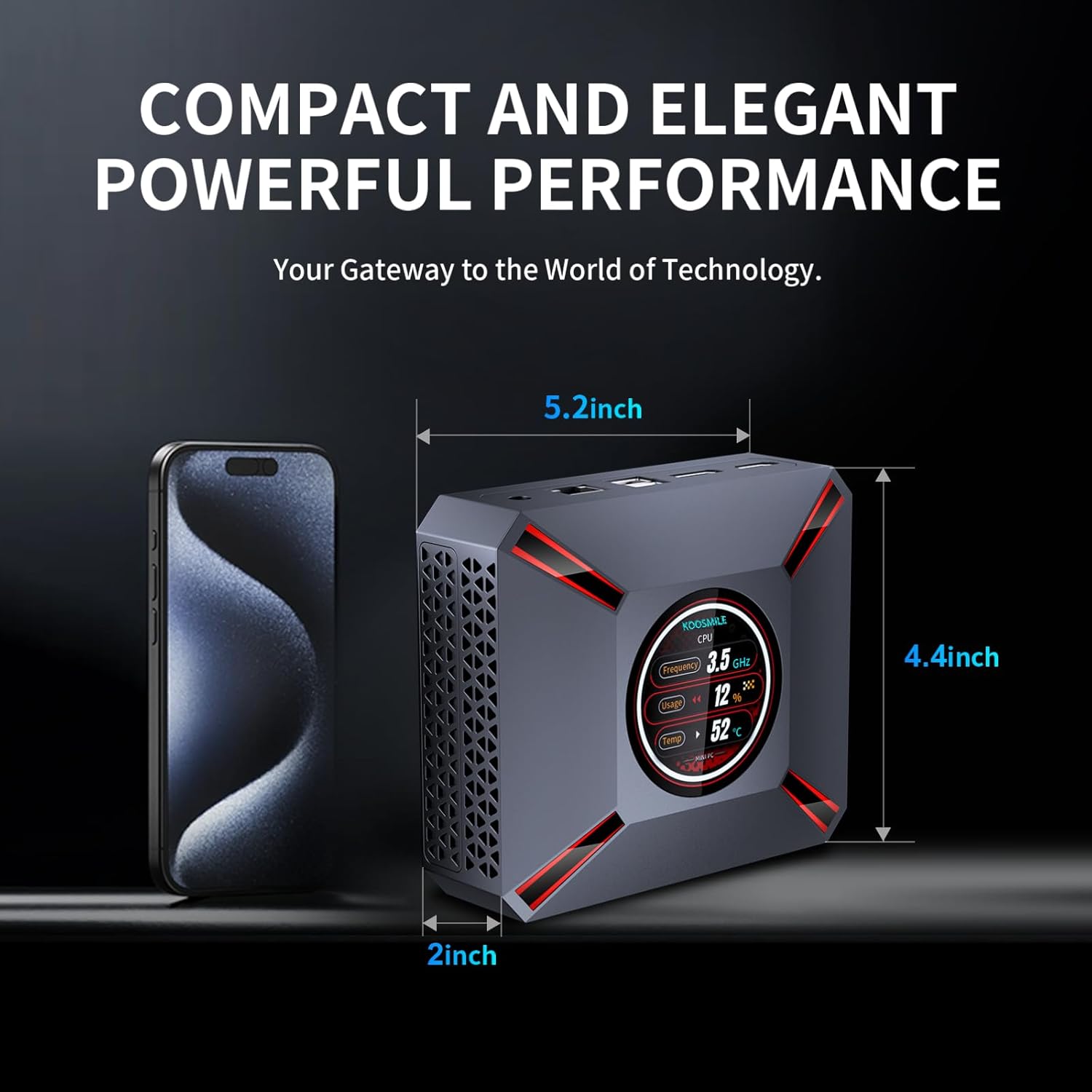
Figure 3.1: The compact size of the Mini PC, approximately 5.2 inches in length, 4.4 inches in width, and 2 inches in height, shown next to a smartphone for scale.
3.2. ポートとコネクタ
Familiarize yourself with the various input/output ports on your Mini PC:

Figure 3.2: Detailed diagram of the Mini PC's front and rear ports, including power, video outputs, USB, and audio connections.
- フロントパネル:
- 3.5mmオーディオ/マイクジャック
- USB Type-C Port (Full-feature)
- USB 2 ポート x 3.0
- 電源ボタン
- CMOS Reset Pinhole
- 後面パネル:
- DC-INジャック(電源入力)
- イーサネット(RJ-45)ポート
- USB 2 ポート x 2.0
- DisplayPort (DP 1.4a)
- HDMI2.1出力
3.3. Smart Display Monitoring
The Mini PC features a built-in smart display on the lid that provides real-time system information. This display allows you to quickly monitor key performance metrics without needing additional software.

Figure 3.3: The smart display interface, showing real-time data such as CPU frequency, usage, temperature, network upload/download speeds, and disk usage.
表示される情報は次のとおりです:
- CPU周波数
- CPU使用率tage
- CPU温度(°C)
- ネットワークアップロード/ダウンロード速度
- メモリ使用量
4.セットアップガイド
Follow these steps to set up your KOOSMILE Mini PC for the first time.
4.1. ハードウェアの初期接続
- 周辺機器を接続します。 Plug in your USB keyboard and mouse to the available USB ports (USB 3.0 ports are recommended for faster response).
- ディスプレイを接続する: Connect your monitor(s) to the Mini PC using the provided HDMI cable, DisplayPort cable, or a USB-C to display cable. Important: Ensure the display device is connected before turning on the computer. Use the included HDMI cable and avoid other adapter cables for the HDMI interface to prevent compatibility issues.
- 接続電源: Insert the power adapter cable into the DC-IN jack on the rear panel of the Mini PC, then plug the power adapter into a wall outlet.
- ネットワーク接続(オプション): For a wired connection, connect an Ethernet cable from your router or modem to the RJ-45 port on the Mini PC. For wireless connection, Wi-Fi 6 is enabled by default.
4.2. 初回起動とWindows 11 Proのセットアップ
- 電源オン: Press the Power Button on the front panel of the Mini PC. The smart display will illuminate, and the system will begin to boot.
- Windows 11 Pro セットアップ: The Mini PC comes pre-installed with Windows 11 Pro. On the first boot, you will be guided through the Windows Out-Of-Box Experience (OOBE) to configure language, region, network, and user accounts. Follow the on-screen prompts to complete the setup.
- ドライバーのインストール: All necessary drivers are pre-installed. Please avoid installing third-party drivers unless specifically instructed by KOOSMILE support to prevent compatibility issues.
4.3. Triple Display Configuration
The Mini PC supports up to three displays simultaneously via HDMI 2.1, DisplayPort 1.4a, and the full-feature USB Type-C port. This allows for an extended workspace or multi-monitor setups for productivity or entertainment.
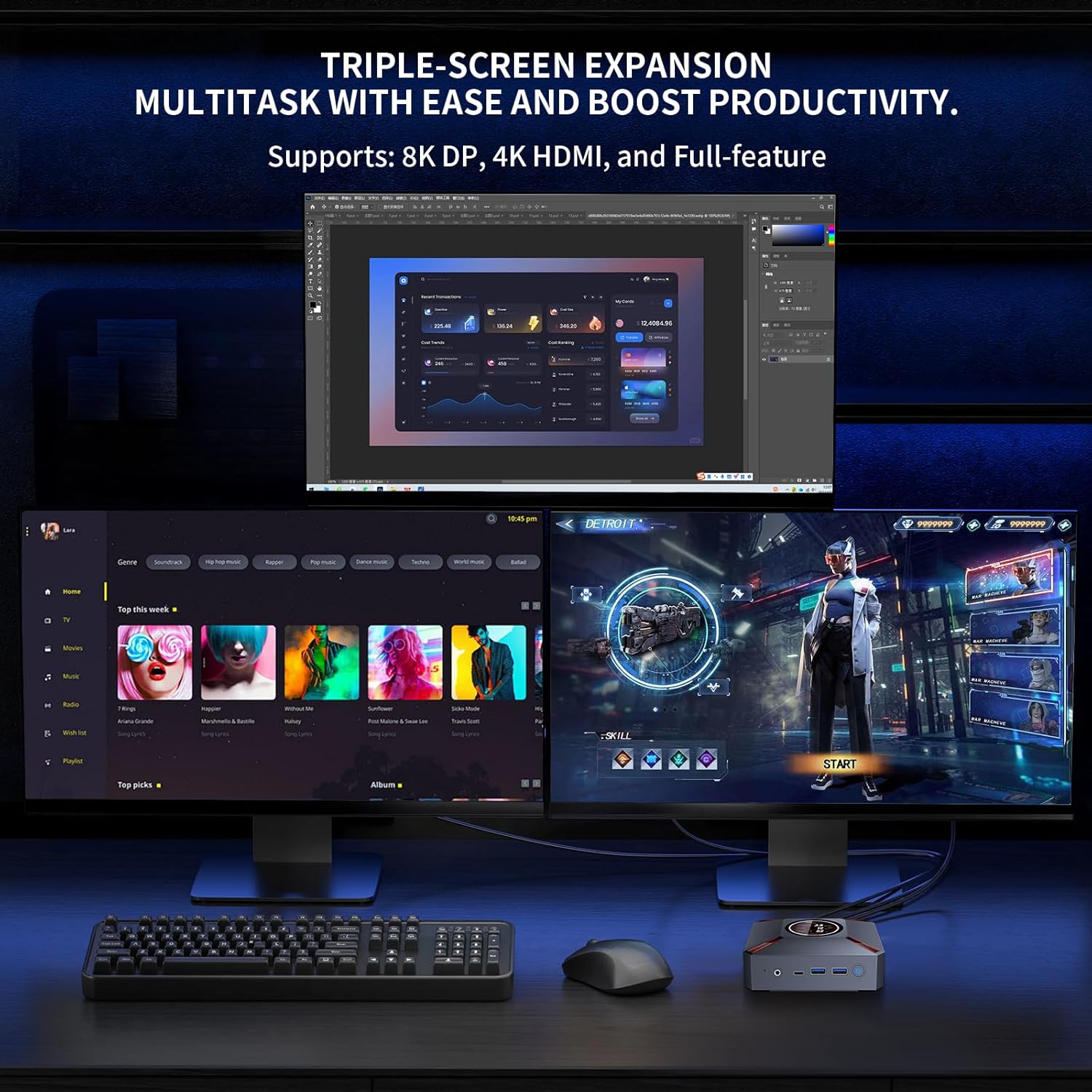
図4.1:例ample of a triple-monitor setup connected to the Mini PC, demonstrating its multi-display capability.
Windows 11 で複数のディスプレイを構成するには:
- Ensure all monitors are physically connected to the Mini PC and powered on.
- デスクトップの空白領域を右クリックし、「ディスプレイ設定」を選択します。
- In the Display settings window, Windows should detect all connected displays. You can arrange them by dragging and dropping the display icons.
- 「複数のディスプレイ」の下で、ディスプレイの使用方法を選択します(例:「これらのディスプレイを拡張する」、「これらのディスプレイを複製する」)。
- Adjust resolution, orientation, and scaling for each display as needed.
5. 操作手順
This section covers basic operation and utilization of your Mini PC.
5.1. 電源のオン/オフと再起動
- 電源オン: ミニ PC の前面にある電源ボタンを押します。
- シャットダウン: Windows の [スタート] ボタンをクリックし、[電源] > [シャットダウン] を選択します。
- 再起動: Windows の [スタート] ボタンをクリックし、[電源] > [再起動] を選択します。
- 寝る: Windows の [スタート] ボタンをクリックし、[電源] > [スリープ] を選択します。
5.2. スマートディスプレイの使用
The smart display on the lid provides real-time system metrics. It operates automatically and requires no user input. Monitor these values to understand your system's current load and health.
5.3. ネットワーク接続
- Wi-Fi 6: ワイヤレス ネットワークに接続するには、Windows タスクバーの Wi-Fi アイコンをクリックし、目的のネットワークを選択してパスワードを入力し、[接続] をクリックします。
- イーサネット: If an Ethernet cable is connected, the Mini PC will automatically establish a wired network connection.
5.4. ストレージ管理
Your Mini PC comes with a 1TB NVMe SSD. You can manage disk partitions through Windows Disk Management. If you wish to adjust the hard disk partition structure, please refer to online resources or contact KOOSMILE customer support for guidance.
6. メンテナンス
適切なメンテナンスを行うことで、ミニ PC の寿命が長くなり、最適なパフォーマンスが確保されます。
6.1. 清掃
- 外観: ミニPCの外側は、柔らかく乾いた糸くずの出ない布で拭いてください。頑固な汚れには、軽くこすってください。amp布を水で拭いてください。刺激の強い化学薬品や研磨剤入りの洗剤は使用しないでください。
- 通気口: Periodically use compressed air to clear dust from the ventilation grilles to ensure proper airflow.
6.2. 冷却システム
The Mini PC features an advanced copper cooling fan and multiple vents for efficient heat dissipation. This system is designed to keep your PC running smoothly even under intense tasks.

図6.1:内部 view highlighting the efficient cooling system with its copper fan, designed to maintain optimal operating temperatures.
Ensure the Mini PC is placed in a well-ventilated area and that the vents are not obstructed. A slight heating of the metal housing during operation is normal and indicates effective heat dissipation.
6.3. ソフトウェアの更新
システムの安定性、セキュリティ、パフォーマンスを確保するために、Windowsの更新プログラムを定期的に確認してインストールしてください。 設定 > Windows Update 更新を確認します。
7。 トラブルシューティング
このセクションでは、ミニ PC で発生する可能性のある一般的な問題について説明します。
7.1. ディスプレイ出力なし
- Ensure the monitor is powered on and correctly connected to the Mini PC's HDMI, DisplayPort, or USB-C video output.
- モニターで正しい入力ソースが選択されていることを確認します。
- 重要: Always connect the display device before powering on the Mini PC.
- Try using a different video cable or monitor to rule out faulty peripherals.
7.2. システムが電源を入れない
- 電源アダプタがミニ PC と正常な電源コンセントの両方にしっかりと接続されていることを確認します。
- 別のデバイスでテストして、電源コンセントが機能していることを確認します。
7.3. ブーンという音
- A slight buzzing sound might occur. Try restarting the computer. If the sound persists or is unusually loud, contact customer support.
7.4. 接続の問題(Wi-Fi/Bluetooth)
- Wi-Fi: Ensure Wi-Fi is enabled in Windows settings. Restart your router/modem. Check for interference from other devices.
- ブルートゥース: Windowsの設定でBluetoothが有効になっていることを確認してください。Bluetoothデバイスの再ペアリングをお試しください。
7.5. 一般的なパフォーマンスの問題
- バックグラウンドで実行されている不要なアプリケーションを閉じます。
- Windows とドライバーが最新であることを確認します。
- Check the smart display for high CPU usage or temperature, which might indicate a heavy workload or cooling issue.
8. 仕様
Detailed technical specifications for the KOOSMILE Mini PC KT-M9.

Figure 8.1: Key specifications of the Intel Core i9-12900HK processor, highlighting its core count, threads, cache, and maximum turbo frequency.

Figure 8.2: Information on the high-speed DDR4 memory and PCIe 3.0 SSD, crucial for fast data processing and quick loading times.

Figure 8.3: Comparison of wireless and wired connectivity speeds, highlighting the advantages of Wi-Fi 6 and USB 3.0.
| 成分 | 仕様 |
|---|---|
| プロセッサ | Intel Core i9-12900HK (14 Cores, 20 Threads, up to 5.0GHz, 24MB Cache) |
| オペレーティング·システム | ウィンドウズ11プロ |
| ラム | 32GB DDR4 3200MHz |
| ストレージ | 1TB PCIe 3.0 NVMe SSD |
| グラフィックス | Intel Iris Xe グラフィックス(統合型) |
| ビデオ出力 | HDMI 2.1 (4K @ 60Hz), DisplayPort 1.4a (8K @ 60Hz), USB Type-C (Full-feature) |
| ワイヤレス接続 | Wi-Fi 6(802.11ax)、Bluetooth 5.2 |
| 有線接続 | 1000M RJ45 Ethernet |
| USBポート | 2 x USB 3.0, 2 x USB 2.0, 1 x USB Type-C (Full-feature) |
| オーディオ | 3.5mmオーディオ/マイクジャック |
| 冷却システム | Advanced Copper Cooling Fan with Multiple Vents |
| スマートディスプレイ | Real-time CPU Frequency, Usage, Temperature, Network, Memory |
| 寸法 | 約5.2×4.4×2インチ(13.2×11.2×5.1cm) |
| 重さ | 約2.57 ポンド (1.17 kg) |
9. 保証とサポート
KOOSMILE is committed to providing high-quality products and excellent customer service.
9.1. 保証情報
Your KOOSMILE Mini PC KT-M9 comes with a 1年間の無料保証 from the date of purchase. This warranty covers manufacturing defects and hardware malfunctions under normal use. It does not cover damage caused by misuse, accidents, unauthorized modifications, or natural disasters.
9.2. テクニカルサポート
For any technical assistance, troubleshooting, or warranty claims, please contact our customer service team via email. Provide your product model (KT-M9), purchase date, and a detailed description of the issue to receive prompt support.
メールアドレス: [Insert Customer Support Email Here - e.g., support@koosmile.com]
Our team is dedicated to helping you resolve any issues and ensure your satisfaction with your KOOSMILE Mini PC.
Ask a question about this manual
Ask about setup, troubleshooting, compatibility, parts, safety, or missing instructions. Manuals+ will review the question and use this page’s manual context to help answer it.