
導入
This manual provides essential information for setting up, operating, maintaining, and troubleshooting your HP 14 inch Laptop. Please read this guide thoroughly to ensure proper use and to maximize the performance and longevity of your device.

Image: An HP 14 inch laptop being used by a person on a kitchen counter, demonstrating its portability and suitability for various environments.
1. 初期設定
1.1 開梱と初回電源投入
ノートパソコンとすべての付属品をパッケージから慎重に取り出します。すべてのコンポーネントが揃っていることを確認してください。
- HP 14インチノートパソコン
- 電源アダプター
- ドキュメント
Connect the power adapter to the laptop's power port and then to a wall outlet. Press the power button to turn on the laptop. Follow the on-screen instructions to complete the initial Windows 11 setup, including language selection, network connection, and user account creation.
1.2 周辺機器の接続
ノートパソコンには、外部デバイスを接続するためのさまざまなポートが装備されています。

画像: サイド view of the HP 14 inch laptop, highlighting the various ports available for connecting peripherals such as USB devices and external displays.
- USB 3.2 Gen 1 Type-C (5Gbps): 最新の USB-C デバイスを接続します。
- USB 3.2 Gen 1 Type-A (2x, 5Gbps): マウス、キーボード、外付けドライブなどの標準 USB デバイス用。
- HDMI v1.4: 外部ディスプレイやプロジェクターに接続します。
- ヘッドフォン/マイクコンボジャック: オーディオ入出力デバイス用。
Simply plug the peripheral's cable into the corresponding port on the laptop. Most devices are plug-and-play and will be recognized automatically by Windows 11.
2. 操作
2.1 基本的な使用法
The laptop features a standard keyboard and a responsive touchpad for navigation. Familiarize yourself with the function keys (Fn) for quick access to settings like volume, brightness, and Wi-Fi.
2.2 Connecting to Networks (Wi-Fi)
Your laptop supports Wi-Fi 6 for fast wireless connectivity. To connect to a Wi-Fi network:
- タスクバーの Wi-Fi アイコン (通常は右下) をクリックします。
- リストから希望のネットワークを選択します。
- プロンプトが表示されたら、ネットワーク セキュリティ キー (パスワード) を入力します。
- 「接続」をクリックします。
2.3 Bluetoothデバイスのペアリング
The laptop includes Bluetooth 5.3 for connecting wireless accessories. To pair a Bluetooth device:
- へ移動 設定 > Bluetoothとデバイス.
- Bluetoothがオンになっていることを確認してください On.
- クリック デバイスを追加 選択して ブルートゥース.
- Bluetoothデバイスをペアリングモードにします。
- Select your device from the list and follow any on-screen prompts.
2.4を使用して Webカム
The integrated 720p HD camera is suitable for video calls and conferences. For privacy, your laptop features a physical privacy shutter. Slide the shutter to cover or uncover the camera lens as needed.
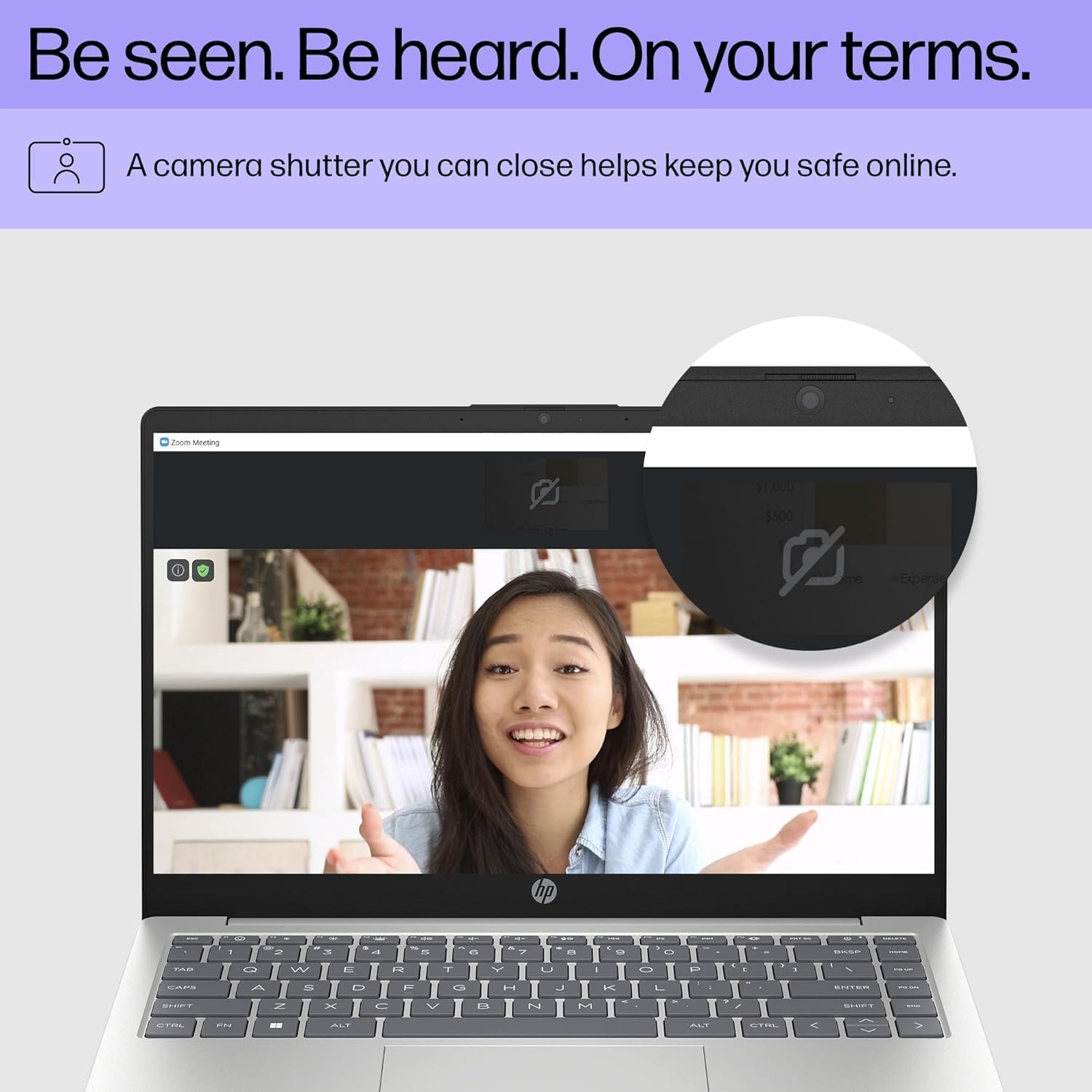
Image: Close-up of the HP laptop's integrated webcam, showing the physical privacy shutter in the open position. This feature allows users to physically block the camera lens for enhanced privacy.
2.5 バッテリー管理
The laptop is equipped with a 3-cell 41Wh battery, providing up to 8 hours of non-gaming battery life. To optimize battery longevity:
- バッテリーを頻繁に完全に放電することは避けてください。
- Keep the laptop in a cool, dry environment.
- 画面の明るさを快適なレベルに調整します。
- Utilize Windows power saving modes when on battery power.

Image: Diagram illustrating the HP laptop's dimensions (14" display, 12.74" W, 8.46" D, 0.70" H) and indicating up to 8 hours of mixed usage battery life. This highlights the laptop's portability and endurance.
3. メンテナンス
3.1 ノートパソコンの掃除
定期的にクリーニングすると、ノートパソコンの外観と機能性を維持するのに役立ちます。
- 画面: 柔らかく糸くずの出ない布を軽く拭いてください。amp水またはスクリーンクリーナーで拭いてください。刺激の強い化学薬品は使用しないでください。
- キーボードとシャーシ: 柔らかい布を使用してください。頑固な汚れには、軽く湿らせた布で拭き取ってください。amp液体が開口部に入らないように、中性洗剤溶液を含ませた布を使用できます。
- ポート: 圧縮空気を使用して、ポートからほこりを丁寧に取り除きます。
3.2ソフトウェアアップデート
Keep your Windows 11 operating system and drivers updated to ensure optimal performance and security. Windows Update typically handles this automatically, but you can manually check by going to 設定 > Windows Update.
3.3 Storage and Memory Management
Your laptop is equipped with a 4TB NVMe M.2 SSD and 64GB DDR4 RAM. While these provide ample capacity, regular management is recommended:
- 定期的に不要なものを削除する fileおよびアプリケーションをアップグレードして、ストレージ領域を解放します。
- クラウドストレージを活用 files to reduce local drive usage.
- Windows 11 includes tools like Storage Sense (in Settings > System > Storage) to automate cleanup.
4. 一般的な問題のトラブルシューティング
4.1 電源の問題
- ノートパソコンが起動しない: 電源アダプターがノートパソコンと電源コンセントの両方にしっかりと接続されていることを確認してください。別のコンセントを試してください。
- バッテリーが充電されない: 電源アダプタの接続を確認してください。アダプタやケーブルに損傷がないか確認してください。
4.2 表示の問題
- 画面に画像が表示されない: If connected to an external monitor, ensure the correct input source is selected on the monitor. Try pressing Fn+F4 キー (or the equivalent display toggle key) to switch display outputs.
- 画面を暗くする: ファンクションキーを使用して明るさを調整します(例: Fn + F2 / F3) または Windows のディスプレイ設定から設定できます。
4.3 接続の問題(Wi-Fi/Bluetooth)
- Wi-Fiに接続できません: Ensure Wi-Fi is enabled in Windows settings. Restart your router and the laptop. Check if other devices can connect to the network.
- Bluetoothデバイスがペアリングされない: Ensure the Bluetooth device is in pairing mode and within range. Restart Bluetooth on the laptop and the device.
より詳細なトラブルシューティングや継続的な問題については、HPサポートを参照してください。 webサイトをご覧いただくか、カスタマーサービスにお問い合わせください。
5. 仕様
Detailed technical specifications for your HP 14 inch Laptop (Model EP01):

Image: Infographic detailing key specifications of the HP 14 inch laptop, including 13th Gen Intel Core i7-1355U processor, 16GB DDR4-3200 MHz RAM, 1TB PCIe NVMe M.2 SSD, Intel Iris Xe Graphics, Windows 11 Home, and a Full HD IPS anti-glare display.
| 特徴 | 仕様 |
|---|---|
| ブランド | HP |
| モデル名 | 14 inch Laptop (EP01) |
| プロセッサ | 13th Generation Intel Core i7-1355U (10 Cores, up to 5.0GHz) |
| グラフィックス | Intel Iris Xe グラフィックス(統合型) |
| メモリ(RAM) | 64GB DDR4 3200 MHz SDRAM (Upgraded from 16GB) |
| ストレージ | 4TB NVMe M.2 SSD (Upgraded from 1TB) |
| 画面 | 14" FHD (1920 x 1080) IPS Anti-Glare, 300 nits, 45% NTSC, 60Hz |
| オペレーティング·システム | Windows 11 ホーム |
| 接続性 | Wi-Fi 6(2x2)、Bluetooth 5.3 |
| ポート | 1x USB 3.2 Gen 1 Type-C, 2x USB 3.2 Gen 1 Type-A, 1x HDMI v1.4, 1x Headphone/Microphone Combo Jack |
| カメラ | プライバシーシャッター付き720p HDカメラ |
| オーディオ | デュアルスピーカー |
| バッテリー | 3セル 41Wh(非ゲーム時最大8時間) |
| 寸法(長さ×幅×高さ) | 12.74 x 8.46 x 0.70インチ |
| 重さ | 5.13ポンド |
| 色 | ナチュラルシルバー |
| 欧州連合 | 194850841057 |
6. 保証とサポート
6.1製品保証
Your HP laptop comes with a standard manufacturer's warranty. For specific details regarding coverage, duration, and terms, please refer to the warranty documentation included with your product or visit the official HP support webサイト。保証は通常、通常の使用における材料および製造上の欠陥を対象とします。
6.2 カスタマーサポート
For technical assistance, service, or further inquiries, please contact HP Customer Support:
- オンラインサポート: 訪問 サポート ドライバー、マニュアル、トラブルシューティング ガイド。
- 電話サポート: Refer to the contact information provided in your product's documentation for regional phone numbers.
When contacting support, please have your laptop's serial number and model number (EP01) ready.


