
導入
Thank you for choosing the Auskang Smart Tag 4 Pack. These smart tags are designed to help you easily locate your valuable items such as keys, wallets, bags, and luggage. Utilizing Apple's Find My network, these tags provide a reliable and efficient way to keep track of your belongings. This manual provides detailed instructions on setting up, operating, and maintaining your Smart Tags.
製品終了view
The Auskang Smart Tag is a compact, water-resistant item tracker that works exclusively with Apple iOS devices through the Find My app. Each pack contains four Smart Tags, allowing you to track multiple items simultaneously.
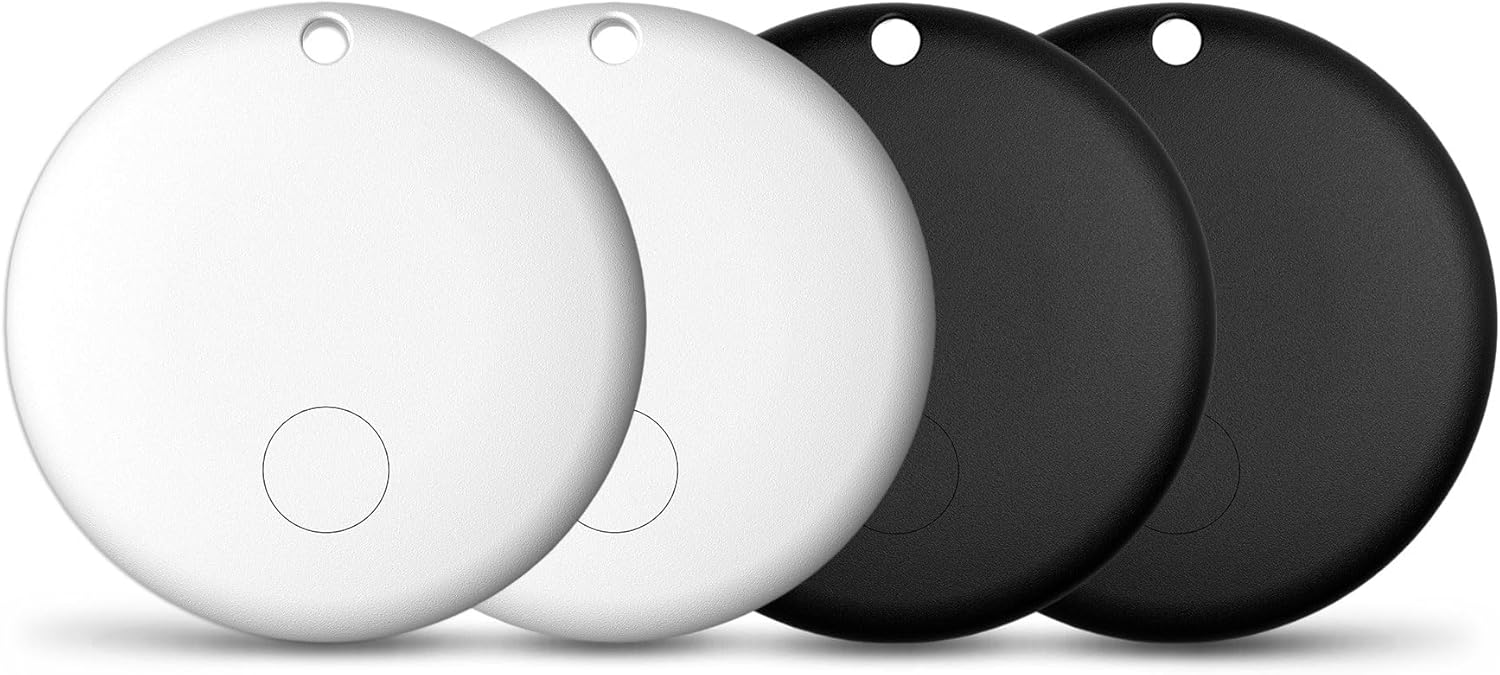
Image: Auskang Smart Tag 4 Pack. The image displays four circular smart tags, two in white and two in black, showcasing the product's design and quantity.
パッケージ内容:
- 4 x Auskang Smart Tags (2 Black, 2 White)
- ユーザーマニュアル (本書) x 1
- CR2032電池4個(プリインストールまたは付属)
物理的仕様:
- 寸法: Diameter 1.14 inches (30 mm), Thickness 0.27 inches (7 mm)
- 重さ: Approximately 0.2 oz (5.84 g) per tag
- 材料: プラスチック
- 接続性: ブルートゥース
- バッテリー: CR2032(交換可能)
- 範囲: Up to 250 feet (Bluetooth range)
- 耐水性: はい

Image: Detailed dimensions of a single Auskang Smart Tag. The image shows a white tag held between fingers, with measurements indicating a diameter of 1.14 inches (30 mm) and a thickness of 0.27 inches (7 mm).
設定
The Auskang Smart Tags are designed for easy integration with Apple's Find My network. Please ensure your iOS device is updated to the latest version for optimal performance.
- スマートをアクティブ化する Tag: もし、 tag is not already active, press the button on the tag to wake it up. You may hear a small chime.
- 「探す」アプリを開きます: On your iPhone, iPad, or iPod touch, open the "Find My" app.
- 新しいアイテムを追加: Go to the "Items" tab and tap the "+" icon. Select "Add Other Item."
- 接続する Tag: Your device will begin searching for nearby items. Place the Smart Tag close to your iOS device. Once detected, follow the on-screen prompts to name your tag 絵文字を割り当てます。
- 登録する: Confirm the registration of the Smart Tag Apple IDに追加します。
- 添付: Securely attach the Smart Tag to the item you wish to track (e.g., keys, backpack, wallet).

Image: Features of the Auskang Smart Tag. This graphic highlights that the tag "Works with Apple Find My," has "Privacy is Built in," supports "Hey Siri, find my Key," and features a "Replaceable Battery" that lasts over one year.
Note: These Smart Tags are compatible only with Apple iOS devices and the Find My network. They do not support Android devices.
操作手順
1. Play a Sound to Find Your Device
あなたのスマートなら Tag is nearby but out of sight, you can make it play a sound to help you locate it.
- iOS デバイスで「探す」アプリを開きます。
- 「アイテム」タブに移動します。
- スマートを選択 Tag あなたが探したいもの。
- Tap "Play Sound." The Smart Tag will emit a series of beeps, guiding you to its location.
- アイテムが見つかったら、「サウンドを停止」をタップします。

Image: "Play a sound to find your device." This image shows a smartphone screen displaying the Apple Find My app, with an option to "Play Sound" for a "Victor's Key" item, indicating the tag is emitting sound waves.
2. 置き去りにされた人へのリマインダー
Receive notifications if you accidentally leave your Smart Tag behind in an unfamiliar location.
- 「探す」アプリを開きます。
- Go to the "Items" tab and select your Smart Tag.
- Under "Notifications," toggle on "Notify When Left Behind."
- You can also set "New Location" exceptions where you don't want to be notified (e.g., your home or office).

Image: "Left Behind Remind" feature. The image shows a smartphone displaying a notification that reads "TIME SENSITIVE 'victor's Key' left behind. This item is no longer detected near you. It was last seen near xxxxxxxx St."
3. 紛失モード
あなたのスマートなら Tag goes missing, you can put it into Lost Mode to help recover it.
- 「探す」アプリを開きます。
- Go to the "Items" tab and select your Smart Tag.
- Under "Lost Mode," tap "Enable."
- 指示に従って、誰かがあなたのアイテムを見つけた場合に連絡を取ることができる電話番号またはメールアドレスを入力してください。
- You can also choose to be notified when the item's location is updated.
スマート Tag is in Lost Mode and detected by another device on the Find My network, you will receive a notification of its updated location. The person who finds your tag can tap it with their NFC-enabled smartphone to see your contact information.

Image: "Lost Mode" feature. The image displays a smartphone screen within the Find My app, showing details for a lost item, including its serial number, owner information, and a message indicating the item has been marked as lost with a contact number.
メンテナンス
バッテリー交換
The Auskang Smart Tag uses a standard CR2032 coin cell battery, which is replaceable and typically lasts over one year. When the battery is low, you will receive a notification on your iOS device.
- Locate the small groove or opening on the side of the Smart Tag.
- Using a small, flat tool (like a coin or a small screwdriver), gently twist or pry open the tag'scasing.
- 古い CR2032 電池を取り外します。
- 新しい CR2032 電池をプラス (+) 側を上に向けて挿入します。
- 2つの半分を揃えて tag and press firmly until it clicks securely back into place.
耐水性
スマート Tag is designed to be water-resistant, protecting it from splashes and dust. However, it is not waterproof and should not be submerged in water or exposed to high-pressure water jets. Ensure the casin電池交換後も適切に密封され、耐水性が維持されます。
トラブルシューティング
| 問題 | 考えられる原因 | 解決 |
|---|---|---|
| 頭いい Tag 「探す」アプリに接続できません。 |
|
|
| 「サウンドの再生」機能が動作しません。 |
|
|
| "Notify When Left Behind" not triggering. |
|
|
| Tag appears offline or location is not updating. |
|
|
仕様
| 属性 | 詳細 |
|---|---|
| ブランド | オースカン |
| モデル番号 | マカロン、ロシャル Tag、F08 |
| ASIN | B0DM5HVRYM |
| パッケージ寸法 | 3.5 x 2.56 x 0.63インチ |
| Item Weight (per tag) | 0.2オンス(5.84グラム) |
| バッテリー | 1 x CR2032 per tag (含まれます) |
| 接続技術 | ブルートゥース |
| Bluetooth範囲 | 最大250フィート |
| 色 | 黒、白 |
| 材料 | プラスチック |
| 対応デバイス | iOSデバイスのみ(iPhone、iPad、iPod touch) |
| 耐水性 | はい |
保証とサポート
Auskang provides a 2年間保証 for any problems related to the Smart Tag. For warranty claims, technical support, or any inquiries regarding your Auskang Smart Tags, please contact Auskang customer service through the retailer where you purchased the product or visit the official Auskang web連絡先情報のサイト。
保証を有効にするために購入証明書を保管してください。