
Xixi Vision Uhale-10.1
Uhale Digital Picture Frame 10.1 Inch User Manual
モデル: Uhale-10.1 | ブランド: 西渓ビジョン
導入
This manual provides detailed instructions for setting up, operating, maintaining, and troubleshooting your Uhale 10.1 Inch Smart WiFi Digital Picture Frame. Please read this manual thoroughly before using the device to ensure proper functionality and longevity.

Figure 1: Uhale Digital Picture Frame and Uhale App Interface
The Uhale Digital Picture Frame allows you to display photos and videos with ease, offering smart features like Wi-Fi connectivity, app-based sharing, and auto-rotation. Its 10.1-inch IPS HD touch screen provides a clear and vibrant viewing の経験。
セットアップガイド
1. パッケージ内容
始める前に、パッケージにすべてのアイテムが揃っていることを確認してください。
- デジタルフォトフレーム x 1
- ACアダプターX 1
- ユーザーマニュアル x 1
- フレームスタンド×1

図2: パッケージリスト
Ensure all components are accounted for before proceeding with the setup.
2. 初回電源投入とWi-Fi接続
- Connect the AC adapter to the frame and plug it into a power outlet.
- フレームは自動的に電源が入ります。画面の指示に従って言語とタイムゾーンを選択してください。
- Connect the frame to your Wi-Fi network. Select your network from the list and enter the password. A stable Wi-Fi connection is required for app-based sharing and cloud features.
3. Uhale App Setup
The "Uhale" app allows for easy photo and video sharing from your smartphone.
- App Store (iOS) または Google Play Store (Android) から「Uhale」アプリをダウンロードしてください。
- アプリを開いてアカウントを作成するか、ログインします。
- On the frame, locate the unique frame code or QR code (usually found in settings under "Device Management" or "Add Friend").
- In the Uhale app, select "Add Frame" and enter the frame code or scan the QR code to link your device.
- Once linked, you can begin sharing photos and videos directly from your phone to the frame.

Figure 3: Instantly and Securely Sharing Photos and Videos Via Uhale APP
The Uhale app provides a secure and convenient way to share your memories with the frame.
4. ユハレ Web アップロード
You can also upload photos from your computer using the Uhale web インタフェース。
- 開く web browser on your computer and navigate to the Uhale web URL (refer to your frame's settings or the app for the exact address).
- Uhale アカウントの資格情報を使用してログインします。
- アップロードするフレームを選択します。
- Choose photos from your computer to upload. You can upload up to 500 photos at a time.
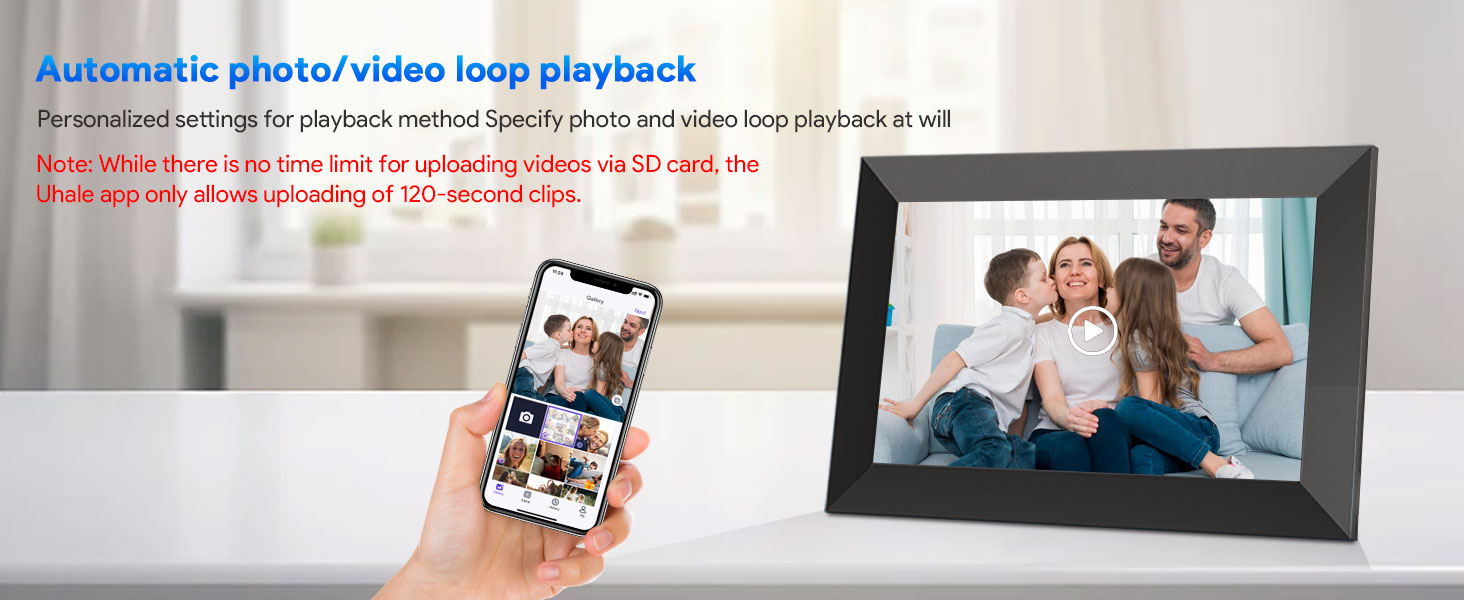
Figure 4: Share Photos Instantly and Securely via Uhale Web
の web interface offers a convenient way to transfer multiple photos from your computer.
操作手順
1. Basic Navigation and Touch Screen
The Uhale Digital Picture Frame features an intuitive touch screen for easy navigation. Swipe left or right to browse photos, tap to view options, and pinch to zoom (if supported by the software version).

Figure 5: 10.1 Inch IPS Touch Screen Display
The touch screen allows for direct and simple interaction with the frame's features.
2. 写真とビデオのアップロード
Content can be added via the Uhale app, Uhale web, or directly using a Micro SD card.
- Uhaleアプリ: As described in the Setup section, use the app to send photos and videos (up to 2 minutes in length) from your smartphone.
- ウハレ Web: Upload photos from your computer via the web インタフェース。
- マイクロSDカード: Insert a Micro SD card (up to 32GB, not included) into the designated slot. You can directly play photos and videos from the card or import them to the frame's internal memory. There is no time limit for videos uploaded via Micro SD card.
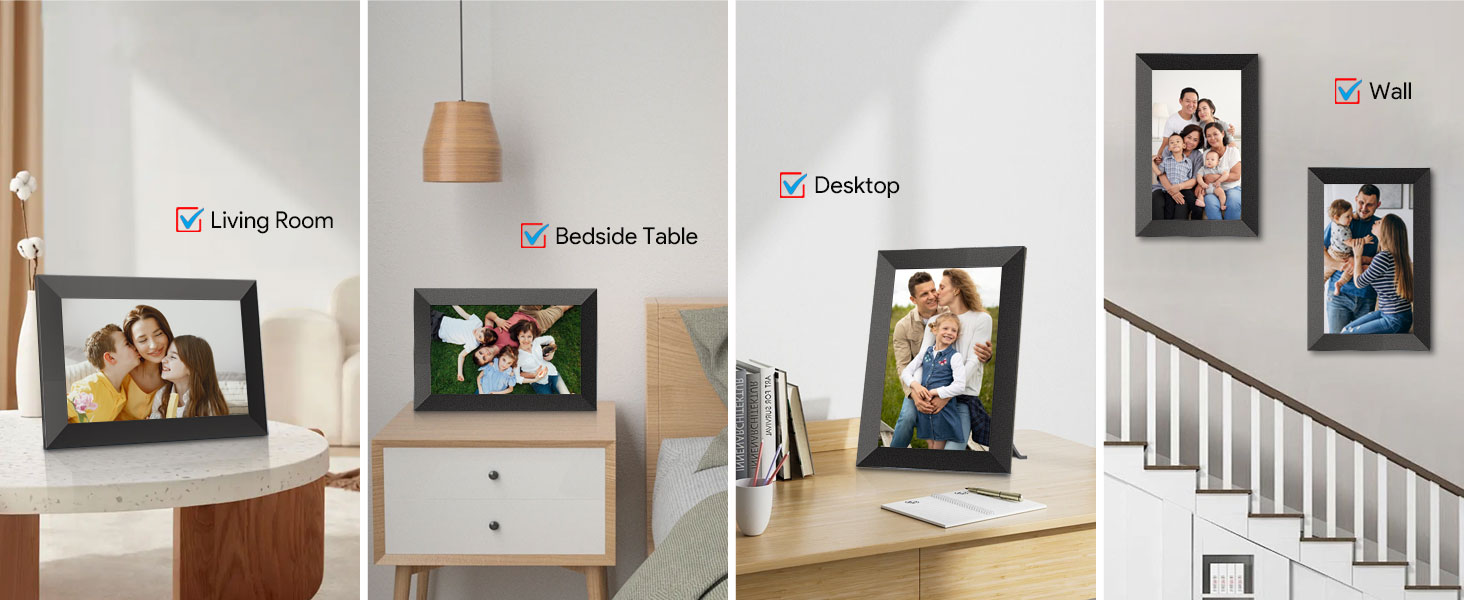
Figure 6: Built-in 16GB Memory and SD Card Expansion
The frame offers flexible options for storing and displaying your media.
3. Auto-Rotation and Placement
The frame automatically adjusts the display orientation (portrait or landscape) based on its physical position. It can be placed on a desktop using the stand or mounted on a wall.

Figure 7: Auto-Rotate & Wall Mounted
The auto-rotation feature ensures your photos are always displayed correctly, regardless of the frame's orientation.
4.ディスプレイ設定
- 明るさ調整: Swipe up or down on the left side of the screen to quickly adjust display brightness.
- 音量調整: Swipe up or down on the right side of the screen to quickly adjust the volume for videos.
- Fill/Fit Photo Frame: In settings, choose between 'Fill' (photo fills the screen, may crop edges) or 'Fit' (entire photo displayed, may have black bars).
- スライドショーモード: Select various slideshow transition effects and intervals from the settings menu.
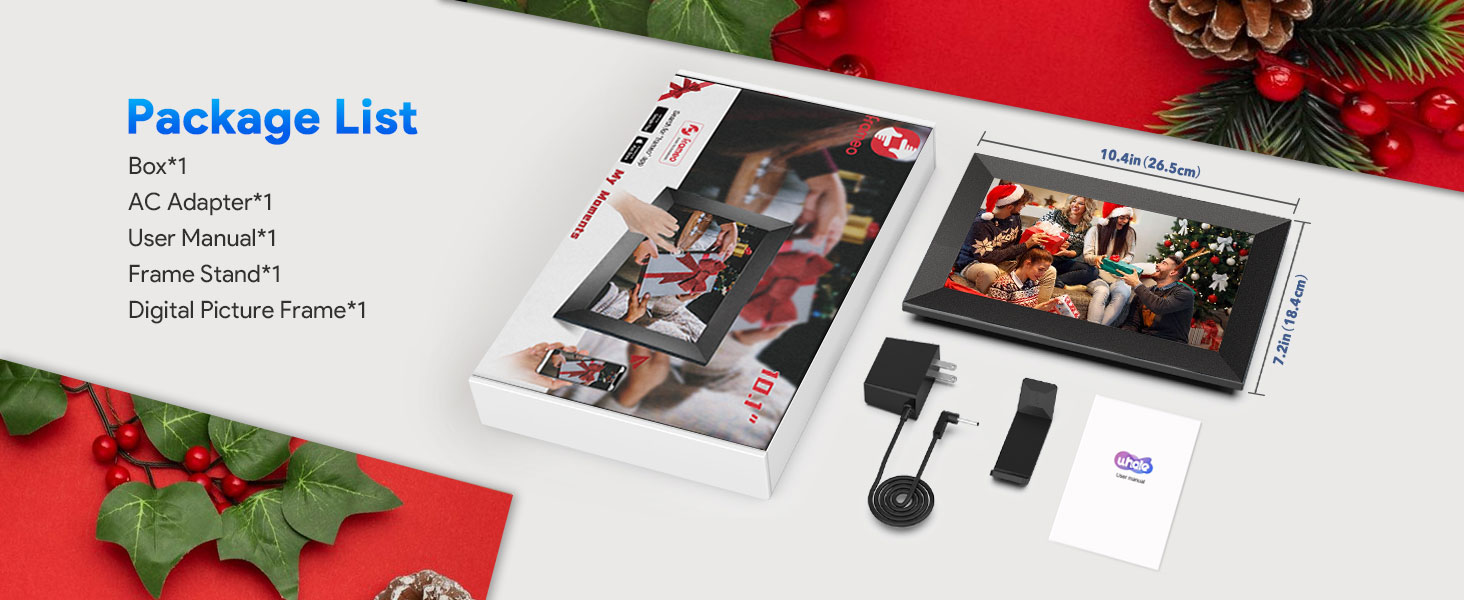
Figure 8: Adjustable Volume & Brightness
カスタマイズ viewing experience by adjusting brightness and volume directly on the screen.
5. スリープモードの設定
You can set a timed auto-sleep period for the frame to conserve energy and ensure quiet sleep during specific hours. The frame will automatically turn off the display and wake up at the set times.

Figure 9: Timed Auto-Sleep Feature
Configure the frame to automatically enter and exit sleep mode for convenience.
6. 複数ユーザー共有
The Uhale frame supports multiple users, allowing friends and family to share photos and videos to your frame from anywhere in the world via the Uhale app.
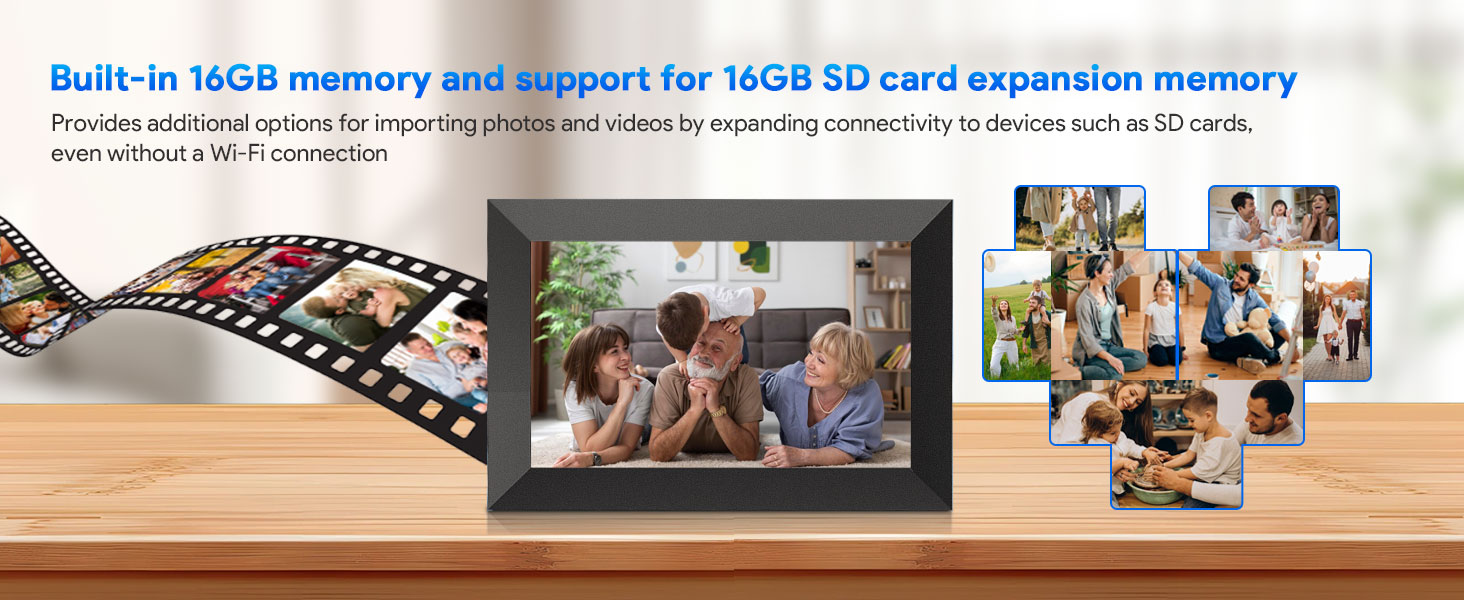
Figure 10: Supports Multiple Users
Invite others to share their cherished moments directly to your frame.
メンテナンス
1. フレームのクリーニング
画面をきれいにするには、柔らかく糸くずの出ない布で優しく拭いてください。頑固な汚れには、軽くamp布に水または画面に安全な洗浄液を含ませてください。刺激の強い化学薬品や研磨剤の使用は避けてください。
Clean the frame's body with a dry, soft cloth. Do not allow liquids to enter the frame's openings.
2. ストレージ管理
The frame has 16GB of built-in memory. If you encounter a "memory full" message, consider the following:
- Delete Unwanted Content: Access the frame's gallery or file manager to delete photos and videos you no longer wish to display.
- Utilize SD Card: If you have a Micro SD card inserted, you can move content from the internal memory to the SD card to free up space.
- Backup Content: Regularly back up important photos and videos to a computer or cloud storage before deleting them from the frame.
トラブルシューティング
| 問題 | 考えられる原因 | 解決 |
|---|---|---|
| フレームの電源が入りません。 | 電源アダプターが接続されていないか、コンセントに障害があります。 | ACアダプターがフレームにしっかりと接続され、電源コンセントが機能していることを確認してください。別のコンセントを試してください。 |
| "Network connection failed" message. | Wi-Fi パスワードが間違っている、信号が弱い、またはルーターに問題がある。 | Verify Wi-Fi password. Move the frame closer to the router. Restart your Wi-Fi router. Reconnect to the Wi-Fi network in the frame's settings. |
| "Memory full" message. | 内部ストレージがいっぱいです。 | Delete unwanted photos/videos. Transfer content to an SD card. |
| Cannot upload photos via Uhale app/web. | No internet connection, incorrect frame code, or app/web 問題。 | Check frame's Wi-Fi connection. Verify the frame code. Ensure the app/web interface is updated or try restarting the app/browser. |
| SD カードが認識されません。 | SD card not inserted correctly, incompatible format, or faulty card. | Reinsert the SD card. Ensure it is formatted to FAT32 or exFAT. Try a different SD card. |
工場出荷時設定にリセット
問題が解決しない場合は、工場出荷時の設定にリセットすると解決する可能性があります。 警告: A factory reset will erase all data and settings on the frame. Back up any important content before proceeding.
- Go to the frame's settings menu.
- Navigate to "System" or "About Device".
- Select "Factory Reset" or "Erase all data".
- Confirm your choice. The frame will restart and return to its initial setup state.
仕様
| 特徴 | 詳細 |
|---|---|
| 画面サイズ | 10.1インチ |
| 表示タイプ | IPS HDタッチスクリーン |
| 解決 | 1280x800 高解像度 |
| 内部メモリ | 16GB |
| 外部ストレージ | Micro SD カードをサポート(最大 32GB) |
| 接続性 | Wi-Fi |
| アプリの互換性 | Uhaleアプリ(iOS & Android) |
| 自動回転 | はい |
| 製品寸法 | 10.85 x 7.5 x 0.99インチ |
| アイテム重量 | 1ポンド |
| メーカー | 西渓ビジョン |
保証とサポート
For warranty information and technical support, please refer to the contact details provided on the product packaging or the official Xixi Vision webサイトでご確認ください。保証請求の際は購入証明として領収書を保管してください。
For the latest updates, FAQs, and additional support resources, please visit the official Uhale product support page or contact customer service directly.
Ask a question about this manual
Ask about setup, troubleshooting, compatibility, parts, safety, or missing instructions. Manuals+ will review the question and use this page’s manual context to help answer it.