
1. 重要な安全情報
本製品をご使用になる前に、すべての説明書をよくお読みください。このマニュアルは、今後の参考のために保管してください。
- 通気口を塞がないでください。プロジェクター周囲に十分な空気の流れを確保してください。
- 火災や感電を防ぐため、プロジェクターを雨や湿気にさらさないでください。
- メーカー指定のアタッチメント/アクセサリのみを使用してください。
- 雷雨のときや長期間使用しない場合は、プロジェクターのプラグを抜いてください。
- すべてのメンテナンスは資格のあるサービス担当者に依頼してください。
2. パッケージ内容
パッケージにすべてのアイテムが含まれていることを確認します。
- WEWATCH S3 4K Portable Projector
- リモートコントロール
- 電源ケーブル
- HDMIケーブル
- ユーザーマニュアル
3.製品オーバーview
Familiarize yourself with the components and ports of your WEWATCH S3 projector.

画像: 前面 view of the WEWATCH S3 4K Portable Projector, showcasin洗練されたデザインとレンズ。
3.1. ポートと接続
The projector features various ports for versatile connectivity:

画像: 背面 view of the WEWATCH S3 projector, highlighting its various input and output ports including LAN, USB, HDMI, and audio jacks.
- LAN(×1): 有線ネットワーク接続用。
- USB(x2): USB ドライブまたはその他の USB デバイスを接続します。
- HDMI(×2): For connecting external devices like laptops, gaming consoles, or streaming sticks.
- AU (Audio Out x1): 外部オーディオ機器を接続します。
- AX (Audio In x1): 音声入力用。
4. セットアップ
プロジェクターを初めてセットアップする場合は、次の手順に従ってください。
- 配置: Place the projector on a stable, flat surface or mount it securely. Ensure it is positioned to project onto a suitable screen or wall.
- 電源接続: 電源ケーブルをプロジェクターの電源入力に接続し、次に電源コンセントに接続します。
- 電源オン: プロジェクタまたはリモコンの電源ボタンを押して、デバイスの電源をオンにします。

Image: The WEWATCH S3 projector set up in a living room environment, projecting an image onto a screen, demonstrating typical home usage.
5. 操作手順
5.1. Android TV Operating System
The WEWATCH S3 features an integrated Android TV system, providing direct access to popular streaming applications.

Image: A person using the remote control to navigate the Android TV interface projected onto a large screen, showing various streaming app icons like Prime Video, YouTube, and Netflix.
- ナビゲーション: Use the remote control's directional buttons and OK button to navigate the Android TV interface.
- アプリの使用法: For optimal experience with certain applications (e.g., Netflix, YouTube), it is recommended to switch the remote control to mouse mode. After using the application, switch back to normal mode.
6. 接続性
6.1. Wi-Fi Connection (2.4G + 5G)
インターネット アクセスと画面ミラーリングのために、プロジェクターをワイヤレス ネットワークに接続します。
- Navigate to the Wi-Fi settings in the Android TV menu.
- 希望するネットワークを選択し、パスワードを入力します。
- The projector supports both 2.4G and 5G Wi-Fi bands for fast and stable connections.
6.2.Bluetooth接続
Connect external Bluetooth speakers or headphones for enhanced audio, or use the projector as a Bluetooth speaker.

Image: A smartphone wirelessly connected to the WEWATCH S3 projector, demonstrating the 2.4G/5G Wi-Fi and Bluetooth dual-channel capabilities for seamless content streaming.
- Bluetooth設定に移動します。
- Bluetooth デバイスとペアリングします。
- The projector can also function as a standalone Bluetooth speaker when connected to a phone.
6.3. HDMIおよびUSB接続
HDMI または USB ポート経由で外部デバイスを接続します。
- Insert the HDMI cable into one of the projector's HDMI ports and the other end into your device (e.g., laptop, game console).
- USBドライブをUSBポートに挿入してメディアにアクセスします files.
7. 主な特徴
7.1. 電子フォーカス
Adjust the image clarity easily using the remote control.

Image: A hand holding the projector's remote control, pointing to the F+/F- buttons used for electronic focus adjustment, with a clear projected image of a tiger cub.
- 使用 F+ そして F- buttons on the remote control to fine-tune the focus until the image is sharp.
7.2. 4-Point Keystone Correction
Correct distorted images to achieve a perfectly rectangular projection, regardless of the projector's angle.
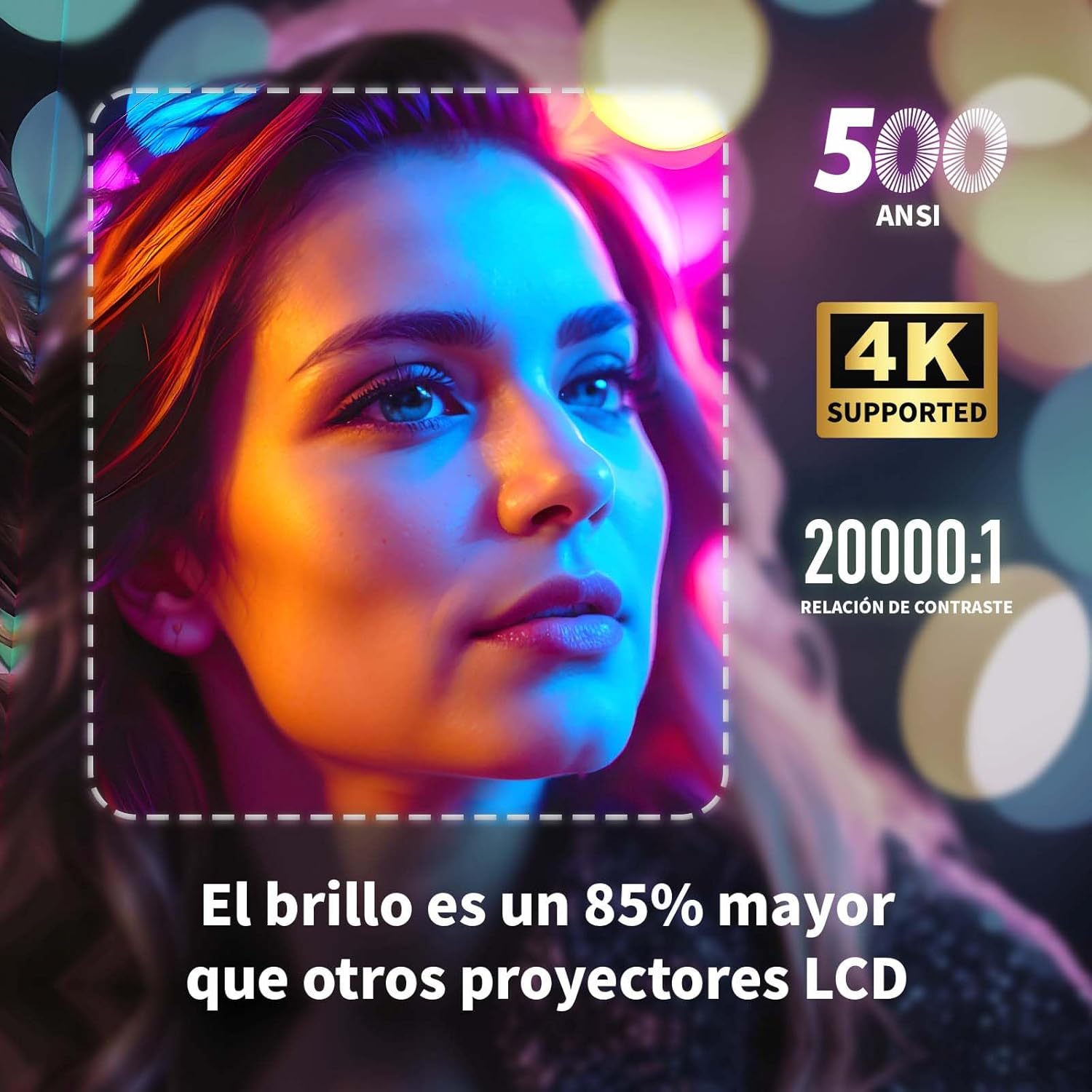
Image: A projected image of a woman's face with a dotted outline demonstrating how 4-point keystone correction adjusts the image to be perfectly rectangular, even when projected at an angle.
- Access the keystone correction settings in the menu to adjust each corner of the image independently.
- The projector also supports automatic vertical keystone correction.
7.3. ズーム機能
プロジェクターを動かさずに画像サイズを調整します。

Image: A visual representation of the projector's zoom function, showing how the image size can be reduced from 100% to 50% without physically moving the projector.
- The zoom function allows you to reduce the image size from 100% to 80%.
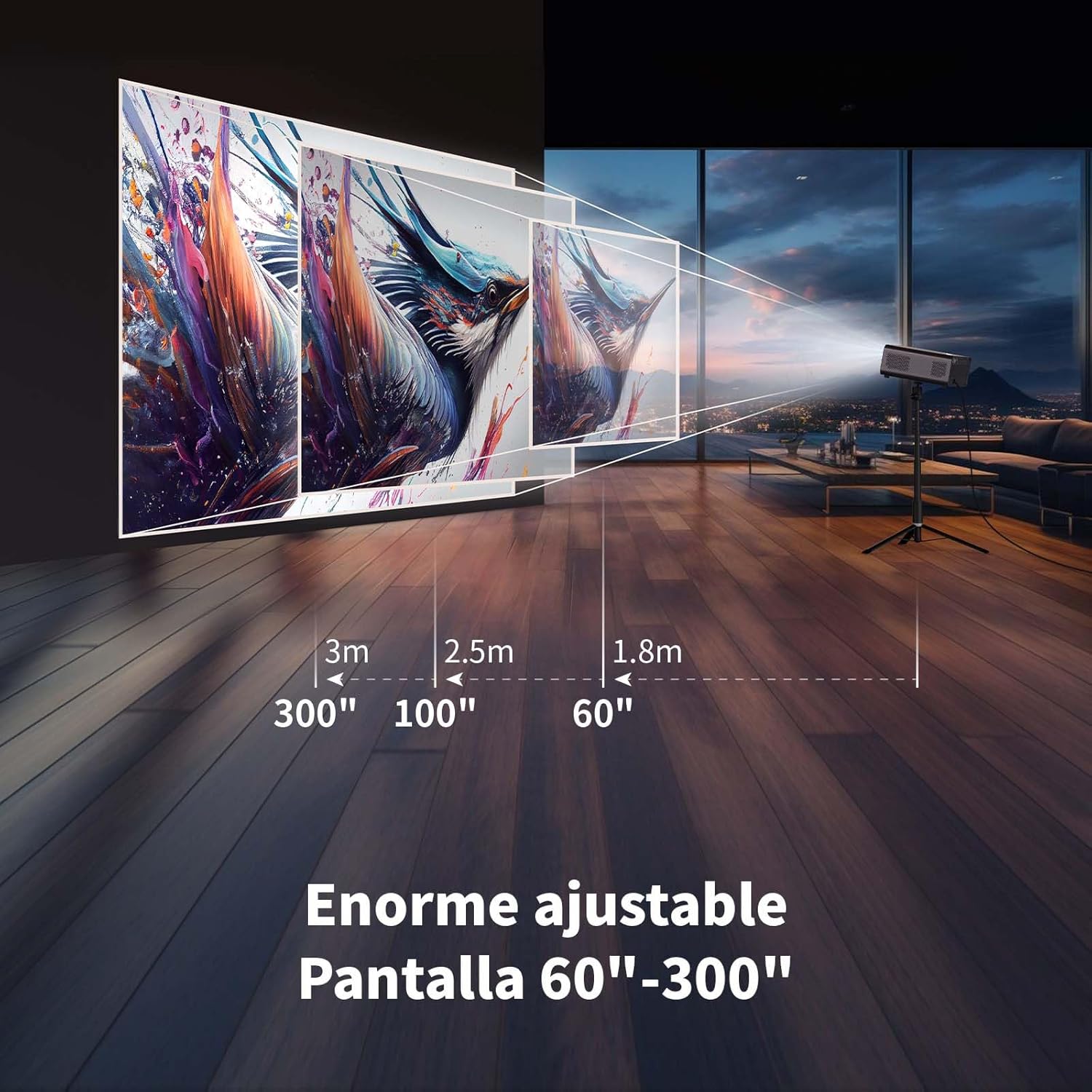
7.4. Large Screen Projection
没入感を体験 viewing with a large adjustable screen size.

Image: A large projected image of an astronaut on a snowboard, illustrating the 300-inch screen capability of the projector in a home cinema setting.
- The projector can produce an adjustable screen size from 60 inches to 300 inches, suitable for various view環境。
8. メンテナンス
8.1. Dust-Proof Design and Cleaning
The projector features a dust-proof design with a hidden dust box to prevent dust accumulation.
画像: クローズアップ view of the projector's hidden dust box, showing the filter inside, and an illustration of airflow, emphasizing the importance of regular cleaning to prevent dust from entering the device.
- Regularly clean the dust box to maintain optimal performance and prevent dust from affecting the image quality.
- プロジェクターの外側を清掃するには、柔らかく乾いた布を使用してください。
- 液体クリーナーやエアゾールは使用しないでください。
9。 トラブルシューティング
プロジェクターで問題が発生した場合は、次の一般的な問題と解決策を参照してください。
| 問題 | 考えられる解決策 |
|---|---|
| 画像が投影されない | Check power connection. Ensure input source is correctly selected (HDMI, USB, etc.). Verify lens cap is removed. |
| 画像がぼやけている | Adjust electronic focus using the F+/F- buttons on the remote. Ensure the projection surface is flat. |
| 画像が歪んでいる(台形) | Use 4-point keystone correction in the settings menu to adjust the image corners. Check for automatic vertical correction. |
| 音が出ない | Check volume settings on the projector and connected device. Ensure external speakers are properly connected or Bluetooth is paired. |
| Wi-Fi接続の問題 | Ensure Wi-Fi is enabled. Re-enter Wi-Fi password. Restart the projector and router. Try connecting to a different Wi-Fi band (2.4G or 5G). |
10. 仕様
Key technical specifications for the WEWATCH S3 Projector:
- ブランド: 見る
- モデル番号: S3
- 色: スモークグレー
- 製品タイプ: ポータブルプロジェクター
- 輝度: 500 ANSIルーメン
- ネイティブディスプレイ解像度: 1920 x 1080 (フルHD)
- 最大ディスプレイ解像度: 3840 x 2160 (4K対応)
- コントラスト比: 20000:1
- 表示タイプ: 導かれた
- 接続技術: Bluetooth, Ethernet, HDMI, USB, Wi-Fi (2.4G/5G)
- 特別な機能: Wi-Fi Compatible, Digital Keystone Correction, Built-in Speaker, Auto Focus, Portable
- 対応デバイス: Speaker, Laptop, Smartphone, Tablet
- 製品寸法: 長さ24.3 x 幅24.9 x 高さ10.5センチメートル
- 推奨用途: Home Cinema, Video Games, Professional, Education
11. 保証とサポート
The WEWATCH S3 Projector comes with a manufacturer's warranty to ensure your peace of mind.
- メーカー保証: 2年
- For technical support or warranty claims, please refer to the contact information provided with your purchase documentation or visit the official WEWATCH webサイト。