
1. セットアップ
1.1 箱の中身
The ProtoArc XKM01 CaseUp combo includes a foldable keyboard, an ultra-thin mouse, an adjustable laptop stand, and a charging cable, all housed within a premium travel case.

1.2 電源のオン/オフ
- キーボード: Unfold the keyboard to power it ON. Fold it back to power it OFF.
- ねずみ: Use the physical ON/OFF switch located on the underside of the mouse.
1.3 デバイスへの接続
The XKM01 CaseUp supports both 2.4G wireless and Bluetooth connectivity.
2.4Gワイヤレス接続:
- Locate and remove the USB receiver from its storage slot on the underside of the mouse.
- USB レシーバーをコンピューターまたはラップトップの使用可能な USB ポートに挿入します。
- Turn on both the keyboard (by unfolding) and the mouse (using the physical switch).
- On the keyboard, press the channel button for 2.4G mode (indicated by a specific icon or number, typically orange).
- On the mouse, press the channel button to select 2.4G mode (indicated by a specific icon or number). Both devices should now be connected.
Bluetooth接続:
- Turn on both the keyboard and the mouse.
- On the keyboard, press and hold the desired Bluetooth channel button (BT1 or BT2, typically orange) for 3 seconds until its indicator light blinks rapidly. This puts the keyboard into pairing mode.
- On the mouse, press and hold the corresponding Bluetooth channel button (BT1 or BT2) for 3 seconds until its indicator light blinks rapidly. This puts the mouse into pairing mode.
- On your device (laptop, PC, MacBook, Windows, Mac OS, smartphone, tablet), navigate to Bluetooth settings.
- Select "XKM01 CaseUp" from the list of available devices and confirm pairing.
1.4 Setting Up the Laptop Stand
The adjustable laptop stand helps improve posture and reduce strain.
- Unfold the stand and adjust its width to accommodate your device.
- Flip up the small retaining flaps on the stand to secure your laptop or tablet.
- Place your device on the stand at a comfortable view角度。

2. 操作手順
2.1 キーボードの機能
The tri-fold keyboard offers a full standard layout with 105 keys, including a number pad and dedicated shortcut keys.
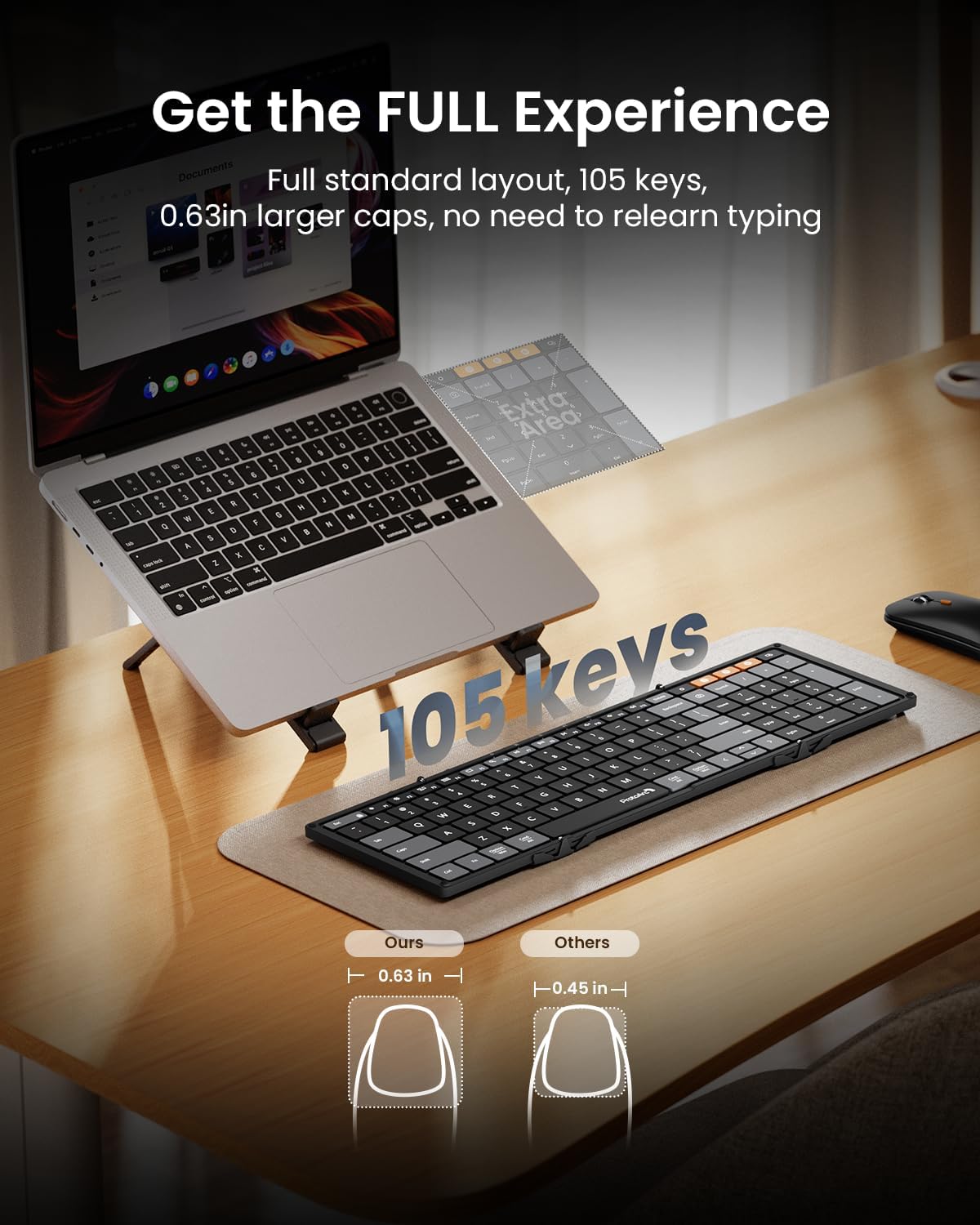
F-Keys (Function Keys) and Multimedia Controls:
- By default, the F1-F12 keys control media functions (e.g., brightness, play/pause, mute).
- To switch F1-F12 to standard function keys (e.g., F5 to refresh), press Fn + ESC.
- To switch back to multimedia controls, press Fn + ESC また。
2.2 マウスの機能
The ultra-thin mouse offers precise navigation and adjustable cursor speed.
- DPI 調整: Press the orange button on the top of the mouse to cycle through different DPI settings, adjusting cursor speed to your preference.
- モード切り替え: Use the channel buttons on the underside of the mouse to switch between 2.4G wireless and Bluetooth modes.
2.3 Multi-Device Workflow
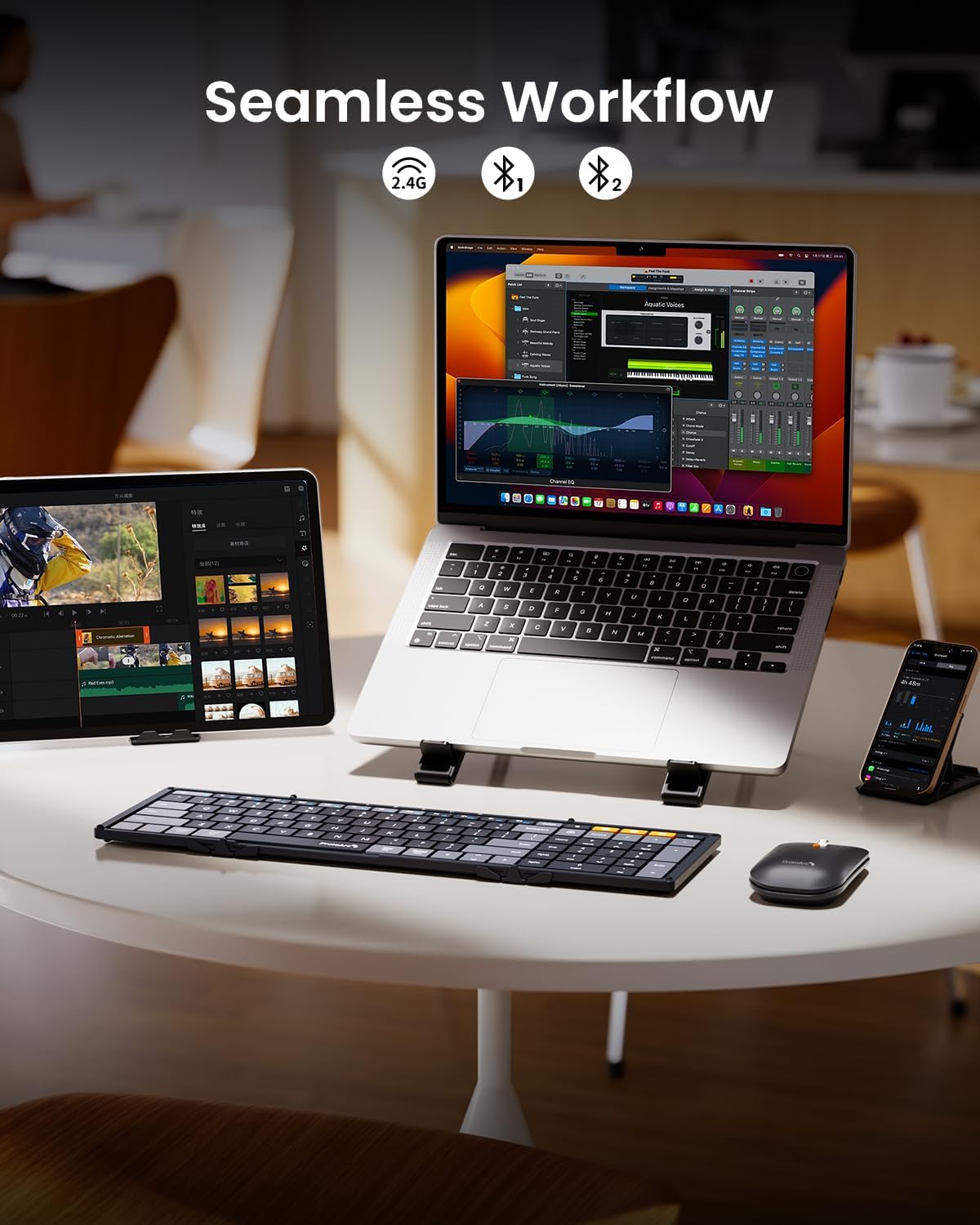
Seamlessly switch between up to three devices (one 2.4G, two Bluetooth) using the dedicated channel buttons on both the keyboard and mouse.
2.4 Official User Guide Video
For a visual demonstration of setup and operation, please refer to the official user guide video below:
3. メンテナンス
3.1 充電
Both the keyboard and mouse feature built-in rechargeable batteries and are charged via the included Type-C cable.
- A red blinking light indicates low battery.
- A solid red light indicates charging is in progress.
- A green light indicates the device is fully charged.

3.2 Battery Life and Auto-Sleep
The keyboard offers an impressive 150 days of standby time, and the mouse provides 200 days. An auto-sleep feature conserves battery when not in use.
3.3 クリーニング
To clean your devices, use a soft, dry, lint-free cloth. Avoid using harsh chemicals or abrasive materials.
4。 トラブルシューティング
4.1 接続の問題
- Ensure both the keyboard and mouse are powered ON.
- Verify that the correct 2.4G or Bluetooth channel is selected on both devices.
- For Bluetooth, ensure your device's Bluetooth is enabled and the devices are in pairing mode.
- Try re-pairing the devices if connection is lost.
- 2.4G の場合、USB レシーバーがデバイスにしっかりと接続されていることを確認してください。
4.2 キーボード/マウスが反応しない
- バッテリー残量を確認し、必要に応じて充電してください。
- Ensure the devices are within the effective operating range of your computer.
- Restart your computer and try reconnecting.
5. 仕様
| ブランド | プロトアーク |
| モデル番号 | XKM01 ケースアップ |
| 接続技術 | Bluetooth, USB (2.4G) |
| 特集 | Ergonomic, Lightweight, Portable, Rechargeable, Tri-Fold |
| 対応デバイス | ノートパソコン、パソコン、スマートフォン、タブレット |
| アイテム重量 | 2.68ポンド |
| パッケージ寸法 | 13.19 x 6.46 x 2.64インチ |
6. 保証とサポート
For warranty information, technical support, or further assistance, please visit the official ProtoArc website or contact customer service through your retailer. Keep your purchase receipt for warranty claims.
また、 AmazonのProtoArcストア その他の製品とサポート リソースについては、こちらをご覧ください。