
1.製品オーバーview
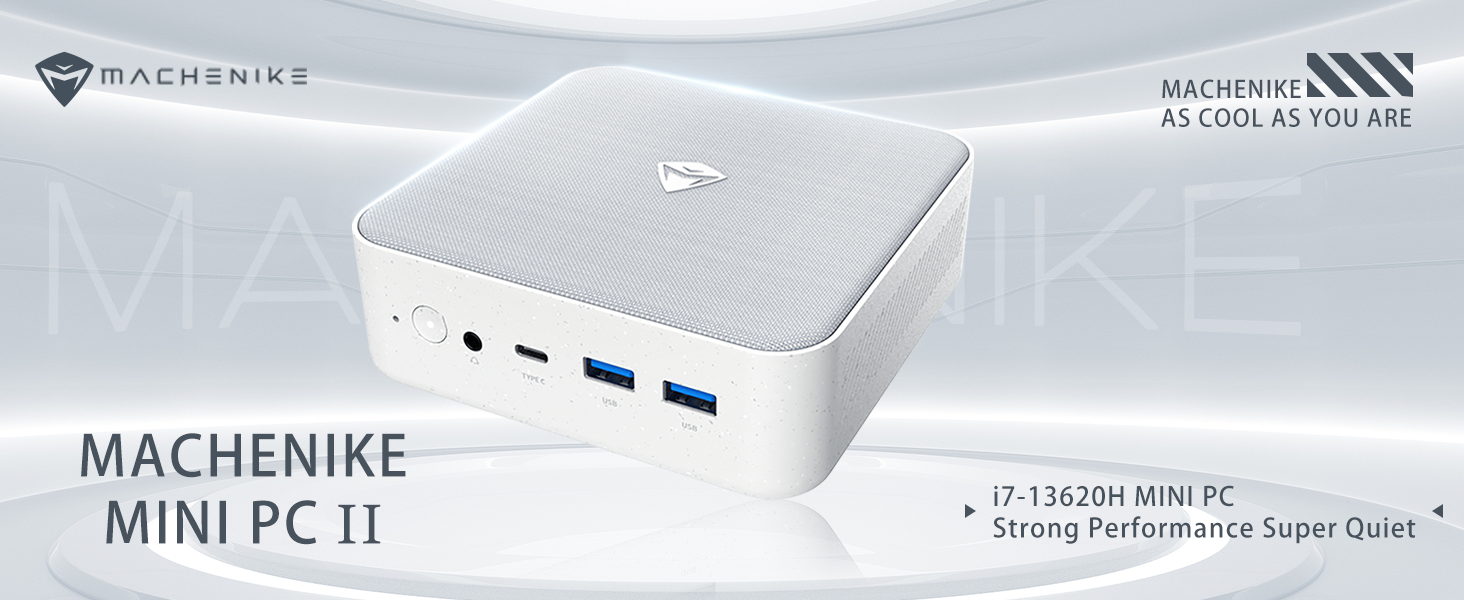
The Machenike Machcreator Mini Desktop, Model 4762H, is a compact and powerful computing solution designed for various applications, from business to everyday use. It features a 13th Gen Intel Core i7-13620H processor, 16GB DDR5 RAM, and a 512GB PCIe M.2 SSD, providing high-speed performance and efficient multitasking capabilities. This mini PC supports 4K dual monitor output and comes pre-installed with Windows 11 Pro.
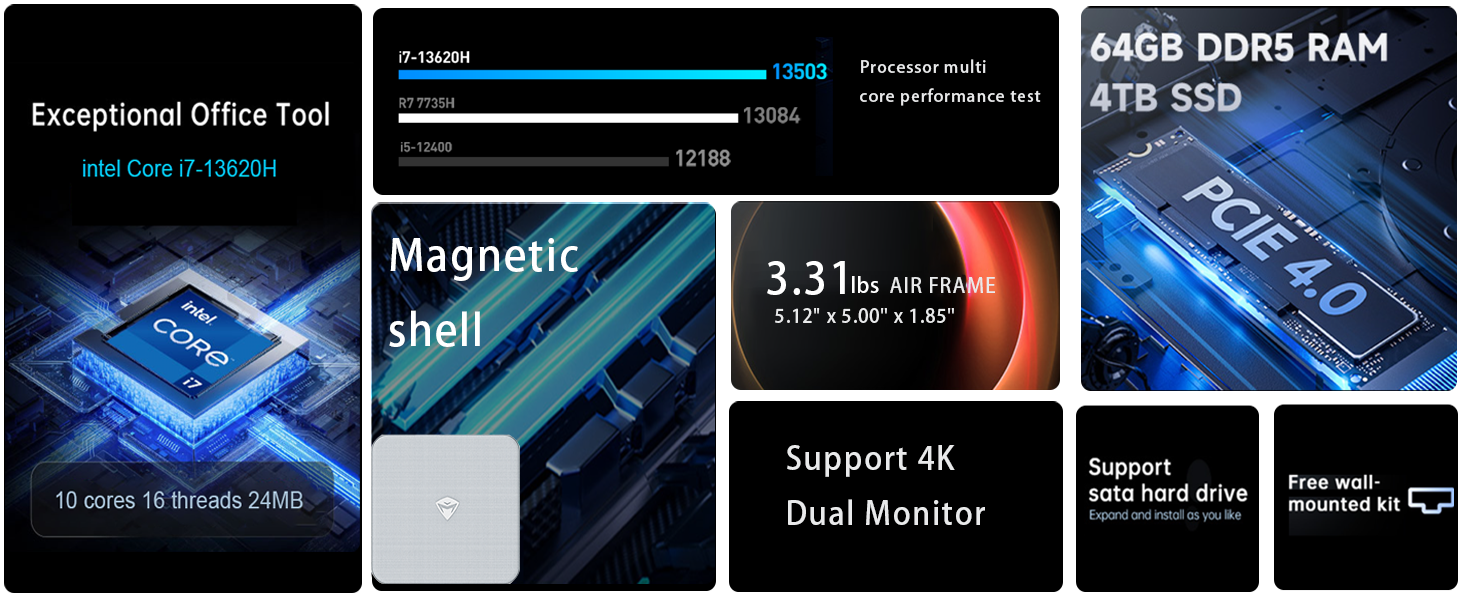
画像: 上view of the Intel Core i7 processor, highlighting 10 Cores, 16 Threads, 4.90 GHz Max Turbo Frequency, and 24 MB L3 Cache.
主な特徴:
- プロセッサ: Intel Core i7-13620H (10 コア、16 スレッド、最大 4.9 GHz)
- メモリ: 16GB DDR5 SODIMM RAM (expandable up to 64GB)
- ストレージ: 512GB PCIe M.2 Solid State Drive (supports dual M.2 expansion)
- オペレーティング·システム: ウィンドウズ11プロ
- グラフィック: Integrated Intel UHD Graphics, supporting 4K dual monitor output via HDMI 2.0 and DisplayPort 1.4
- 接続性: Wi-Fi 6, Bluetooth, 2 x RJ45 Ethernet, USB 3.2 Gen2 Type-A, USB Type-C
- 冷却システム: 高級全銅製ラジエーターを備えたツインタービン冷却ファン
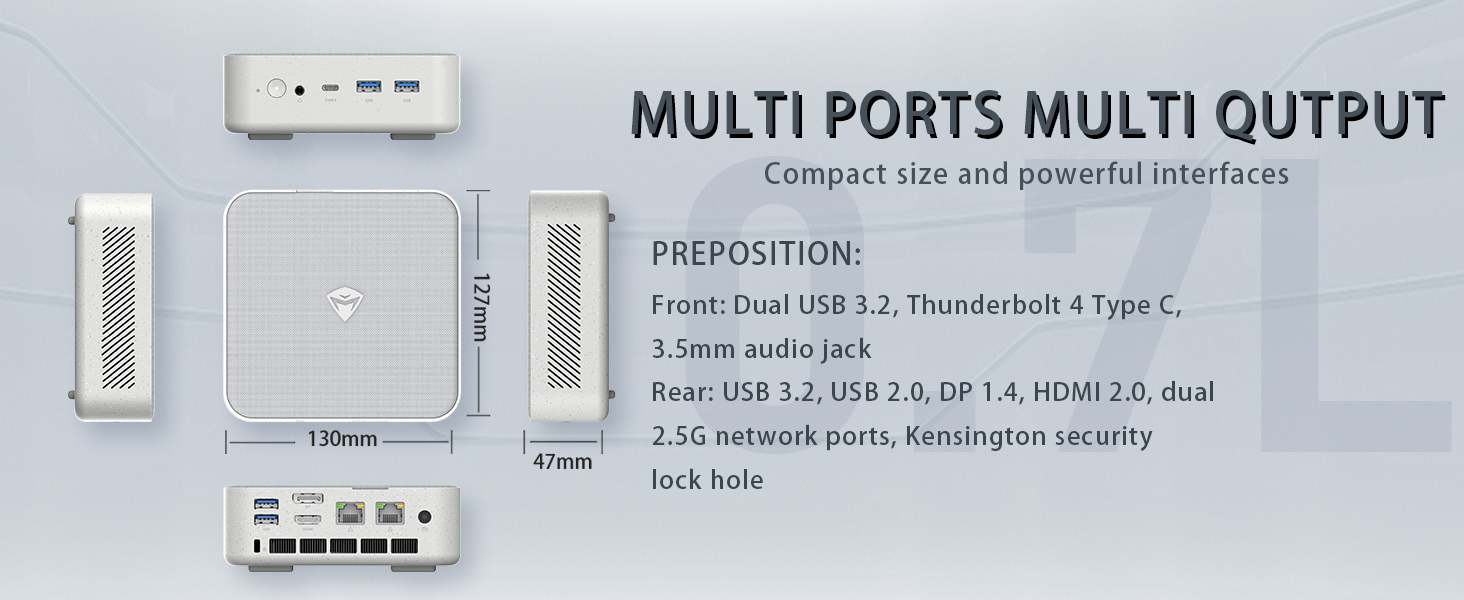
Image: Illustration of PCIe 4.0 SSD and memory slots, indicating support for up to 64GB DDR5 RAM and up to 4TB PCIe SSD expansion.
2.セットアップガイド
2.1 デバイスの開梱
すべての部品をパッケージから慎重に取り出します。以下のものがすべて揃っていることを確認してください。
- Machenike Machcreator Mini Desktop (Model 4762H)
- 電源アダプター
- ユーザーマニュアル(このドキュメント)
- (オプション)VESAマウントキット
2.2 周辺機器の接続
電源を入れる前に、必要な周辺機器を接続します。
- 画面: Connect your monitor(s) to the HDMI 2.0 or DisplayPort 1.4 ports on the rear of the mini PC. The USB Type-C port also supports video output.
- キーボードとマウス: Connect your USB keyboard and mouse to any of the available USB 3.2 Gen2 Type-A ports.
- ネットワーク: For a wired connection, connect an Ethernet cable to one of the RJ45 ports. For wireless, ensure your Wi-Fi network is available.
- 力: 電源アダプタをミニ PC の DC 入力ポートに接続し、アダプタを電源コンセントに差し込みます。
画像: 詳細 view of the mini PC's front and rear ports, including USB 3.2 Gen2 Type-A, USB Type-C, 3.5mm Audio Jack, HDMI 2.0, DisplayPort 1.4, and RJ45 Ethernet ports. Dimensions are also shown.
2.3 初期起動とWindows 11 Proのセットアップ
- ミニ PC の前面にある電源ボタンを押します。
- The system will boot into the Windows 11 Pro setup wizard. Follow the on-screen instructions to configure your language, region, network, and user account.
- Once setup is complete, your mini PC is ready for use.
3. 操作手順
3.1 電源オン/オフ
- 電源オン: 電源ボタンを1回押します。
- シャットダウン: Windows の [スタート] ボタンをクリックし、[電源] > [シャットダウン] を選択します。
- 再起動: Windows の [スタート] ボタンをクリックし、[電源] > [再起動] を選択します。
- 寝る: Windows の [スタート] ボタンをクリックし、[電源] > [スリープ] を選択します。
3.2 表示設定
The mini PC supports up to two 4K displays simultaneously. To configure display settings:
- デスクトップを右クリックし、「ディスプレイ設定」を選択します。
- Here you can detect multiple displays, arrange them, change resolution, and adjust scaling.
3.3 ネットワーク接続
- Wi-Fi: タスクバーのネットワーク アイコンをクリックし、Wi-Fi ネットワークを選択してパスワードを入力し、接続します。
- イーサネット: イーサネット ケーブルが接続されている場合、システムは自動的に有線ネットワーク接続を確立します。
3.4 Cooling System Modes
The mini PC features an advanced cooling system with adjustable modes via the BIOS to optimize performance and noise levels. These modes include:
- マナーモード: Prioritizes quiet operation, suitable for light tasks.
- バランスモード: Offers a good balance between performance and noise.
- パフォーマンスモード: Maximizes performance (up to 65W power release), ideal for demanding applications.
To change these settings, access the BIOS during startup (typically by pressing デル or F2 repeatedly after powering on) and navigate to the relevant power or performance settings.
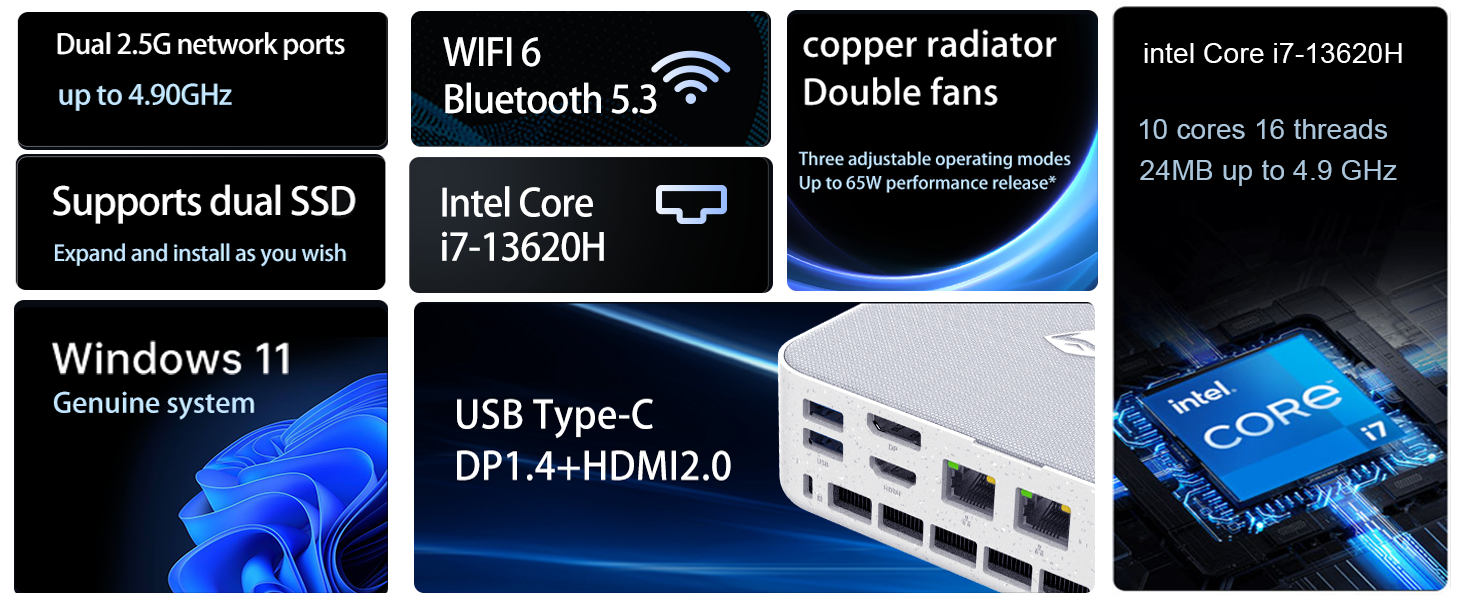
Image: Illustration of the twin turbine cooling fan and deluxe all-copper radiator, explaining how it prevents slowdowns due to overheating and offers silence, balance, and performance modes.
4. メンテナンス
4.1デバイスのクリーニング
To ensure optimal performance and longevity, regularly clean your mini PC:
- Power off the device and disconnect it from the power outlet.
- 外側を拭くときは、柔らかく乾いた布を使用してください。
- Use compressed air to gently clear dust from ventilation openings. Do not insert any objects into the vents.
4.2ソフトウェアアップデート
Keep your Windows 11 Pro operating system and drivers updated to ensure security and performance:
- Windows アップデート: [スタート] > [設定] > [Windows Update] に移動して、更新プログラムを確認します。
- ドライバーの更新: Visit the Machenike official web特定のモデル用の最新ドライバーについては、こちらのサイトをご覧ください。
4.3 ストレージとメモリの拡張
The Machenike Machcreator Mini Desktop supports upgrades for both RAM and storage:
- ラム: The device has 2 SODIMM slots and supports up to 64GB DDR5 RAM.
- ストレージ: It supports dual PCIe M.2 SSDs, allowing for significant storage expansion up to 4TB.
注記: Opening the device for upgrades may void your warranty. Consult a qualified technician or refer to specific upgrade guides from Machenike if available.
5。 トラブルシューティング
このセクションでは、よくある問題について説明します。より複雑な問題については、カスタマーサポートにお問い合わせください。
5.1 電源なし
- 電源アダプタがミニ PC と正常な電源コンセントの両方にしっかりと接続されていることを確認します。
- 別のデバイスを接続して、電源コンセントが機能していることを確認します。
- 電源アダプターに目に見える損傷がないか確認してください。
5.2 ディスプレイ出力なし
- モニターの電源がオンになっており、正しい入力ソースが選択されていることを確認します。
- Ensure the HDMI or DisplayPort cable is securely connected to both the mini PC and the monitor.
- 可能であれば、別のディスプレイ ケーブルまたはモニターを試してください。
- 複数のディスプレイを使用している場合は、一度に 1 つのディスプレイのみを接続してみてください。
5.3 ネットワーク接続の問題
- 有線(イーサネット): Check if the Ethernet cable is properly connected to both the mini PC and the router/modem. Verify router/modem status.
- ワイヤレス(Wi-Fi): Ensure Wi-Fi is enabled in Windows settings. Restart your router/modem. Check if other devices can connect to the Wi-Fi network.
- Run Windows Network Troubleshooter (Start > Settings > Network & internet > Advanced network settings > Network troubleshooter).
6. 仕様
Detailed technical specifications for the Machenike Machcreator Mini Desktop, Model 4762H:
| 特徴 | 仕様 |
|---|---|
| ブランド | マチェニケ |
| モデル番号 | 4762H |
| オペレーティング·システム | ウィンドウズ11プロ |
| CPUモデル | インテル Core i7-13620H |
| CPU速度 | Up to 4.9 GHz (Max Turbo Frequency) |
| RAMメモリインストールサイズ | 16 GB DDR5(64 GBまで拡張可能) |
| メモリクロック速度 | 4800 MHz |
| 利用可能なメモリスロット | 2 |
| メモリストレージ容量 | 512 GB PCIe M.2 SSD (Supports dual M.2, up to 4TB) |
| グラフィックスコプロセッサ | Intel UHD グラフィックス(統合) |
| ビデオ出力インターフェース | HDMI 2.0, DisplayPort 1.4, USB Type-C |
| ディスプレイ解像度最大 | 3840x2160(4K) |
| ハードウェアインターフェイス | 3.5mm Audio, Bluetooth, DisplayPort, Ethernet (2x RJ45), HDMI, USB, USB Type C |
| ワイヤレス接続 | Wi-Fi 6(802.11ax)、Bluetooth |
| アイテムの寸法(LxWxH) | 5.12 x 5 x 1.85インチ |
| アイテム重量 | 49.8 ポンド (Note: This weight may be a data entry error; actual weight for a mini PC is typically much less.) |
| 欧州連合 | 193200587317 |
7. 保証とサポート
7.1 保証情報
Machenike products typically come with a limited manufacturer's warranty. Please refer to the warranty card included with your purchase or visit the official Machenike web地域と製品モデルに応じた詳細な保証条件については、ウェブサイトをご覧ください。保証請求の際は、購入証明書を保管してください。
7.2 カスタマーサポート
For technical assistance, troubleshooting beyond this manual, or warranty inquiries, please contact Machenike customer support:
- オンラインサポート: 公式Machenikeをご覧ください web地点 (www.machenike.com - exampleリンク、実際のリンクは異なる場合があります) をクリックして、サポート セクションに移動します。
- メールサポート: 具体的なサポート メール アドレスについては、製品のドキュメントを参照してください。
- 電話サポート: マチェニケをチェック web地域の電話サポート番号のサイト。
When contacting support, please have your product model number (4762H) and serial number ready.