
ロジクール M550
Logitech Signature M550 ワイヤレスマウス ユーザーマニュアル
モデル: M550 | ブランド: Logitech
導入
The Logitech Signature M550 mouse is designed for enhanced comfort and productivity, featuring SmartWheel scrolling for versatile navigation. It offers seamless wireless connectivity and silent clicks, making it suitable for various computing environments. This manual provides instructions for setting up, operating, maintaining, and troubleshooting your Signature M550 mouse.
主な特徴
- スマートホイールスクロール: Provides both line-by-line precision and super-fast scrolling, automatically switching modes based on your scrolling speed.
- 人間工学に基づいたデザイン: Contoured shape with a soft thumb area and rubber side grips for comfortable use over extended periods.
- SilentTouch テクノロジー: Reduces click noise by over 90% compared to standard Logitech mice, creating a quieter workspace.
- デュアル接続: Connects via Bluetooth Low Energy or the Logi Bolt USB receiver, offering a reliable wireless connection up to 10 meters.
- マルチプラットフォーム互換性: Works with Windows, macOS, Linux, iPadOS, Android, and is Works With Chromebook Certified.
- バッテリー寿命の延長: Up to 24 months of battery life with the included AA battery.
- プログラム可能なボタン: Features 3 programmable buttons for customized functionality.
設定
Follow these steps to set up your Logitech Signature M550 mouse:
- 電池を挿入します: Open the battery compartment on the underside of the mouse and insert the included AA battery, ensuring correct polarity.
- 電源オン: 底面にあるオン/オフ スイッチを使用してマウスの電源をオンにします。
- 接続方法を選択してください:
- ロジボルト USB レシーバー: Plug the Logi Bolt USB receiver into an available USB port on your computer. The mouse should connect automatically.
- ブルートゥース:
- Press and hold the Easy-Switch button on the bottom of the mouse until the LED light starts blinking rapidly, indicating pairing mode.
- On your computer or device, go to Bluetooth settings and select "Logitech M550" from the list of available devices to pair.
- ソフトウェアのインストール(オプション): For advanced customization of buttons and SmartWheel settings, download and install the Logitech Options+ software from the official Logitech webサイト。

Figure 1: Connect via Bluetooth or Logi Bolt USB Receiver.
操作手順
The Logitech Signature M550 mouse is designed for intuitive use. Here are some key operational aspects:
- スマートホイールスクロール: The scroll wheel automatically switches between line-by-line precision and hyper-fast scrolling. Scroll slowly for precise control, or flick the wheel for rapid navigation through long documents or web ページ。
- Left and Right Clicks: Standard left and right click functionality. The SilentTouch technology ensures minimal noise during clicks.
- プログラム可能なボタン: The mouse features additional buttons that can be customized using the Logitech Options+ software. This allows you to assign specific functions, shortcuts, or gestures to these buttons for increased productivity.
- マルチデバイス切り替え: If you have paired the mouse with multiple devices using Bluetooth, use the Easy-Switch button on the bottom of the mouse to quickly switch between connected devices.
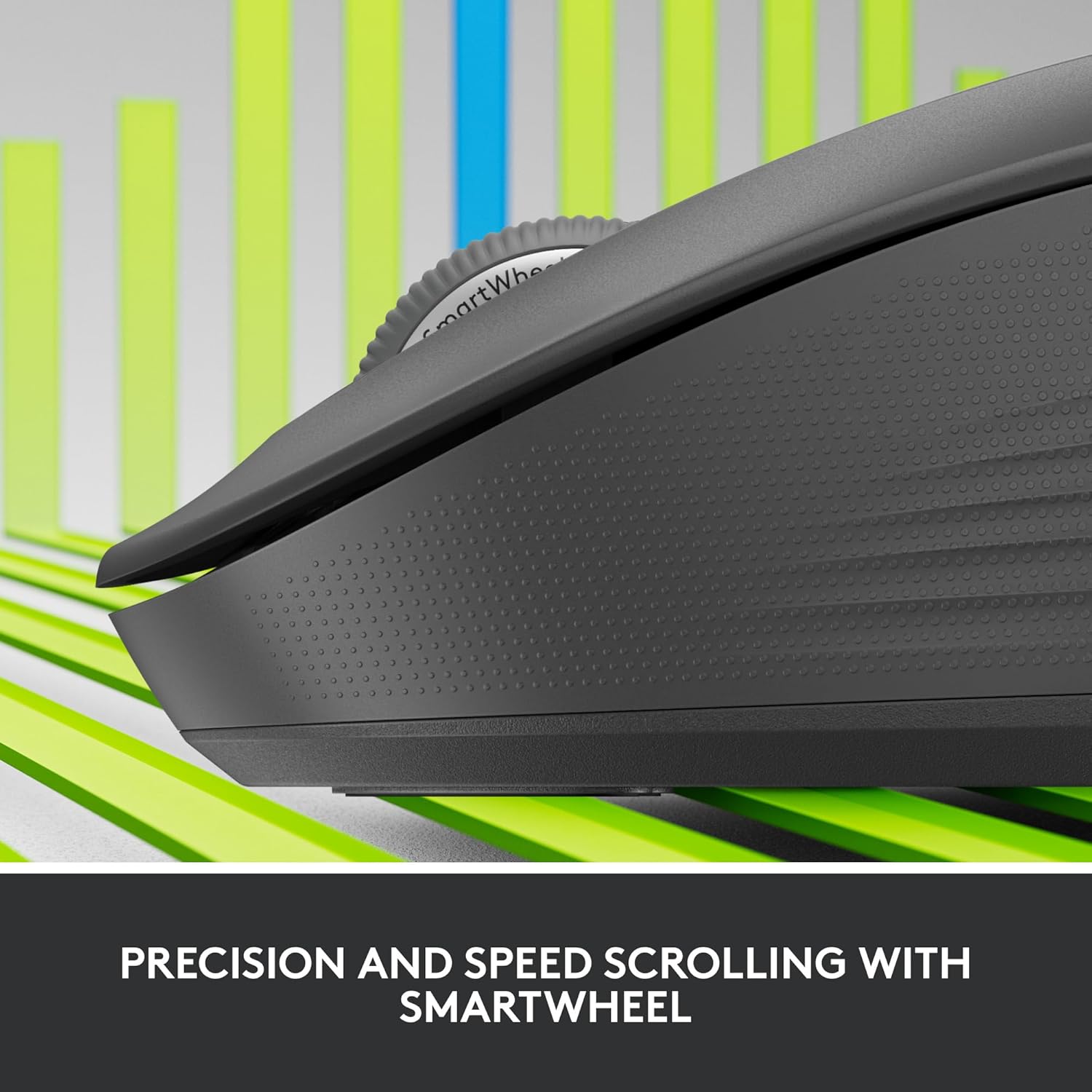
Figure 2: Precision and Speed Scrolling with SmartWheel.

Figure 3: Experience 90% Less Clicking Noise.
メンテナンス
- クリーニング: 柔らかく糸くずの出ない布で軽く拭き取ってください。ampened with water or an electronics cleaner to wipe the surface of the mouse. Avoid using harsh chemicals or abrasive materials.
- バッテリー交換: The mouse uses one AA battery. When the battery indicator light (if present) signals low power, or if performance degrades, replace the battery. The battery compartment is located on the underside of the mouse.
- ストレージ: 長期間使用しない場合は、マウスの電源をオフにして電池を節約してください。直射日光を避け、涼しく乾燥した場所に保管してください。
トラブルシューティング
| 問題 | 考えられる解決策 |
|---|---|
| マウスが反応しない |
|
| カーソルの動きが不安定または飛び飛びになる |
|
| Bluetooth経由で接続できません |
|
仕様
| 特徴 | 詳細 |
|---|---|
| モデル | M550 |
| 接続技術 | Wireless (Bluetooth Low Energy, Logi Bolt USB Receiver) |
| ワイヤレス動作距離 | 最大10メートル(32.81フィート) |
| 動き検出 | 光学 |
| 動きの解像度(DPI) | 4000dpi |
| ボタン | 3 Button(s), 3 Programmable Button(s) |
| スクロールホイール | Yes (SmartWheel) |
| 電池のタイプ | 1 x AA(付属) |
| バッテリー寿命 | 最長24か月 |
| 色 | 黒鉛 |
| アイテム重量 | 4.6オンス |
| パッケージ寸法 | 6.89 x 4.65 x 2.52インチ |
| 互換性 | Windows, macOS, Linux, iPadOS, Android, Works With Chromebook Certified |

Figure 4: Key features and specifications of the Logitech Signature M550 mouse.

Figure 5: The perfect fit for your hand, illustrating M550 and M550 L sizes.
保証とサポート
保証情報およびテクニカルサポートについては、ロジクールの公式ウェブサイトをご覧ください。 webロジクールのウェブサイトをご覧いただくか、カスタマーサービスまでお問い合わせください。保証請求の際に購入証明書を保管してください。
Logitechサポート Webサイト: support.logi.com
関連文書 - M550
 |
Logitech POP マウス ユーザーマニュアル: セットアップ、機能、およびトラブルシューティング ロジクール POP マウスのユーザーマニュアルでは、このカラフルなワイヤレスマウスの詳細なセットアップ手順、カスタマイズオプション、技術仕様、トラブルシューティングのヒントをご覧いただけます。複数のデバイスの接続、カスタマイズ、管理方法もご確認いただけます。 |
 |
Getting Started with Logitech Signature M550 Mouse A comprehensive guide for setting up, pairing, and using the Logitech Signature M550 mouse, including Bluetooth and Logi Bolt connectivity, software installation, and battery management. |
 |
Logitech Signature Comfort Plus M850L for Business User Guide User guide and specifications for the Logitech Signature Comfort Plus M850L for Business mouse, featuring secure wireless technology, multi-device pairing, and adaptive scrolling. |
 |
ロジクール MX Master 3S パフォーマンス ワイヤレスマウス - 高度なエルゴノミクスと 8K DPI センサー 静かなクリック音、あらゆる表面で最高のパフォーマンスを発揮する 8K DPI センサー、生産性を高める高度な人間工学に基づいたデザインを備えた、再設計されたワイヤレス マウス、Logitech MX Master 3S をご覧ください。 |
 |
Logitech M240 for Business セットアップガイド Logitech M240 for Businessマウスの包括的なセットアップガイド。BluetoothおよびLogi Boltによる接続、Logi Options+によるカスタマイズ、電池交換などを網羅しています。Logitech周辺機器で生産性を向上させる方法を学びましょう。 |
 |
ロジクール MX Master 3S ワイヤレスマウス: スタートガイド ペアリング、MagSpeed スクロール、ジェスチャー コントロール、Darkfield DPI センサー、複数のコンピューターでの使用のための Logitech Flow など、Logitech MX Master 3S ワイヤレス マウスを設定およびカスタマイズする方法を学びます。 |
Ask a question about this manual
Ask about setup, troubleshooting, compatibility, parts, safety, or missing instructions. Manuals+ will review the question and use this page’s manual context to help answer it.