
導入
This manual provides essential instructions for setting up, operating, maintaining, and troubleshooting your Canon PIXUS TS3730 A4 Inkjet Multifunction Printer. Please read this manual thoroughly before using the product to ensure correct and safe operation. Keep this manual for future reference.

Figure 1: Canon PIXUS TS3730 A4 Inkjet Multifunction Printer (Black)
1.セットアップガイド
1.1 開梱と初期配置
プリンタを梱包から慎重に取り出してください。プリンタの外装と内装から保護テープと梱包材がすべて取り除かれていることを確認してください。プリンタは、通気と操作のために周囲に十分なスペースがある安定した平らな場所に置いてください。
1.2電源接続
- 付属の電源コードをプリンターの電源入力に接続します。
- 電源コードのもう一方の端を壁のコンセントに差し込みます。
- 電源ボタンを押して、プリンターの電源をオンにします。
1.3 インクカートリッジの取り付け
The Canon PIXUS TS3730 uses BCI-365 (Black) and BCI-366 (Color) series ink cartridges. Follow these steps to install them:
- Open the printer's top cover to access the cartridge holder.
- Remove the new ink cartridges from their packaging. Be careful not to touch the electrical contacts or print nozzles.
- 黒カートリッジを左のスロットに、カラーカートリッジを右のスロットに、カチッと音がするまで挿入します。
- 上カバーを閉じます。プリンターは初期セットアッププロセスを実行します。

Figure 2: Ink cartridge installation area with BCI-365 and BCI-366 cartridges.
1.4 用紙のセット
This printer features a rear paper tray. To load paper:
- 背面の用紙トレイカバーを開きます。
- Gently slide the paper guides to the edges.
- Load up to 60 sheets of A4 plain paper (or other supported media) into the tray, print side facing up.
- 用紙ガイドを調整して、用紙の束がぴったり収まるようにします。

Figure 3: Rear paper feed tray with paper loaded.
1.5 Software Installation and Network Connection
To use the printer's full functionality, install the drivers and software on your computer or connect via Wi-Fi.
1.5.1 Driver Installation (for Computer)
Download the latest drivers and software from the official Canon webサイトにアクセスしてください。画面の指示に従ってインストールしてください。
1.5.2 Wi-Fi接続
The printer supports Wireless LAN. You can connect it to your home network using the printer's 1.5-inch LCD panel for setup or via WPS (Wi-Fi Protected Setup) if your router supports it. Refer to the on-screen instructions on the printer's display for detailed steps.
2. 操作手順
2.1 基本的な印刷
コンピューターから文書または写真を印刷するには:
- プリンタの電源がオンになっており、コンピュータまたはネットワークに接続されていることを確認します。
- 印刷したい文書または写真を開きます。
- 選択 印刷 アプリケーションのメニューから(例: File > 印刷)。
- Choose your Canon PIXUS TS3730 printer from the list.
- Adjust print settings (paper size, print quality, color/grayscale) as needed.
- クリック 印刷.
2.2 文書のコピー
プリンターのコントロールパネルを使用してコピーするには:
- 原稿カバーを持ち上げ、原稿を下向きにしてスキャナーガラスに置きます。位置合わせマークに合わせます。
- ドキュメントカバーをゆっくり閉じます。
- プリンタのコントロールパネルで、 コピー.
- Use the navigation buttons to select copy settings (e.g., number of copies, color or black & white).
- を押す 始める ボタン(カラーまたは白黒)をクリックしてコピーを開始します。
2.3 ドキュメントのスキャン
To scan a document to your computer:
- 書類を表面を下にしてスキャナーガラスの上に置きます。
- コンピュータでスキャン ソフトウェア (例: Canon IJ Scan Utility) を開きます。
- プリンターのモデルを選択してください。
- Choose the desired scan settings (document type, resolution, destination folder).
- クリック スキャン. The scanned image will be saved to your computer.
2.4 モバイルデバイスからの印刷
The Canon PIXUS TS3730 supports printing from smartphones and tablets via Wi-Fi. Download the Canon PRINT Inkjet/SELPHY app from your device's app store.
- モバイル デバイスがプリンターと同じ Wi-Fi ネットワークに接続されていることを確認します。
- Open the Canon PRINT Inkjet/SELPHY app.
- アプリ内から印刷したい文書または写真を選択します。
- Adjust print settings as required.
- タップ 印刷.
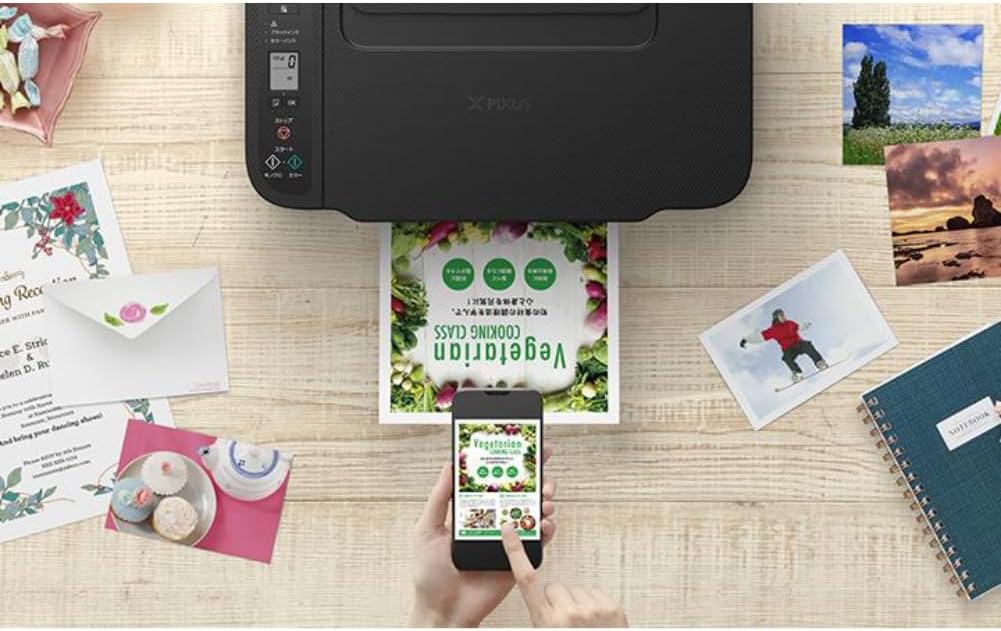
Figure 4: Printing a document wirelessly from a smartphone.
3. メンテナンス
3.1 インクカートリッジの交換
When an ink cartridge runs low or is empty, replace it promptly to maintain print quality. Refer to section 1.3 for installation steps. Use genuine Canon BCI-365/366 series cartridges for optimal performance.
3.2プリンターのクリーニング
定期的にクリーニングすると、印刷品質が維持され、プリンターの寿命が延びます。
- 外装清掃: プリンタの外側を柔らかくて乾いた布で拭いてください。amp糸くずの出ない布を使用してください。研磨剤入りの洗剤や溶剤は使用しないでください。
- プリントヘッドのクリーニング: 印刷品質が低下した場合(縞模様、色抜けなど)、プリンターのメンテナンス メニューまたはコンピューターのプリンター ドライバーからプリント ヘッドのクリーニングを実行してください。
- 用紙経路のクリーニング: If paper jams occur frequently or paper feed is inconsistent, clean the paper path using the utility in the printer driver or by following instructions on the printer's LCD panel.
4。 トラブルシューティング
このセクションでは、発生する可能性のある一般的な問題について説明します。
4.1 プリンターが応答しない
- プリンタの電源がオンになっており、電源コードがしっかりと接続されていることを確認してください。
- Check the Wi-Fi connection. Ensure the printer and your device are on the same network.
- プリンターとコンピューター/モバイル デバイスの両方を再起動します。
- アプリケーションの印刷ダイアログで正しいプリンターが選択されていることを確認します。
4.2 印刷品質が悪い
- インクレベルを確認し、空または残量が少ないカートリッジを交換します。
- プリンターのメンテナンス メニューからプリント ヘッドのクリーニングとノズル チェックを実行します。
- 印刷設定に適した用紙を使用していることを確認してください。
- プリンタ ドライバの印刷品質設定が正しく設定されていることを確認します。
4.3 紙詰まり
- プリンタの電源をオフにして、プラグを抜きます。
- Carefully open all covers and gently remove any jammed paper. Avoid tearing the paper.
- Ensure paper is loaded correctly in the rear tray and the paper guides are adjusted.
- 用紙経路から異物を取り除きます。
- すべてのカバーを閉じ、プリンターを接続して電源を入れます。
5. 仕様
| 特徴 | 仕様 |
|---|---|
| モデル名 | PIXUS TS3730 |
| 機能 | 印刷、コピー、スキャン |
| 印刷技術 | インクジェット |
| 最大印刷解像度(カラー) | 4800 x 1200 dpi |
| 最大印刷速度(モノクロ) | 7.7ページ/分 |
| 最大印刷速度(カラー) | 4ページ/分 |
| インクの種類 | 4-color (Dye/Pigment Hybrid Ink) |
| 互換インクカートリッジ | BCI-365 (Black), BCI-366 (Color) series |
| 最大用紙サイズ | A4 |
| 用紙送り | Rear paper tray (Max 60 sheets A4 plain paper) |
| 両面印刷 | いいえ |
| 接続性 | Wi-Fi |
| 画面 | 1.5インチLCDパネル |
| 寸法(幅×奥行き×高さ) | 43.5 x 32.7 x 14.5 cm |
| 重さ | 5.11キロ |
| 含まれるコンポーネント | Inkjet Cartridges (may vary by region/retailer) |
6. 保証とサポート
6.1製品保証
This product comes with a limited warranty. Please refer to the warranty card included with your product or visit the official Canon webお住まいの地域に固有の詳細な保証条件については、こちらのサイトをご覧ください。
6.2 カスタマーサポート
For technical assistance, driver downloads, or further inquiries, please visit the official Canon support website or contact Canon customer service in your region. Support contact information can typically be found on the Canon webサイトまたはプリンターに付属のマニュアルを参照してください。


