
製品終了view
The TP-Link Archer MR505 is a 4G+ Cat6 AC1200 Wireless Dual Band Gigabit Router designed to provide reliable internet connectivity. This router supports dual-band Wi-Fi (2.4 GHz and 5 GHz) and features Gigabit Ethernet ports for high-speed wired connections. It is compatible with 4G+ Cat6 networks, offering mobile broadband access.

図1: 前面 view of the Archer MR505 router.
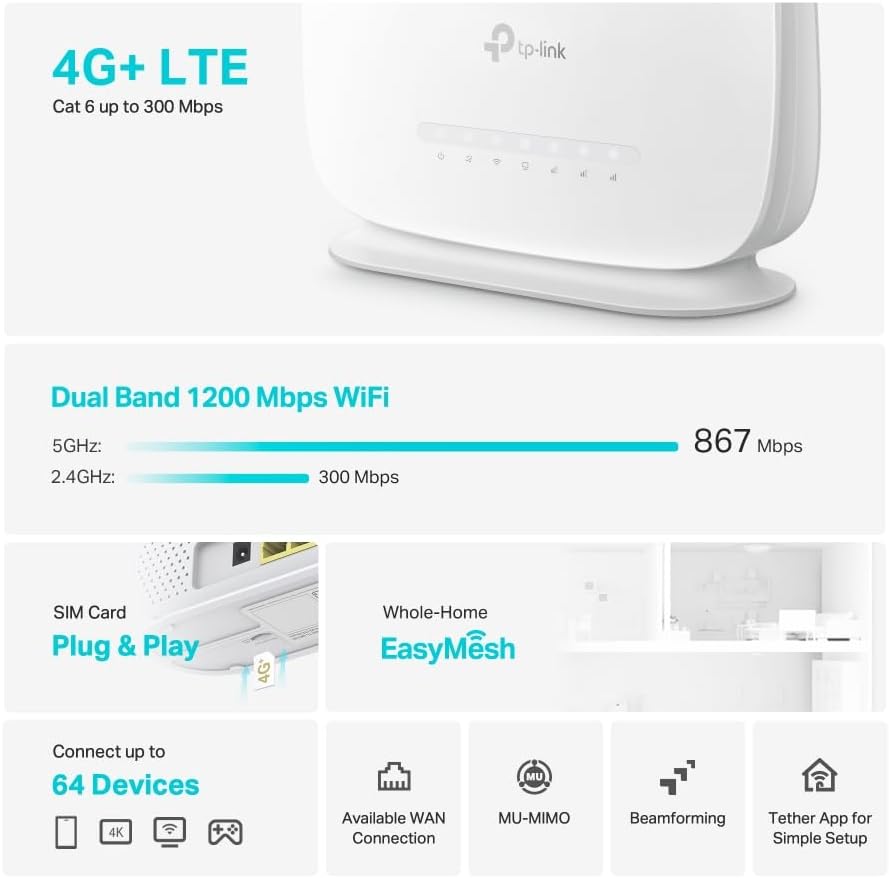
図2:側面 view of the Archer MR505 router.
パッケージ内容
パッケージにすべてのアイテムが含まれていることを確認します。
- TP-Link Archer MR505 ルーター
- 電源アダプター
- クイックインストールガイド
- RJ45イーサネットケーブル

Figure 3: Key features and components of the Archer MR505.
セットアップ手順
Follow these steps to set up your Archer MR505 router:
- SIM カードの挿入: Locate the SIM card slot on the router. Insert your 4G/LTE SIM card into the slot until it clicks into place. Ensure the SIM card is a normal data SIM for optimal compatibility. Some data-only SIM cards may require specific configurations or may not be fully compatible.
- 接続電源: 付属の電源アダプターをルーターの電源ポートに接続し、コンセントに差し込みます。ルーターの電源は自動的にオンになります。
- 初期化を待機: Allow a few minutes for the router to boot up and establish a connection to the 4G/LTE network. The LED indicators on the front panel will show the connection status.
- 初期Wi-Fi接続:
- Find the default Wi-Fi network name (SSID) and password printed on the label at the bottom of the router.
- コンピュータまたはモバイルデバイスをこの Wi-Fi ネットワークに接続します。
- アクセス ルータ管理:
- 開く web ブラウザを開き、デフォルトの管理アドレスを入力します(例: http://tplinkwifi.net or http://192.168.1.1).
- デフォルトのユーザー名とパスワード(通常は 管理者/管理者 or specified on the label).
- ネットワーク設定を構成します。 Follow the on-screen Quick Setup wizard to configure your internet connection, change the Wi-Fi network name (SSID), and set a strong, unique password for both your Wi-Fi and router management interface.
- Tether App Setup (Optional): Download the TP-Link Tether app from your device's app store. The app provides an intuitive way to manage your router settings from your smartphone or tablet.
- 外部アンテナ(オプション): If using external antennas (not included), connect them to the designated ports on the back of the router. You may need to manually enable external antenna usage through the router's web インターフェースまたは Tether アプリ。
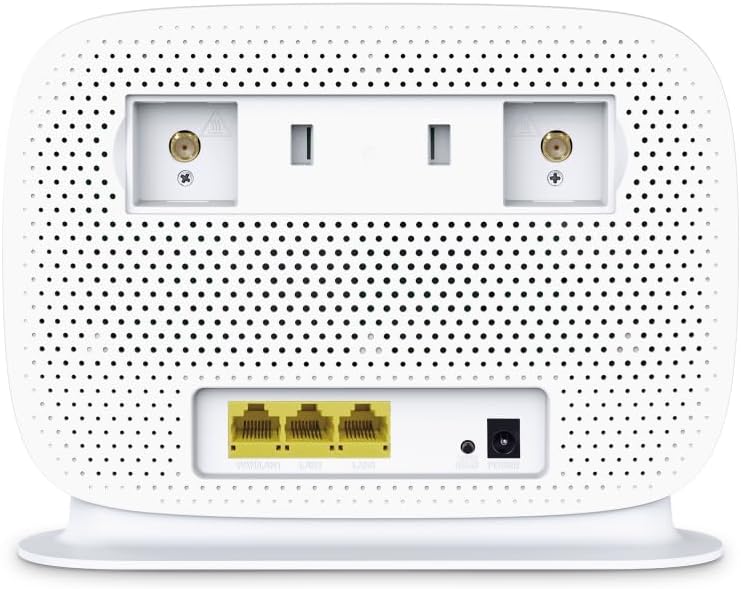
Figure 4: Rear panel of the Archer MR505 with ports and SIM slot.

Figure 5: Archer MR505 in various usage scenarios.
操作手順
The Archer MR505 provides robust wireless and wired connectivity:
- デュアルバンドWi-Fi: The router operates on both 2.4 GHz and 5 GHz bands, offering speeds up to 300 Mbps and 867 Mbps respectively, for a total of AC1200 Wi-Fi.
- 4G+ Cat6 Connectivity: Enjoy mobile broadband speeds up to 300 Mbps download and 300 Mbps upload (maximum upstream data transfer rate).
- ギガビットイーサネットポート: Four Gigabit LAN ports (1000 Mbps) are available for high-speed wired connections to devices like computers, gaming consoles, or smart TVs. One port can also function as a WAN port for traditional broadband connections.
- デバイス容量: The router can support connectivity for up to 64 devices simultaneously.
- スマートコネクト: This feature automatically assigns devices to the best available Wi-Fi band (2.4 GHz or 5 GHz) for optimized performance.
- EasyMeshの互換性: The Archer MR505 is compatible with TP-Link EasyMesh, allowing you to create a seamless whole-home mesh Wi-Fi network by adding compatible range extenders.
- 先端技術: Features like MU-MIMO and Beamforming enhance Wi-Fi efficiency and range, especially for multiple connected devices.
- 安全: The router supports WPA3 encryption for enhanced network security.

Figure 6: Versatile connectivity and speed capabilities.

Figure 7: Whole-Home EasyMesh integration.
メンテナンス
To ensure optimal performance and security of your router:
- ファームウェアの更新: TP-Linkの公式ウェブサイトから最新のファームウェアアップデートを定期的に確認し、インストールしてください。 website or via the Tether app. Firmware updates often include security patches and performance improvements.
- 安全なパスワード: Use strong, unique passwords for your Wi-Fi network and router management interface. Change them periodically.
- 物理的な配置: Wi-Fi の範囲を最大限にするには、ルーターを中央の場所に置き、障害物や干渉源 (電子レンジ、コードレス電話など) から離します。
- クリーニング: Keep the router clean and free from dust. Ensure ventilation holes are not blocked.
- 定期的に再起動する: Restarting the router occasionally can help resolve minor network issues and improve performance.
トラブルシューティング
If you encounter issues with your Archer MR505 router, consider the following:
- No Internet Connection via 4G/LTE:
- SIM カードが正しく挿入され、アクティブ化されていることを確認してください。
- Verify that your SIM card is a normal data SIM. Some data-only SIM cards may require specific APN settings or might not be fully compatible. Contact your mobile service provider for details.
- Check the 4G/LTE signal strength indicated by the router's LEDs. If the signal is weak, try repositioning the router or consider using external antennas (if supported and configured).
- ルータと接続されているデバイスを再起動します。
- Wi-Fi 接続の問題:
- デバイスがルーターの Wi-Fi 範囲内にあることを確認してください。
- 正しい Wi-Fi パスワードを使用していることを確認してください。
- If a device frequently connects and disconnects, try restarting that specific device.
- 他の電子機器からの干渉がないか確認してください。
- インターネット速度が遅い:
- Check your 4G/LTE signal strength. Weak signal can significantly reduce speed.
- Ensure no other applications or devices are consuming excessive bandwidth.
- If using Wi-Fi, try connecting to the 5 GHz band for faster speeds, if your device supports it.
- 速度テストを実行して、実際に受信している速度を確認します。
- ルーター管理ページにアクセスできません:
- デバイスがルーターのネットワークに接続されていることを確認します (Wi-Fi またはイーサネット ケーブル経由)。
- Verify you are entering the correct management address (e.g., http://tplinkwifi.net).
- ブラウザのキャッシュをクリアするか、別のブラウザを使用してみてください。
仕様
| ブランド | TPリンク |
| モデル名 | アーチャーMR505 |
| ワイヤレス標準 | 802.11ac(Wi-Fi 5) |
| 周波数帯域クラス | デュアルバンド(2.4 GHz & 5 GHz) |
| Wi-Fiデータレート | Up to 300 Mbps (2.4 GHz), Up to 867 Mbps (5 GHz) - AC1200 Total |
| 4G+ Cat6 Speed | Up to 300 Mbps Download, Up to 300 Mbps Upload |
| イーサネットポート | 4 x Gigabit LAN Ports (1000 Mbps), 1 x WAN/LAN Port |
| アンテナタイプ | Internal (External antenna support available) |
| セキュリティプロトコル | WPA3 |
| 制御方法 | App (TP-Link Tether) |
| 対応デバイス | Laptop, Personal Computer, Smart Television, Smartphone, Tablet |
| 電源入力 | 12ボルト |
| アイテム重量 | 0.93キログラム |
| 含まれるコンポーネント | Archer MR505, Power Adapter, Quick Installation Guide, RJ45 Ethernet Cable |
保証とサポート
保証情報については、製品に付属の保証書を参照するか、TP-Linkの公式ウェブサイトをご覧ください。 website for your region. Support resources, including FAQs, firmware downloads, and contact information, are available on the TP-Link support website and through the TP-Link Tether app.
Official TP-Link Webサイト: https://www.tp-link.com
TP-Link Tether アプリ: Available on iOS App Store and Google Play Store.


