Chilkey ND75 Aluminum 75% Wireless Mechanical Keyboard User Manual
モデル: ND75
1. はじめに
This manual provides detailed instructions for the setup, operation, and maintenance of your Chilkey ND75 Aluminum 75% Wireless Mechanical Keyboard. Please read this manual thoroughly before using the product to ensure optimal performance and longevity.
The Chilkey ND75 is a high-performance 75% layout mechanical keyboard featuring a full aluminum alloy case, multi-mode connectivity (Bluetooth 5.0, 2.4GHz wireless, USB-C wired), hot-swappable switches, per-key RGB backlighting, and an integrated LCD screen for enhanced functionality.
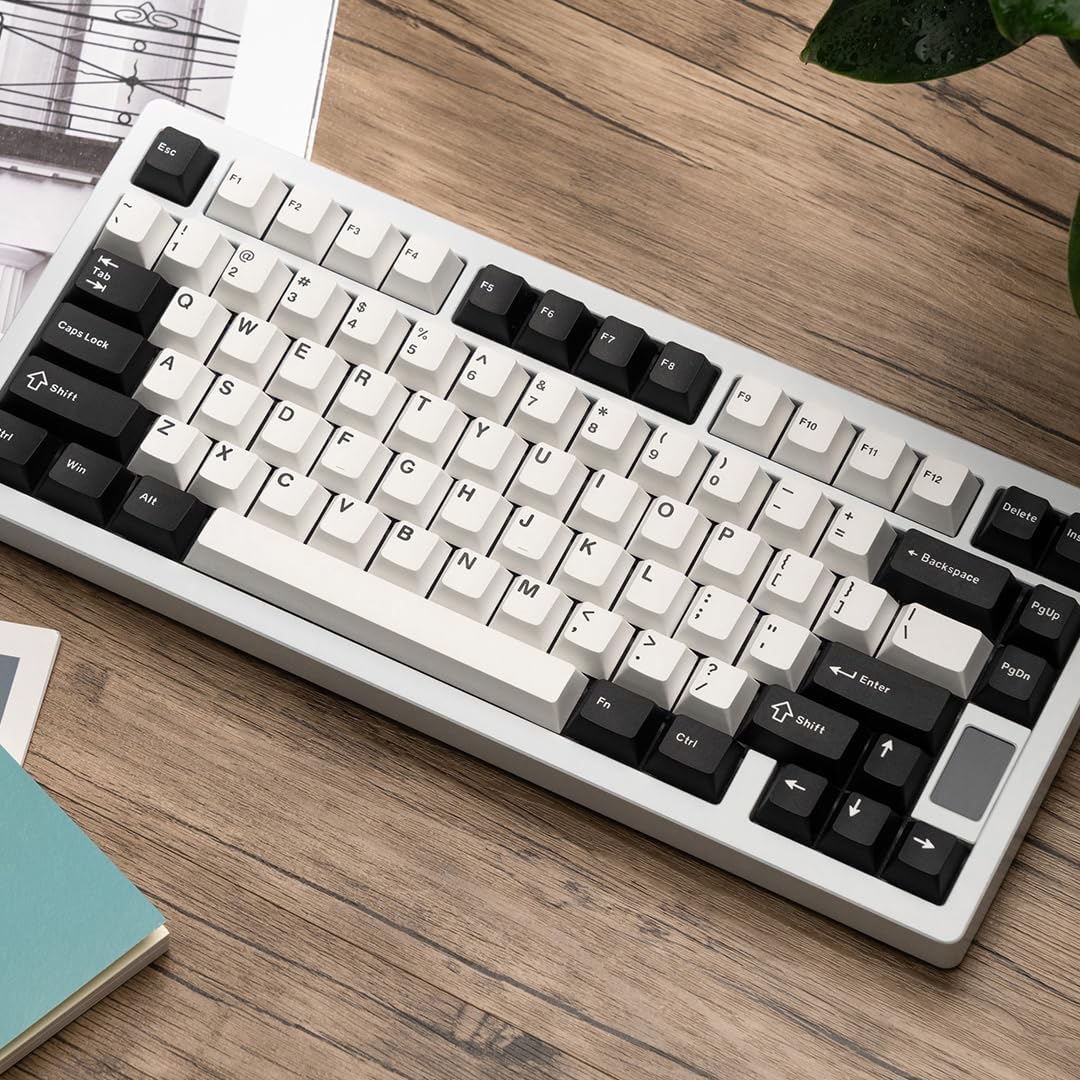
Image: The Chilkey ND75 keyboard, showcasing its 75% layout and aluminum casing.
2. パッケージ内容
パッケージにすべてのアイテムが含まれていることを確認します。
Chilkey ND75 Aluminum Mechanical Keyboard
USB-Cケーブル
Switch Puller / Keycap Puller Tool
ユーザーマニュアル(このドキュメント)
Additional hardware (e.g., screwdriver, spare mounting system components if applicable)
Note: The product includes 2 Lithium Polymer batteries (pre-installed).
3. セットアップ
3.1 初期接続
The ND75 keyboard supports three connection modes: Bluetooth 5.0, 2.4GHz wireless, and USB-C wired.
3.1.1 有線モード(USB-C)
付属の USB-C ケーブルをキーボードの USB-C ポートに接続します。
USB-C ケーブルのもう一方の端をコンピューターの使用可能な USB ポートに接続します。
キーボードは自動的に検出され、使用できるようになります。
3.1.2 2.4GHzワイヤレスモード
Locate the 2.4GHz USB receiver. This is typically stored in a compartment on the keyboard or included separately.
Remove the Right Shift keycap to access the wireless switch. Ensure the switch is in the 2.4GHz position.
Remove the Right Shift keycap to access the wireless switch. Ensure the switch is in the Bluetooth position.
コンピューターまたはデバイスで Bluetooth を有効にし、新しいデバイスを検索します。
キーボードで長押し Fn + 1, Fn + 2、 または Fn + 3 for 3-5 seconds to enter pairing mode for one of the three available Bluetooth channels. The LCD screen will indicate pairing status.
Select "Chilkey ND75" from the list of available Bluetooth devices on your computer/device to complete pairing.
You can switch between paired Bluetooth devices using Fn + 1, Fn + 2、 または Fn + 3.
3.2 Mounting System Adjustment
The ND75 keyboard features a screwless quick assembly structure and supports three different mounting systems: Split O-Ring Mounting, Silica Gel Particle Mounting, and Top Mounting. These can be adjusted to customize typing feel.
画像: クローズアップ view of the keyboard's internal structure highlighting the three mounting systems: Top Mount, Split O-Ring Mount, and Silica Gel Particle Mount. Each system offers a distinct typing experience.
Refer to the detailed instructions provided with the additional hardware for specific guidance on disassembling and reassembling the keyboard to change mounting systems.
4. 操作手順
4.1 LCD 画面の機能
The integrated LCD screen provides real-time information and allows for quick adjustments without software. Functions include:
Connection Mode display (BT, 2.4G, USB-C)
バッテリーレベルインジケーター
Backlight Brightness/Speed adjustment
RGB Mode/Color selection
音量調節
言語設定
Custom GIF/Image display
Image: The ND75 keyboard with an overlay illustrating the various functions accessible via the LCD screen, including configuration, connection modes, RGB settings, system information, and volume control.
Navigate the LCD screen menu using the dedicated knob or specific key combinations (refer to the quick guide provided with the keyboard).
4.2RGBバックライト
The ND75 keyboard features per-key RGB backlighting with 19 preset lighting effects. Custom light colors can also be defined.
Image: The ND75 keyboard illuminated with per-key RGB backlighting, demonstrating the range of colors and effects available.
Adjust lighting effects and colors directly via the LCD screen or using specific Fn key combinations. Consult the quick guide for a list of shortcuts.
4.3 ホットスワップ可能なスイッチ
The ND75 keyboard is equipped with a hot-swappable PCB, allowing users to replace switches without soldering. It supports both 3-pin and 5-pin switches.
Image: A switch puller tool is used to remove a mechanical switch from the keyboard, illustrating the hot-swappable functionality.
スイッチを交換するには:
Carefully remove the keycap using the keycap puller tool.
Use the switch puller tool to gently grip the top and bottom clips of the switch.
Caution: Apply gentle, even pressure when inserting switches to avoid bending pins or damaging the PCB.
4.4 ソフトウェアのカスタマイズ
The ND75 keyboard supports independent driver/software for advanced customization, including key remapping, macro creation, and further RGB lighting control. The software can be downloaded from the official Chilkey webサイト。
Note: Some users have reported that the software can be clunky. Refer to the official Chilkey Discord community or support channels for assistance with software usage.
5. メンテナンス
5.1 キーボードのクリーニング
清掃する前に、キーボードをコンピューターから取り外してください。
柔らかいブラシまたは圧縮空気を使用して、キーキャップ間のほこりやゴミを取り除きます。
For deeper cleaning, keycaps can be removed using the provided keycap puller. Clean keycaps with a mild soap solution and allow them to dry completely before reattaching.
2.4GHzワイヤレスモード: Ensure the USB receiver is properly inserted and the wireless switch (under the Right Shift keycap) is in the 2.4GHz position. Try re-pairing by pressing Fn + 4.
Bluetoothモード: Verify Bluetooth is enabled on your device and the keyboard is paired. Ensure the wireless switch is in the Bluetooth position. Try re-pairing by holding Fn + 1/2/3.
バッテリー: Check the battery level on the LCD screen. Connect the keyboard to a power source to charge if the battery is low.
6.2 キーが認識されない、または二重入力される
This may indicate a faulty switch. Utilize the hot-swappable feature to replace the affected switch.
スイッチが PCB に完全に固定されていることを確認します。
6.3 RGB照明の問題
Check the lighting settings via the LCD screen or software.
Image: Technical drawing illustrating the precise dimensions of the ND75 keyboard.
画像: 分解図 view diagram detailing the internal layers and components of the ND75 keyboard, including keycaps, switches, case, and sound damp材料を磨く。
8. 保証とサポート
For warranty information, technical support, or further assistance, please refer to the official Chilkey website or contact their customer service. You may also find helpful resources and community support on the official Chilkey Discord server.