
導入
The Logitech Zone 305 is a wireless Bluetooth headset designed for business professionals. It offers clear audio and reliable connectivity for calls and video meetings, certified for platforms like Google Meet, Google Voice, and Zoom. This manual provides essential information for setting up, operating, and maintaining your headset.

Image: The Logitech Zone 305 wireless headset shown alongside its retail packaging.
箱の中身
パッケージにすべてのコンポーネントが含まれていることを確認します。
- Logitech Zone 305 ワイヤレス ヘッドセット
- USB-Cレシーバー
- USB-C - USB-A アダプタ
- USB-C充電ケーブル
- 旅行用バッグ
- ユーザーマニュアル(このドキュメント)
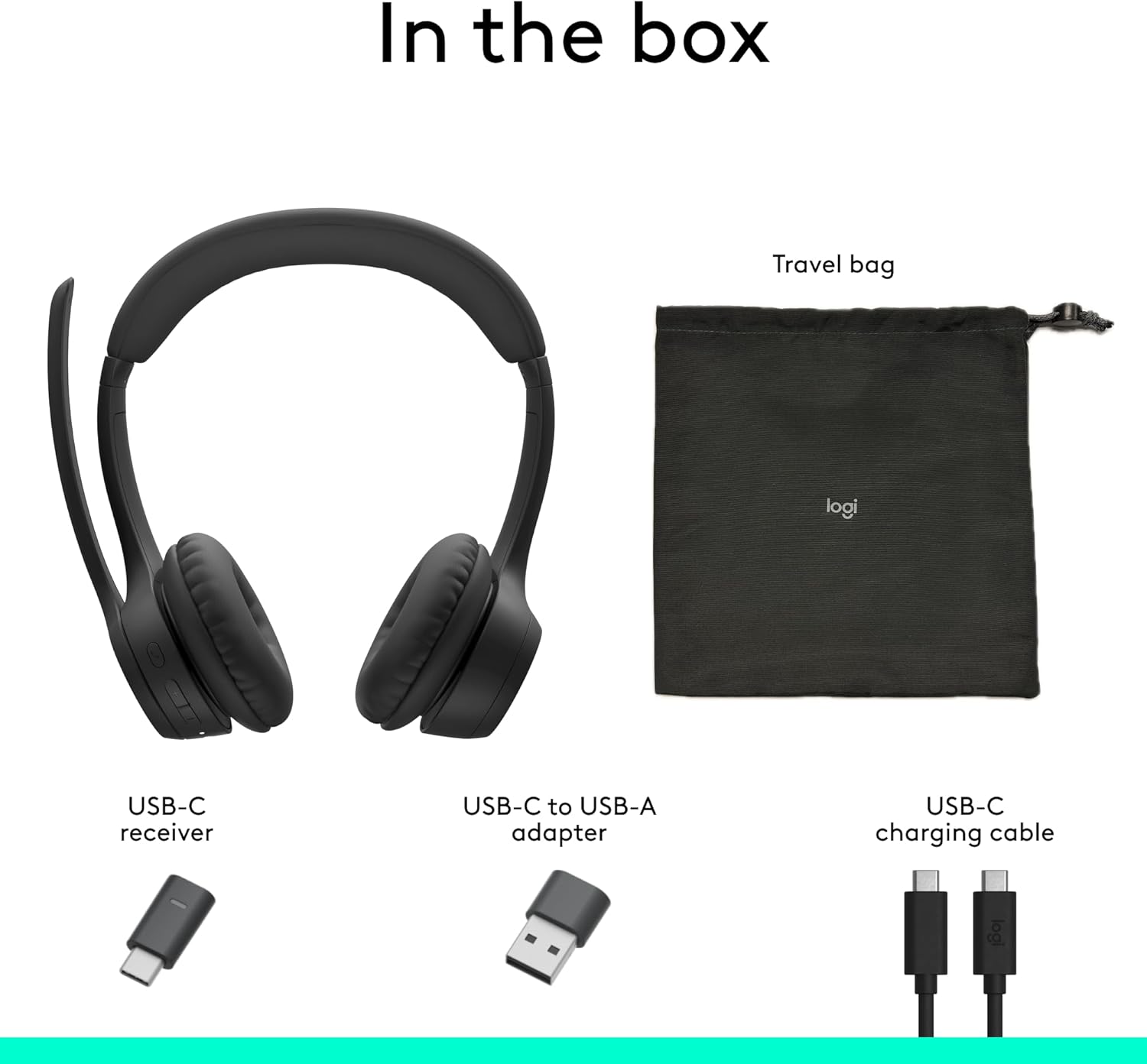
Image: A visual representation of all items included in the Logitech Zone 305 product box, including the headset, cables, and travel bag.
設定
ヘッドセットの充電
Before first use, fully charge your Zone 305 headset. Connect the USB-C charging cable to the headset's USB-C port and the other end to a power source (e.g., computer USB port, wall adapter). The LED indicator on the headset will show charging status.

Image: A detailed diagram highlighting various features of the Logitech Zone 305 headset, including the USB-C charging port.
USBレシーバー経由で接続する
- Insert the USB-C receiver into an available USB-C port on your computer. If your computer only has USB-A ports, use the provided USB-C to USB-A adapter.
- Power on your Zone 305 headset.
- The headset should automatically connect to the receiver. A solid LED indicator on the headset confirms a successful connection.
Bluetooth経由で接続する
- Power on your Zone 305 headset.
- Press and hold the Bluetooth pairing button on the headset until the LED indicator flashes rapidly, indicating pairing mode.
- On your device (computer, smartphone, tablet), navigate to Bluetooth settings and select "Logitech Zone 305" from the list of available devices.
- 接続されると、ヘッドセットの LED インジケーターが点灯します。
The headset can maintain a reliable connection to two devices simultaneously with a wireless range of up to 30 meters.
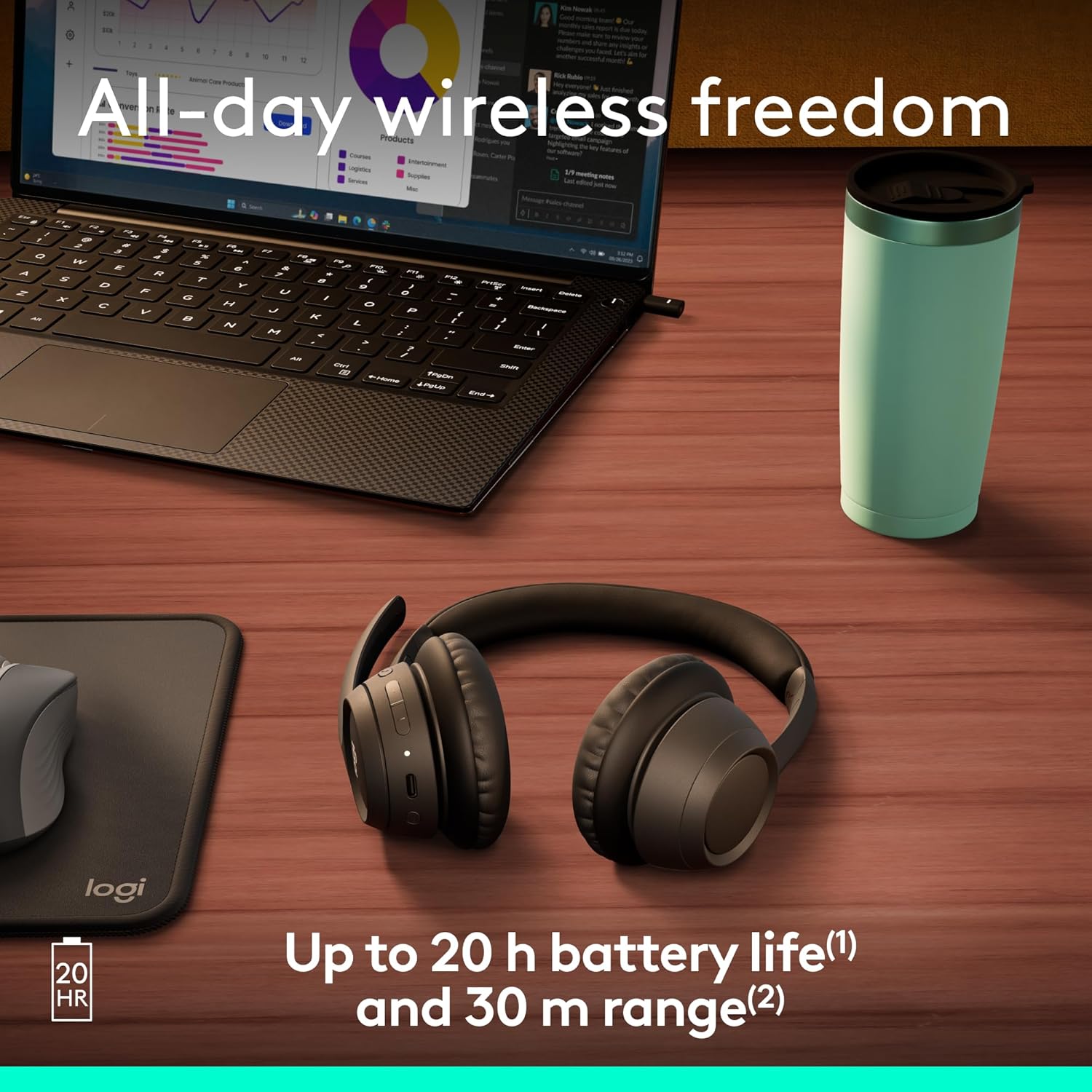
Image: The Logitech Zone 305 headset positioned on a wooden desk, illustrating its wireless capability next to a laptop.
操作手順
基本操作
- 電源オン/オフ: 電源ボタンを長押しします。
- 音量コントロール: イヤーカップにある音量アップ (+) ボタンと音量ダウン (-) ボタンを使用します。
- 再生/一時停止: 多機能ボタンをXNUMX回押します。
- 通話の応答/終了: 着信中または通話中に多機能ボタンを 1 回押します。
- 通話を拒否: 着信中に多機能ボタンを長押しします。
マイクの使用
The Zone 305 features a flip-to-mute boom microphone with dual noise-canceling mics for clear voice capture.
- ミュート/ミュート解除: Flip the microphone boom arm up to mute, and flip it down to unmute.
- ポジショニング: For optimal voice clarity, position the microphone approximately two fingers' width from your mouth.

画像: クローズアップ view of the microphone boom on the Logitech Zone 305 headset, highlighting the dual noise-canceling microphone elements.
Compatibility and Certifications
The Zone 305 is certified for use with Google Meet, Google Voice, and Zoom, ensuring seamless integration and optimal performance with these communication platforms. It is also compatible with Windows, Mac, Chrome, Linux, iOS, iPadOS, and Android operating systems.

Image: A person wearing the Logitech Zone 305 headset, with logos indicating certification for Zoom, Google Meet, Google Voice, and Works With Chromebook.
メンテナンス
クリーニング
- ヘッドセットを柔らかくて乾いた布で拭いてください。amp 布。
- 研磨剤や溶剤は使用しないでください。
- Ensure the USB-C charging port is free of dust and debris.
イヤーパッドの交換
The earpads on the Zone 305 are replaceable to extend the product's life. Contact Logitech support for replacement parts and instructions.
ストレージ
When not in use, store the headset in the provided travel bag to protect it from dust and damage.

Image: The Logitech Zone 305 headset resting on a minimalist white stand, demonstrating its lightweight design.
トラブルシューティング
- 音声なし:
- ヘッドセットの電源がオンになっており、デバイスに接続されていることを確認します。
- Check your device's volume settings and ensure the headset is selected as the audio output.
- Verify the headset is not muted.
- マイクが機能しない:
- マイクブームが下向きになっていて、ミュートされていないことを確認します。
- デバイスのサウンド設定をチェックして、ヘッドセットのマイクが入力デバイスとして選択されていることを確認します。
- Restart your communication application (e.g., Zoom, Google Meet).
- 接続の問題:
- Ensure the headset is within the 30-meter wireless range of your device.
- Try re-pairing the headset via Bluetooth or re-inserting the USB receiver.
- Ensure there are no strong interfering signals (e.g., other wireless devices) nearby.
- バッテリー寿命が短い:
- Ensure the headset is fully charged before use. Battery life is up to 20 hours listening time and 16 hours talk time.
- A 5-minute quick charge provides up to 1 hour of talk time.
仕様
| 特徴 | 詳細 |
|---|---|
| モデル名 | ゾーン305 |
| 商品型番 | 981-001452 |
| 接続技術 | ワイヤレス(Bluetooth) |
| ワイヤレス範囲 | 最大30メートル(100フィート) |
| バッテリー寿命(リスニング) | 最大20時間 |
| バッテリー寿命(通話時間) | 最大16時間 |
| クイックチャージ | 5 minutes charge for 1 hour talk time |
| マイクタイプ | Dual noise-canceling mics on flip-to-mute boom |
| 重さ | 122グラム(4.3オンス) |
| 材料 | Plastic (55% Post-Consumer Recycled Plastic) |
| 互換性 | Windows, Mac, Chrome, Linux, iOS, iPadOS, Android |
| 認定資格 | Google Meet, Google Voice, Zoom, Works With Chromebook |
保証とサポート
Logitech products are designed for reliability and performance. For warranty information, please refer to the warranty card included with your product or visit the official Logitech support webサイト。
For technical assistance, frequently asked questions, and driver downloads, please visit the Logitechサポート Webサイト. You can also manage device usage and firmware updates via ロジクール同期.

Image: Two individuals working in an office setting, one utilizing the Logitech Zone 305 headset, illustrating its use in a business environment and manageability with Logitech Sync.