
ELEPHAS 1080P
ELEPHAS ミニポータブルプロジェクター ユーザーマニュアル
Model: 1080P | Brand: ELEPHAS
導入
This manual provides comprehensive instructions for the safe and efficient operation of your ELEPHAS 1080P Mini Portable Projector. Please read this manual thoroughly before using the product and retain it for future reference.
製品終了view
The ELEPHAS Mini Portable Projector is designed to deliver a high-definition viewing experience with advanced features such as 4K video decoding support, automatic keystone correction, 180° rotation, and dual-band Wi-Fi 6 connectivity. It includes a built-in Hi-Fi speaker and Bluetooth 5.2 for enhanced audio.

図1: フロント view ELEPHASミニポータブルプロジェクターのasing its compact cylindrical design and lens.
主な特徴:
- HD 1080P Resolution & 4K Video Decoding: Supports 1920x1080P resolution and full-format decoding including HEVC/VP9/AVS2/AVC 4K@30fps and AV1/MPEG1/MPEG2 1080p/60fps.
- キーストーンの自動修正: Features ±45° automatic keystone correction for perfectly aligned images.
- 180° Rotatable Projection: Allows projection onto walls, ceilings, or floors from various angles.
- Bluetooth 5.2 & Hi-Fi Speaker: Integrated 3W Hi-Fi speaker and Bluetooth connectivity for external audio devices.
- デュアルバンドWi-Fi 6: Ensures stable and fast streaming with compatibility for 2.4G and 5G networks.
パッケージ内容
パッケージを開封したら、以下にリストされているすべてのアイテムが揃っていて良好な状態であることを確認してください。
- ELEPHAS ミニポータブルプロジェクター
- HDMIケーブル
- 電源アダプター(明示的には記載されていないが、動作には必要)
- Remote Control (not explicitly listed but implied for operation)
- ユーザーマニュアル(このドキュメント)
注: 不足または破損した商品がある場合は、カスタマー サポートにお問い合わせください。
設定
1.配置
Position the projector on a stable, flat surface. Ensure there is adequate ventilation around the device. The 180° rotatable projection allows for flexible placement, including projecting onto ceilings or walls.

図2: The projector demonstrating its 180-degree rotation capability, projecting images onto both a wall and a ceiling in a bedroom setting.
2. 電源接続
- 電源アダプタをプロジェクターの電源入力ポートに接続します。
- 電源アダプターを適切なコンセントに差し込みます。
3. 初回電源投入
プロジェクターまたはリモコンの電源ボタンを押してデバイスの電源を入れます。インジケーターライトが点灯します。
4.フォーカス調整
Adjust the focus ring on the projector lens until the projected image appears clear and sharp. For optimal clarity, ensure the projector is at an appropriate distance from the projection surface.
5. 自動キーストーン補正
The projector features automatic ±45° keystone correction. This function automatically adjusts the image to be rectangular, even if the projector is placed at an angle. Manual adjustment may be available in the settings if needed.
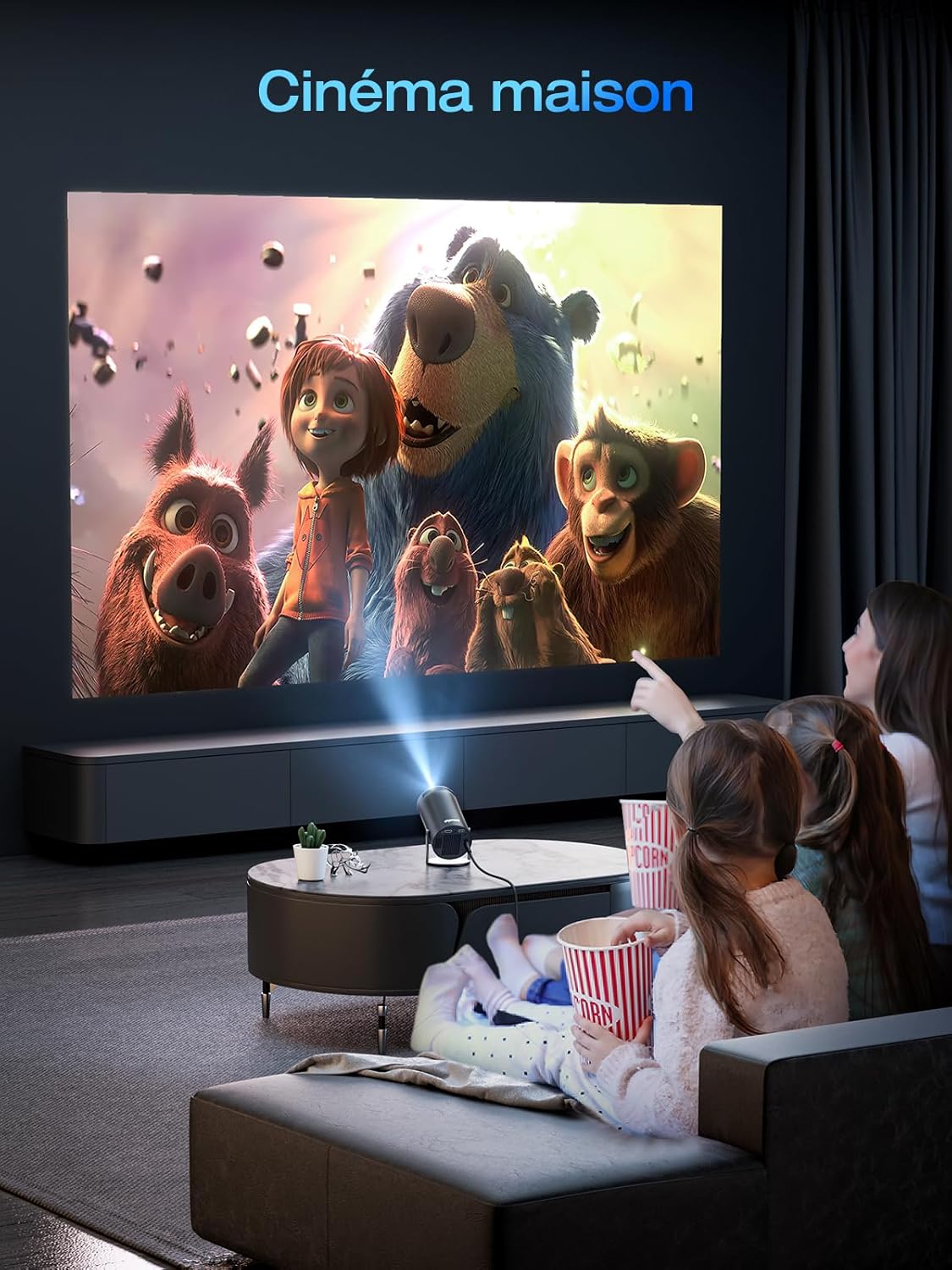
図3: Illustration of the automatic keystone correction feature, showing how a distorted image is automatically corrected into a perfect rectangle.
操作手順
1. インターフェースの操作
The projector runs on Android 11.0 with a built-in app interface. Use the remote control to navigate through menus, select applications, and adjust settings. The main screen provides access to pre-installed apps like Netflix and YouTube, as well as an AppStore for additional downloads.

図4: The projector's Android 11.0 interface displaying various application icons such as Netflix, YouTube, and AppStore, indicating built-in smart capabilities.
2。 Wi-Fi接続
- Go to "Settings" on the main interface.
- 「ネットワークとインターネット」または「Wi-Fi」を選択します。
- Wi-Fi をオンにして、リストから希望のネットワークを選択します。
- Enter the password if prompted and connect. The projector supports dual-band Wi-Fi 6 (2.4G and 5G).
3.Bluetooth接続
The projector features Bluetooth 5.2 for connecting to external audio devices like headphones or speakers. It is important to note that Bluetooth connectivity is for audio output devices only and not for connecting to smartphones as an input source.
- 「設定」に移動して「Bluetooth」を選択します。
- Ensure Bluetooth is enabled on both the projector and your audio device.
- ペアリング可能なデバイスのリストからオーディオ デバイスを選択します。

図5: The projector connected via Bluetooth 5.2 to an external soundbar, illustrating its audio output capabilities. Note: Bluetooth is for audio devices only, not smartphones.
4. 外部機器の接続(HDMI)
Use the provided HDMI cable to connect external devices such as laptops, gaming consoles, or TV sticks to the projector.
- Connect one end of the HDMI cable to the HDMI input port on the projector.
- Connect the other end to the HDMI output port of your external device.
- On the projector's interface, select the HDMI input source.
5. 投影サイズの調整
The projector can display an image up to 200 inches. The projection size is primarily determined by the distance between the projector and the screen. Move the projector closer to the screen for a smaller image, and further away for a larger image.
メンテナンス
1. レンズのクリーニング
プロジェクターレンズは、光学面専用の柔らかく糸くずの出ない布で優しく拭いてください。研磨剤入りのクリーナーを使用したり、無理な力で拭いたりするとレンズに傷がつく恐れがありますので、使用は避けてください。
2. プロジェクター本体のクリーニング
プロジェクターの外側は、柔らかく乾いた布で拭いてください。頑固な汚れには、軽くこすった布で拭いてください。amp cloth can be used, followed by a dry cloth. Do not use liquid cleaners directly on the projector.
3. 換気
Ensure that the ventilation vents on the projector are not blocked. Proper airflow is crucial to prevent overheating and maintain optimal performance and lifespan of the device.
4. ストレージ
長期間使用しない場合は、直射日光や極端な温度を避け、涼しく乾燥した場所にプロジェクターを保管してください。ほこりの蓄積や物理的な損傷を防ぐため、元の梱包材または保護ケースの使用をお勧めします。
トラブルシューティング
| 問題 | 考えられる原因 | 解決 |
|---|---|---|
| 画像が投影されない |
|
|
| 画像がぼやけている |
|
|
| 画像が歪んでいる(台形) |
|
|
| 音が出ない |
|
|
| Wi-Fiに接続できません |
|
|
仕様
| 特徴 | 詳細 |
|---|---|
| ブランド | エレファス |
| モデル | 1080P (B0DB1SLFJ4) |
| ネイティブ解像度 | 1920×1080P |
| サポートされている解像度 | Up to 4K video decoding |
| オペレーティング·システム | アンドロイド11.0 |
| キーストーン補正 | Automatic ±45° |
| 投影角度 | 180°回転可能 |
| 接続性 | Wi-Fi 6 (2.4G/5G), Bluetooth 5.2, HDMI |
| オーディオ | Built-in 3W Hi-Fi Speaker |
| 最大表示サイズ | 200インチ |
| 寸法 | 22.1 x 15.6 x 11.9 cm |
| 重さ | 1.03キロ |
| 含まれるコンポーネント | HDMIケーブル |
保証とサポート
ELEPHAS products are designed for reliability and performance. For warranty information and technical support, please refer to the warranty card included in your product packaging or visit the official ELEPHAS webサイトでご確認ください。保証請求の際は購入証明として領収書を保管してください。
For further assistance, you may contact ELEPHAS customer service through their official channels. Details can typically be found on the manufacturer's webサイトまたは製品パッケージ。
Ask a question about this manual
Ask about setup, troubleshooting, compatibility, parts, safety, or missing instructions. Manuals+ will review the question and use this page’s manual context to help answer it.