1. はじめに
This manual provides detailed instructions for the MESWAO 15.6 Inch Android 14 Tablet, model MES-B3. It covers essential information regarding product features, setup, operation, maintenance, and troubleshooting to ensure optimal performance and user experience. Please read this manual thoroughly before using your device.
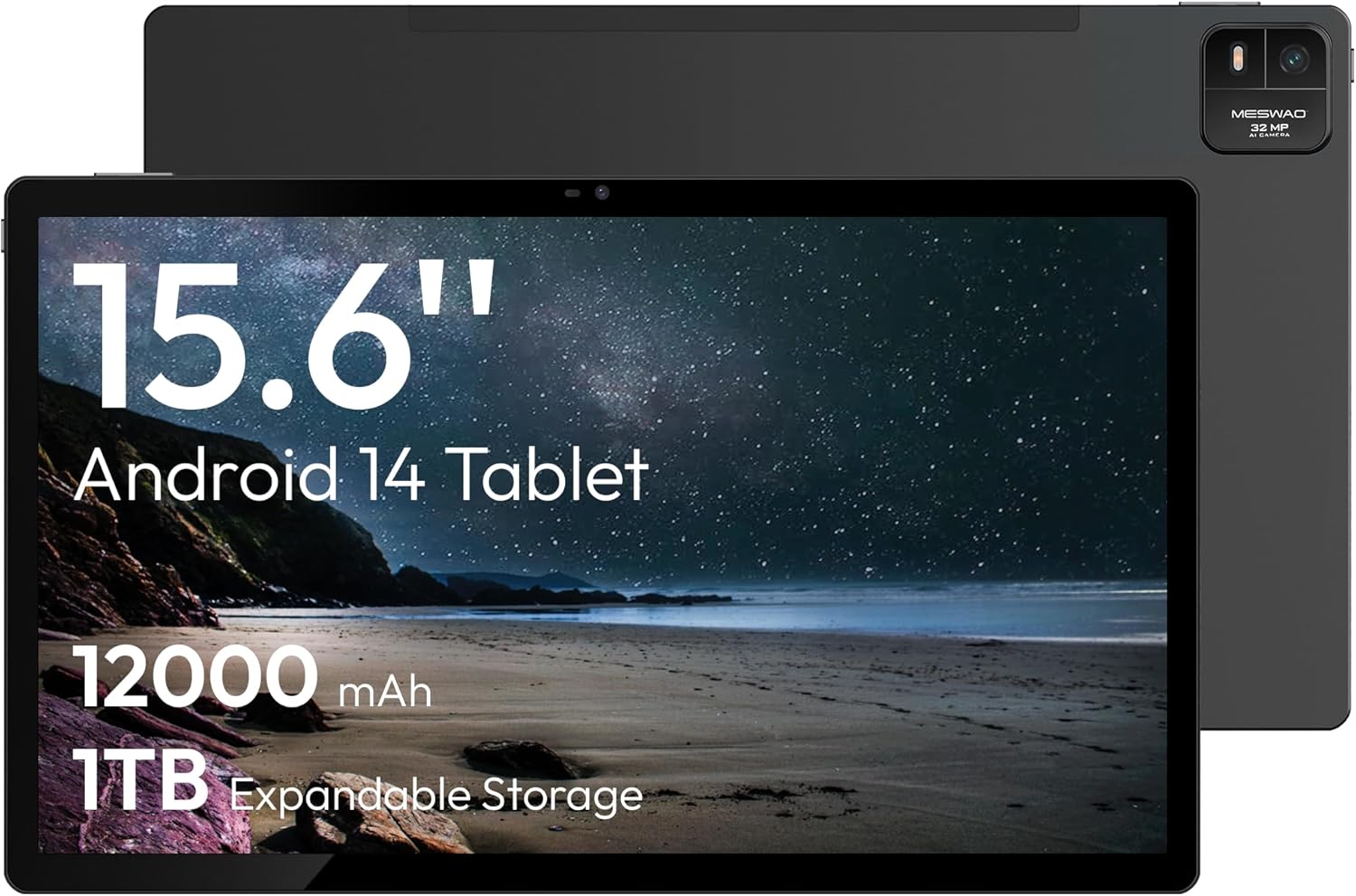
Figure 1.1: MESWAO 15.6 Inch Android 14 Tablet. This image displays the front and back view of the tablet, highlighting its large screen and rear camera module.
2. 安全情報
デバイスの損傷や自分自身または他の人への傷害を防ぐために、次の注意事項を守ってください。
- タブレットを極端な温度、直射日光、高湿度にさらさないでください。
- タブレットを落としたり、強い衝撃を与えたりしないでください。
- 承認された充電器とアクセサリのみを使用してください。
- タブレットを自分で分解したり修理したりしないでください。
- タブレットを水やその他の液体から遠ざけてください。
- Observe all local regulations regarding the use of electronic devices.
3. パッケージ内容
パッケージにすべてのアイテムが揃っていることを確認します。
- 15.6-inch Tablet x1
- 15W充電器×1
- Type-C to 3.5mm Adapter x1
- USB-A to Type-C Adapter x1
- Stuck Pin x1 (for SIM/TF card tray)
4.デバイスオーバーview
MESWAO タブレットの物理コンポーネントについて理解しておきましょう。
4.1. 身体的特徴
- フロントカメラ: Located at the top center of the screen when held horizontally.
- フラッシュ付きリアカメラ: Located on the back, typically in a corner.
- 電源ボタン: Usually on the side, used to power on/off or wake/sleep the device.
- 音量ボタン: オーディオレベルを調整します。
- USB-Cポート: 充電やデータ転送に。
- TFカードスロット: 拡張可能なストレージ用。
- 講演者: Quad speakers with 8 sound chambers for audio output.

図4.1:以上view of MESWAO Tablet's physical features. This image illustrates the location of stereo speakers, power and volume buttons, front camera, rear camera with flashlight, Type-C port, and TF card slot.
5. セットアップ
5.1. 初期充電
Before first use, fully charge the tablet using the provided 15W charger and USB-C cable. Connect the charger to the USB-C port on the tablet and plug it into a power outlet. The battery indicator on the screen will show charging progress.

Figure 5.1: Tablet charging illustration. This image shows the tablet connected to a charger, displaying a charging icon and indicating 100% charge in 3.5 hours.
5.2.電源のオン/オフ
- 電源を入れるには: Press and hold the Power button until the MESWAO logo appears.
- 電源を切るには: 電源オプション メニューが表示されるまで電源ボタンを長押しし、「電源を切る」を選択します。
- 寝る/起きる: 電源ボタンを短く押します。
5.3. 初期設定
初めて電源を入れたら、画面の指示に従ってタブレットをセットアップします。
- ご希望の言語を選択します。
- Wi-Fi ネットワークに接続します。
- Google アカウントでサインインするか、新しいアカウントを作成してください。
- Review 利用規約に同意します。
- 画面ロック(PIN、パターン、またはパスワード)を設定します。
5.4. TFカードの挿入
ストレージを拡張するには、TF (microSD) カードを挿入します。
- タブレットの側面にある TF カード スロットを見つけます。
- Use the provided stuck pin to gently eject the card tray.
- Place the TF card into the tray with the gold contacts facing down.
- トレイをタブレットに慎重に再挿入します。

Figure 5.2: Tablet storage capabilities. This image highlights the 128GB ROM and support for up to 1TB expandable storage via TF card.
6. 操作手順
6.1. 基本的なナビゲーション
The MESWAO tablet uses Android 14, offering intuitive touch-based navigation:
- タップ: 項目を選択するか、アプリケーションを開きます。
- スワイプ: 画面またはリストをスクロールします。
- ピンチしてズーム: 画面上のコンテンツを拡大または縮小します。
- 長押し: コンテキスト メニューにアクセスしたり、アイコンを移動したりします。

Figure 6.1: Android 14 operating system interface. This image displays various application icons and highlights features like smooth multitasking, parental control, and enhanced privacy.
6.2.Wi-Fiへの接続
- へ移動 設定 > ネットワークとインターネット > Wi-Fi.
- Wi-Fiの切り替え On.
- リストから希望のネットワークを選択します。
- パスワードを求められた場合は入力し、タップします 接続する.
6.3. アプリケーションの管理
- アプリをインストール: Download from the Google Play Store.
- アプリをアンインストールする: Long-press an app icon, then drag it to "Uninstall" or go to 設定 > アプリ.
- アプリを閉じる: Swipe up from the bottom of the screen and swipe away the app card.
6.4. カメラの使用
The tablet features a 32MP rear camera with flash and a 5MP front camera.
- 開く カメラ 応用。
- シャッターボタンをタップして写真を撮ります。
- カメラ切り替えアイコンを使用して、前面カメラと背面カメラを切り替えます。
- Access settings for flash, modes, and other options.
6.5.バッテリー管理
12000mAhのバッテリーで長時間の使用が可能です。バッテリー寿命を最適化するには:
- 画面の明るさを調整します。
- 使用していないアプリケーションを閉じます。
- バッテリーセーバーモードを有効にする 設定 > バッテリー.
6.6. 接続性
- ブルートゥース: Pair with wireless headphones, speakers, or other devices via 設定 > 接続されたデバイス > ブルートゥース.
- USB-C: コンピュータに接続して file transfer or use with compatible USB-C accessories.
- ワイヤレススクリーンキャスト: Share your tablet's screen to a compatible smart TV or monitor. Access this feature from the Quick Settings panel or 設定 > 接続されたデバイス > キャスト.
6.7.サウンド設定
Adjust volume and audio output options:
- Use the physical volume buttons on the side of the tablet.
- Access detailed settings in 設定 > 音と振動.
- The tablet supports multiple audio options, including USB-C audio and 3.5mm via the provided adapter.
7. メンテナンス
7.1. タブレットのクリーニング
タブレットを清掃するには、柔らかく糸くずの出ない布を使用してください。頑固な汚れには、軽くamp布に水または電子機器用のスクリーンクリーナーを含ませてください。刺激の強い化学薬品や研磨剤は使用しないでください。
7.2. ソフトウェアの更新
最適なパフォーマンス、セキュリティ、新機能へのアクセスを確保するため、ソフトウェアアップデートを定期的に確認し、インストールしてください。 設定 > システム > システムアップデート.
7.3. ストレージ管理
パフォーマンスを維持するには、タブレットのストレージを定期的に管理してください。
- 不要なアプリを削除し、 files.
- 大きく動かす files to the TF card or cloud storage.
- アプリのキャッシュデータを消去する 設定 > アプリ > [アプリ名] > ストレージとキャッシュ.
8。 トラブルシューティング
次の一般的な問題と解決策を参照してください。
| 問題 | 解決 |
|---|---|
| タブレットの電源が入りません。 | バッテリーが充電されていることを確認してください。充電器を接続し、数分待ってから再度電源を入れてください。 |
| Wi-Fiに接続できません。 | Check if Wi-Fi is enabled. Verify the Wi-Fi password. Restart your router and the tablet. |
| アプリがクラッシュしたりフリーズしたりします。 | Close background apps. Clear the app's cache. Restart the tablet. Ensure the app is updated. |
| パフォーマンスが遅い。 | Free up storage space. Close unused apps. Restart the tablet. |
| バッテリーの消耗が早いです。 | Reduce screen brightness. Disable unused features like Bluetooth or GPS. Close background apps. Check battery usage in settings. |
9. 仕様
Key technical specifications for the MESWAO 15.6 Inch Android 14 Tablet (MES-B3):
| 特徴 | 詳細 |
|---|---|
| ブランド | メスワオ |
| モデル名 | MES-B3 |
| オペレーティング·システム | アンドロイド14 |
| 画面サイズ | 15.6インチ |
| 画面解像度 | 1920 x 1080ピクセル(IPS HD) |
| プロセッサ | Octa-Core (MediaTek Helio G99, up to 2.2 GHz) |
| グラフィックスコプロセッサ | マリ-G57 |
| RAM(メモリ記憶容量) | 6GB (DDR3 SDRAM) |
| Internal Storage (Flash Memory Size) | 128ギガバイト |
| 拡張可能なストレージ | TFカード経由で最大1TB |
| リアカメラ解像度 | 32 MP |
| フロントカメラの解像度 | 5 MP |
| バッテリー容量 | 12000mAh |
| 平均バッテリー寿命 | 12時間 |
| ワイヤレスタイプ | 802.11a/b/g/n/ac(Wi-Fi 5) |
| 色 | グレー |
| アイテム重量 | 2.35ポンド |
| 製品寸法(長さx幅x高さ) | 14.53 x 8.78 x 0.43インチ |
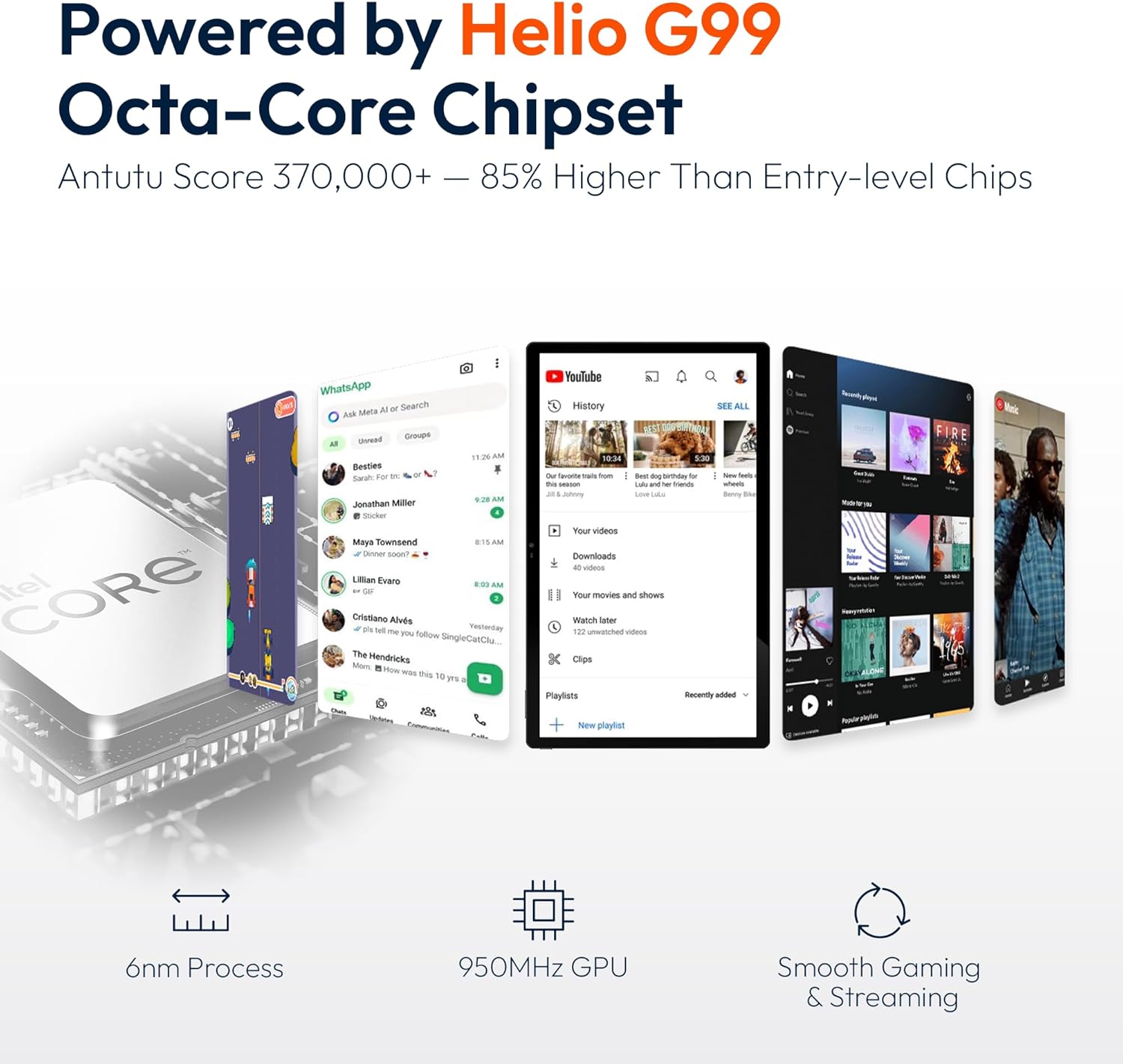
Figure 9.1: Processor and performance details. This image highlights the Helio G99 Octa-Core chipset, 6nm process, 950MHz GPU, and smooth gaming/streaming capabilities.
10. 保証とサポート
10.1. 保証情報
The MESWAO 15.6 Inch Android 14 Tablet comes with a 12ヶ月保証 製造上の欠陥を保証いたします。保証請求の際は、購入証明書を保管してください。
10.2. カスタマーサポート
For technical assistance, troubleshooting, or warranty inquiries, please contact MESWAO customer support. They offer 24時間カスタマーサポート そして local service centers in the US, EU, and Japan.
- 連絡方法: Refer to the contact information provided with your product packaging or visit the official MESWAO webサイト。
- 問題解決: Issues reported are typically responded to within 24 hours, with problems resolved or replaced according to policy.

Figure 10.1: MESWAO customer support and warranty details. This image highlights the 12-month warranty, 24-hour customer support, local after-sales centers, and quick response flow.