
Baseus B0D78WFLST
Baseus 17-in-1 ドッキングステーション ユーザーマニュアル
Model: B0D78WFLST
1. はじめに
This user manual provides detailed instructions for the Baseus 17-in-1 Docking Station (Model: B0D78WFLST). This versatile docking station is designed to expand the connectivity of your laptop or compatible device, offering multiple ports for display, data transfer, networking, and power delivery. Please read this manual thoroughly before using the product to ensure proper operation and to maximize its capabilities.
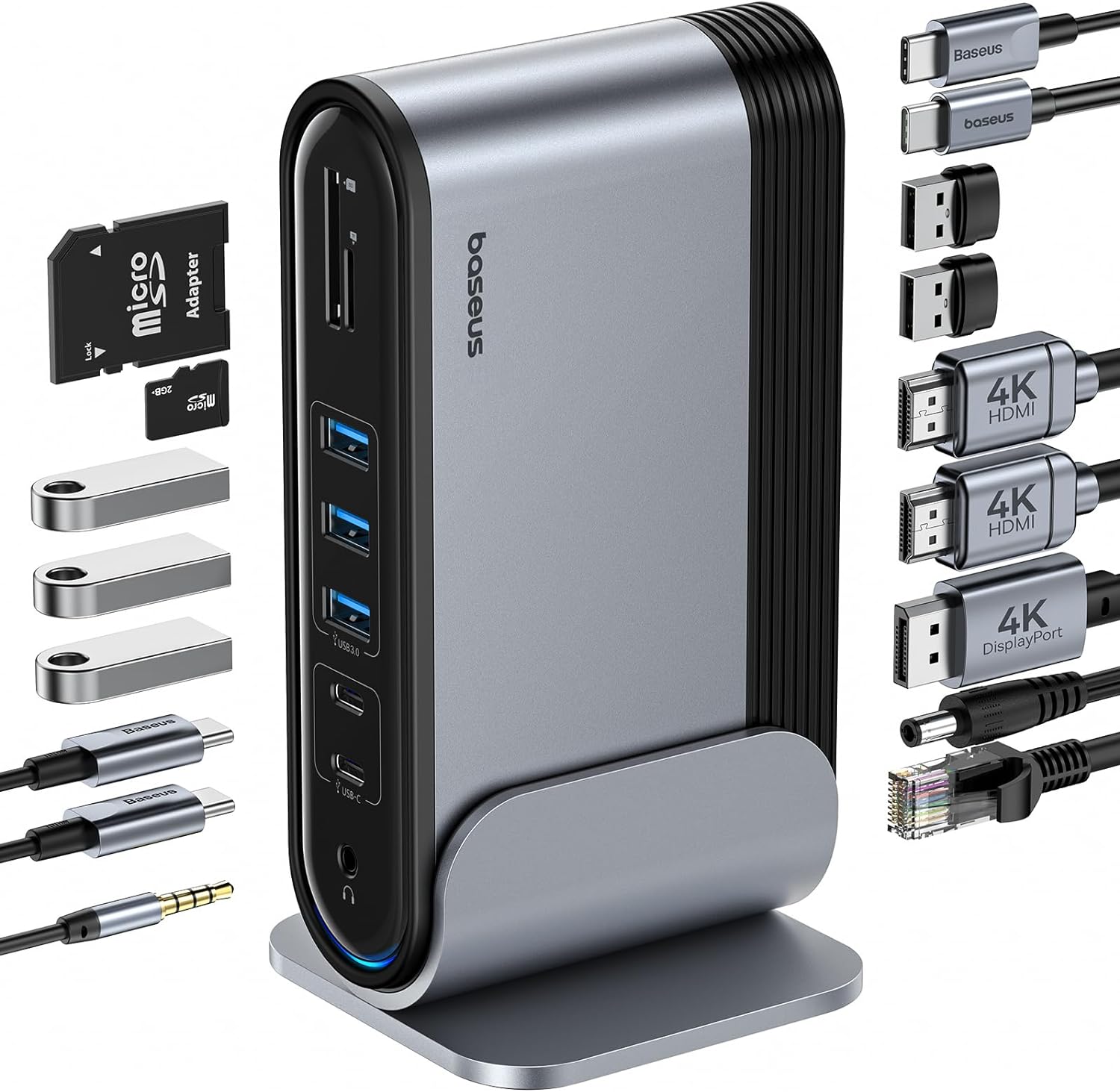
Figure 1: Baseus 17-in-1 Docking Station and included accessories.
2. 主な特徴
The Baseus 17-in-1 Docking Station offers comprehensive connectivity solutions:
- 17-in-1 ポート拡張: Integrates a wide array of ports for diverse connectivity needs.
- トリプルモニターのサポート: Connect up to three external monitors for enhanced productivity.
- 高解像度ディスプレイ: Supports 4K@60Hz resolution for single and dual displays, and 1080P@60Hz for triple displays on Windows systems.
- 高速データ転送: Features USB 3.0 ports with 5Gbps transfer speeds and USB 2.0 ports for peripherals.
- 100W電力供給: Provides up to 85W power output to charge your laptop (100W input required).
- ギガビットイーサネット: Ensures stable and high-speed wired network connection up to 1Gbps.
- SD / TFカードリーダー: Convenient access to memory cards with speeds up to 104 MB/s.
- オーディオ接続: Integrated 3.5mm audio jack for headphones or speakers.
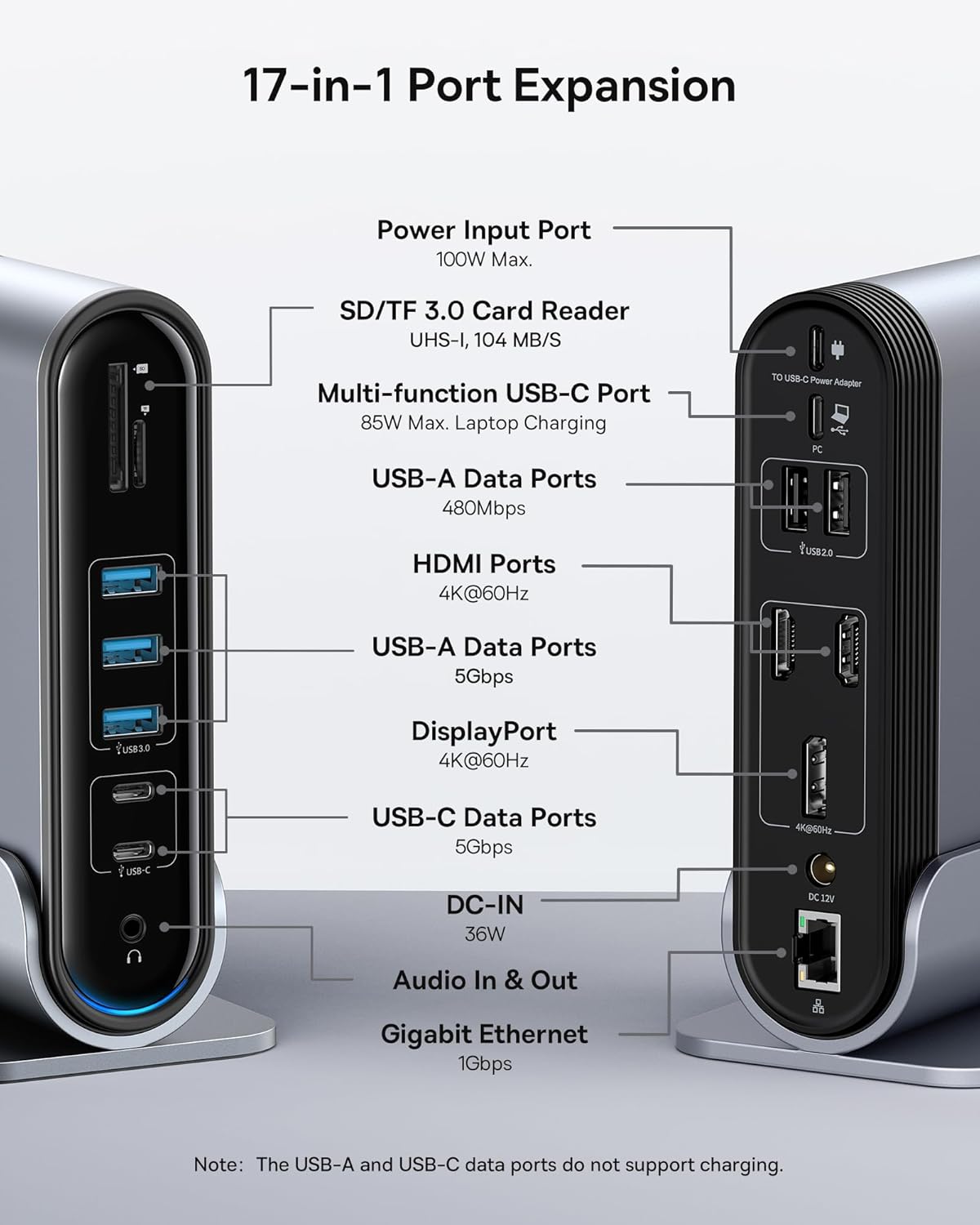
Figure 2: Detailed port layout and specifications of the docking station.
3. パッケージ内容
パッケージにすべてのアイテムが揃っていることを確認してください:
- Baseus UnionJoy 17 ポート トリプル ディスプレイ ドッキング ステーション
- ドックスタンド
- 電源アダプター
- USB-C から USB-C へのケーブル
- US Adapter Plug
- EUアダプタープラグ
- UK Adapter Plug
- ユーザーマニュアル

図 3: ボックスに含まれるもの。
4. セットアップ手順
Baseus 17-in-1 ドッキング ステーションをセットアップするには、次の手順に従ってください。
- 接続電源:
Connect the provided power adapter to the DC-IN port (36W) on the docking station. Use the appropriate regional adapter plug (US, EU, or UK) for your power outlet. For laptop charging, ensure a 100W PD charger (not included) is connected to the Power Input Port (100W Max.) on the docking station.

Figure 4: Power connection for the docking station and laptop charging.
- ホストデバイスに接続します:
Use the included USB-C to USB-C cable to connect the docking station's Multi-function USB-C Port (85W Max. Laptop Charging) to your laptop or compatible host device.
- モニターを接続します:
Connect your external monitors to the HDMI Ports (4K@60Hz) and/or DisplayPort (4K@60Hz) on the docking station using appropriate cables. Refer to the "Operating Instructions" section for display mode configurations.
- 周辺機器を接続します。
Connect your USB devices (keyboard, mouse, external drives, etc.) to the available USB-A Data Ports (5Gbps or 480Mbps) and USB-C Data Ports (5Gbps). Insert SD or TF cards into the respective card reader slots.
- ネットワークに接続(オプション):
For a wired network connection, connect an Ethernet cable from your router/modem to the Gigabit Ethernet port (1Gbps) on the docking station.
- オーディオを接続します (オプション):
Connect headphones or speakers to the 3.5mm Audio In & Out jack.
5. 操作手順
5.1表示モード
The docking station supports various display configurations depending on your operating system and the number of connected monitors.
Windows システムの場合:
- ミラーモード(A+A+A): Displays the same content on all connected monitors and the laptop screen. Supports 1080P@60Hz.
- Extend Mode (A+B+C): Extends your desktop across multiple monitors, allowing different content on each screen. Supports 1080P@60Hz for triple display.
macOS システムの場合:
- ミラーモード(A+A+A): Displays the same content on all connected monitors and the laptop screen. Supports 4K@60Hz.
- Extend Mode (A+B+B): Extends your desktop across external monitors, but macOS typically mirrors content across multiple external displays when using a single MST hub. Supports 4K@60Hz.
- Note: macOS does not support triple extended display (A+B+C) through a single MST hub.

Figure 5: Display mode configurations for Windows and macOS.

Figure 6: Detailed resolution capabilities for various display configurations and DP versions.
5.2データ転送
ドッキング ステーションは高速データ転送機能を提供します。
- USB 3.0(5Gbps): Ideal for external hard drives, SSDs, and other high-bandwidth devices.
- USB 2.0(480Mbps): Suitable for keyboards, mice, printers, and other standard peripherals.
- SD / TFカードリーダー: Quickly transfer photos and videos from memory cards.

Figure 7: Illustrating super-fast data transfer via the docking station.
5.3 電力供給
The docking station supports Power Delivery (PD) to charge your laptop:
- Connect a 100W PD charger (not included) to the dedicated Power Input Port on the docking station.
- The docking station will then provide up to 85W of power to your connected laptop via the USB-C host connection.
Note: The USB-A and USB-C data ports on the front of the docking station do not support charging.
6. メンテナンスとケア
To ensure the longevity and optimal performance of your docking station, follow these guidelines:
- 柔らかく乾いた布で拭いて、デバイスを清潔に保ちましょう。研磨剤入りの洗剤や溶剤の使用は避けてください。
- ドッキング ステーションを水、湿気、または極端な温度にさらさないでください。
- 落としたり、強い衝撃を与えないでください。
- 過熱を防ぐために、ドッキング ステーションの周囲に適切な換気を確保してください。
- デバイスを長期間使用しない場合は、すべてのケーブルを外してください。
7。 トラブルシューティング
If you encounter issues with your Baseus 17-in-1 Docking Station, refer to the following common problems and solutions:
7.1 No Display Output / Flickering Screen
- ケーブル接続を確認します。 Ensure all HDMI/DisplayPort cables are securely connected to both the docking station and the monitors.
- Verify Host Connection: Confirm the USB-C cable connecting the docking station to your laptop is firmly plugged in.
- 電源: Make sure the docking station is receiving adequate power from its power adapter.
- ディスプレイの設定: Check your computer's display settings (e.g., Windows Display Settings, macOS System Preferences > Displays) to ensure the external monitors are detected and configured correctly (Extend, Mirror).
- ドライバーの更新: Ensure your laptop's graphics drivers and USB-C drivers are up to date.
- 解像度の互換性: Verify that the selected resolution and refresh rate are supported by your monitors and the docking station. Refer to the "Multiple Display Modes" table in Section 5.1.
- macOS Triple Display: Remember that macOS does not support triple extended display (A+B+C) through a single MST hub.
7.2 USB Devices Not Working
- デバイスを再接続します: Unplug and re-plug the USB device from the docking station.
- 別のポートを試す: Test the USB device in another USB port on the docking station or directly on your laptop to isolate the issue.
- 電源: Ensure the docking station has sufficient power, especially for power-hungry USB devices.
- ドライバーの問題: Check if the USB device requires specific drivers and ensure they are installed on your computer.
7.3 ノートパソコンが充電されない
- 100W PD Charger: Confirm you are using a 100W Power Delivery charger connected to the dedicated Power Input Port on the docking station. The docking station itself does not generate power for your laptop.
- USB-C ケーブル: Ensure the USB-C cable connecting the docking station to your laptop supports power delivery.
- ラップトップの互換性: ノートパソコンが USB-C ポート経由の充電をサポートしていることを確認してください。
7.4 イーサネット接続の問題
- ケーブルチェック: イーサネット ケーブルがドッキング ステーションとルーター/モデムの両方にしっかりと接続されていることを確認します。
- ネットワーク設定: コンピュータのネットワーク設定をチェックして、イーサネット アダプタが有効になっており、正しく構成されていることを確認します。
- ルーター/モデム: Verify your router/modem is functioning properly.
8. 仕様
| 特徴 | 仕様 |
|---|---|
| モデル | B0D78WFLST |
| ブランド | ベースス |
| 合計ポート数 | 17 |
| HDMIポート | 2 (4K@60Hz) |
| ディスプレイポート | 1 (4K@60Hz) |
| USB-A データポート | 7 (3x 5Gbps, 4x 480Mbps) |
| USB-Cデータポート | 2(5Gbps) |
| 電力供給(入力) | 100W Max (via dedicated PD port) |
| Power Output (to Laptop) | 85W Max (via Multi-function USB-C Port) |
| イーサネットポート | 1 (1Gbps Gigabit Ethernet) |
| カードリーダー | SD/TF (UHS-I, 104 MB/s) |
| オーディオジャック | 3.5mmオーディオ入力と出力 |
| 対応デバイス | Dell, HP, Mac, Lenovo, Steam Deck, etc. |
| 寸法 | 9.29 x 8.27 x 2.28インチ |
| アイテム重量 | 1.9ポンド |
9. 保証とサポート
保証情報と技術サポートについては、Baseusの公式ウェブサイトをご覧ください。 website or contact Baseus customer service directly. Keep your purchase receipt as proof of purchase for warranty claims.
Baseus公式 Webサイト: www.baseus.com
さらにサポートが必要な場合は、製品を購入したプラットフォームを通じて販売者に連絡することもできます。
Ask a question about this manual
Ask about setup, troubleshooting, compatibility, parts, safety, or missing instructions. Manuals+ will review the question and use this page’s manual context to help answer it.