
導入
This manual provides essential instructions for setting up, operating, and maintaining your Plimpton PlimPad Kids20 tablet. This device is designed for children, featuring Android 14, an Octa-core processor, 8GB RAM (expandable), 64GB ROM (expandable to 1TB), and a durable EVA shockproof case. It includes pre-installed Google Kids Space and parental control features to ensure a safe and educational experience.
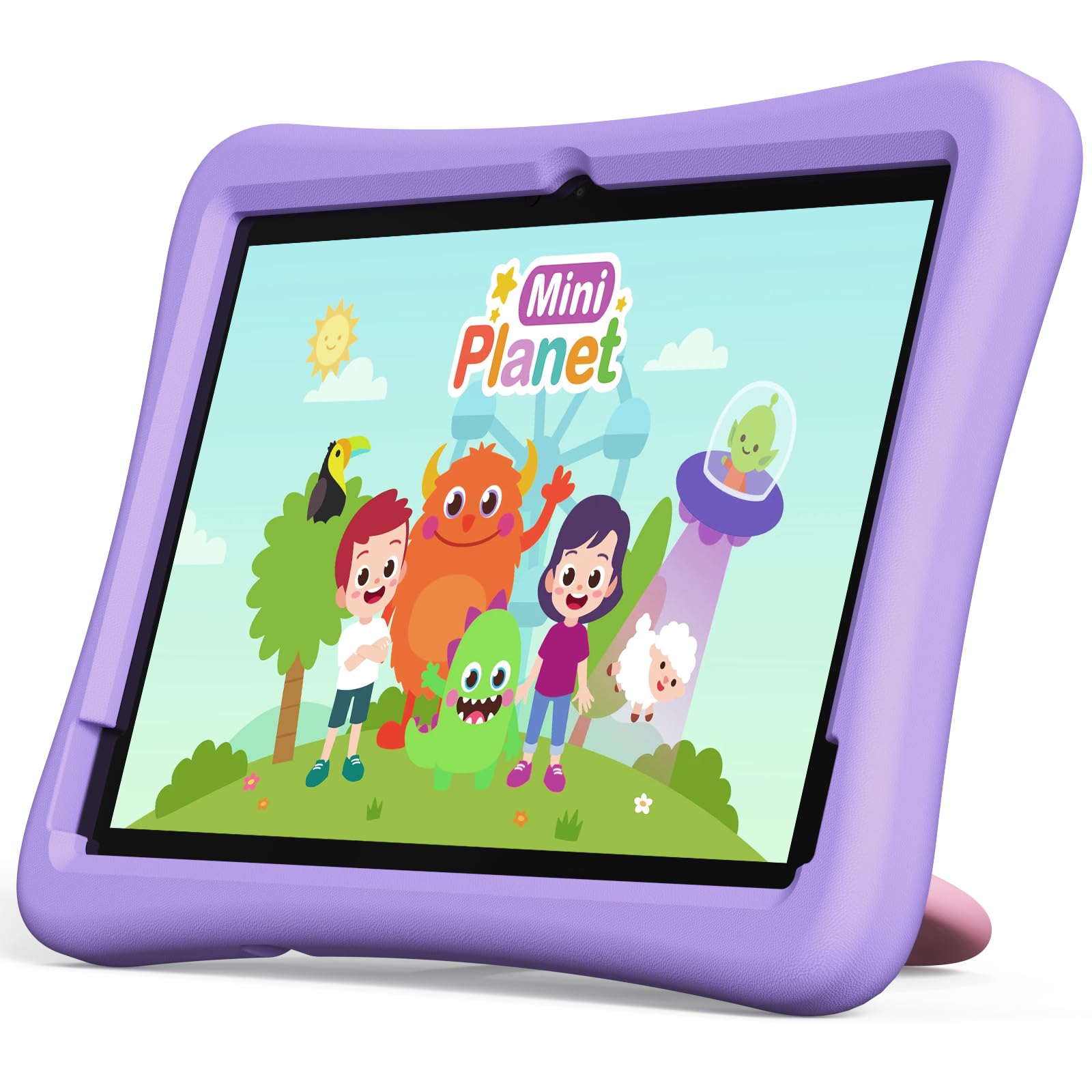
Image: The Plimpton PlimPad Kids20 tablet in its violet shockproof EVA case.
箱の中身
セットアップを続行する前に、パッケージにすべてのアイテムが揃っていることを確認してください。
- 1x Plimpton PlimPad Kids20 Tablet
- USBアダプター×1
- 1x 1.8m Charging Cable
- ユーザーマニュアル x 1
設定
1. タブレットの充電
初めて使用する前に、タブレットを完全に充電してください。
- Connect the USB charging cable to the tablet's USB Type-C port.
- USBアダプタを電源コンセントに差し込みます。
- 充電インジケーターが点灯します。フル充電には数時間かかります。
2.電源のオン/オフ
- 電源を入れるには: 画面が点灯するまで電源ボタンを押し続けます。
- 電源を切るには: 電源ボタンを長押しし、画面上のオプションから「電源を切る」を選択します。
- 再起動します: 電源ボタンを長押しし、オプションから「再起動」を選択します。
3. 初期設定
Upon first power-on, follow the on-screen prompts to configure your tablet. This typically includes:
- 言語を選択してください。
- Connecting to a Wi-Fi network (supports Wi-Fi 6, 2.4GHz + 5.0GHz).
- Setting up a Google account. This is crucial for accessing Google Kids Space and downloading apps.
- 日付と時刻の設定。
4. Micro SDカードの挿入
このタブレットは、拡張ストレージとして最大 1TB の Micro SD カードをサポートしています。
- タブレットの側面にある Micro SD カード スロットを見つけます。
- カチッと音がするまで、Micro SD カードをスロットに慎重に挿入します。
- タブレットは新しいストレージを検出します。ポータブルストレージまたは内部ストレージとして使用するためにフォーマットするように求められる場合があります。
タブレットの操作
1. 基本的なナビゲーション
The PlimPad Kids20 uses a capacitive touchscreen for interaction.
- タップ: 項目を選択するか、アプリケーションを開きます。
- タップ&ホールド: コンテキスト メニューにアクセスしたり、アイコンを移動したりします。
- スワイプ: 画面間を移動したり、アプリケーション内をスクロールしたりします。
- ピンチしてズーム: コンテンツ(写真など)を拡大または縮小する web ページ)。
2. Google キッズスペース
The tablet comes with Google Kids Space pre-installed, offering a curated selection of educational and entertaining content.

Image: A child and adult interacting with the tablet, showing the Google Kids Space interface.
- Access Kids Space from the home screen or app drawer.
- Content includes interactive educational apps, books, games, and videos.
- Content is teacher-approved and designed to promote learning and creativity.
3. ペアレンタルコントロール(Googleファミリーリンク)
Manage your child's tablet usage and ensure a safe online environment using Google Family Link.

Image: A child using the tablet, with an overlay indicating Google Family Link for parental control.
- 自分のデバイスに Google ファミリー リンク アプリをダウンロードします。
- タブレット上のお子様の Google アカウントをファミリー リンク アカウントにリンクします。
- Through Family Link, you can:
- Set screen time limits.
- アプリのダウンロードを承認またはブロックします。
- 管理 webサイトへのアクセス。
- Track device location.
4. 接続性
- Wi-Fi: Connect to wireless networks via Settings > Network & internet > Wi-Fi. The tablet supports dual-band Wi-Fi (2.4/5 GHz) for fast and stable connections.
- Bluetooth 5.3: [設定] > [接続されたデバイス] > [Bluetooth] から、ヘッドフォンやスピーカーなどの Bluetooth デバイスとペアリングします。
5. カメラの使用
このタブレットには、5MP 背面カメラと 2MP 前面カメラが搭載されています。
- ホーム画面またはアプリドロワーからカメラ アプリを開きます。
- 必要に応じて前面カメラと背面カメラを切り替えます。
- シャッターボタンをタップして写真を撮ったりビデオを録画したりします。
メンテナンス
1. タブレットのクリーニング
- 画面と本体を清掃するには、柔らかく糸くずの出ない布を使用してください。
- 頑固な汚れには、軽くamp布に水またはスクリーンクリーナーを含ませます。
- 刺激の強い化学薬品や研磨材は使用しないでください。
2. ソフトウェアの更新
最適なパフォーマンスとセキュリティを確保するために、ソフトウェアの更新を定期的に確認してインストールしてください。
- [設定] > [システム] > [システム アップデート] に移動します。
- 画面上の指示に従って、利用可能なアップデートをダウンロードしてインストールします。
3. ストレージ管理
To maintain performance, periodically manage the tablet's storage.
- 「設定」>「ストレージ」に移動して view ストレージ使用量。
- 使用していないアプリをアンインストールします。
- 不要な削除 files、写真、またはビデオ。
- 大きく動かす files to an inserted Micro SD card.
トラブルシューティング
If you encounter issues, try the following solutions before contacting support.
| 問題 | 解決 |
|---|---|
| タブレットの電源が入りません。 | Ensure the tablet is fully charged. Connect it to the charger for at least 30 minutes, then try powering on again. |
| Wi-Fi接続の問題。 | タブレットとWi-Fiルーターを再起動してください。Wi-Fi設定を確認し、正しいネットワークが選択され、パスワードが正しく入力されていることを確認してください。 |
| アプリがクラッシュしたりフリーズしたりします。 | Close and reopen the app. Clear the app's cache (Settings > Apps > [App Name] > Storage & cache > Clear cache). If the problem persists, uninstall and reinstall the app. |
| パフォーマンスが遅い。 | 使用していないアプリを閉じます。キャッシュと一時ファイルを消去します。 files. Consider uninstalling large, unused applications or moving data to an SD card. Restart the tablet. |
| 画面が反応しません。 | Perform a forced restart by holding the Power button for approximately 10-15 seconds until the tablet restarts. |
仕様
Key technical specifications for the Plimpton PlimPad Kids20 tablet.
| 特徴 | 詳細 |
|---|---|
| モデル名 | Plimpad Kids20 |
| オペレーティング·システム | アンドロイド14 |
| プロセッサ | Allwinner A523 Octa-core (up to 2.0 GHz) |
| ラム | 8 GB (4 GB + 4 GB extended virtual memory) |
| 内部ストレージ (ROM) | 64ギガバイト |
| 拡張可能なストレージ | Micro SDカードで最大1TB |
| 画面サイズ | 10.1インチ |
| ディスプレイ解像度 | 1280 x 800ピクセル(HD IPS) |
| 表示タイプ | LCD, G+G wear-resistant glass |
| バッテリー容量 | 6000 mAh Lithium-ion (22.8 Wh) |
| リアカメラ | 5メガピクセル |
| フロントカメラ | 2メガピクセル |
| Wi-Fi | Wi-Fi 6 (802.11ax), Dual-band (2.4 GHz + 5.0 GHz) |
| ブルートゥース | ブルートゥース5.3 |
| ポート | USB Type-C, 3.5mm Headphone Jack, Micro SD slot |
| 特集 | Stereo Speakers, USB OTG support, Eye-care screen, EVA shockproof case with 360-degree rotating handle |
| 寸法 | 24L×16.1W×0.9Hcm |
保証とサポート
The Plimpton PlimPad Kids20 tablet comes with a 2年間の無料交換保証.
For any issues, including screen damage or operational problems, please contact our professional after-sales customer service. Refer to the contact information provided with your purchase or on the official Plimpton webサイト。
重要: Do not attempt to repair the device yourself, as this may void your warranty.