
1. はじめに
This manual provides detailed instructions for the ABLEWE USB to HDMI Adapter. This device is designed to connect a computer with a USB interface to an HDMI-equipped display, such as an HDTV, monitor, or projector. It supports video resolutions up to 1080P and facilitates both mirror and extend display modes.
2.製品オーバーview
The ABLEWE USB to HDMI Adapter is a compact device that converts a USB signal to an HDMI output. It features a USB 3.0 port for connection to your computer and an HDMI output port for your display. The adapter is built with an aluminum exterior for durability.
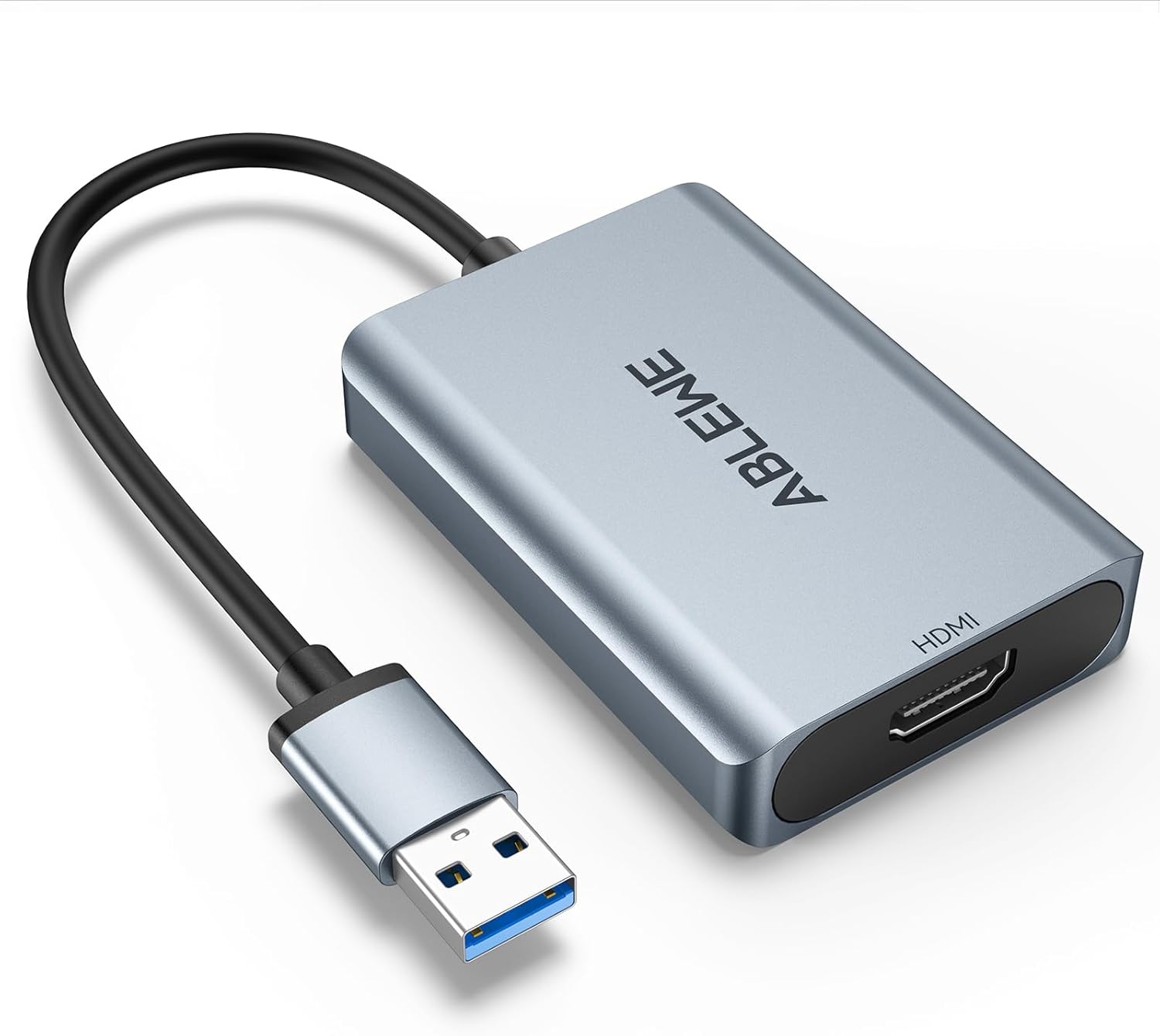
図2.1: The ABLEWE USB to HDMI Adapter. This image shows the adapter with its USB-A connector and HDMI output port, featuring a silver aluminum casing.
3. 互換性
The adapter offers broad compatibility with various operating systems and devices.
3.1 サポートされているオペレーティングシステム:
- ウィンドウズ10
- ウィンドウズ8.1
- ウィンドウズ8
- ウィンドウズ7
- Windows XP (32-bit)
- Mac OS
3.2 Unsupported Operating Systems:
- Windows XP (64-bit)
- Linux OSの
- Chrome OS

図3.1: Universal Compatibility. This image illustrates the operating system compatibility of the ABLEWE USB to HDMI Adapter, showing support for various Windows versions and Mac OS, while noting that Linux, 64-bit XP, and Chrome OS are not supported.
4. セットアップとインストール
Follow these steps to set up and install your ABLEWE USB to HDMI Adapter:
- アダプターを接続します: Plug the USB-A connector of the adapter into an available USB 3.0 or USB 2.0 port on your computer.
- ドライバーのインストール: The adapter includes built-in drivers. Upon plugging it into your computer, the driver installation process should initiate automatically. Follow any on-screen prompts to complete the installation.
- Alternative Driver Sources:
- If automatic installation does not occur, a driver backup may be available on a provided CD (if included).
- Alternatively, you can download the necessary drivers from the official "DisplayLink" webサイト。
- ディスプレイに接続: Connect one end of an HDMI cable (not included) to the HDMI output port on the adapter and the other end to the HDMI input port on your HDTV, monitor, or projector.
- 電源オンディスプレイ: Ensure your display device is powered on and set to the correct HDMI input source.
- 表示設定を構成します。 Once connected, your computer should detect the new display. You may need to adjust display settings (e.g., resolution, display mode) within your operating system's display preferences.

図4.1: Internal Performance Chip. This image provides a view of the internal components of the adapter, highlighting the performance chip responsible for stable and high-resolution video output.
5。 動作モード
The ABLEWE USB to HDMI Adapter supports two primary display modes:
5.1 Extend Mode:
In Extend Mode, your computer's desktop is expanded across multiple screens. This allows you to view different content on each display, enhancing multitasking capabilities. For example, you can have a document open on your laptop screen and a web browser on the connected monitor.
5.2 Mirror Mode:
Mirror Mode duplicates your computer's primary display onto the connected external monitor. This is useful for presentations, sharing content with an audience, or enjoying media on a larger screen.

図5.1: Different Display Modes. This image demonstrates the two primary operating modes: Extend Mode, which allows for separate content on multiple screens, and Mirror Mode, which duplicates the primary display onto a larger screen.
6。 音声出力
The ABLEWE USB to HDMI Adapter supports simultaneous digital audio and video transmission. This means that audio from your computer can be routed through the HDMI connection to your connected display or audio system, provided the display supports audio input via HDMI.

図6.1: Audio Output Capability. This image highlights the adapter's capability to transmit both digital audio and video simultaneously, ensuring a complete multimedia experience.
7. 一般的な使用シナリオ
The adapter is suitable for various applications:
- ホームシアター: 映画やビデオを大画面でお楽しみください。
- 会議: Facilitate presentations and screen sharing in meetings.
- ゲーム: Experience games on an external monitor or TV.
- 企業研修: Display training materials to a group.
- マルチタスク: デスクトップを拡張して生産性を向上します。
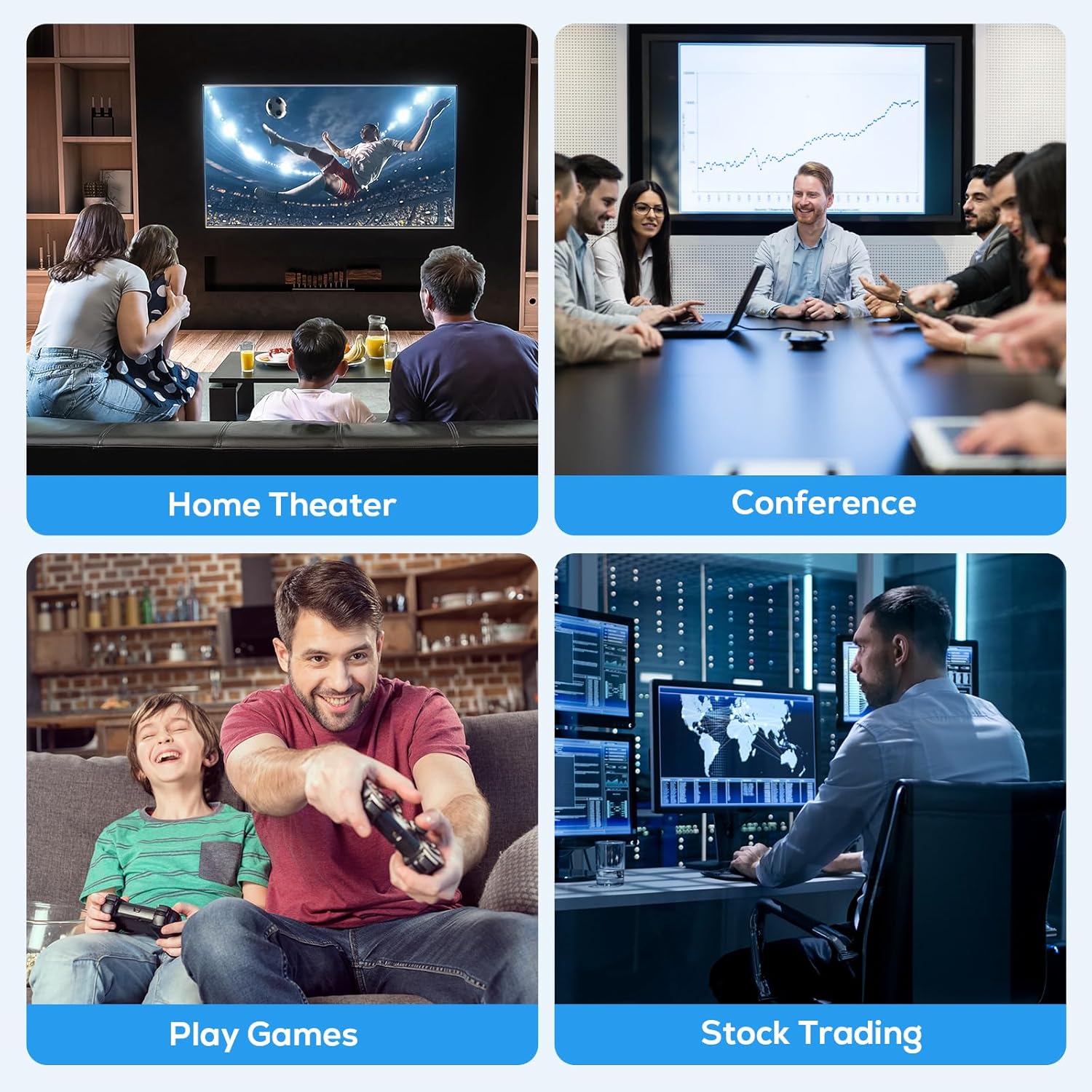
図7.1: Versatile Applications. This image displays various applications for the adapter, including home theater, conference presentations, gaming, and stock trading, illustrating its versatility.
8。 トラブルシューティング
If you encounter issues with your ABLEWE USB to HDMI Adapter, refer to the following troubleshooting steps:
- 画面が表示されない/黒い画面:
- すべてのケーブルがしっかりと接続されていることを確認してください。
- Verify the display is powered on and set to the correct HDMI input source.
- コンピューターのディスプレイ設定をチェックして、外部モニターが検出され、有効になっていることを確認します。
- 別の HDMI ケーブルまたはコンピューターの USB ポートを試してください。
- ドライバーの問題:
- If the driver did not install automatically, manually install it from the provided CD (if applicable) or download the latest version from the official DisplayLink webサイト。
- For Windows users, check Device Manager for any unrecognized devices or driver errors. Reinstall the driver if necessary.
- 音声なし:
- Ensure your display device supports audio input via HDMI.
- Check your computer's sound settings and select the HDMI output as the default playback device.
- Adjust the volume on both your computer and the display device.
- Low Resolution or Lagging Video:
- Ensure the adapter is connected to a USB 3.0 port for optimal performance. While compatible with USB 2.0, performance may be limited.
- コンピュータのグラフィック ドライバーが最新であることを確認します。
- Adjust the display resolution in your computer's settings to a supported resolution (e.g., 1920x1080P@60HZ).
- Mac OS 固有の問題:
- Ensure you have installed the correct DisplayLink drivers for Mac OS.
- Check System Preferences > Displays to configure the external monitor.
9. 仕様
| 特徴 | 詳細 |
|---|---|
| モデル番号 | ABLEWE-USBHDMIAdapter |
| コネクタタイプ | USB-A (Input), HDMI (Output) |
| USB互換性 | USB3.0、USB2.0 |
| 最大解像度 | 1920x1080P@60HZ (1080P) |
| 表示モード | Mirror, Extend |
| オーディオサポート | Yes, simultaneous audio and video |
| 対応デバイス | Laptop, Desktop, HDTV, Monitor, Projector |
| 対応OS | Windows 10/8.1/8/7/XP (32-bit), Mac OS |
| 寸法 | 5.59 x 3.43 x 0.94インチ |
| アイテム重量 | 3.52オンス |
| メーカー | アブルウェ |
10. メンテナンス
To ensure the longevity and optimal performance of your ABLEWE USB to HDMI Adapter, follow these maintenance guidelines:
- クリーニング: アダプターの清掃には、柔らかく乾いた布をご使用ください。液体クリーナーや研磨剤は使用しないでください。
- ストレージ: 使用しないときは、アダプターを涼しく乾燥した場所に保管してください。極端な温度を避けてください。
- 取り扱い: Do not bend or twist the cable excessively. Avoid dropping the adapter.
- アップデート: Periodically check the DisplayLink web互換性とパフォーマンスの向上を確実にするために、更新されたドライバーについては、サイトを参照してください。
11. 保証とサポート
For information regarding product warranty, please refer to the documentation provided with your purchase or contact the seller directly. For technical support, please visit the official ABLEWE webサイトまたは顧客サービス部門に連絡してください。