
1.製品オーバーview
The WamGra BQ12 is a versatile device designed to integrate multiple functionalities into a single, compact unit. It serves as a stable phone stand, delivers audio through its Bluetooth speaker, charges compatible devices wirelessly, and includes a digital clock with an alarm function.
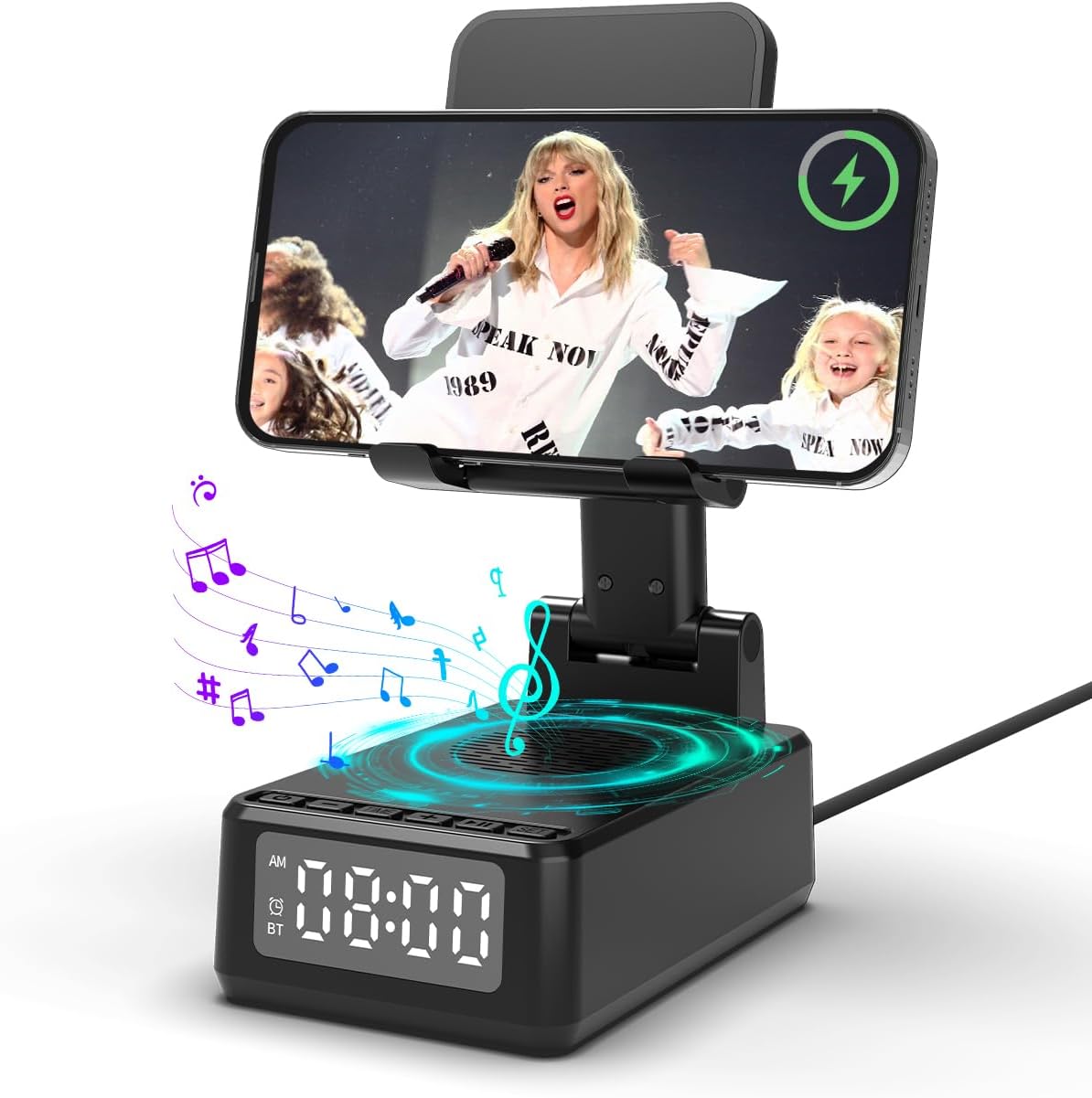
The WamGra BQ12 device in its upright position, holding a smartphone horizontally while displaying a video. Musical notes emanate from the speaker, and the digital clock shows the time.
2. 箱の中身
- Portable Bluetooth speaker cell phone stand x 1
- USB-Cケーブルx1
- ユーザーマニュアル x 1
- Lifetime Customer Support (information)
3. セットアップ
3.1電源接続
Connect the provided USB-C cable to the device's charging port located at the back. Plug the other end into a compatible USB power adapter (not included). The device will power on, and the digital display will activate.

A close-up of the WamGra BQ12 device with the USB-C charging cable inserted into its port.
3.2 スタンドの調整
The phone stand features multiple adjustable hinges, allowing you to customize the viewing angle and height for optimal comfort. Gently pivot the stand components to achieve your desired position.

The WamGra BQ12 phone stand is shown in different configurations, demonstrating its adjustable arm and phone holder for various view角度を変える。
3.3Bluetoothペアリング
Bluetooth経由でオーディオデバイスを接続するには:
- 電源ボタンを押します(U) on the device to enter Bluetooth mode. The display will show "BT".
- スマートフォンまたはタブレットで、Bluetooth 設定に移動します。
- Locate "BQ12" in the list of available devices and select it to pair.
- ペアリングが成功すると確認音が鳴ります。
This video tutorial illustrates the steps to pair a mobile device with the WamGra BQ12's Bluetooth speaker function, showing the device's display and phone settings.
4. 操作手順
4.1ワイヤレス充電
Ensure the device is connected to power. Place your wireless charging-compatible smartphone directly onto the charging pad on the stand. The charging indicator on your phone will activate. The stand supports both vertical and horizontal phone placement for charging.

An image illustrating a smartphone being charged wirelessly on the WamGra BQ12 stand, demonstrating both vertical and horizontal orientations.
This video provides instructions on how to properly use the wireless charging feature of the WamGra BQ12, including placement and compatibility tips.
4.2 Bluetoothスピーカー機能
Once paired via Bluetooth, audio from your connected device will play through the WamGra BQ12 speaker. Use the volume buttons (- そして +) on the device or your connected phone to adjust the sound level.

A smartphone is shown positioned on the WamGra BQ12 stand, playing music through its integrated Bluetooth speaker, with musical notes visually representing the sound.
4.3時計の設定
To set the time on the digital display:
- Press the "TIME" button. The hour digits will begin to flash.
- 「+」ボタンと「-」ボタンを使用して時間を調整します。
- Press "TIME" again to move to minute adjustment.
- 「+」ボタンと「-」ボタンを使用して分を調整します。
- Press "TIME" a third time to confirm the setting.
- To switch between 12-hour and 24-hour formats, long-press the "TIME" button.
This video demonstrates how to set the current time and switch between 12-hour and 24-hour display formats on the WamGra BQ12's integrated digital clock.
4.4アラームの設定
アラームを設定するには:
- Press the "SET" button. The alarm hour digits will flash.
- 「+」ボタンと「-」ボタンを使用してアラームの時間を調整します。
- Press "SET" again to move to alarm minute adjustment.
- 「+」ボタンと「-」ボタンを使用して、アラームの分数を調整します。
- Press "SET" a third time to confirm the alarm setting. An alarm icon will appear on the display.
- To temporarily snooze the alarm, press any button except "SET" when the alarm sounds.
- To turn off the alarm completely, long-press the "SET" button until the alarm icon disappears.
This video guide explains how to set and manage the alarm function on the WamGra BQ12 device, including setting the time, snoozing, and turning off the alarm.
5. メンテナンス
To maintain your WamGra BQ12, regularly wipe the device with a soft, dry cloth. Avoid using abrasive cleaners or solvents. Ensure the charging port and speaker grille are free from dust and debris. Do not immerse the device in water.
6。 トラブルシューティング
6.1 ワイヤレス充電の問題
- デバイスが充電されない: Ensure your phone is wireless charging compatible. Verify the WamGra BQ12 is connected to a power source. Remove any thick phone cases or metal objects that may interfere with charging. Ensure proper alignment of the phone on the charging pad.

This image provides a visual checklist for resolving common wireless charging problems, including compatibility, power connection, and obstruction removal.
6.2 Bluetooth接続の問題
- ペアリングできません: Ensure the WamGra BQ12 is in Bluetooth pairing mode ("BT" displayed). Check that Bluetooth is enabled on your audio device. Move your device closer to the speaker.
6.3 Alarm/Clock Issues
- Clock not displaying correctly: Re-set the time using the "TIME" button. Check for power interruptions.
- アラームが鳴らない: Ensure the alarm is set and the alarm icon is visible on the display. Check the volume level.
7. 仕様
| 特徴 | 詳細 |
|---|---|
| 取り付けタイプ | 卓上マウント |
| 材料 | プラスチック |
| モデル名 | BQ12 |
| スピーカータイプ | ポータブルスピーカー |
| 特集 | 5-in-1 portable Bluetooth speaker, Cell Phone Stand Holder, Digital Alarm Clock, Wireless Charger |
| 製品寸法 | 奥行き4.6インチ x 幅3インチ x 高さ2.5インチ |
| アイテム重量 | 0.4キログラム(14オンス) |
| 無線通信技術 | ブルートゥース |
| スピーカー最大出力 | 3ワット |
| 接続技術 | ブルートゥース、USB |
| 電源 | 電池式 (リチウムポリマー電池 1 個付属) |
8. 保証とサポート
The WamGra BQ12 comes with a limited warranty. For any product inquiries, technical assistance, or warranty claims, please refer to the contact information provided in the original packaging or reach out to the "Electronic technology flagship store" via the Amazon platform. Lifetime customer support is available to assist you with any questions or issues.