導入
This manual provides detailed instructions for the TECPHILE iPad Keyboard Case, Model T5509D. It covers setup, operation, maintenance, and troubleshooting to ensure optimal use of your device. Please read this manual thoroughly before using the product.
互換性
The TECPHILE iPad Keyboard Case (Model T5509D) is specifically designed for the following iPad Pro 12.9-inch models:
- iPad Pro 12.9-inch (6th Generation, 2022): モデル A2436、A2764、A2437、A2766
- iPad Pro 12.9-inch (5th Generation, 2021): モデル A2378、A2379、A2461、A2462
- iPad Pro 12.9-inch (4th Generation, 2020): モデル A2233、A2229、A2069、A2232
- iPad Pro 12.9-inch (3rd Generation, 2018): モデル A1876、A2014、A1895、A1983
This case is not compatible with any other iPad models.

Image: Compatibility chart for TECPHILE iPad Keyboard Case. Please verify your iPad model number on the back of your device to ensure compatibility.
パッケージ内容
パッケージを開封したら、すべてのアイテムが揃っていることを確認してください。
- TECPHILE iPad Keyboard Case (with integrated kickstand and pencil holder)
- Detachable Wireless Backlit Keyboard
- USB-C充電ケーブル
- ユーザーマニュアル(このドキュメント)
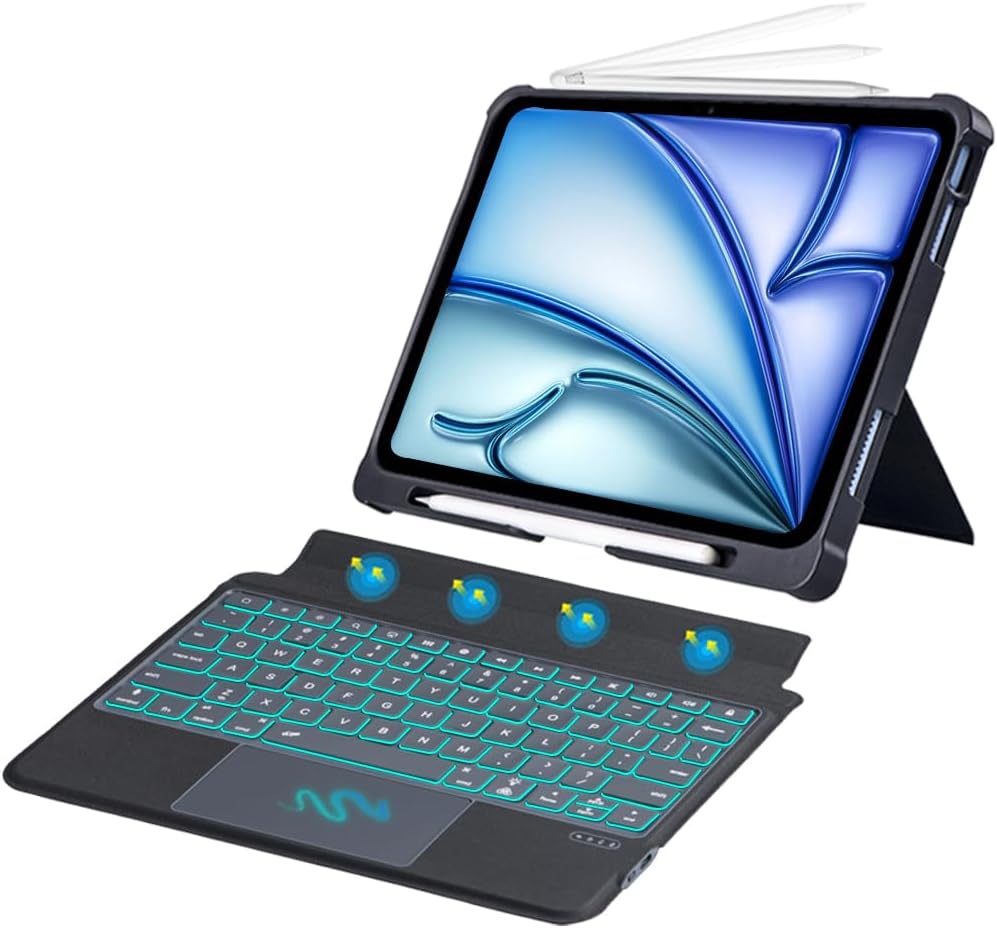
画像: 上view of the TECPHILE iPad Keyboard Case components, including the case with an iPad and the detached wireless keyboard.
セットアップガイド
1. iPadをケースに取り付ける
- Gently align your iPad Pro 12.9-inch with the case.
- Insert the iPad into the protective shell, ensuring all corners are securely fitted. The case provides full protection and features honeycomb heat release design.
- The case includes a dedicated pencil holder and supports wireless charging for your Apple Pencil.
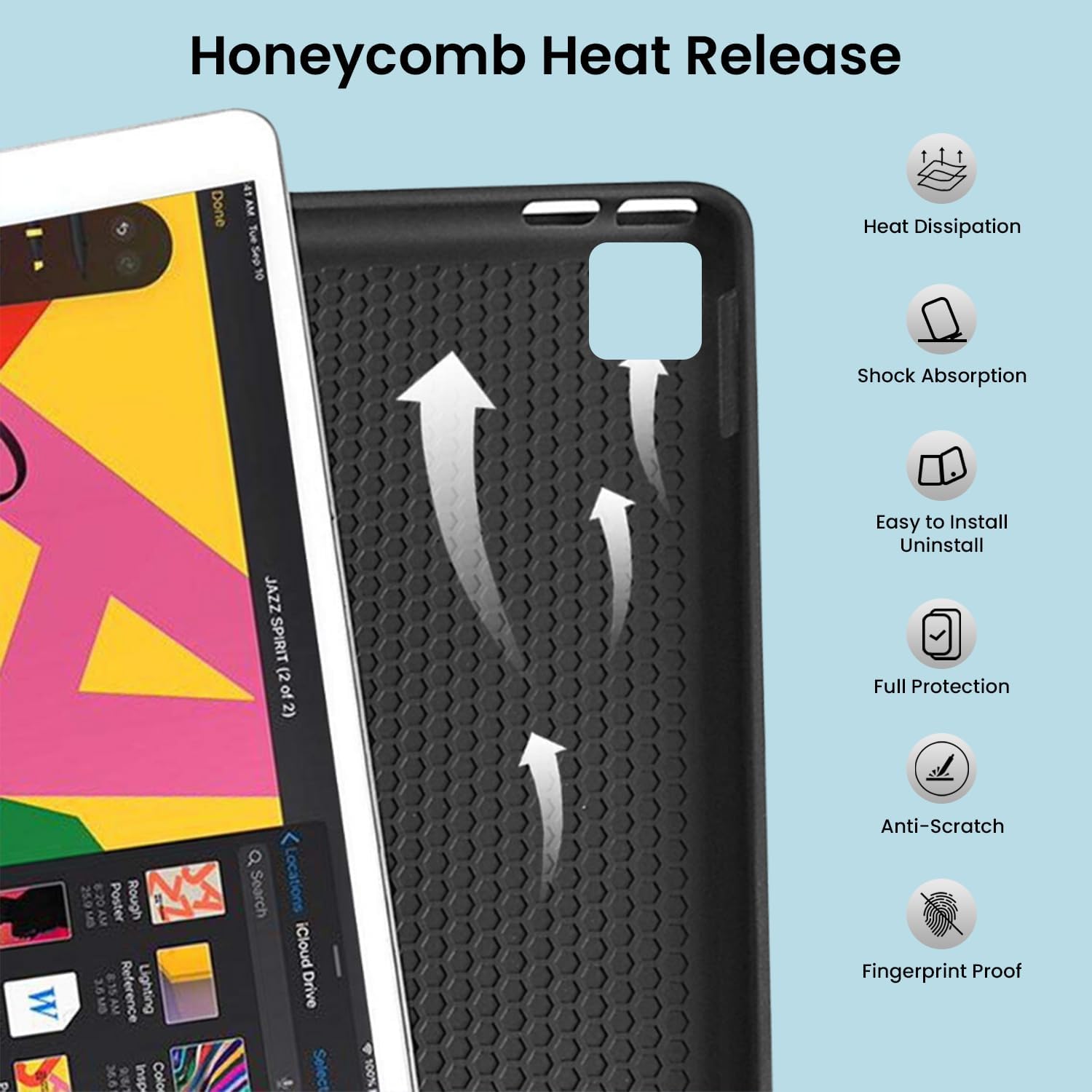
Image: Detail of the case's honeycomb structure for heat dissipation and protective features.

Image: Illustrates the wireless charging capability for the Apple Pencil and the integrated pencil holder.
2. キーボードの充電
Before initial use, fully charge the keyboard. The keyboard has a 500mAh battery capacity.
- キーボードの側面にある USB-C 充電ポートを見つけます。
- Connect the provided USB-C cable to the keyboard and a power source (e.g., USB wall adapter, computer USB port).
- The charging indicator light will illuminate. Once fully charged, the light may change or turn off.
A full charge provides approximately 80 hours of use without backlight or 5 hours with backlight enabled.

Image: Keyboard charging port and battery performance details.
3. Bluetooth経由でキーボードを接続する
キーボードは Bluetooth 経由で iPad にワイヤレスで接続します。
- キーボードが充電され、電源がオンになっていることを確認します。
- キーボードで、 Fn+Z keys simultaneously. The Bluetooth indicator light will start blinking, indicating it's in pairing mode.
- iPadで、 設定 > Bluetooth.
- Bluetoothをオンにします。iPadは利用可能なデバイスを検索します。
- Locate and tap "Bluetooth Keyboard" (or similar name) in the list of devices to connect.
- 接続されると、キーボードの Bluetooth インジケーター ライトの点滅が停止します。

画像: Bluetooth ペアリング プロセスのビジュアル ガイド。
操作手順
キーボード機能
The detachable keyboard features a QWERTY layout with additional function keys for iPad control.
- バックライト制御: プレス ファンクション+ 💡 (light bulb icon) to turn on/off the backlight and cycle through 7 different colors. Press ファンクション+ ☀️ (sun icon) to adjust the 3 levels of brightness.
- Full Shortcut Row: Access common iPad functions directly from the top row of keys.
- Intelligent Voice Input Function: Utilize the dedicated key for voice input.

画像: 詳細 view of the keyboard's backlit keys and function controls.
Smart Multi-Gesture Trackpad
The integrated large trackpad supports multi-touch gestures for enhanced navigation.
- 基本的なナビゲーション: Move the cursor by sliding your finger across the trackpad.
- Click Functions: Supports right and left click functions.
- Multi-Finger Gestures: Utilize native iPad multi-finger gestures for scrolling, swiping, and other actions. Refer to your iPad's settings for a full list of supported gestures.
- トラックパッドのオン/オフ: プレス ファンクション+ 🖱️ (trackpad icon) to enable or disable the trackpad.
Adjustable Kickstand and Usage Modes
The case features an adjustable kickstand that allows for multiple viewing angles and usage modes.
- タイプモード: Position the iPad upright with the keyboard attached for a laptop-like experience.
- View モード: Adjust the kickstand to a comfortable angle for watching videos or presentations without the keyboard.
- 読み取りモード: Fold the keyboard behind the iPad for a tablet-like reading experience.
- スケッチモード: Lower the angle for drawing or writing with the Apple Pencil.
The kickstand offers a seamless range of angles, smoothly reclining from 30° to 160° while maintaining stability.

Image: Various usage modes enabled by the adjustable kickstand and detachable keyboard.
自動ウェイク/スリープ機能
The keyboard case includes an auto wake/sleep function to conserve battery life. Closing the case will put your iPad to sleep, and opening it will wake it up.
メンテナンス
- クリーニング: 柔らかくてamp ケースとキーボードの外側を拭く際は布を使用してください。刺激の強い化学薬品や研磨剤は使用しないでください。
- ストレージ: 長期間使用しない場合は、キーボードケースを涼しく乾燥した場所に保管してください。バッテリー寿命を延ばすため、キーボードの電源を必ずオフにしてください。
- バッテリーのケア: バッテリーの寿命を延ばすには、キーボードを頻繁に完全に放電することを避け、定期的に充電してください。
トラブルシューティング
キーボードが接続されない
- 電力を確認します: キーボードの電源がオンになっており、バッテリーが十分に充電されていることを確認します。
- Bluetoothを再ペアリングします:
- iPadで、 設定 > Bluetooth.
- Forget or unpair the "Bluetooth Keyboard" if it appears in "My Devices".
- iPadを再起動してください。
- Put the keyboard into pairing mode (press Fn+Z).
- 検索する and connect to the keyboard again on your iPad.
- 干渉: 干渉を引き起こす可能性のある他のワイヤレス デバイスから離れて移動してください。
キーが反応しない
- バッテリー残量: キーボードを完全に充電します。
- Bluetooth接続: キーボードが Bluetooth 経由で正しく接続されていることを確認します。
- 再起動: キーボードの電源をオフにして再度オンにします。
Trackpad Not Working
- トラックパッドを有効にする: トラックパッドが有効になっていることを確認するには、 ファンクション+ 🖱️ (trackpad icon).
- iPadの設定: Check iPad accessibility settings for pointer control.
- トラックパッドを掃除する: トラックパッドの表面がきれいでゴミがないことを確認します。
仕様
| モデル名 | T5509D |
| 互換性 | iPad Pro 12.9" (6th, 5th, 4th, 3rd Gen) |
| 接続性 | ブルートゥース |
| キーボードレイアウト | QWERTY |
| バックライト | 7色、3段階の明るさ |
| トラックパッド | Large Multi-Gesture Trackpad |
| バッテリー容量 | 500mAh(リチウムイオン) |
| Battery Life (Non-backlight) | 最大80時間 |
| Battery Life (Backlight) | 最大5時間 |
| 充電ポート | USB-C |
| 製品寸法 | 29 x 24 x 2 cm |
| アイテム重量 | 735グラム |
| 材料 | Leatherite and ABS Plastic |
| 特集 | Adjustable Kickstand (30°-160°), Detachable Keyboard, Pencil Holder, Wireless Pencil Charging Support, Auto Wake/Sleep, Honeycomb Heat Release |
保証とサポート
For warranty information or technical support, please refer to the documentation included with your purchase or contact TECPHILE customer service through the retailer where the product was purchased. Please have your model number (T5509D) and purchase details ready when contacting support.