
nubia V60 (Model Number: 123439101056)
ZTE nubia V60 スマートフォン ユーザーマニュアル
Model: V60 (123439101056) | Brand: nubia
1. はじめに
Welcome to the user manual for your new ZTE nubia V60 smartphone. This guide provides essential information to help you set up, operate, maintain, and troubleshoot your device. Please read this manual thoroughly to ensure optimal performance and longevity of your smartphone.
The nubia V60 features a 6.72-inch FHD+ display, a powerful 50MP AI rear camera, a 32MP front camera, 8GB RAM (expandable with 12GB Dynamic RAM), 256GB ROM, a 5000mAh battery with 22.5W fast charging, NFC, fingerprint recognition, and DTS sound effects.
2. 初期設定
2.1. 開梱とパッケージ内容
始める前に、パッケージにすべてのアイテムが揃っていることを確認してください。
- ZTE nubia V60 Smartphone
- 電源アダプター
- USBケーブル
- SIM取り出しツール(地域によって異なる場合があります)
- クイック スタート ガイド (このドキュメントは包括的なガイドとして機能します)
2.2. SIMカードとmicroSDカードを挿入する
- デバイスの側面にある SIM カード トレイを見つけます。
- SIM イジェクタ ツールをトレイの横にある小さな穴に挿入し、トレイが飛び出すまでしっかりと押します。
- Nano-SIM カードおよび/または microSD カード (該当する場合) を、金色の接点を下に向けて、正しく揃っていることを確認しながらトレイに置きます。
- カチッと音がするまでトレイをゆっくりとスロットに戻します。

画像: サイド view of the nubia V60, illustrating the location of the SIM card tray and physical buttons.
2.3. バッテリーの充電
Before first use, fully charge your device. Connect the USB cable to the power adapter and then to the phone's charging port. Plug the power adapter into a wall outlet. The device supports 22.5W fast charging.
2.4. 電源投入と初期設定
- Press and hold the Power button (located on the right side) until the screen lights up.
- 画面上の指示に従って言語を選択し、Wi-Fi に接続し、Google アカウントを設定し、指紋認識などのセキュリティ機能を構成します。
3. デバイスの操作
3.1. 基本的なナビゲーション
The nubia V60 operates on Android 13.0. Use touch gestures such as tap, swipe, pinch-to-zoom, and long-press to navigate the interface. The power button and volume buttons are located on the right side of the device.

画像: 正面 view of the nubia V60, showcasin6.72インチのFHD+ディスプレイを搭載。
3.2. カメラ機能
Your device is equipped with a 50MP AI Rear Camera and a 32MP Front Camera.
- カメラの起動: ホーム画面またはロック画面でカメラアイコンをタップします。
- 写真/ビデオの撮影: Tap the shutter button to capture an image or switch to video mode to record.
- AI強化: The AI features automatically optimize settings for various scenes and subjects.
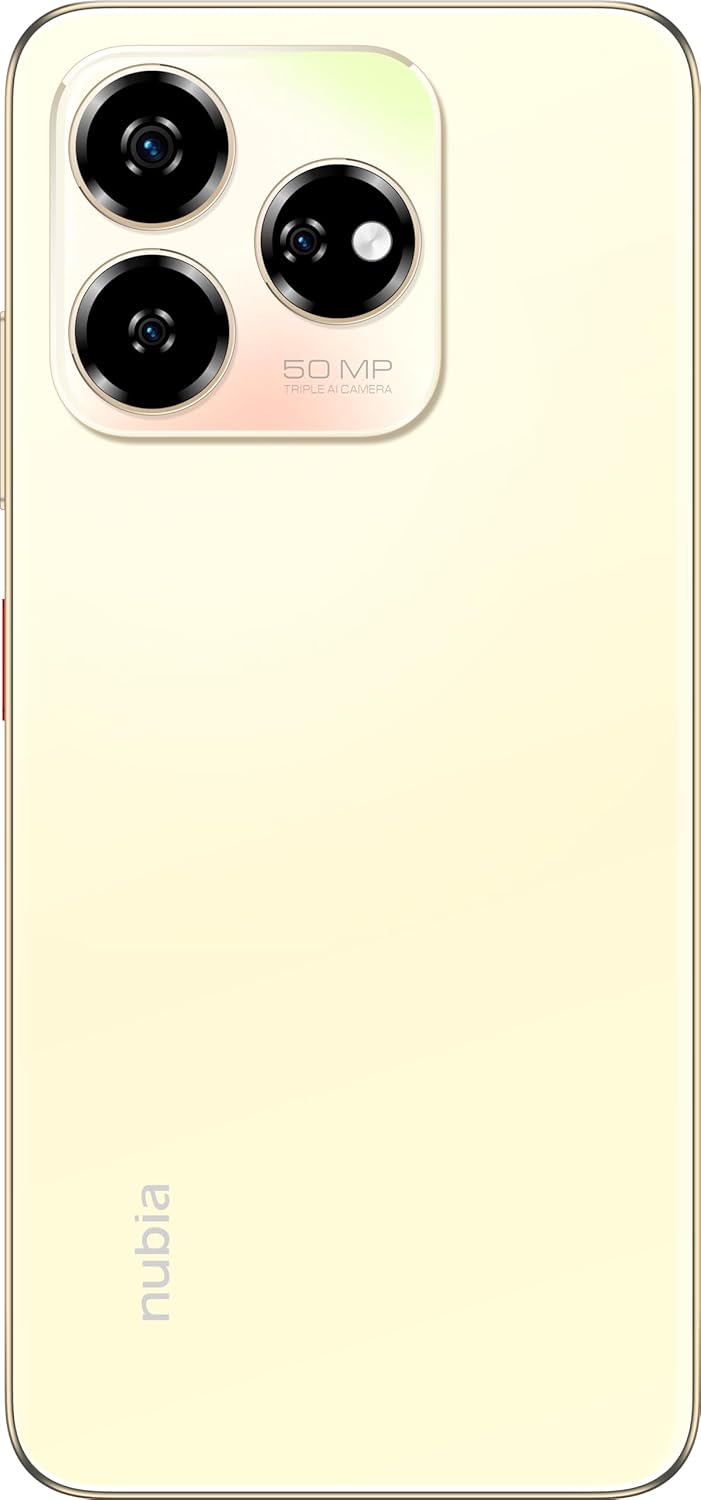
画像: 背面 view of the nubia V60, highlighting the 50MP triple AI camera module.
3.3.指紋認識
The device features a side-mounted fingerprint sensor for secure and quick unlocking. To set up:
- へ移動 設定>セキュリティ>指紋.
- 画面上の指示に従って指紋を登録します。
3.4. NFC機能
NFC (Near Field Communication) allows for quick data exchange and contactless payments. To use NFC:
- NFCが有効になっていることを確認してください 設定 > 接続済みのデバイス > 接続設定 > NFC.
- Tap your phone to another NFC-enabled device or payment terminal to initiate a connection or transaction.
3.5. DTS Sound Effect
Experience enhanced audio quality with DTS sound effects. This feature can be configured in your device's sound settings to optimize audio for various media types.
3.6. Live Island
The Live Island feature provides dynamic notifications and quick access to certain functions around the front camera cutout. Explore its functionalities through your device's display settings or by interacting with notifications.
4. メンテナンスとケア
4.1. デバイスのクリーニング
柔らかく糸くずの出ない布を使用して、携帯電話の画面と本体を拭いてください。表面や画面のコーティングを傷める可能性のある、刺激の強い化学薬品や研磨剤の使用は避けてください。
4.2. ソフトウェアの更新
定期的にソフトウェアアップデートを確認し、インストールして、デバイスに最新の機能、セキュリティパッチ、パフォーマンスの改善が適用されていることを確認してください。 設定 > システム > システムアップデート.
4.3. バッテリーのお手入れ
- 極端な温度はバッテリー寿命を縮める可能性があるため、避けてください。
- 純正または認定された充電アクセサリのみを使用してください。
- バッテリーの状態を最適に保つには、バッテリーを頻繁に完全に放電したり、長期間にわたって 100% に維持したりしないでください。
4.4. ストレージ管理
定期的に再view your device's storage (256GB ROM) and clear unnecessary files, apps, or media to maintain optimal performance. You can check storage usage in 設定 > ストレージ.
5。 トラブルシューティング
This section addresses common issues you might encounter with your nubia V60.
5.1. デバイスの電源が入らない
- バッテリーが充電されていることを確認してください。充電器を接続し、数分間待ってから電源を入れてください。
- 強制的に再起動するには、電源ボタンを 10 ~ 15 秒以上押し続けます。
5.2. 充電に関する問題
- 充電ケーブルとアダプタがしっかりと接続され、損傷がないことを確認してください。
- Try using a different power outlet or charging accessory.
- 充電ポートを柔らかく乾いたブラシで優しく掃除し、ゴミを取り除きます。
5.3. ネットワーク接続の問題
- SIM カードが正しく挿入され、アクティブ化されているかどうかを確認してください。
- 機内モードのオン/オフを切り替えます。
- デバイスを再起動します。
- へ移動 設定>ネットワークとインターネット>モバイルネットワーク 優先するネットワーク タイプが選択されていることを確認します。
5.4. アプリがクラッシュまたはフリーズする
- アプリを閉じて再度開きます。
- アプリのキャッシュとデータを消去する 設定 > アプリ > [アプリ名] > ストレージとキャッシュ.
- アプリが最新バージョンに更新されていることを確認してください。
- デバイスを再起動します。
5.5. 工場出荷時設定へのリセット(最後の手段)
警告:工場出荷時設定にリセットすると、携帯電話のすべてのデータが消去されます。続行する前に重要なデータをバックアップしてください。
工場出荷時設定にリセットするには、 設定 > システム > リセット オプション > すべてのデータを消去 (工場出荷時設定にリセット) 指示に従ってください。
6. 技術仕様
| 特徴 | 仕様 |
|---|---|
| モデル名 | バージョン60 |
| 商品型番 | 123439101056 |
| ブランド | ヌビア |
| オペレーティング·システム | アンドロイド13.0 |
| 画面サイズ | 6.72インチ |
| インストールされているRAMメモリサイズ | 8 GB (Additional 12GB Dynamic RAM) |
| メモリストレージ容量 | 256ギガバイト |
| CPU速度 | 1.8GHz帯 |
| リアカメラ | 50MP AIカメラ |
| フロントカメラ | 32MP |
| バッテリー電力定格 | 5000mAh |
| 急速充電 | 22.5W |
| 無線通信技術 | 非対称 |
| 接続技術 | 非対称 |
| セルラーテクノロジー | 4G |
| GPS | グロナス |
| オーディオジャック | ヘッドホンジャックなし |
| フォームファクター | バー |
| 色 | Sunlit Gold |
| アイテム重量 | 510グラム |
| パッケージ寸法 | 18 x 8.6 x 5.6 cm |
| 箱の中身 | 電源アダプター、USBケーブル |
7. 保証情報
Your ZTE nubia V60 smartphone comes with a standard manufacturer's warranty, covering defects in materials and workmanship under normal use. The duration and terms of this warranty may vary by region. Please refer to the warranty card included in your product packaging for specific details.
Additionally, extended warranty and accidental damage protection plans may be available for purchase. For example, options such as a 1-Year Extended Warranty Plan, 2-Years Extended Warranty Plan, and 1-Year Accidental Damage Protection Plan might be offered by authorized retailers.
保証請求に備えて購入証明書を保管してください。
8. カスタマーサポート
For further assistance, technical support, or service inquiries regarding your ZTE nubia V60, please contact nubia customer service through their official webサイトまたは製品ドキュメントに記載されている連絡先情報を参照してください。
You can often find FAQs, troubleshooting guides, and software downloads on the official nubia support website. When contacting support, please have your device model number (V60) and item model number (123439101056) ready.
関連文書V60 (Model Number: 123439101056)


Ask a question about this manual
Ask about setup, troubleshooting, compatibility, parts, safety, or missing instructions. Manuals+ will review the question and use this page’s manual context to help answer it.