
1. はじめに
This manual provides comprehensive instructions for the setup, operation, and maintenance of your typecase Keyboard Case. Please read this manual thoroughly before using the product to ensure optimal performance and longevity.

Image: The typecase Keyboard Case with an iPad Pro, showcasing its integrated design and backlit keyboard.
2. 互換性
The typecase Keyboard Case is designed for specific iPad models. Verify your iPad model number to ensure compatibility.
- New iPad Pro 13-inch (M4, 2024)
- 新しいiPad Air 13インチ(M2、2024年)
- iPad Pro 12.9 2022 (6th Generation)
- iPad Pro 12.9 2021 (5th Generation)
- iPad Pro 12.9 2020 (4th Generation)
- iPad Pro 12.9 2018 (3rd Generation)
Compatible model numbers include: A2925, A2926, A3007, A2898, A2899, A2900, A2436, A2437, A2764, A2766, A2378, A2379, A2461, A2462, A2229, A2069, A2232, A2233, A1876, A2014, A1895, A1983.
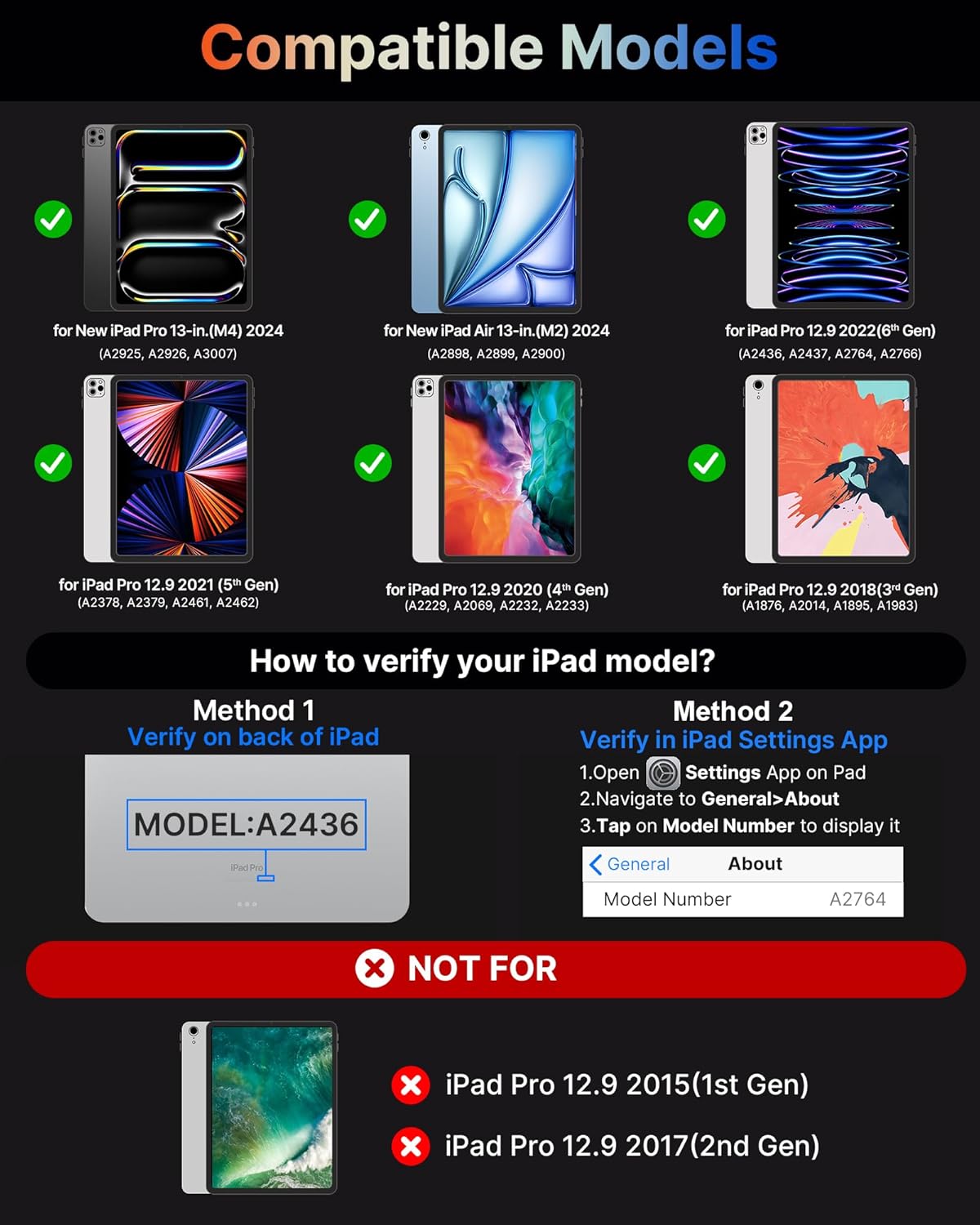
Image: Visual guide showing compatible iPad models and how to verify your iPad's model number.
3. 箱の中身
パッケージを開封したら、以下のアイテムがすべて揃っていることを確認してください。
- Keyboard Case for iPad Pro 13*1
- USBケーブル
- ユーザーマニュアル
4. 主な特徴
The typecase Keyboard Case offers a range of features designed to enhance your iPad experience:

Image: An infographic detailing various features of the keyboard case, including its tough hinge, large trackpad, 11-color backlight, and shortcut keys.
4.1. Precise Large Trackpad
The integrated multi-touch trackpad provides precise touch responses, facilitating efficient editing, browsing, and video playback. Its generous size allows for seamless navigation without the need for an external mouse, transforming your iPad into a laptop-like device for enhanced productivity.
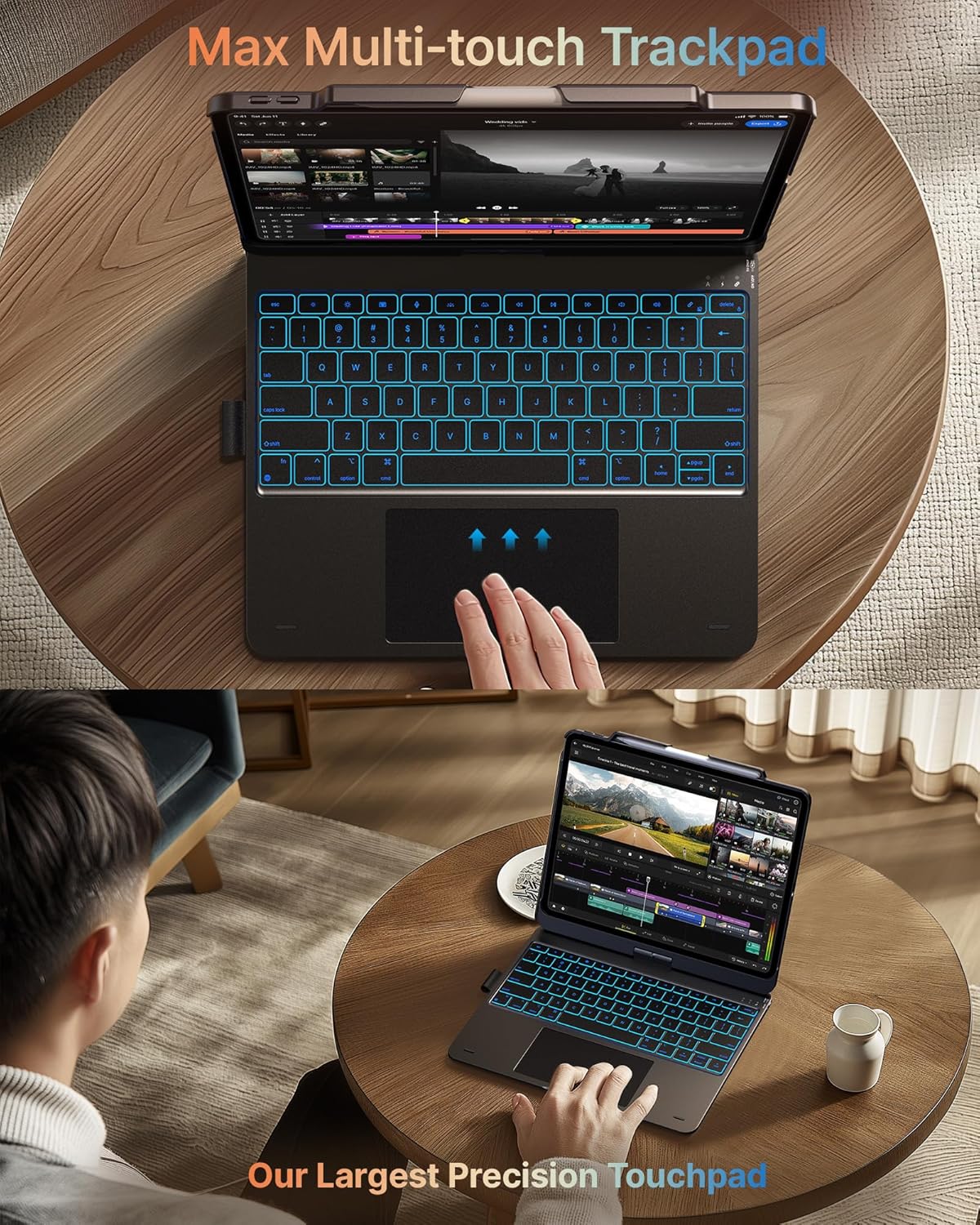
画像: クローズアップ view of the keyboard case's large multi-touch trackpad, demonstrating its precision and ease of use.
4.2. 11-Color Backlit Keyboard & Shortcuts
The keyboard features 11-color backlighting with three levels of brightness adjustment, ensuring comfortable typing in various lighting conditions, including low-light environments. A full set of PadOS multimedia shortcuts allows for convenient control of volume, music playback, and other functions directly from the keyboard.
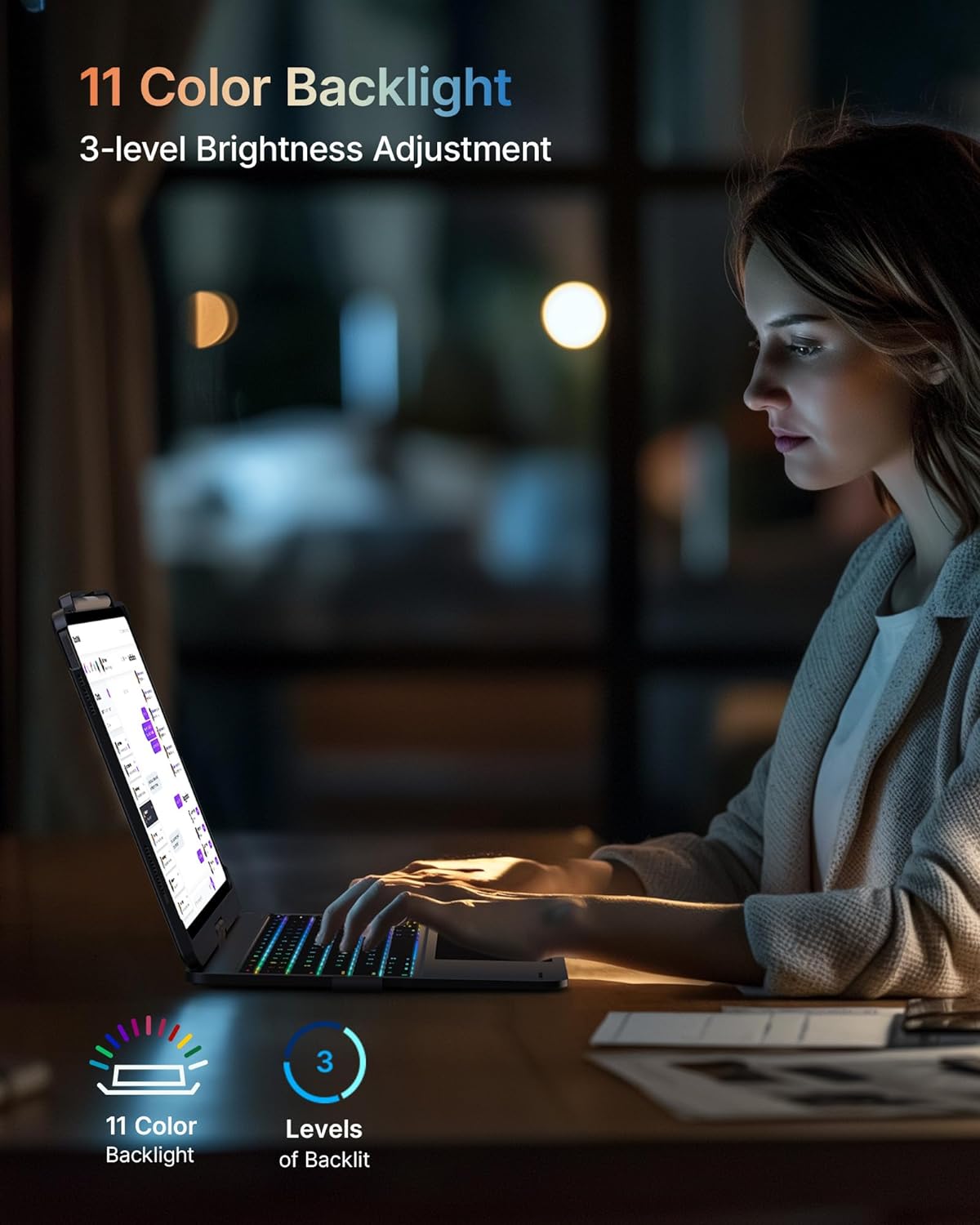
Image: The keyboard case displaying its 11-color backlight feature, highlighting the adjustable brightness levels.
4.3. 7-Usage Modes with 360° Hinge
Equipped with a 360° hinge, the case supports seven distinct usage modes, providing versatility for various activities such as typing, drawing, watching videos, or browsing. This adaptability makes it suitable for diverse scenarios, from academic use to professional tasks and creative endeavors.

Image: A collage illustrating the seven different usage modes of the keyboard case, including laptop, stand, tent, tablet, and protection modes.
4.4. Comprehensive Protection & Portable Design
The keyboard case features a premium hardshell construction that provides comprehensive protection for both the front and back of your iPad. Its thin and light design ensures portability, while a built-in pencil holder keeps your stylus secure and readily accessible.

Image: Visual representation of the keyboard case's thin profile, light weight, full protection, and portable design.
5.セットアップガイド
5.1. キーボードの充電
Before initial use, fully charge the keyboard. Connect the provided USB cable to the charging port on the keyboard and to a USB power adapter (not included) or a computer's USB port. The charging indicator light will typically show red during charging and turn off or change color when fully charged.
5.2. iPadを挿入する
Carefully align your iPad with the case and gently press it into place until it is securely seated. Ensure all ports and buttons are accessible and not obstructed by the case. The case is designed for a snug fit to provide optimal protection.
5.3.Bluetoothペアリング
- 電源スイッチを「ON」の位置にスライドしてキーボードの電源をオンにします。
- Press the Bluetooth pairing button on the keyboard (refer to the keyboard layout for exact location, often indicated by a Bluetooth symbol). The Bluetooth indicator light will begin to flash, indicating it is in pairing mode.
- iPadで、 設定 > ブルートゥース.
- Ensure Bluetooth is enabled. Your iPad will search for nearby devices.
- Select "typecase Keyboard" (or similar name) from the list of available devices.
- プロンプトが表示されたら、iPad画面に表示されているペアリングコードをキーボードで入力し、 入力.
- Once paired, the Bluetooth indicator light on the keyboard will stop flashing and remain solid, or turn off. Your keyboard is now connected.
注記: The keyboard may automatically reconnect to your iPad when turned on, provided Bluetooth is enabled on your iPad and the keyboard was previously paired.
6. 操作手順
6.1. トラックパッドの使用
The trackpad supports multi-touch gestures for intuitive navigation:
- 一本指タップ: 左クリックします。
- 2本指タップ: 右クリック(コンテキスト メニュー)。
- 2本指スクロール: 上または下にスクロールします。
- ピンチしてズーム: 2 本の指でピンチインまたはピンチアウトしてズームします。
- 3本の指で上にスワイプ: アプリスイッチャーを開きます。
- 3本の指で下にスワイプ: ホーム画面に戻ります。
- Swipe with Three Fingers Left/Right: 開いているアプリを切り替えます。
6.2. バックライトの調整
To cycle through the 11 backlight colors, press the 電球 key (often located near the function keys). To adjust the brightness level (3 levels), press the 明るさアップ/ダウン keys (often combined with function keys).
6.3. PadOS Shortcut Keys
The keyboard includes dedicated PadOS shortcut keys for quick access to common functions:
| Key/Combination | 関数 |
|---|---|
| 家 | ホーム画面に戻る |
| 検索 | Activate Spotlight Search |
| ブライトネスダウン | 画面の明るさを下げる |
| 明るさアップ | 画面の明るさを上げる |
| Keyboard Hide/Show | Toggle on-screen keyboard visibility |
| 前のトラック | Go to previous media track |
| 再生/一時停止 | メディアの再生または一時停止 |
| 次のトラック | Go to next media track |
| ミュート | オーディオ出力をミュートする |
| 音量を下げる | 音量を下げる |
| 音量を上げる | 音量を上げる |
| ロック画面 | iPadの画面をロックする |
6.4. Utilizing 7 Usage Modes
The 360° rotatable hinge allows for flexible positioning:
- ラップトップモード: Standard laptop configuration for typing and trackpad use.
- タブレットモード: キーボードを iPad の後ろに折りたたむと、純粋なタブレット体験が実現します。
- スタンドモード: Position the iPad at an angle for viewing content without the keyboard in front.
- テントモード: Invert the case to create a stable stand for video calls or presentations.
- 共有モード: 画面を 180 度回転して他のユーザーとコンテンツを共有します。
- 保護モード: Close the case to fully enclose and protect your iPad.
- Corner Mode: Adjust the angle for comfortable drawing or writing.
7. メンテナンスとケア
- クリーニング: キーボードとケースを拭くときは、柔らかく糸くずの出ない布を使用してください。頑固な汚れには、軽く拭き取ってください。amp布に水または低刺激性の非研磨性洗剤を含ませて拭いてください。過度の湿気は避けてください。
- ストレージ: 長期間使用しない場合は、キーボードケースを涼しく乾燥した場所に保管してください。バッテリー寿命を延ばすため、キーボードの電源を必ずオフにしてください。
- 取り扱い: Avoid dropping the case or exposing it to extreme temperatures, direct sunlight, or liquids. Do not attempt to disassemble the keyboard or case, as this may void the warranty.
- バッテリーのケア: To prolong battery life, avoid fully discharging the battery frequently. Charge the keyboard regularly, even if not used daily.
8。 トラブルシューティング
| 問題 | 考えられる原因 | 解決 |
|---|---|---|
| キーボードがBluetooth経由で接続されない | Keyboard is off, low battery, not in pairing mode, or iPad Bluetooth is off. | Ensure keyboard is charged and turned on. Put keyboard in pairing mode. Check iPad Bluetooth settings. Forget device on iPad and re-pair. |
| Keys or trackpad unresponsive | バッテリー残量が少ない、接続に問題がある、またはソフトウェアに不具合がある。 | Charge the keyboard. Turn the keyboard off and on again. Restart your iPad. Re-pair the Bluetooth connection. |
| Volume buttons on iPad are pressed automatically | iPad not seated correctly in the case, or case misalignment. | Carefully re-seat the iPad in the case, ensuring it is perfectly aligned and snapped into place. Check for any debris obstructing the fit. |
| Cursor jumps erratically while typing | Accidental palm contact with the trackpad. | Adjust typing posture to avoid resting palms on the trackpad. Ensure only fingers are making contact with the keys and trackpad. |
| バックライトが機能しない、または色が変わる | Feature not activated, or low battery. | Press the backlight key to activate/cycle colors. Charge the keyboard. |
9. 仕様
| 特徴 | 詳細 |
|---|---|
| モデル番号 | typecase Keyboard Case 201T129 |
| 製品寸法 | 11.42 x 8.66 x 0.79 インチ (29.01 x 22.00 x 2.01 cm) |
| アイテム重量 | 1.98ポンド(0.90kg) |
| 接続技術 | ブルートゥース |
| キーボードの説明 | 多機能 |
| 特集 | バックライト、エルゴノミクス、ホットキーとメディアキー、充電式、トラックパッド |
| バックライトの色 | 11 Colors (RGB) with 3 brightness levels |
| 電池のタイプ | リチウムポリマー(1個付属) |
| メーカー | タイプケース |
| 初回利用可能日 | 1年2024月XNUMX日 |
10. 保証とサポート
For warranty information, technical support, or customer service inquiries, please visit the official typecase store or contact their customer support channels. Details can typically be found on the manufacturer's webサイトまたは製品パッケージ。
Official typecase Store: ストアを訪問