
製品終了view
The Turtle Beach Pure Air Wireless RGB Gaming Mouse is designed for high-performance gaming, featuring an ultra-lightweight ergonomic design, advanced optical sensor, and versatile connectivity options. This manual provides essential information for setting up, operating, and maintaining your device.

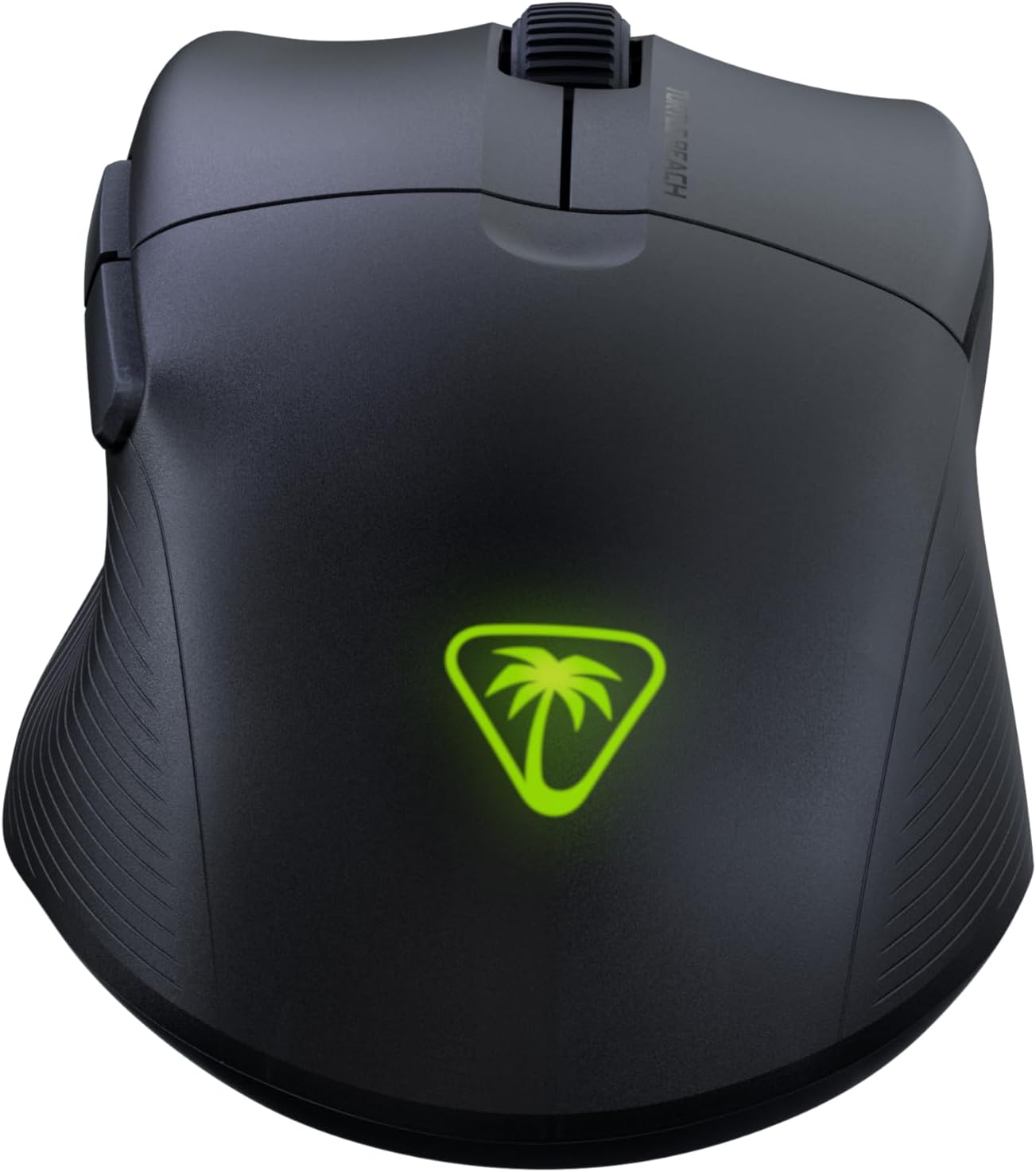
The Turtle Beach Pure Air Wireless RGB Gaming Mouse, showcasing its ergonomic shape and customizable RGB logo.
セットアップガイド
パッケージ内容
- Turtle Beach Pure Air Wireless RGB Gaming Mouse
- ワイヤレスUSBアダプター
- PhantomFlex Charging Cable (USB-C to USB-A)

The essential components included with your Turtle Beach Pure Air mouse.
初期充電
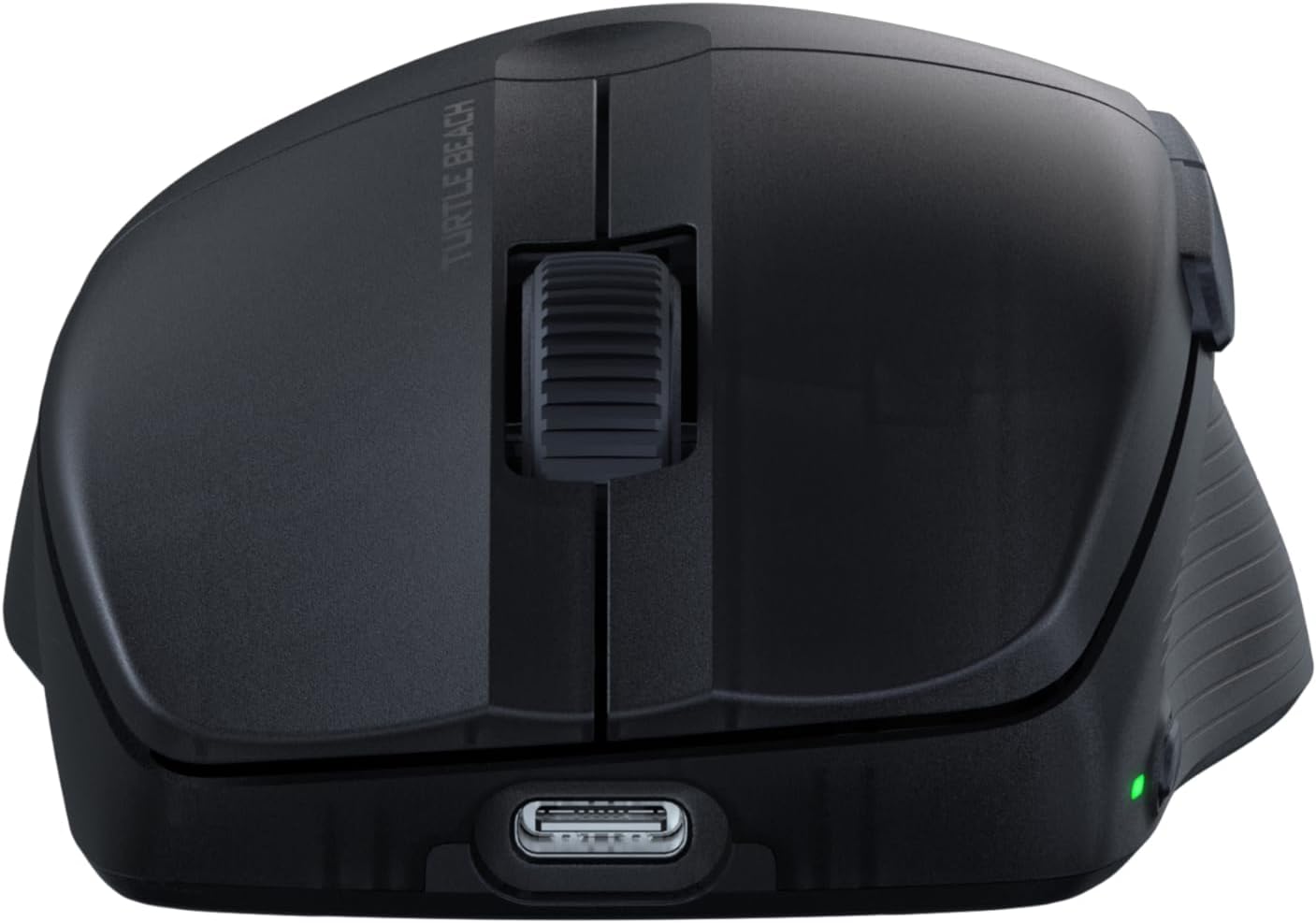
Before first use, it is recommended to fully charge the mouse. Connect the PhantomFlex Charging Cable to the USB-C port on the front of the mouse and to a powered USB-A port on your computer or a USB wall adapter.
The USB-C port located at the front of the mouse for charging and wired connection.
A full charge provides up to 125 hours of continuous use. Rapid charging allows for approximately 5 hours of game time with just 10 minutes of charging.
接続オプション
The Pure Air mouse offers three connectivity modes: 2.4GHz Wireless, Bluetooth, and Wired.
- 2.4GHzワイヤレス接続:
- Insert the Wireless USB Adapter into an available USB-A port on your PC.
- Locate the switch on the bottom of the mouse. Slide it to the 2.4GHzワイヤレス position (indicated by a Wi-Fi icon).
- The mouse should automatically connect to the adapter.
- Bluetooth接続:
- マウスの底にあるスイッチをスライドさせて ブルートゥース 位置(Bluetooth アイコンで示されます)。
- On your PC, navigate to Bluetooth settings and search for new devices.
- Select "Turtle Beach Pure Air" from the list of available devices to pair.
- 有線接続:
- Connect the PhantomFlex Charging Cable directly from the mouse to a USB-A port on your PC.
- マウスは有線デバイスとして機能し、同時に充電されます。

The mouse can be connected via its wireless USB adapter or the flexible PhantomFlex charging cable.
手術
ボタンの機能
- 左/右クリック: Equipped with TITAN Optical Switches for fast, precise actuation and a 100 million click life cycle.
- スクロールホイール: Provides tactile feedback for accurate scrolling.
- サイドボタン: Two programmable buttons on the left side for custom commands.
- DPIボタン: Located on the top of the mouse, behind the scroll wheel. Press to cycle through preset DPI levels.
DPI調整
The Pure Air mouse features a 26K Owl-Eye Optical Sensor. Use the dedicated DPI button to switch between sensitivity settings on the fly. Default DPI settings can be customized using the Swarm 2 software.
RGB Illumination (AIMO)
The Turtle Beach logo on the back of the mouse features customizable AIMO intelligent RGB illumination. Lighting effects and colors can be configured through the Swarm 2 software.
Swarm 2 Software
For advanced customization, download and install the Swarm 2 software from the official Turtle Beach webサイト。このソフトウェアを使用すると、次のことが可能になります。
- DPIレベルを調整してカスタムプロを作成files.
- Program button assignments.
- RGB 照明効果をカスタマイズします。
- マウスのファームウェアを更新します。
メンテナンス
クリーニング
To clean your Turtle Beach Pure Air mouse, use a soft, dry, lint-free cloth. Avoid using harsh chemicals, solvents, or abrasive materials, as these can damage the mouse's surface and internal components.
PTFE Glides
The mouse is equipped with Pure PTFE glides for smooth movement. Ensure these glides remain clean and free of debris to maintain optimal performance. Avoid scratching or damaging the glides.
トラブルシューティング
接続の問題
- 2.4GHzワイヤレス: Ensure the Wireless USB Adapter is securely plugged into a working USB port. Verify the mouse switch is set to the 2.4GHz mode. Try a different USB port.
- ブルートゥース: Confirm Bluetooth is enabled on your PC and the mouse switch is set to Bluetooth mode. Remove and re-pair the device in your PC's Bluetooth settings.
- 一般的な: Ensure the mouse is charged. Try connecting the mouse in wired mode to confirm functionality.
バッテリー寿命に関する懸念
While rated for up to 125 hours, actual battery life can vary based on usage patterns, DPI settings, and RGB illumination intensity. If battery life seems significantly shorter, ensure the mouse is fully charged and consider reducing RGB brightness or disabling it via the Swarm 2 software.
ソフトウェアとファームウェア
If you experience unexpected behavior or wish to access the latest features, ensure your Swarm 2 software and mouse firmware are up to date. Connect the mouse via USB and use the Swarm 2 application to check for and apply updates.
仕様
| ブランド | タートルビーチ |
| モデル番号 | TBM-1102-05 |
| 接続性 | Bluetooth, 2.4GHz Radio Frequency Wireless, Wired (USB-C) |
| センサー | Owl-Eye 26K DPI 光学センサー |
| スイッチ | TITAN Optical Switches (100 Million Click Life Cycle) |
| 重さ | 54g(超軽量) |
| バッテリー寿命 | Up to 125 Hours (Rechargeable Lithium Polymer) |
| 充電ケーブル | PhantomFlex USB-C |
| 手の向き | 右 |
| 対応OS | Windowsの10、Windowsの11 |
| 寸法(L x W) | 121mm(4.77インチ)×69mm(2.73インチ) |
| 材料 | プラスチック |
Physical dimensions of the Turtle Beach Pure Air mouse.
保証情報
The Turtle Beach Pure Air Wireless RGB Gaming Mouse comes with a 1年間のメーカー保証. Please retain your proof of purchase for warranty claims. For detailed terms and conditions, refer to the official Turtle Beach warranty policy available on their webサイト。
サポート
For further assistance, technical support, or to download the latest software and drivers, please visit the official Turtle Beach support webサイト:
公式製品ビデオ
このビデオはオーバーを提供しますview of the Turtle Beach Pure Air Wireless RGB Gaming Mouse, highlighting its key features and design.