
1. はじめに
The Super Console X2 Pro is a versatile entertainment system combining a retro gaming console and an Android TV box. It features a dual-system setup, allowing seamless switching between Emuelec 4.5 for gaming and Android 9.0 for multimedia. This device comes pre-loaded with over 70,000 classic games on a 256GB storage card, offering extensive entertainment options.
Equipped with a Mail-G31 MP2/DDR4 GPU and an S905X2 chip, the console ensures smooth game performance and efficient temperature management. It supports 4K HD output for an immersive viewing experience on the Android system and includes 2.4G+5G dual WiFi and Bluetooth 5.0 for robust connectivity. The package includes two wireless controllers for multiplayer gaming.
2. パッケージ内容
以下にリストされているすべてのアイテムがパッケージに含まれていることを確認してください。
- Super Console X2 Pro Unit
- ワイヤレスコントローラー(2個)
- USB Receiver for Controllers
- 電源アダプター
- HDケーブル
- ユーザーマニュアル(このドキュメント)
- TF Card (256GB, pre-installed with games)

図2.1:Super Console X2 Proのパッケージ内容
This image displays the Super Console X2 Pro unit, two wireless controllers, a power adapter, an HD cable, a user manual, and a TF card, illustrating all items typically found in the product package.
3. セットアップ手順
- 接続電源: Plug the power adapter into the DC IN port on the Super Console X2 Pro, then connect the adapter to a power outlet.
- テレビに接続する: Connect one end of the provided HD cable to the HD OUT port on the console and the other end to an available HD input on your television or monitor.
- コントローラーを接続する: Insert the USB receiver for the wireless controllers into any available USB port on the console. The controllers should automatically pair.
- 電源オン: コンソールまたはリモコンの電源ボタンを押して、デバイスの電源をオンにします。
- 入力を選択します: On your TV, select the correct HD input source corresponding to where you connected the console.
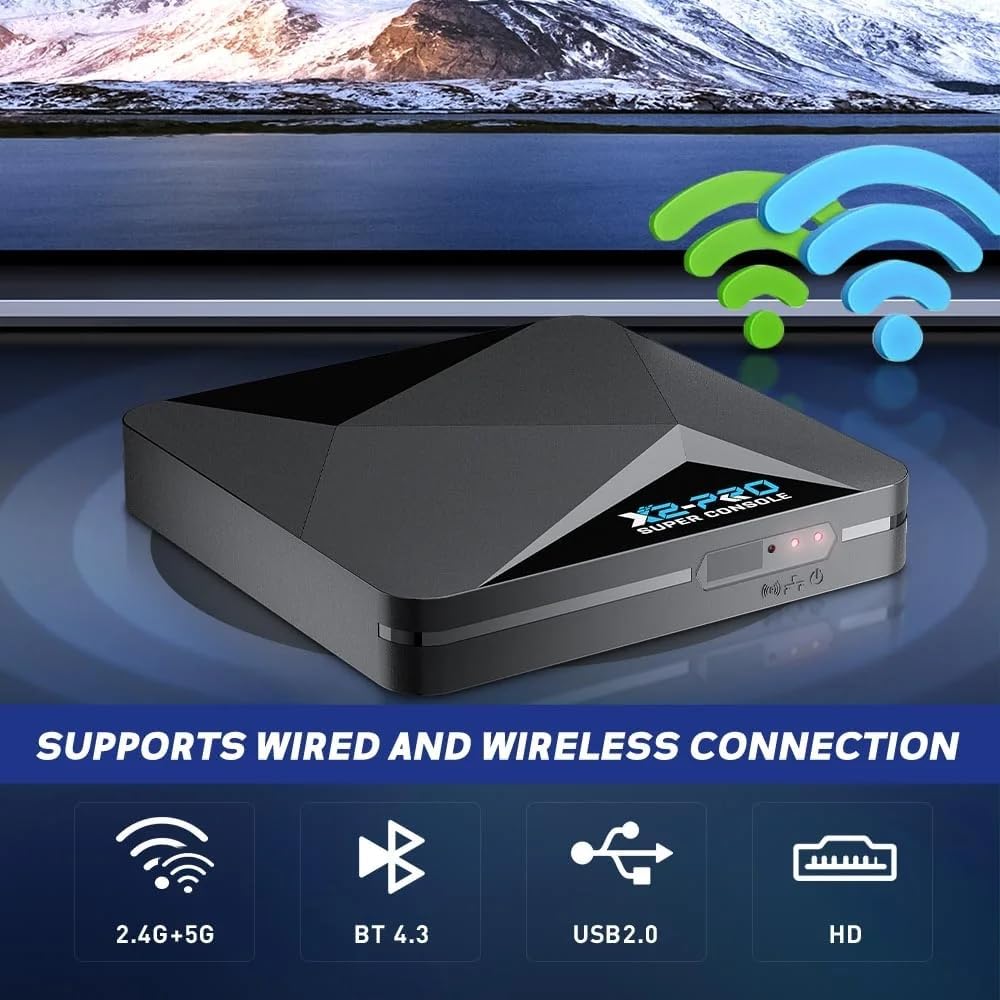
Figure 3.1: Console Connectivity Ports
This image highlights the console's connectivity options, including ports for power, HD output, USB for controllers, and indicators for 2.4G+5G WiFi and Bluetooth, essential for initial setup.
4. 操作手順
4.1 システム切り替え
The Super Console X2 Pro supports two main operating systems: Emuelec (for gaming) and Android (for TV/multimedia). You can switch between them as follows:
- From Gaming System (Emuelec) to Android System:
1. On your gamepad, press the "Start" button.
2. Navigate to and select "Quit".
3. Choose "Reboot From NAND".
4. Confirm by selecting "YES". The console will restart into the Android system. - From Android System to Gaming System (Emuelec):
1. Using the remote control, navigate to "My APPS".
2. Find and select "LibreELEC".
3. Press "OK".
Note: If a USB drive is connected, you may need to press the "Return" button on the remote control to access the correct menu.

Figure 4.1: Dual System Interface
This image visually represents the console's capability to run multiple systems, specifically Emuelec for gaming and Android for TV functions, highlighting the ease of switching between them.
4.2 Gaming Operation
The gaming system utilizes Emuelec 4.5, providing a straightforward and user-friendly interface. Navigate through game libraries using the included wireless controllers. The console supports up to two players simultaneously.

Figure 4.2: Two-Player Support
This image demonstrates the console's two-player capability, showing two wireless controllers connected to a single USB receiver, allowing for shared gaming experiences.
4.3 Android TV Operation
The Android 9.0 system allows you to access various multimedia applications. You can stream 4K videos, download apps from the app store, and browse the internet. Use the provided remote control for navigation within the Android interface.
5. メンテナンス
- クリーニング: 本体とコントローラーのお手入れには、柔らかく乾いた布をご使用ください。液体クリーナーや研磨剤の使用は避けてください。
- ストレージ: コンソールは、直射日光や極端な温度を避け、涼しく乾燥した場所に保管してください。
- 換気: Ensure the console's ventilation openings are not blocked to prevent overheating.
- 力: Always use the original power adapter provided with the console. Disconnect power during lightning storms or when not in use for extended periods.
6。 トラブルシューティング
- 電源なし:
- Check if the power adapter is securely connected to both the console and the power outlet.
- 別の電源コンセントを試してください。 - テレビに表示されない:
- Ensure the HD cable is securely connected to both the console and the TV.
- Verify that your TV is set to the correct HD input source.
- Try a different HD cable or TV input port. - コントローラーが応答しない:
- Ensure the USB receiver is properly inserted into the console.
- Check if the controllers have sufficient battery power.
- Re-pair the controllers by turning them off and on, or by re-inserting the USB receiver. - システムがフリーズしたりパフォーマンスが低下したりする:
- Reboot the console by disconnecting and reconnecting the power.
- Ensure there is adequate ventilation around the console to prevent overheating.
- For Android system issues, try clearing cache for problematic apps. - システムを切り替えることができません:
- Follow the exact steps outlined in Section 4.1 for system switching.
- Ensure the remote control or gamepad is functioning correctly.
7. 仕様
| 特徴 | 仕様 |
|---|---|
| モデル番号 | スーパーコンソール X2 PRO |
| ブランド | XIXIMENG |
| CPU | Amlogic S905X2, Quad Core Cortex-A53 1.8GHz |
| グラフィックプロセッサ | Mail-G31 MP2 DDR4 |
| ラム | 2GB DDR4 |
| ロム | 8GBフラッシュ |
| ストレージ容量 | 256 GB (TFカード) |
| オペレーティングシステム | Emuelec 4.5, Android 9.0 |
| 接続性 | 2.4G+5G Dual WiFi, Bluetooth 5.0, USB 2.0, HD |
| ビデオ出力 | 4K HD (Android System) |
| 最大プレイヤー数 | 2 |
| 材料 | プラスチック |
| 色 | 黒 |
| 寸法(長さ×幅×高さ) | 10 x 10 x 10 ミリメートル |

Figure 7.1: Internal Chipset and Performance
この画像は詳細な view of the console's internal hardware, including the Amlogic S905X2 CPU and Mail-G31 MP2 GPU, which contribute to its smooth performance, especially for 3D games.
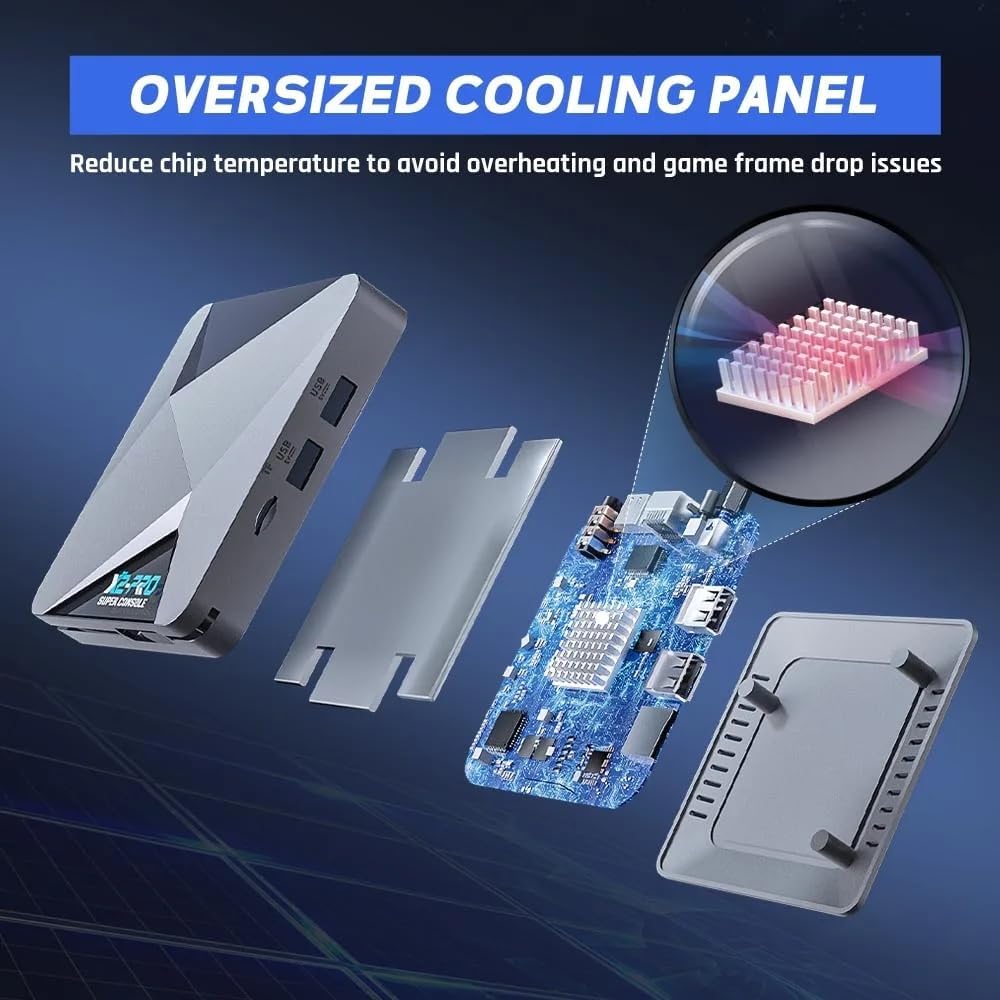
図7.2: 冷却システム
This image illustrates the console's internal cooling design, featuring an oversized cooling panel intended to dissipate heat effectively and maintain optimal operating temperatures.
8. 保証とサポート
For warranty information, technical support, or service inquiries, please refer to the contact details provided with your purchase documentation or visit the official XIXIMENG webサイトでご確認ください。保証請求に備えて購入証明書を保管してください。