
1. はじめに
This manual provides detailed instructions for the proper use and maintenance of your OSALO Scientific Calculator, model OS-82ES PLUS II. This calculator is designed for secondary school students and professionals, offering 252 functions, a 2-line display, and dual solar and battery power for reliable operation. Please read this manual thoroughly to ensure optimal performance and longevity of your device.

Figure 1: OSALO Scientific Calculator OS-82ES PLUS II. This image shows the calculator from an angled perspective, highlighting its black body, white keys, and the solar panel at the top. The display shows a complex mathematical integral.
2.製品オーバーview
Familiarize yourself with the various components and keys of your OSALO Scientific Calculator.

Figure 2: Key components of the OSALO Scientific Calculator. This diagram labels the solar panel, extra large display, control keys, SHIFT key, Mode key, Power on button, Function keys, Delete key, and Last answer key.
- ソーラーパネル: Provides power in well-lit environments.
- 特大ディスプレイ: 2-line LCD for clear view方程式と結果の説明。
- コントロールキー: Navigation and directional input.
- シフトキー: Accesses secondary functions printed above keys in yellow.
- アルファキー: Accesses alphabetic characters and variables printed above keys in red.
- モードキー: Changes calculation modes (e.g., COMP, STAT, TABLE).
- オンボタン: 電卓の電源をオンにします。
- ファンクションキー: Perform various mathematical and scientific operations.
- DEL(削除)キー: 最後に入力した文字を削除します。
- AC (All Clear) Key: Clears all calculations and memory (except independent memory).
- ANS (Answer) Key: 前回の計算結果を呼び出します。
3. セットアップ
3.1. Power Supply and Battery Installation
The OSALO Scientific Calculator is powered by both solar energy and an LR44 button cell battery. The battery is included and pre-installed.
- 電卓がオフになっていることを確認してください。
- 電卓の背面にある電池ボックスを見つけます。
- 小さなドライバーを使用して、電池ボックスのカバーを開きます。
- If replacing, remove the old LR44 battery.
- 新しい LR44 電池をプラス (+) 側を上に向けて挿入します。
- 電池カバーを取り付けて、ネジで固定します。
Note: The solar panel provides supplementary power and extends battery life, but a functional battery is required for consistent operation, especially in low-light conditions.
3.2. 初回電源投入
を押す ON button to turn on the calculator. The display will show "0" or the last calculated result.
3.3. Turning Off the Calculator
電卓をオフにするには、 シフト それから AC (OFF). The calculator will also automatically power off after a period of inactivity to conserve battery life.
4. 操作手順
4.1. 基本的な計算
Enter numbers and operators as you would write them. Press = 結果を得るために。
- 追加: 1 + 2 =
- 減算: 5 - 3 =
- 乗算: 4 × 6 =
- 分割: 10 ÷ 2 =
4.2. 2-Line Display and Natural Input/Output
The calculator features a 2-line LCD display, allowing you to view both the input expression and the result simultaneously. It supports natural input and output, displaying fractions, roots, and other expressions as they appear in textbooks.
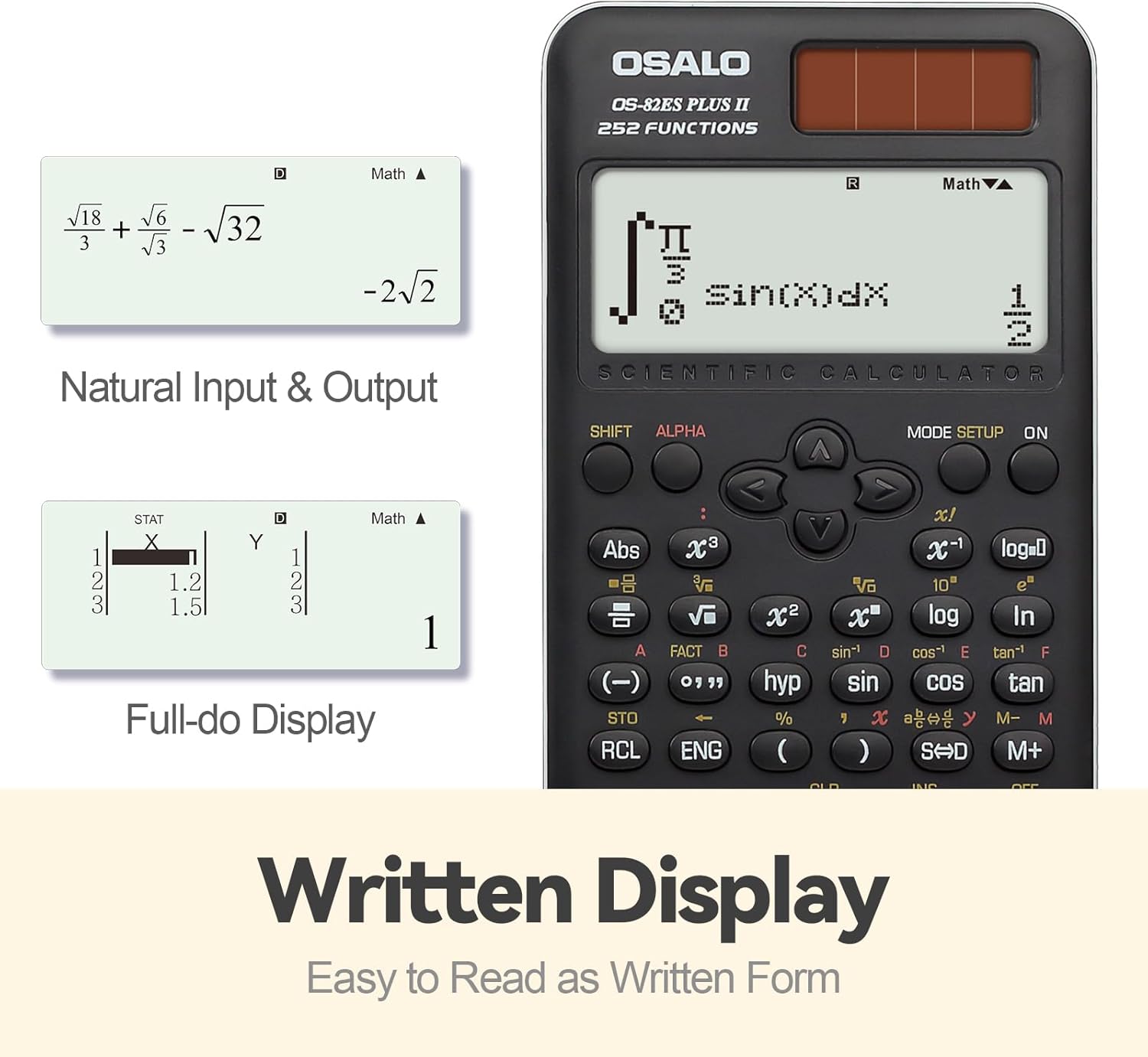
図3:例amples of Natural Input & Output and Full-do Display. The image shows how complex fractions and roots are displayed in a natural, written form, and how statistical data can be viewed in a full-dot matrix display.
4.3. Using Scientific Functions (252 Functions)
The calculator provides 252 functions, including trigonometric, logarithmic, exponential, power, root, fraction, permutation, combination, and statistical calculations.
- 二次機能: プレス シフト followed by the desired key to access the yellow-printed function above it.
- Alpha Functions: プレス アルファ followed by the desired key to access the red-printed character or variable above it.
- 三角関数: 使用 罪, コス, 日焼け keys. Inverse functions are accessed via シフト.
- 対数関数: 使用 ログ (10進数)と ln (自然対数)キー。
- 分数: 使用 アブ/シー key to input and convert fractions.
- 統計: プレス モード and select STAT mode. Refer to the calculator's on-screen menu for specific statistical calculations (e.g., standard deviation, linear regression).
- メモリ機能: 使用 STO (Store) and RCL (Recall) keys to store and retrieve values from independent memory.
4.4. Brightness Adjustment Function
The calculator features a brightness adjustment function to optimize display visibility and reduce visual fatigue.

Figure 4: Brightness Adjustment Function. This image illustrates the difference between a 'Dark' display setting (to relieve visual fatigue) and a 'Bright' setting (for clear and intuitive viewing), demonstrating the calculator's adjustable screen brightness.
To adjust brightness, navigate through the モード settings or use specific key combinations as indicated in the on-screen menu.
5. 主な特徴
The OSALO Scientific Calculator OS-82ES PLUS II is equipped with several features designed to enhance usability and functionality for academic and professional use.

図5:以上view of 252 Functions. This image highlights key capabilities such as Multi-replay function, Combination and Permutation, Statistics (STAT-data editor, Standard deviation, Regression analysis), Fraction Calculation, 9 variable memories, and the inclusion of a slide-on hard case.
- 252関数: Comprehensive set of mathematical, statistical, and scientific functions.
- 2-Line Large Display: Clear and simultaneous display of input and results, supporting natural textbook display.
- 敏感なキー: Premium induction buttons provide quick and accurate response to input.
- Hard Sliding Cover: Ergonomically designed cover protects the calculator from damage and provides a comfortable grip.
- Dual Power (Solar & Battery): Ensures reliable operation in various lighting conditions.
- マルチリプレイ機能: Allows for quick review and editing of previous calculations.
- STAT-data Editor: Facilitates statistical calculations including standard deviation and regression analysis.
- 9 Variable Memories: Store and recall up to 9 different values for complex calculations.
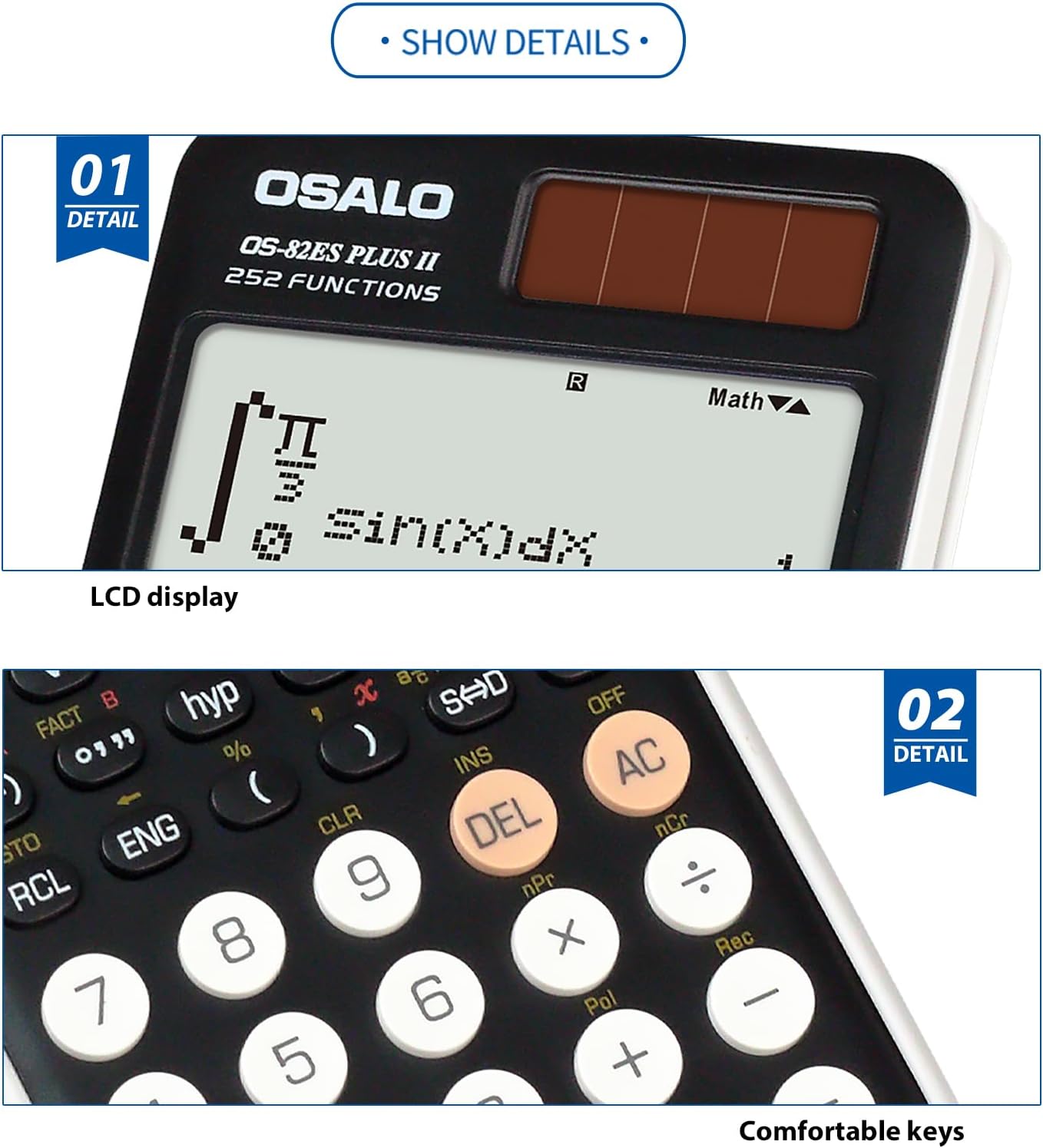
Figure 6: Detail of LCD Display and Comfortable Keys. This image provides a close-up view of the calculator's clear LCD display and the tactile, responsive keys, emphasizing user comfort and readability.
6. メンテナンス
6.1. 清掃
- Wipe the calculator's exterior with a soft, dry cloth.
- 頑固な汚れには、軽くamp布に水と中性洗剤を含ませ、すぐに拭いて乾かしてください。
- 強力な溶剤、研磨剤入りの洗剤、スプレー式の洗剤を電卓に直接使用しないでください。
6.2. ストレージ
- 電卓は直射日光や極端な温度を避け、涼しく乾燥した場所に保管してください。
- Always use the provided hard sliding cover to protect the display and keys when not in use.
- Avoid placing heavy objects on the calculator.
6.3. バッテリーの交換
When the display becomes dim or calculations are erratic, it may be time to replace the LR44 battery. Follow the instructions in Section 3.1. "Power Supply and Battery Installation". Dispose of used batteries according to local regulations.
7。 トラブルシューティング
| 問題 | 考えられる原因 | 解決 |
|---|---|---|
| 電卓が起動しません。 | Low or dead battery; insufficient light for solar power. | Replace the LR44 battery. Ensure adequate lighting for solar panel. |
| ディスプレイが暗いか空白です。 | Low battery; poor lighting; brightness setting too low. | Replace battery. Move to a brighter area. Adjust display brightness (refer to Section 4.4). |
| 計算結果が正しくありません。 | Incorrect mode setting; syntax error; incorrect input. | Check the current mode (e.g., DEG/RAD, COMP/STAT). Review input for errors. Press AC to clear and restart. |
| キーが反応しません。 | Calculator frozen; physical obstruction. | Try turning the calculator off and on again. Check for debris under keys. |
| 「数学エラー」または「構文エラー」が表示されます。 | Mathematical impossibility (e.g., division by zero); incorrect expression format. | Review your input for mathematical errors or incorrect syntax. Press AC エラーをクリアします。 |
8. 仕様

Figure 7: Calculator Dimensions and Weight. This image provides a side and front view of the calculator, indicating its approximate thickness (0.79 inches / 20mm), height (6.46 inches / 164mm), width (3.15 inches / 80mm), and net weight (4.9oz / 140g). Note that official specifications may vary slightly.
| 特徴 | 詳細 |
|---|---|
| モデル | OS-82ES PLUS II |
| ブランド | オサロ |
| 機能 | 252 |
| 表示タイプ | 2-line LCD, Natural Textbook Display |
| 画面表示サイズ | 6センチメートル |
| 電源 | Solar & Battery Supply (LR44 x 1, included) |
| 材質タイプ | プラスチック |
| 製品寸法 | 16.4 x 8 x 0.1 cm(6.46 x 3.15 x 0.04インチ) |
| アイテム重量 | 190 g(約6.7オンス) |
| 充電式バッテリー付属 | いいえ |
9. 保証とサポート
For specific warranty information, please refer to the documentation provided at the time of purchase or contact your retailer. OSALO products are designed for reliability and performance.
If you encounter issues not covered in the troubleshooting section, or require further assistance, please contact OSALO customer support through their official webサイトまたは製品パッケージに記載されている連絡先情報をご覧ください。