
1. はじめに
This manual provides essential information for the proper setup, operation, and maintenance of your NexiGo NG17QH 4K Portable Monitor. Please read this manual thoroughly before using the device to ensure optimal performance and to prevent damage. Keep this manual for future reference.

Image: The NexiGo NG17QH 4K Portable Monitor, showcasing its sleek design and smart cover.
2. パッケージ内容
Verify that all items listed below are included in your package. If any items are missing or damaged, please contact NexiGo customer support.
- NexiGo NG17QH 4K Portable Monitor
- スマートカバー/スタンド
- USB-C から USB-C へのケーブル
- ミニHDMI-HDMIケーブル
- USB-A-USB-C電源ケーブル
- 電源アダプター
3.製品オーバーview
Familiarize yourself with the ports and controls on your NexiGo NG17QH portable monitor.
画像: 詳細 view モニターのポートとコントロール。
ポートとボタン:
- フル機能のUSB-Cポート: Used for power, video, and audio transmission with compatible devices.
- ミニ HDMI ポート: Used for video and audio transmission with HDMI-compatible devices.
- 電源ボタン: Press and hold to power the monitor on or off. Short press to access the OSD menu.
- 電源インジケータライト: Indicates the monitor's power status.
- Multi-Function Key: OSD メニューを移動し、設定を調整するために使用されます。
- OTG Interface (USB-C): Allows connection of USB peripherals like keyboards or mice when the monitor is connected via the full-featured USB-C port.
- 3.5mmヘッドフォンジャック: 外部オーディオ機器を接続します。
4. セットアップ
Follow these steps to set up your NexiGo NG17QH portable monitor.
4.1 モニターへの電源供給
- Using a single USB-C cable (Full-Featured): If your device (laptop, smartphone) supports full-featured USB-C output, connect the monitor to your device using the provided USB-C to USB-C cable. This single cable can provide both power and display signal.
- Using an external power adapter: If your device does not provide sufficient power or if you are using the Mini HDMI port, connect the provided USB-A to USB-C power cable to the monitor's full-featured USB-C port and plug the USB-A end into the power adapter, then into a wall outlet.
4.2 デバイスへの接続
- Laptop/PC (USB-C): Connect the monitor to your laptop/PC using the USB-C to USB-C cable. Ensure your laptop's USB-C port supports DisplayPort Alternate Mode.
- ノートパソコン/PC(HDMI): Connect the monitor to your laptop/PC using the Mini HDMI to HDMI cable. Ensure the monitor is powered externally via the USB-C power cable.
- Gaming Consoles (PS5, Xbox, Switch): Connect the monitor to your console using the Mini HDMI to HDMI cable. Ensure the monitor is powered externally via the USB-C power cable.
- スマートフォン: Connect the monitor to your smartphone using the USB-C to USB-C cable. Ensure your smartphone's USB-C port supports video output.
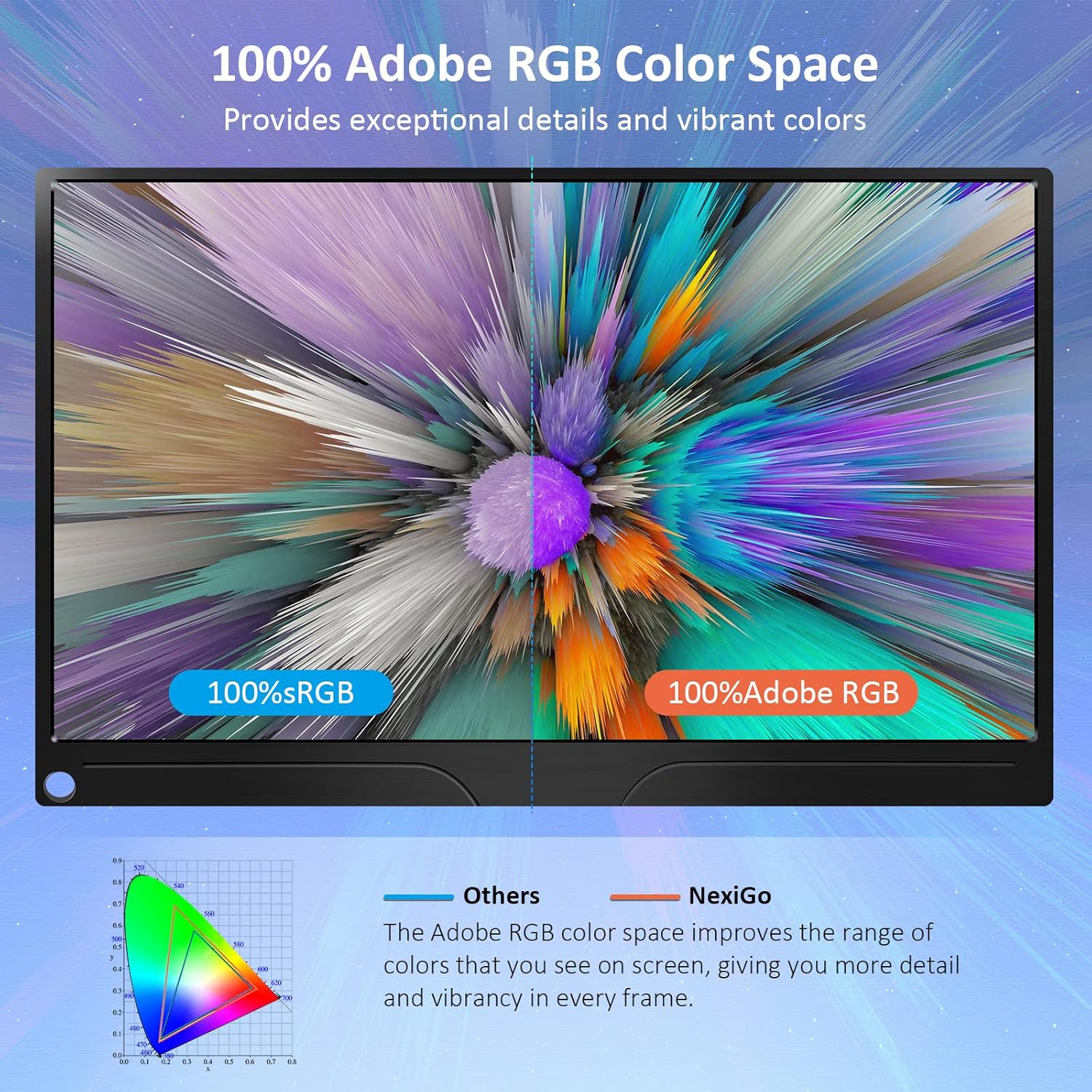
Image: The portable monitor connected to a laptop, demonstrating an extended display setup.
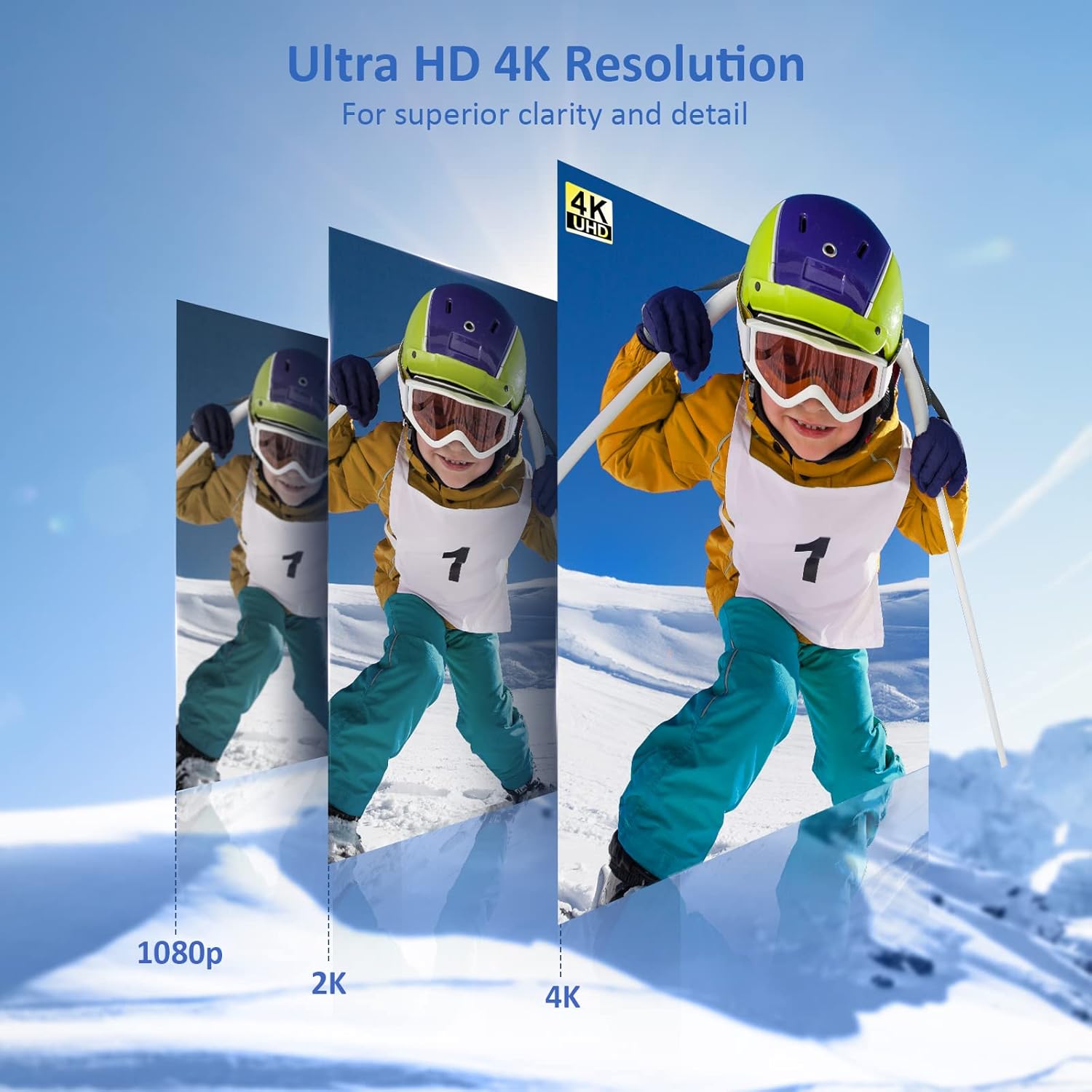
Image: The portable monitor connected to a smartphone, displaying content.
4.3 VESA マウント
The monitor is compatible with VESA mounts (75x75mm). To mount the monitor, remove the smart cover and attach it to a compatible VESA arm or wall mount using appropriate screws (not included).
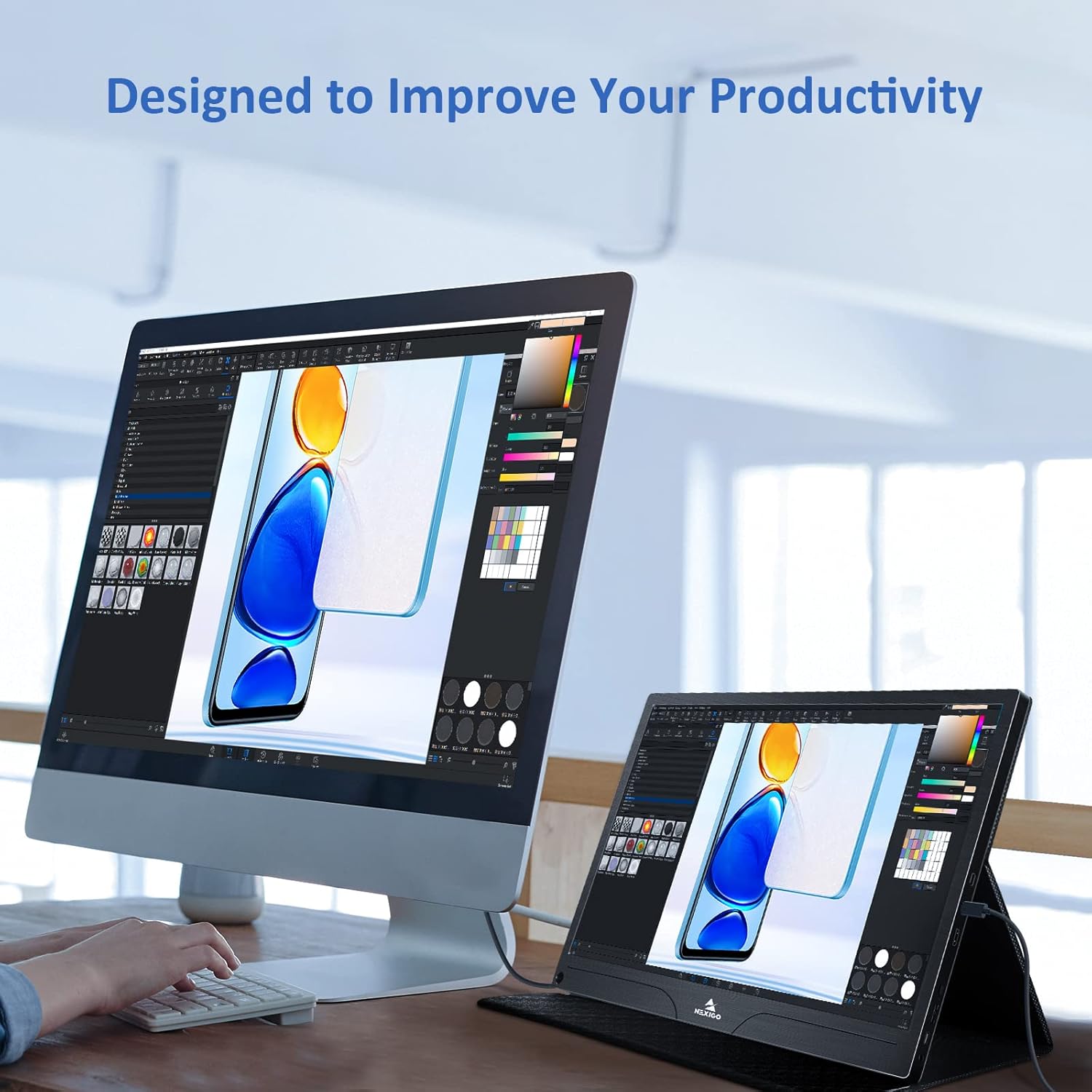
Image: The monitor mounted on a VESA-compatible desk arm.
5. モニターの操作
5.1 電源オン/オフ
を押し続けます 電源ボタン for approximately 3 seconds to turn the monitor on or off.
5.2 オンスクリーンディスプレイ(OSD)メニュー
The OSD menu allows you to adjust various display settings. Short press the 電源ボタン to open the OSD menu. Use the 多機能キー オプションを移動して選択します。
- 上下: Move the Multi-Function Key up or down to navigate through menu options.
- 入力: Press the Multi-Function Key inward to select an option or confirm a setting.
- 出口: Press the Power Button to exit the current menu or the OSD.
5.3 表示設定
- 輝度コントラスト: ディスプレイ全体の輝度とコントラストを調整します。
- 色の設定: 色温度、色相、彩度を変更します。
- HDRモード: 互換性のあるコンテンツの視覚品質を向上させるために、ハイダイナミックレンジを有効または無効にします。
- フリーシンク: Enable FreeSync for smoother gaming experiences by synchronizing the monitor's refresh rate with your GPU's frame rate.
- アスペクト比: Adjust the display aspect ratio (e.g., 16:9, 4:3).
5.4 オーディオ設定
Adjust the volume of the built-in dual speakers or connected headphones through the OSD menu.
6. メンテナンス
- 画面の掃除: 柔らかく糸くずの出ない布を軽く拭いてください。amp水または研磨剤を含まないスクリーンクリーナーで拭き取ってください。液体をスクリーンに直接吹き付けないでください。
- Cのクリーニングasing: モニターを拭くasing with a soft, dry cloth. Avoid using harsh chemicals or solvents.
- ストレージ: When not in use, store the monitor in a cool, dry place, preferably in its original packaging or smart cover to protect it from dust and scratches.
- 極端な状況を避ける: モニターを極端な温度、湿度、直射日光にさらさないでください。
7。 トラブルシューティング
モニターに問題が発生した場合は、次の表で一般的な問題と解決策を参照してください。
| 問題 | 考えられる原因 | 解決 |
|---|---|---|
| 画面が表示されない/「信号なし」メッセージ | ケーブル接続が正しくない、電力が不十分、入力ソースが正しくない。 | Ensure cables are securely connected. Verify external power is supplied if needed. Check the input source setting in the OSD menu. |
| モニターの電源が入らない | 電源がありません、ケーブルに不具合があります。 | Ensure the power adapter is connected and working. Try a different USB-C cable or power source. |
| 画面のちらつき | Faulty cable, unstable power, incompatible resolution/refresh rate. | Replace the cable. Ensure stable power. Adjust the display resolution or refresh rate on your connected device. |
| 音声なし | Volume too low, incorrect audio output setting, faulty cable. | Increase volume via OSD or connected device. Ensure the monitor is selected as the audio output device on your source. Check cable connections. |
| OTG port not working | Monitor not powered via full-featured USB-C, device incompatibility. | Ensure the monitor is connected to a device via the full-featured USB-C port that supports OTG functionality. |
8. 仕様
Detailed technical specifications for the NexiGo NG17QH 4K Portable Monitor.
| 特徴 | 仕様 |
|---|---|
| モデル番号 | NG17QH |
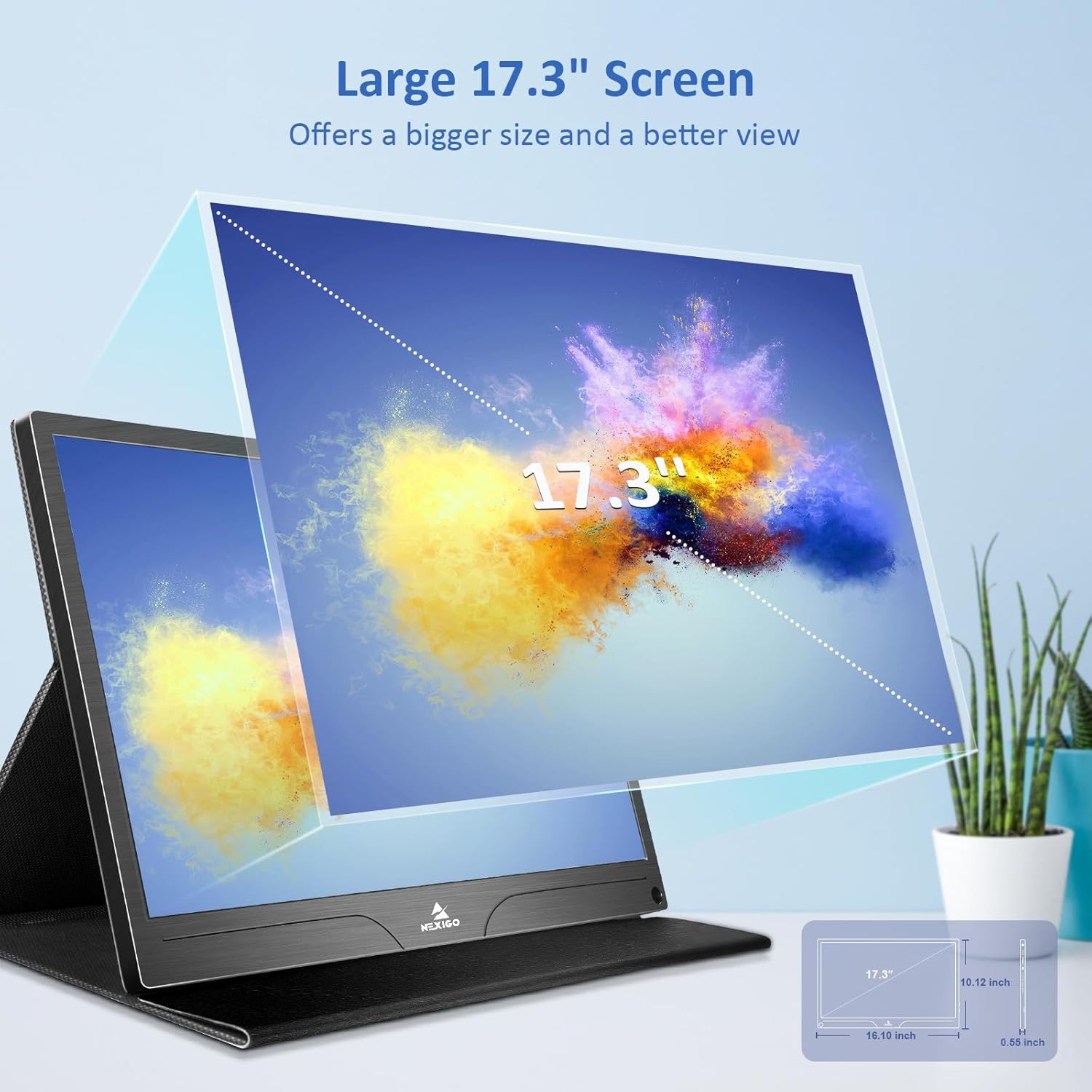
| 画面サイズ | 17.3インチ |
| 解決 | 3840 x 2160 (4K UHD) |
| パネルタイプ | IPS |
| 輝度 | 400 cd/m² |
| 色域 | 100%Adobe RGB |
| アスペクト比 | 16:9 |
| View角度 | 178° |
| 特徴 | FreeSync, HDR, Eye Care Screen |
| スピーカー | デュアル内蔵スピーカー |
| 接続性 | Full-Featured USB-C (x1), Mini HDMI (x1), OTG USB-C (x1), 3.5mm Audio Jack (x1) |
| VESA互換性 | 75×75ミリ |
| 製品寸法 | 16.1 x 10.12 x 0.55インチ |
| アイテム重量 | 6.39ポンド |

Image: Visual comparison of 1080p, 2K, and 4K resolutions, demonstrating the clarity of the 4K display.
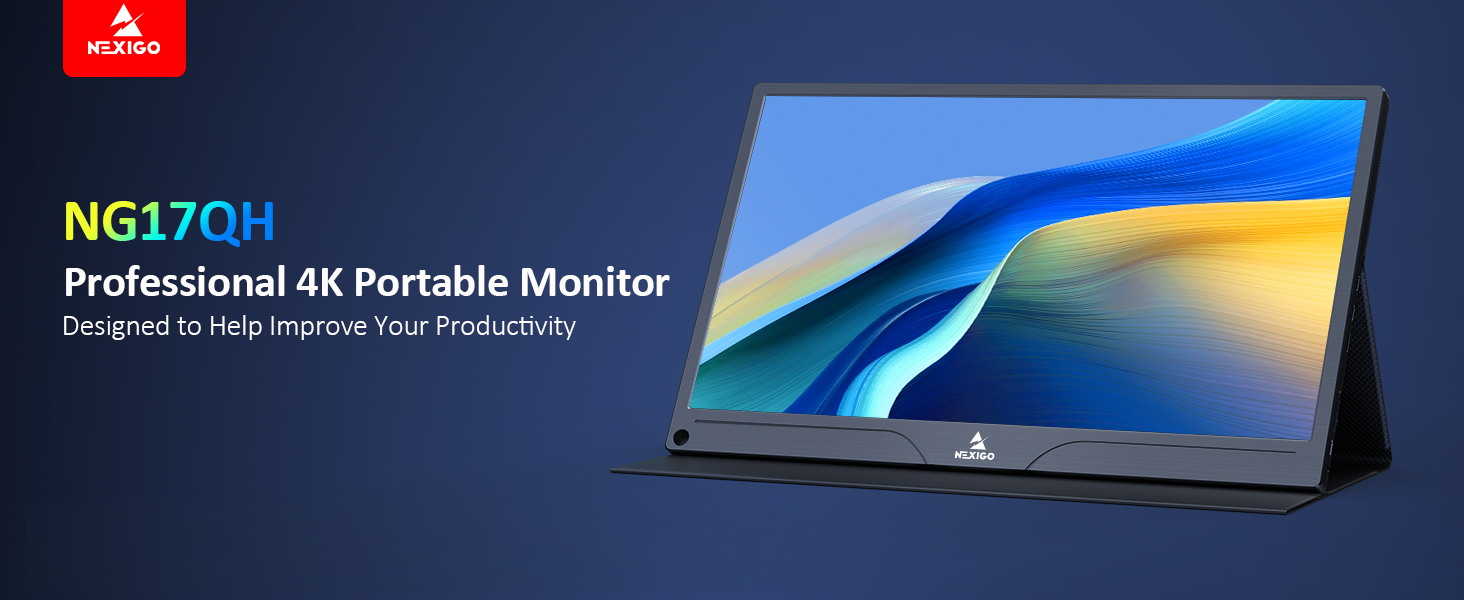
Image: A visual representation of 100% Adobe RGB color space coverage, indicating vibrant and detailed color reproduction.
9. 保証とサポート
Your NexiGo NG17QH Portable Monitor comes with a manufacturer's warranty. For detailed warranty information, product registration, or technical support, please visit the official NexiGo web公式サイトをご覧いただくか、カスタマーサービスに直接お問い合わせください。保証請求の際は、購入証明としてレシートを保管してください。
NexiGo Official Webサイト: www.nexigo.com