
Contour Design 50120043
Contour Unimouse エルゴノミック垂直マウス 取扱説明書
モデル: 50120043
Brand: Contour Design
導入
The Contour Unimouse is an advanced ergonomic vertical mouse designed to provide comfort and reduce strain during extended computer use. Its unique adjustable angle and customizable thumb rest promote a natural hand position, helping to alleviate discomfort associated with traditional mice. This manual provides comprehensive instructions for setting up, operating, maintaining, and troubleshooting your Unimouse, ensuring optimal performance and ergonomic benefits.

Figure 1: The Contour Unimouse Ergonomic Vertical Mouse, showcasing its unique vertical design and wired connection.
設定
パッケージ内容
Before you begin, ensure all items are present in your Unimouse package:
- Contour Unimouse Ergonomic Vertical Mouse
- USBケーブル
Connecting Your Unimouse
The wired Unimouse connects directly to your computer via a USB-C cable. Follow these steps for initial setup:
- Locate the USB-C port on your Unimouse, typically at the front base.
- Connect one end of the provided USB cable to the Unimouse.
- USB ケーブルのもう一方の端をコンピューターの使用可能な USB ポートに接続します。
- コンピュータは必要なドライバーを自動的に検出し、インストールします。基本的な機能については追加のソフトウェアは必要ありません。
Operating Your Unimouse
Adjustable Angle (35°-70°)
The Unimouse features a unique friction-based hinge that allows you to adjust the mouse angle between 35 and 70 degrees. This adjustability helps prevent static posture and reduces wrist pain by allowing you to find the most comfortable and natural hand position.
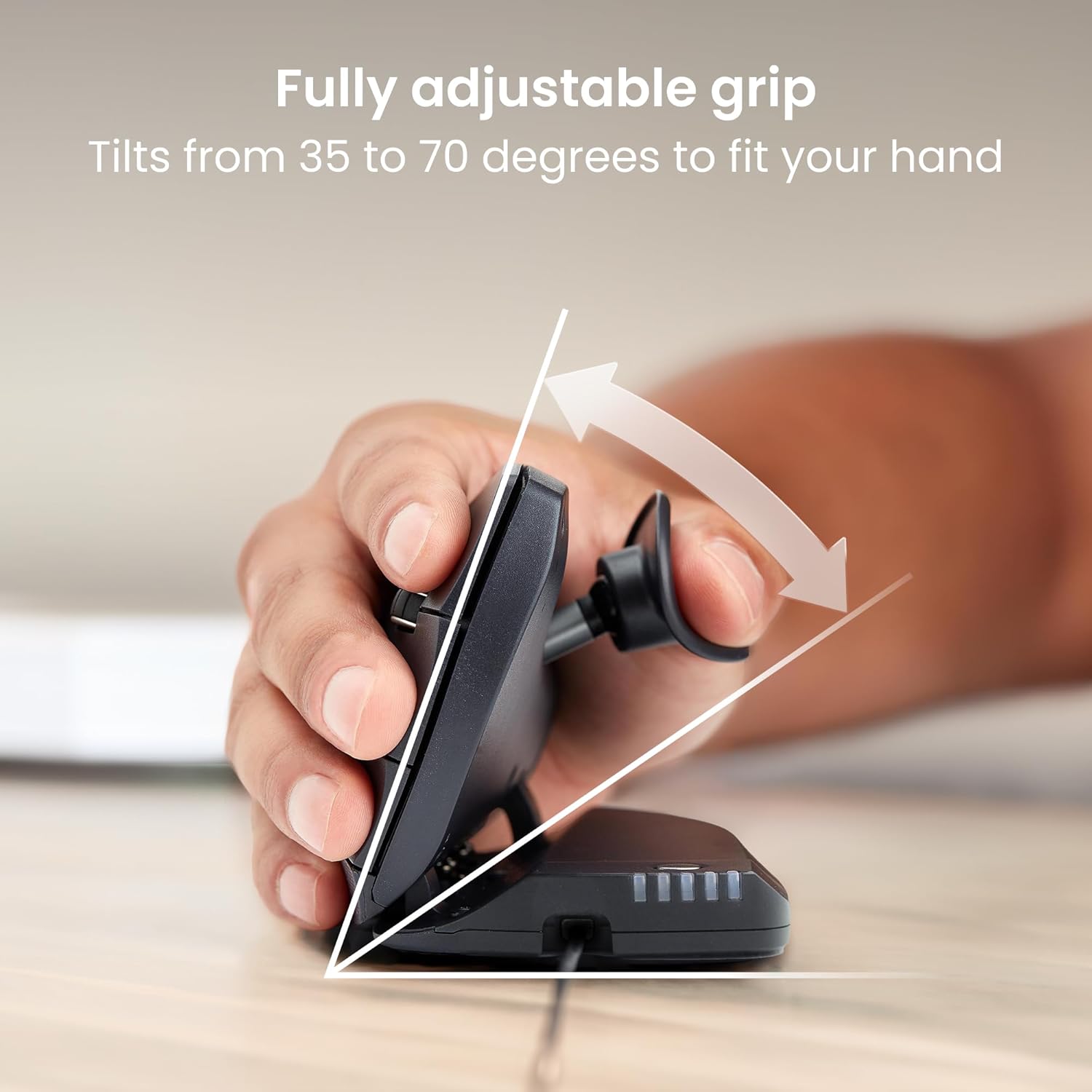
Figure 2: Adjusting the tilt angle of the Unimouse from 35 to 70 degrees for a customized grip.
Customizable Thumb Rest
For maximum comfort, the Unimouse includes a fully adjustable thumb rest. This rest can be moved in multiple directions to provide a relaxed grip and reduce pressure on the thumb base:
- 上下: Adjust the vertical height.
- イン/アウト: Adjust the horizontal distance from the mouse body.
- 前方後方: Adjust the position along the mouse body.
- 回転: Angle the thumb rest for optimal support.
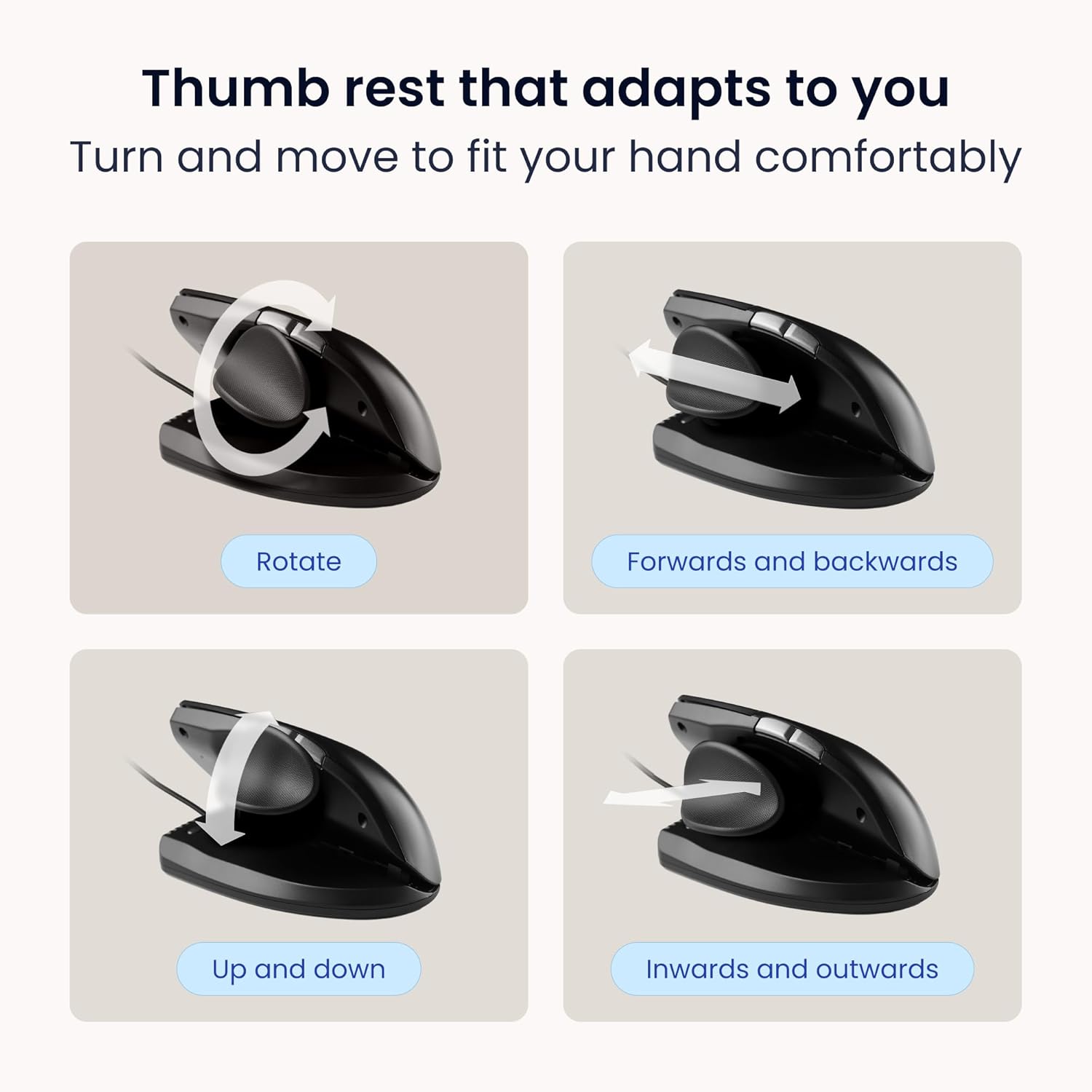
Figure 3: The Unimouse thumb rest can be rotated, moved forwards and backwards, up and down, and inwards and outwards for personalized comfort.
プログラム可能なボタン
The Unimouse features six programmable buttons and a smooth scroll wheel, allowing you to customize functions to suit your workflow. The default button assignments are:
- 左クリック
- 右クリック
- スクロールホイール(クリック可能)
- Double Click Button (default)
- 戻るボタン
- 進むボタン
To customize these buttons, download the free Contour desktop application from the official Contour Design website. This software allows you to reassign functions to optimize your productivity.

図4:以上view of the Unimouse's six customizable buttons and scroll wheel.
Cursor Speed Adjustment (DPI)
The Unimouse offers multiple DPI (Dots Per Inch) settings to adjust cursor speed and precision, catering to different tasks and preferences. You can typically cycle through these settings using a dedicated DPI button or through the software:
- 600dpi: For fine precision work (e.g., graphic design, CAD).
- 1000dpi: Standard setting for general office and productivity tasks.
- 2000dpi: Faster movement for multi-screen setups or quick navigation.
- 4000dpi: Highest speed for rapid cursor movement across large displays.

Figure 5: The Unimouse allows easy adjustment of DPI settings to match various activities, from precision design work to fast multi-screen navigation.
メンテナンス
クリーニング
To ensure the longevity and optimal performance of your Unimouse, regular cleaning is recommended:
- 柔らかく糸くずの出ない布で軽く拭き取ってください。ampened with water or a mild, non-abrasive cleaner to wipe the surface of the mouse.
- 開口部やポートに湿気が入らないようにしてください。
- 光学センサーの場合は、乾いた綿棒または圧縮空気を使用して、ほこりやごみを丁寧に取り除きます。
ストレージ
When not in use for extended periods, store your Unimouse in a clean, dry environment away from extreme temperatures and direct sunlight.
トラブルシューティング
If you encounter issues with your Contour Unimouse, refer to the following common problems and solutions:
| 問題 | 考えられる原因 | 解決 |
|---|---|---|
| マウスが反応しません。 | Loose connection, incorrect USB port, or driver issue. | Ensure the USB cable is securely connected to both the mouse and the computer. Try a different USB port. Restart your computer. |
| カーソルの動きが不規則または不正確です。 | Dirty optical sensor, unsuitable surface, or incorrect DPI setting. | Clean the optical sensor. Use the mouse on a clean, non-reflective surface or a mouse pad. Adjust the DPI setting to a suitable level. |
| Programmable buttons not working as expected. | Software configuration issue or driver conflict. | Ensure the Contour desktop application is installed and updated. Verify button assignments within the software. For Mac users, check for potential conflicts with third-party drivers like USB Overdrive. |
| Mouse feels unstable or tips over in vertical position. | Improper hand grip or surface. | Ensure your hand is resting naturally on the mouse and thumb rest. Use on a flat, stable surface. The design is intended to be stable with proper ergonomic use. |
For further assistance, please visit the Contour Design support webサイトをご覧いただくか、カスタマーサービスにお問い合わせください。
仕様
| 特徴 | 詳細 |
|---|---|
| 製品寸法 | 8.74 x 5.74 x 2.44インチ |
| アイテム重量 | 12オンス |
| メーカー | 輪郭デザイン |
| ASIN | B0CXJCCM28 |
| 商品型番 | 50120043 |
| ブランド | 輪郭デザイン |
| 色 | 有線 |
| 接続技術 | 有線 |
| 特集 | 人間工学に基づいたデザイン |
| 動き検出技術 | 光学 |
保証とサポート
Contour Design products are manufactured to the highest quality standards. For information regarding warranty coverage, product registration, and technical support, please visit the official Contour Design webサイトまたは顧客サービス部門に連絡してください。
オンラインサポート: www.contourdesign.com/support
Ask a question about this manual
Ask about setup, troubleshooting, compatibility, parts, safety, or missing instructions. Manuals+ will review the question and use this page’s manual context to help answer it.