
導入
This manual provides detailed instructions for the setup, operation, maintenance, and troubleshooting of your ZTE MC888 Ultra 5G Router. The MC888 Ultra is a high-performance 5G router designed to deliver fast and reliable internet connectivity. It supports download speeds up to 3.8 Gbps and upload speeds up to 280 Mbps, features dual Gigabit LAN/WAN ports, and includes an RJ11 port for voice calls via VoIP, VoLTE, or VoNR.
安全情報
- デバイスを使用する前に、すべての指示をよくお読みください。
- Do not open or modify the device. Unauthorized modifications can void your warranty and create safety hazards.
- Use only the power adapter and accessories supplied with the router.
- デバイスを水、湿気、極端な温度から遠ざけてください。
- 過熱を防ぐために、ルーターの周囲に適切な換気を確保してください。
- ルーターを強力な電磁場の近くに置かないでください。
パッケージ内容
パッケージにすべてのアイテムが含まれていることを確認します。
- ZTE MC888 ウルトラ 5G ルーター
- 電源アダプター
- イーサネットケーブル
- クイックスタートガイド(このマニュアルには含まれていません)
デバイスオーバーview
Familiarize yourself with the ports and indicators on your ZTE MC888 Ultra 5G Router.
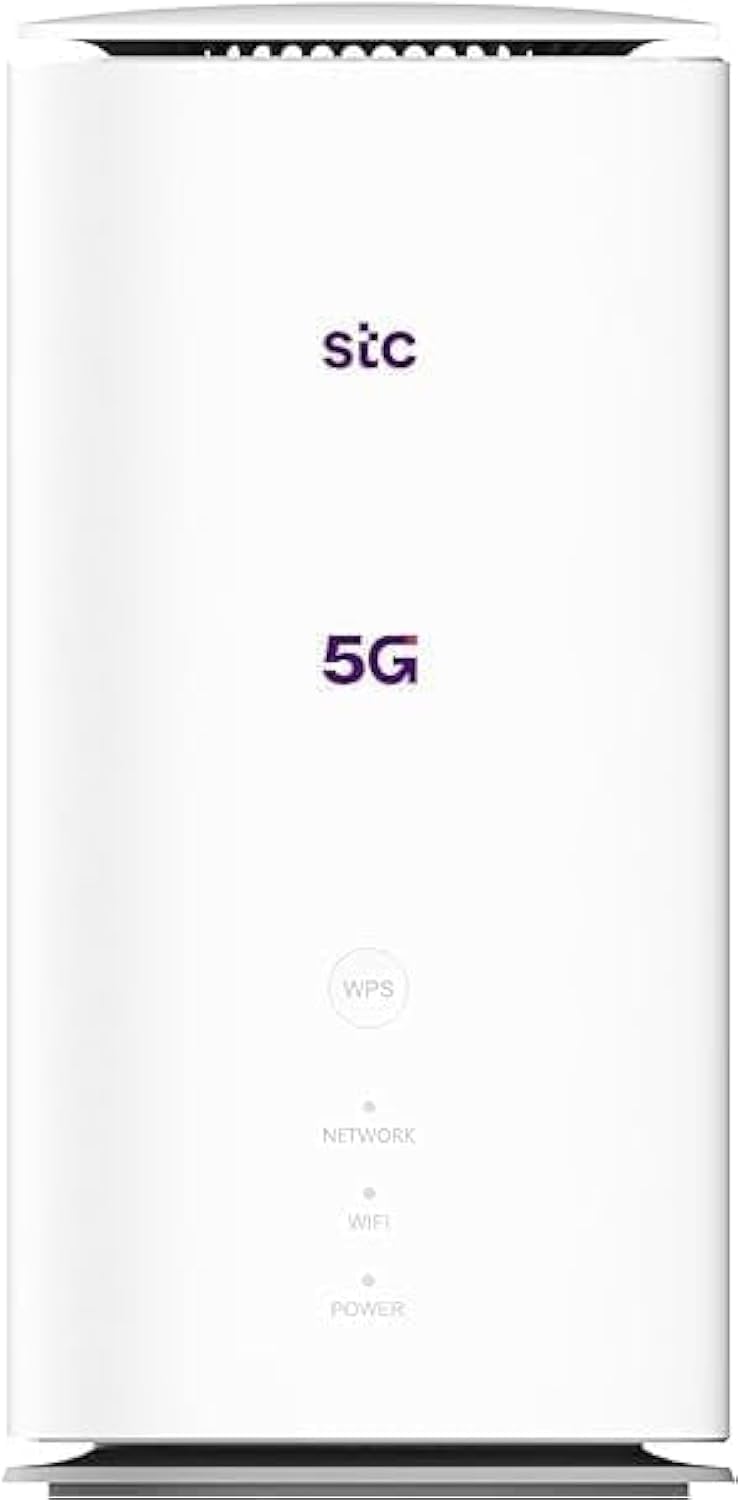
画像: 前面と背面 view of the ZTE MC888 Ultra 5G Router, showing LED indicators, SIM card slot, power port, LAN/WAN ports, and RJ11 port.
フロントパネルインジケータ:
- 電源LED: 電源の状態を示します。
- ネットワークLED: 5G/4G ネットワークの接続状態を示します。
- Wi-Fi LED: Wi-Fi アクティビティを示します。
背面パネルのポート:
- 電源ポート: 電源アダプタに接続します。
- LAN/WAN Ports (x2): Gigabit Ethernet ports for wired connections or WAN input.
- RJ11ポート: For connecting a telephone for VoIP, VoLTE, or VoNR calls.
- SIMカードスロット: 5G/4G SIMカードを挿入します。
- リセットボタン: 工場出荷時の設定を復元するために使用されます。
設定
1.SIMカードを挿入します
- ルーターの電源がオフになっていることを確認します。
- 背面パネルの SIM カード スロットを見つけます。
- 標準のNano-SIMカードを、金色の接点を下向きにし、切り込みのある角を正しい向きにしてスロットに挿入します。カチッと音がするまで押し込んでください。
2. 電源を入れる
- Connect the supplied power adapter to the router's power port.
- 電源アダプタのもう一方の端を壁のコンセントに差し込みます。
3. 電源オン
- The router will automatically power on. Wait for the Power LED to turn solid, and the Network LED to indicate a stable 5G/4G connection. This may take a few minutes.
4.デバイスを接続します
- Wi-Fi接続: Find the Wi-Fi network name (SSID) and password printed on the label at the bottom of the router. Select this network on your device (smartphone, laptop, etc.) and enter the password.
- イーサネット接続: Use the provided Ethernet cable to connect your computer or other network device to one of the LAN/WAN ports on the router.
オペレーティング
アクセス Web インタフェース
- 開く web ルーターに接続されたデバイス上のブラウザ。
- Enter the router's default IP address (e.g., 192.168.0.1 or 192.168.1.1) into the address bar and press Enter. The exact IP address is usually found on the router's label.
- Enter the default username and password (also found on the router's label) to log in.
Changing Wi-Fi Settings
から web interface, navigate to the Wi-Fi settings section to change your SSID, password, security type, or enable/disable guest networks.
RJ11 Voice Call Functionality
The RJ11 port allows you to connect a standard analog telephone. You can manage sending and receiving calls via a configured VoIP account, or through VoLTE or VoNR, depending on your mobile operator's compatibility and SIM card support. Refer to your service provider for specific setup details.
アクセスポイントモード
The router supports Access Point (AP) mode, allowing it to extend an existing wired network wirelessly. This feature can be configured through the web interface under network settings.
メンテナンス
ファームウェアの更新
定期的にルーターの web interface for available firmware updates. Keeping your firmware up-to-date ensures optimal performance, security, and access to new features. Follow the on-screen instructions for safe updating.
クリーニング
Clean the router with a soft, dry cloth. Do not use liquid cleaners or aerosols. Ensure the device is powered off before cleaning.
工場出荷時設定にリセット
If you experience persistent issues or forget your login credentials, you can perform a factory reset. With the router powered on, use a pin to press and hold the Reset button on the rear panel for approximately 5-10 seconds until the indicators flash. The router will restart with default settings.
トラブルシューティング
- インターネット接続なし: Check the Network LED. If it's off or red, ensure the SIM card is correctly inserted and has an active data plan. Try restarting the router.
- Wi-Fi速度が遅い: Ensure your devices are within range. Reduce interference from other electronic devices. Try changing the Wi-Fi channel in the web インタフェース。
- アクセスできません Web インタフェース: Verify your device is connected to the router via Wi-Fi or Ethernet. Double-check the IP address and login credentials. Try clearing your browser's cache.
- Wi-Fiの切断: Update router firmware. Ensure the router is placed in a central location. Check for conflicting Wi-Fi networks.
仕様
| ブランド | ゼットイー |
| モデル名 | MC888 ウルトラ |
| モデル番号 | MC888 ULTRA |
| 接続技術 | Wi-Fi, 5G/4G Cellular |
| ワイヤレス標準 | 802.11ac |
| 周波数帯域クラス | デュアルバンド |
| 最大ダウンロード速度 | 3.8Gbps |
| 最大アップロード速度 | 280 Mbps |
| LANポート帯域幅 | 1000 Mbps(ギガビット) |
| ポート数 | 2 x Gigabit LAN/WAN, 1 x RJ11 |
| アンテナタイプ | 内部 |
| セキュリティプロトコル | ウィス |
| 特集 | Access Point Mode, RJ11 for VoIP/VoLTE/VoNR |
| ラム | 4ギガバイト |
| 対応デバイス | PC, Laptop, Smartphone, Tablet, Gaming Console, Smart TV, Surveillance Camera, Printer, Ethernet-enabled devices |
| 含まれるコンポーネント | Router, Ethernet Cable, Charger |
保証とサポート
保証情報
The ZTE MC888 Ultra 5G Router comes with a 2-year agent warranty. Please retain your proof of purchase for warranty claims. The warranty covers manufacturing defects and malfunctions under normal use. It does not cover damage caused by misuse, accidents, unauthorized repairs, or acts of nature.
カスタマーサポート
For technical assistance, warranty service, or further inquiries, please contact your local ZTE authorized service center or the retailer from whom you purchased the product. You may also visit the official ZTE webサポート リソースと FAQ のサイト。