
導入
This manual provides detailed instructions for setting up and operating your Majority Frameo Snap10 WiFi Digital Picture Frame. This 10.1-inch digital frame allows you to display photos and videos shared via the Frameo app, offering a convenient way to share memories with family and friends. It features a touchscreen, 32GB of internal storage, auto-rotate functionality, and a motion sensor for efficient use.

The Majority Frameo Snap10 Digital Picture Frame, showcasing a family photo on its 10.1-inch screen.
箱の中身
パッケージの内容をチェックして、すべてのアイテムが揃っていることを確認してください。
- Majority Frameo Snap10 Digital Picture Frame
- キックスタンド
- 電源アダプター
- リモートコントロール
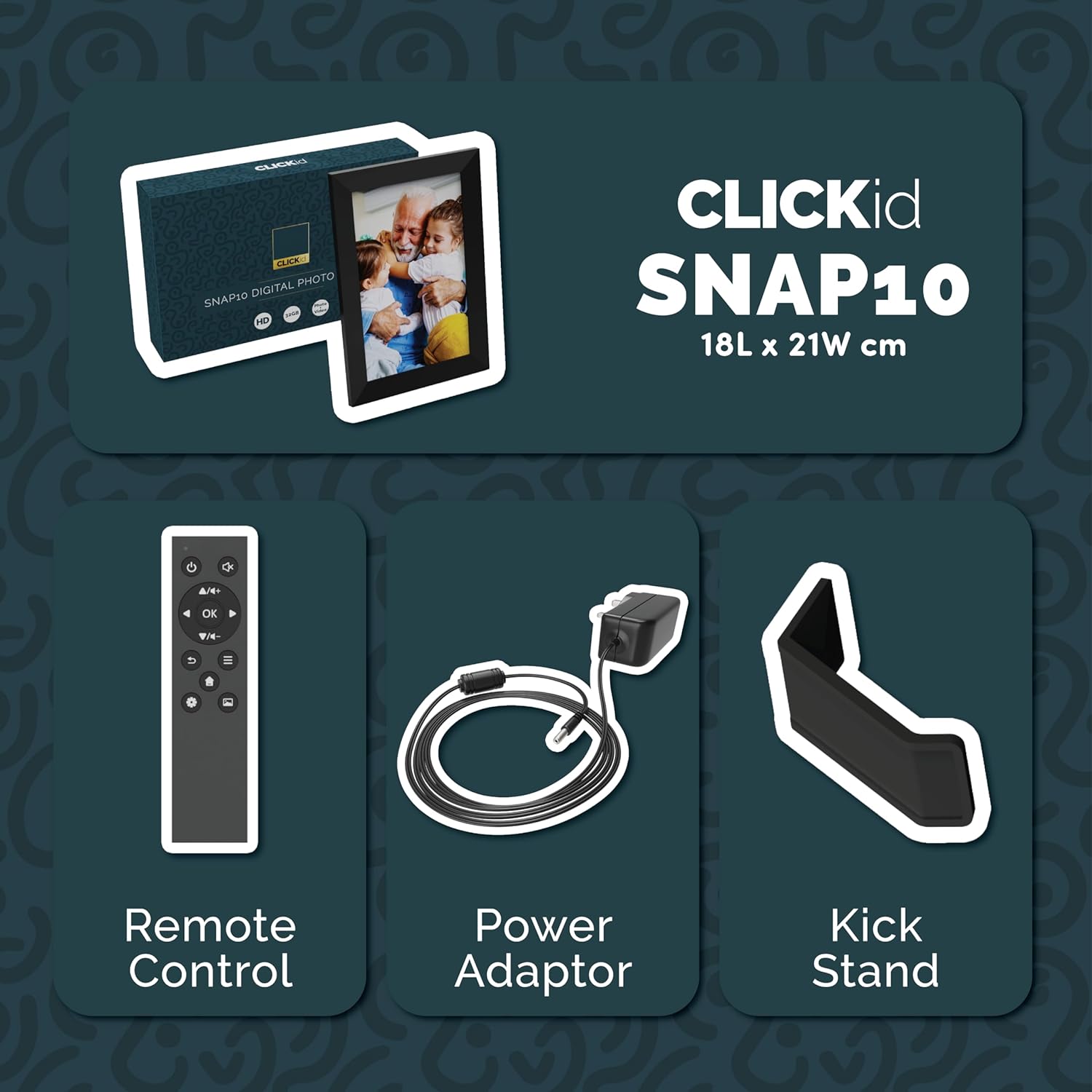
Included accessories: Remote Control, Power Adapter, and Kickstand.
セットアップガイド
- フレームを開梱する: デジタルフォトフレームとすべての付属品をパッケージから慎重に取り出します。
- Attach the Kickstand: Insert the kickstand into the designated slot on the back of the frame. The frame supports both horizontal and vertical orientations.
- 接続電源: Plug the power adapter into the DC port on the back of the frame, then connect it to a power outlet. The frame will automatically power on.
- 初期設定: 画面上の指示に従って言語とタイムゾーンを選択し、Wi-Fi ネットワークに接続します。
- Frameo アプリをインストールします: Download the "Frameo" app from your smartphone's app store (available for iOS and Android).
- フレームをアプリに接続します: Open the Frameo app and create an account. On your digital frame, tap "Add Friend" to get a unique code. Enter this code into the Frameo app on your smartphone to link the devices.

The back of the frame features essential ports for power, USB, and Micro SD card.
操作手順
写真とビデオの送信
Once your frame is connected to the Frameo app, you can easily send photos and short videos from your smartphone.
- スマートフォンでFrameoアプリを開きます。
- 送信したい写真またはビデオを選択します。
- Choose the connected digital frame as the recipient.
- Add a caption if desired, then tap "Send."

The Frameo app simplifies photo and video uploads from your smartphone.
タッチスクリーンの使用
The 10.1-inch LCD touchscreen allows for intuitive navigation. Swipe left or right to browse photos, tap to view options, and pinch to zoom.
リモートコントロール機能
The included remote control provides convenient access to various frame functions from a distance.
- ナビゲーション: Use arrow keys to move through menus and photos.
- OK /入力: 選択を確認します。
- 戻る: 前の画面に戻ります。
- 再生/一時停止: Control slideshows or video playback.
- 音量: ビデオのオーディオを調整します。

便利な操作のためのリモコンが付属しています。
モーションセンサー
The integrated motion sensor can be enabled to automatically turn the display on when movement is detected and off when the area is vacant, conserving energy. This setting can be adjusted in the frame's system settings.
自動回転機能
The frame automatically adjusts the photo orientation (portrait or landscape) based on how the frame is positioned. Ensure the auto-rotate feature is enabled in the settings for optimal display.

The auto-rotate feature adjusts display based on frame orientation.
上の機能view
- 10.1インチLCDタッチスクリーン: Provides a clear display and interactive control.
- 32GB内部ストレージ: Ample space to store thousands of photos and videos.
- Wi-Fi接続: Enables seamless photo and video sharing from anywhere via the Frameo app.
- Frameo アプリ統合: Manage your frame, send media, and invite friends/family to share their moments.
- モーションセンサー: Automatically turns the screen on/off to save energy.
- 自動回転: Adjusts photo orientation automatically.
- Weather and Calendar Display: Integrated widgets provide current weather and calendar information.
- メモリーカードスロット: Supports Micro SD cards for additional storage or direct media import.
メンテナンス
- クリーニング: 画面とフレームの清掃には、柔らかく乾いた布をご使用ください。研磨剤入りのクリーナーやスプレーを直接画面に吹き付けないでください。
- ソフトウェアアップデート: The frame may receive automatic software updates via Wi-Fi. Ensure your frame is connected to the internet to receive the latest features and improvements.
- ストレージ管理: 定期的に再view your stored photos and videos. You can delete unwanted media directly from the frame or through the Frameo app to free up space.
トラブルシューティング
- フレームの電源が入らない:
- 電源アダプタがフレームと機能している電源コンセントの両方にしっかりと接続されていることを確認します。
- Wi-Fiに接続できません:
- Wi-Fiパスワードを確認してください。フレームがWi-Fiルーターの範囲内にあることを確認してください。ルーターとフレームを再起動してみてください。
- 写真がフレームに表示されない:
- Confirm that the frame is connected to Wi-Fi and linked to your Frameo app account. Check the Frameo app to ensure photos were successfully sent. Allow some time for photos to download, especially large batches.
- Frame is stuck on a white screen with a loading bar:
- This may indicate a software issue. Try performing a soft reset by disconnecting the power for 30 seconds and then reconnecting. If the issue persists, a factory reset might be necessary (refer to the frame's settings for this option, noting it will erase all data).
- リモコンが機能しない:
- Check if the batteries in the remote control need replacement. Ensure there are no obstructions between the remote and the frame's IR receiver.
仕様
| ブランド | 過半数 |
| モデル番号 | Snap10 |
| 色 | 黒 |
| 画面サイズ | 10.1インチ |
| 解決 | 800*1280 |
| アスペクト比 | 2.10:1 |
| メモリストレージ容量 | 32ギガバイト |
| 接続技術 | Wi-Fi |
| 制御方法 | App, Touchscreen, Remote |
| 電源 | コード式電気 |
| アイテム重量 | 491グラム |
| 商品の寸法(長さ×幅) | 長さ7.08インチ x 幅8.26インチ |
保証とサポート
The Majority Frameo Snap10 Digital Picture Frame comes with a 2年間の延長保証. Registration is required to activate the extended warranty. Please refer to the product packaging or the manufacturer's web製品の登録方法の詳細については、サイトをご覧ください。
For technical support, troubleshooting assistance, or warranty claims, please contact Majority customer service through their official webサイトまたは製品ドキュメントに記載されている連絡先情報を参照してください。
製品ビデオ
This video demonstrates the ease of sharing photos and videos with the Frameo app and viewing them on the digital picture frame, highlighting its use for connecting family members.