
1. はじめに
This manual provides essential information for setting up, operating, maintaining, and troubleshooting your Acer Aspire Lite AL15-41 laptop. Please read this manual thoroughly to ensure proper use and longevity of your device.
主な特徴
- プロセッサ: AMD Ryzen 3 7330U processor with AMD Radeon Graphics for efficient performance.
- 画面: 15.6" Full HD TN 1920 x 1080 high-brightness TFT LCD with a 16:9 aspect ratio and ultra-slim design.
- メモリとストレージ: 16 GB DDR4 RAM (upgradable up to 32GB) and 512 GB PCIe Gen3 NVMe SSD (upgradable up to 1 TB).
- ポート: Comprehensive connectivity including 2 x USB 2.0 (Type A), 1 x USB 3.2 Gen 1 (Type A), and 1 x USB 3.2 Gen 2 (Type C).
- キーボード: 100-/101-/104-key keyboard with independent numeric keypad and international language support.
- デザイン: Premium and stylish A & D Cover Metal Chassis, 19.7mm thin, and 1.59 Kg weight for portability.
- ヒンジ: 180-degree hinge with screen rotation for flexible viewing とコラボレーション。
箱の中身
- 1N Laptop
- 1N Power Cord
- 1Nアダプター
- 1N ユーザーマニュアル

図1.1: 前面 view of the Acer Aspire Lite AL15-41 laptop.
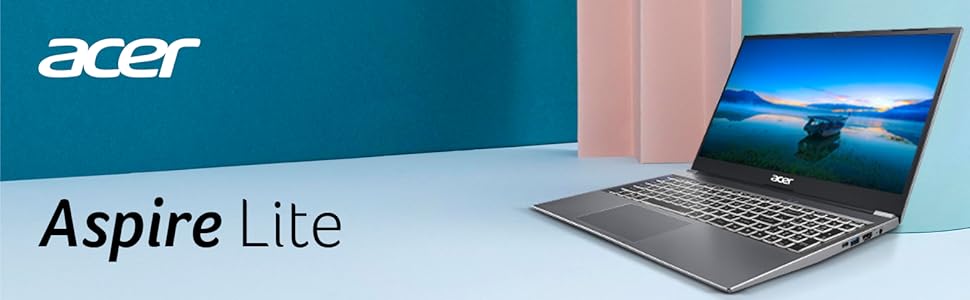
Figure 1.2: Acer Aspire Lite branding and key features overview.
2. 初期設定
Follow these steps to set up your new Acer Aspire Lite laptop for the first time.
2.1 開梱と電源接続
- ノートパソコンとすべての付属品をパッケージから慎重に取り出します。
- 電源アダプタをノートパソコンの電源入力ポートに接続します。
- Plug the power cord into a wall outlet. It is recommended to fully charge the battery before first use.

図2.1:側面 view of the laptop illustrating port locations, including the power input.
2.2 初期起動とWindowsのセットアップ
- Open the laptop lid and press the power button, usually located on the keyboard or side.
- The laptop will boot up and guide you through the Windows 11 Home setup process. Follow the on-screen instructions to select your region, language, connect to Wi-Fi, and create a user account.
- Complete the setup by agreeing to the terms and conditions.
2.3 周辺機器の接続
Your Acer Aspire Lite laptop supports various peripherals. Refer to the specifications section for a complete list of ports.
- USB デバイス: Connect USB mice, keyboards, external hard drives, or flash drives to the available USB 2.0, USB 3.2 Gen 1, or USB 3.2 Gen 2 (Type C) ports.
- 外部ディスプレイ: HDMI ポートを使用して外部モニターまたはプロジェクターを接続します。
- オーディオデバイス: ヘッドフォンまたは外部スピーカーをオーディオ ジャックに接続します。

図2.2:詳細 view of the laptop's various connectivity ports.
3. ノートパソコンの操作
This section covers the basic operation and features of your Acer Aspire Lite laptop.
3.1 キーボードとタッチパッド
- キーボード: The full-size keyboard includes a numeric keypad for efficient data entry. Familiarize yourself with function keys (Fn) for quick access to system controls like volume, brightness, and Wi-Fi.
- タッチパッド: 高精度タッチパッドは、ナビゲーション用のマルチタッチジェスチャをサポートしています。タッチパッドの感度とジェスチャのカスタマイズについては、Windowsの設定をご覧ください。

図 3.1: 拡大図 view of the laptop's keyboard, highlighting the AMD processor.
3.2 表示機能
- フル HD ディスプレイ: Enjoy crisp visuals on the 15.6-inch Full HD (1920 x 1080) display.
- 180度ヒンジ: The laptop features a 180-degree hinge, allowing the screen to lay flat. This is useful for sharing content or collaborating in small groups. To rotate the screen, use the Function+R key combination.

Figure 3.2: The laptop demonstrating its 180-degree hinge capability.

Figure 3.3: The sleek design and thin profile of the Acer Aspire Lite laptop.
3.3 オーディオおよびビデオ会議
- オーディオ: The laptop is equipped with integrated speakers. For enhanced audio experience, connect external speakers or headphones.
- Webカムとマイク: 統合されたHD webcam and dual microphone array with noise cancellation technology are ideal for video calls and online meetings.

Figure 3.4: Laptop in use for a video conference, demonstrating its conferencing capabilities.

Figure 3.5: The laptop's display optimized for clear conferencing.
4. メンテナンスとケア
適切なメンテナンスを行うことで、ノートパソコンの寿命が長くなり、最適なパフォーマンスが確保されます。
4.1 ノートパソコンの掃除
- 画面: 柔らかく糸くずの出ない布で軽く拭き取ってください。amp水またはスクリーンクリーナーで拭き取ってください。液体を画面に直接吹き付けないでください。
- キーボードとシャーシ: 柔らかく乾いた布を使用してください。頑固な汚れには、軽く湿らせた布で拭いてください。amp 布で拭いても構いません。刺激の強い化学薬品や研磨剤は使用しないでください。
- ポート: ポートに埃やゴミが入らないようにしてください。必要に応じて圧縮空気を使用してください。ただし、ポートに異物を挿入しないでください。
4.2バッテリーケア
- 極端な温度はバッテリー寿命を縮める可能性があるため、避けてください。
- 長期保管する場合は、バッテリーを約 50% まで充電し、ノートパソコンを涼しく乾燥した場所に保管してください。
- バッテリー容量は時間の経過とともに減少するのが正常です。
4.3ソフトウェアアップデート
- システムの安定性とセキュリティを確保するために、Windows の更新プログラムを定期的に確認してインストールしてください。
- Update device drivers (e.g., graphics, audio) from the Acer support web最適なパフォーマンスを維持するためにサイトを維持します。
4.4 ストレージ管理
- 不要なものを定期的に掃除する fileおよびアプリケーションをアップグレードして、ストレージ領域を解放します。
- 大容量のストレージにはクラウドストレージや外付けドライブの使用を検討してください files to keep your internal SSD optimized.
5。 トラブルシューティング
このセクションでは、発生する可能性のある一般的な問題に対する解決策を示します。
5.1 電源と起動の問題
- ノートパソコンが起動しない: 電源アダプターがノートパソコンと電源コンセントの両方にしっかりと接続されていることを確認してください。電源インジケーターランプが点灯しているかどうかを確認してください。別のコンセントを試してください。
- ノートパソコンの電源は入るが画面が表示されない: Connect an external monitor to check if the issue is with the laptop's display. Try pressing Fn+F5 キー (またはディスプレイアイコンのあるキー) を押すと、ディスプレイ出力が切り替わります。
5.2 パフォーマンスの問題
- パフォーマンスが遅い: Close unnecessary applications. Check Task Manager (Ctrl+Shift+Esc) for high CPU, memory, or disk usage. Ensure Windows and drivers are up to date.
- 過熱: Ensure ventilation vents are not blocked. Use the laptop on a hard, flat surface. Avoid using it on soft surfaces like beds or couches that can obstruct airflow.
5.3 接続の問題
- Wi-Fi が接続されない: Wi-Fiが有効になっていることを確認してください( Fn+F3 キー or network settings). Restart your router and laptop. Reinstall or update Wi-Fi drivers.
- Bluetoothデバイスがペアリングされない: Ensure Bluetooth is enabled in Windows settings. Make sure the device is in pairing mode and within range. Update Bluetooth drivers.
5.4 Audio and Video Issues
- 音が出ない: Check volume levels in Windows and on external speakers/headphones. Ensure correct audio output device is selected. Update audio drivers.
- Webcam not working: Check privacy settings in Windows to ensure camera access is allowed for applications. Update webカムドライバー。
6. 技術仕様
Detailed specifications for the Acer Aspire Lite AL15-41 laptop.
| 特徴 | 仕様 |
|---|---|
| ブランド | エイサー |
| シリーズ | アスパイア ライト |
| モデル番号 | AL15-41 |
| 色 | スチールグレー |
| フォームファクター | ラップトップ |
| 立ち画面表示サイズ | 15.6インチ |
| 画面解像度 | 1920×1080ピクセル(フルHD) |
| 製品寸法 | 9.1 x 33.5 x 49.2 cm |
| アイテム重量 | 2.64キロ |
| プロセッサブランド | アム |
| プロセッサタイプ | AMD ライゼン 3 7330U |
| プロセッサ速度 | 2.6GHz帯 |
| プロセッサ数 | 1 |
| RAMサイズ | 16ギガバイト |
| メモリ技術 | DDR4 |
| コンピュータのメモリタイプ | DDR4 メモリ |
| サポートされる最大メモリ | 32ギガバイト |
| ハードドライブのサイズ | 512ギガバイト |
| ハードディスクの説明 | SSD (ソリッド ステート ドライブ) |
| ハードドライブインターフェース | ソリッドステート |
| オーディオの詳細 | スピーカー |
| グラフィックスコプロセッサ | AMD Radeon グラフィックス |
| グラフィックチップセットブランド | アム |
| グラフィックカードの説明 | 統合された |
| グラフィックス RAM タイプ | DDR4 メモリ |
| グラフィックカードインターフェース | 統合された |
| 接続タイプ | Wi-Fi |
| ワイヤレスタイプ | ブルートゥース |
| USB 2.0 ポートの数 | 2 |
| USB 3.0 ポートの数 | 2 (Note: JSON lists 1x USB 3.2 Gen 1 Type A and 1x USB 3.2 Gen 2 Type C, which are often grouped under USB 3.x) |
| HDMIポートの数 | 1 |
| ワットtage | 65ワット |
| オペレーティング·システム | Windows 11 ホーム |
| 平均バッテリー寿命(時間) | 7時間 |
| リチウム電池のエネルギー含有量 | 36ワット時 |
| リチウムイオンセルの数 | 3 |
| 原産国 | 中国 |
| 初回利用可能日 | 29年2024月XNUMX日 |
7. 保証情報
Your Acer Aspire Lite AL15-41 laptop comes with a standard manufacturer's warranty. The specific terms and duration of the warranty may vary by region and point of purchase. Please refer to the warranty card included with your product or visit the official Acer webお住まいの地域に適用される詳細な保証情報については、こちらのサイトをご覧ください。
保証請求の際に必要となるため、購入証明(領収書または請求書)を保管してください。
8. カスタマーサポート
For further assistance, technical support, or service inquiries regarding your Acer Aspire Lite AL15-41 laptop, please contact Acer customer support through the following channels:
- オンラインサポート: Acerの公式サポートをご覧ください website for FAQs, driver downloads, and online troubleshooting guides. You can typically find this by searching for "Acer Support" and your region.
- 連絡先: Check the Acer web地域のカスタマー サービス電話番号のサイト。
- サービスセンター: Information on authorized service centers can also be found on the Acer support webサイト。
When contacting support, please have your laptop's model number (AL15-41) and serial number ready. The serial number is usually located on a sticker on the bottom of the laptop.