
1. はじめに
Welcome to the instruction manual for your new Xiaomi Curved Gaming Monitor G34WQi. This guide provides essential information for the safe and optimal setup, operation, and maintenance of your monitor. Please read this manual thoroughly before use to ensure you get the best experience from your device.
The Xiaomi G34WQi features a 34-inch UWQHD (3440x1440) ultrawide curved display with a 1500R curvature, designed to provide an immersive viewing experience. It boasts a high 180Hz refresh rate and a rapid 1ms response time (MPRT) for smooth, fluid gameplay. With FreeSync Premium technology, it minimizes screen tearing and stuttering. The monitor also offers a wide color gamut (95% DCI-P3, 100% sRGB) and a low blue light mode for eye comfort.
2. セットアップ
2.1 パッケージ内容
組み立てる前に、すべてのコンポーネントが揃っていることを確認してください。
- Xiaomi Curved Gaming Monitor G34WQi
- モニタースタンド(ベースとアーム)
- 電源アダプターとケーブル
- DisplayPortケーブル
- HDMIケーブル
- ユーザーマニュアル
2.2 スタンドの組み立て
- 傷がつかないように、モニターの表面を下にして、柔らかくて清潔な表面に慎重に置いてください。
- Attach the stand arm to the back of the monitor using the provided screws. Ensure it is securely fastened.
- Connect the stand base to the arm and tighten the thumb screw at the bottom of the base.
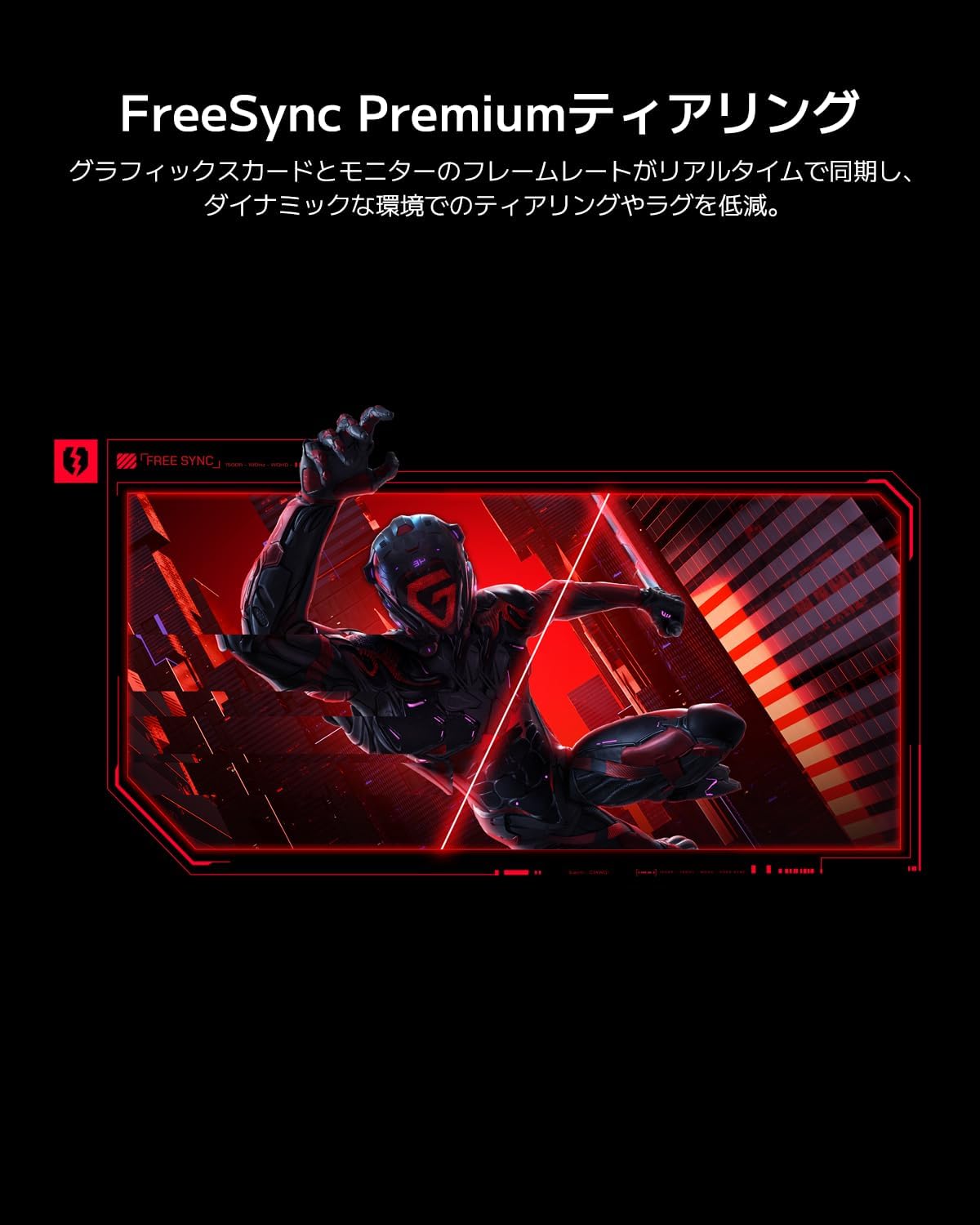
Image: The Xiaomi G34WQi monitor securely mounted on its adjustable stand.
2.3接続ケーブル
必要なケーブルをモニターの背面ポートに接続します。
- 電力ケーブル: 電源アダプタをモニターの電源入力に接続し、電源ケーブルを壁のコンセントに差し込みます。
- DisplayPort (Recommended for Gaming): For optimal performance, including 180Hz refresh rate and FreeSync Premium, connect the DisplayPort cable from your computer's graphics card to the monitor's DisplayPort input.
- HDMI: Alternatively, connect an HDMI cable from your computer to one of the monitor's HDMI inputs. Note that HDMI may have limitations on refresh rate at UWQHD resolution compared to DisplayPort.
- オーディオ出力: 必要に応じて、外部スピーカーまたはヘッドフォンを 3.5 mm オーディオ出力ジャックに接続します。

画像: 背面 view of the monitor highlighting the input ports for connectivity.
2.4初期電源オン
After connecting all cables, press the power button, usually located on the back or bottom of the monitor, to turn it on. The monitor should automatically detect the input signal. If not, you may need to manually select the input source using the OSD menu.
3. 操作手順
3.1 電源オン/オフ
Press the power button to turn the monitor on or off. A status indicator light will show the monitor's power state.
3.2 オンスクリーンディスプレイ(OSD)メニュー
The OSD menu allows you to adjust various monitor settings. It is typically controlled by a joystick or a set of buttons located on the back or bottom of the monitor.
ナビゲーション:
- ジョイスティック/中央ボタンを押して OSD メニューを開きます。
- Move the joystick (up/down/left/right) or use the directional buttons to navigate through menu options.
- Press the joystick/center button again to select an option or confirm a setting.
- Move the joystick left or press a dedicated 'Back' button to exit a sub-menu or the OSD.
3.3 キー設定
- 輝度コントラスト: これらの設定を好みに合わせて調整してください viewing環境。
- 色の設定: Fine-tune color temperature, gamma, and saturation. The monitor supports 95% DCI-P3 and 100% sRGB for accurate color reproduction.
- リフレッシュレート: Ensure your refresh rate is set to 180Hz in both the monitor's OSD and your computer's display settings for the smoothest experience.
- 応答時間: The monitor offers a 1ms MPRT (Moving Picture Response Time). This can often be adjusted in the OSD, sometimes referred to as 'Overdrive' or 'Response Speed'.
- FreeSyncプレミアム: Enable FreeSync Premium in the OSD menu and in your AMD graphics card settings to synchronize the monitor's refresh rate with your GPU's frame rate, eliminating screen tearing and stuttering.

Image: Visual representation of FreeSync Premium preventing screen tearing.
- 低ブルーライトモード: Activate this mode to reduce blue light emissions, which can help reduce eye strain during prolonged use.

Image: The monitor displaying content with low blue light mode enabled for eye protection.
4. メンテナンス
4.1 画面のクリーニング
画面をきれいにするには、柔らかく糸くずの出ない布で優しく拭いてください。頑固な汚れには、軽くamp布に水または専用のスクリーンクリーナーを含ませてください。絶対に液体をスクリーンに直接吹きかけないでください。
4.2 モニター本体のクリーニング
Use a soft, dry cloth to wipe the monitor's body. Avoid using abrasive cleaners or solvents, as they can damage the surface.
4.3一般的なケア
- モニターやそのケーブルの上に重い物を置かないでください。
- モニターを直射日光、熱源、過度の湿気から遠ざけてください。
- 過熱を防ぐために、モニターの周囲に適切な換気を確保してください。
5。 トラブルシューティング
モニターに問題が発生した場合は、次の一般的な問題と解決策を参照してください。
5.1 電源なし / ディスプレイなし
- 電源ケーブルがモニターと電源コンセントの両方にしっかりと接続されているかどうかを確認してください。
- 電源アダプターが正しく機能していることを確認します。
- モニターの電源ボタンを押して、電源がオンになっていることを確認します。
5.2 信号なし
- Ensure the video cable (DisplayPort or HDMI) is securely connected to both the monitor and your computer's graphics card.
- コンピュータの電源がオンになっていて、スリープ モードになっていないかどうかを確認します。
- Use the OSD menu to manually select the correct input source (e.g., DisplayPort 1, HDMI 1).
- Try a different video cable or port on your graphics card/monitor to rule out a faulty connection.
5.3 Flickering or Tearing Screen
- Ensure FreeSync Premium is enabled in both the monitor's OSD and your graphics card settings.
- グラフィック カード ドライバーが最新であることを確認します。
- Check the video cable. Some users have reported better stability with DisplayPort cables for high resolutions and refresh rates compared to HDMI.
- If using multiple monitors, ensure your system can handle the combined load, as some configurations might cause instability.
5.4 解像度またはリフレッシュレートが正しくない
- コンピューターのディスプレイ設定 (例: Windows ディスプレイ設定、NVIDIA コントロール パネル、AMD Radeon ソフトウェア) に移動し、解像度を 3440x1440、リフレッシュ レートを 180Hz に設定します。
- Ensure you are using a DisplayPort cable, as some HDMI versions may not support UWQHD at 180Hz.
5.5 Image Reflection
- The monitor has a non-glare (VA) panel, but reflections can still occur in brightly lit environments. Adjust the monitor's position or room lighting to minimize reflections.
6. 仕様
| 特徴 | 仕様 |
|---|---|
| ブランド | 小米 |
| モデル番号 | G34WQi |
| 画面サイズ | 34インチ |
| 解決 | UWQHD (3440 x 1440 pixels) |
| アスペクト比 | 21:9 |
| 曲率 | 1500R |
| パネルタイプ | VA (Non-glare) |
| リフレッシュレート | 180Hz |
| 応答時間 | 1 ミリ秒 (MPRT) |
| 色域 | 95% DCI-P3、100% sRGB |
| 接続性 | HDMI, DisplayPort, 3.5mm Audio Out |
| パワーVoltage | 12ボルト |
| 製品寸法(奥行き×幅×高さ) | 99.1 x 18.8 x 46 cm(約) |
| 製品重量 | 6.9キロ |
| 取り付けタイプ | 壁掛けマウント(VESA対応) |
7. 保証情報
This Xiaomi Curved Gaming Monitor G34WQi comes with a 1年間のメーカー保証. Please retain your proof of purchase for warranty claims. For detailed terms and conditions, refer to the warranty card included in your product packaging or visit the official Xiaomi support webサイト。
8. サポート
For further assistance, technical support, or service inquiries, please contact Xiaomi customer service:
- 電話サポート: 0120-767-378 (Reception hours: 9:00-18:00, excluding year-end and New Year holidays)
- メールサポート: service.jp@support.mi.com
You can also visit a Xiaomi Service Center for in-person support:
Xiaomi Service Center Akihabara Store
Address: 4-6-7 Kanda Sakumacho, Chiyoda-ku, Tokyo
Business Hours: 10:00-19:00
Closed: Wednesdays
(Last reception is at 18:00)

Image: A collection of Xiaomi products, showcasing the brand's commitment to smart living.