
1. はじめに
This manual provides essential information for the installation, operation, maintenance, and troubleshooting of the Extreme Networks Summit X460-G2-48T-10GE4 Ethernet Switch. Please read this manual thoroughly before operating the device to ensure proper functionality and safety.
The Extreme Networks Summit X460-G2-48T-10GE4 is a high-performance, scalable Gigabit Ethernet switch designed for enterprise and data center environments, offering 48 10/100/1000BASE-T ports and 4 10 Gigabit Ethernet SFP+ ports.
2. 安全情報
警告:クラス1レーザー製品
CAUTION: Invisible laser radiation when fiber optic connectors are unplugged. Avoid direct exposure to beam. Use of optical modules provided by Extreme for use in this unit comply with 21 CFR 1040.10.
Always ensure proper ventilation. All System Interface Devices (SIDs) must be filled with Power Supply (PS) blanks or I/O modules to maintain proper cooling and Electromagnetic Compatibility (EMC) compliance.
The device operates with an AC power input of 100-240 V~ at 50-60 Hz, with a maximum current of 1.25A per power supply unit.
For detailed safety guidelines, refer to the official Extreme Networks safety documentation.

Image: Product label on the underside of the switch, displaying safety warnings, regulatory compliance marks (UL, CE, EAC, ANATEL), and product identification details including Part No. 16702 and Serial No. 1523N-47832.
3. パッケージ内容
パッケージに次のアイテムが含まれていることを確認してください。
- Extreme Networks Summit X460-G2-48T-10GE4 Ethernet Switch
- 電源コード
- Console Cable (typically RJ-45 to DB-9)
- Rackmount Ears/Brackets
- Documentation (Quick Reference Guide, Safety Information)
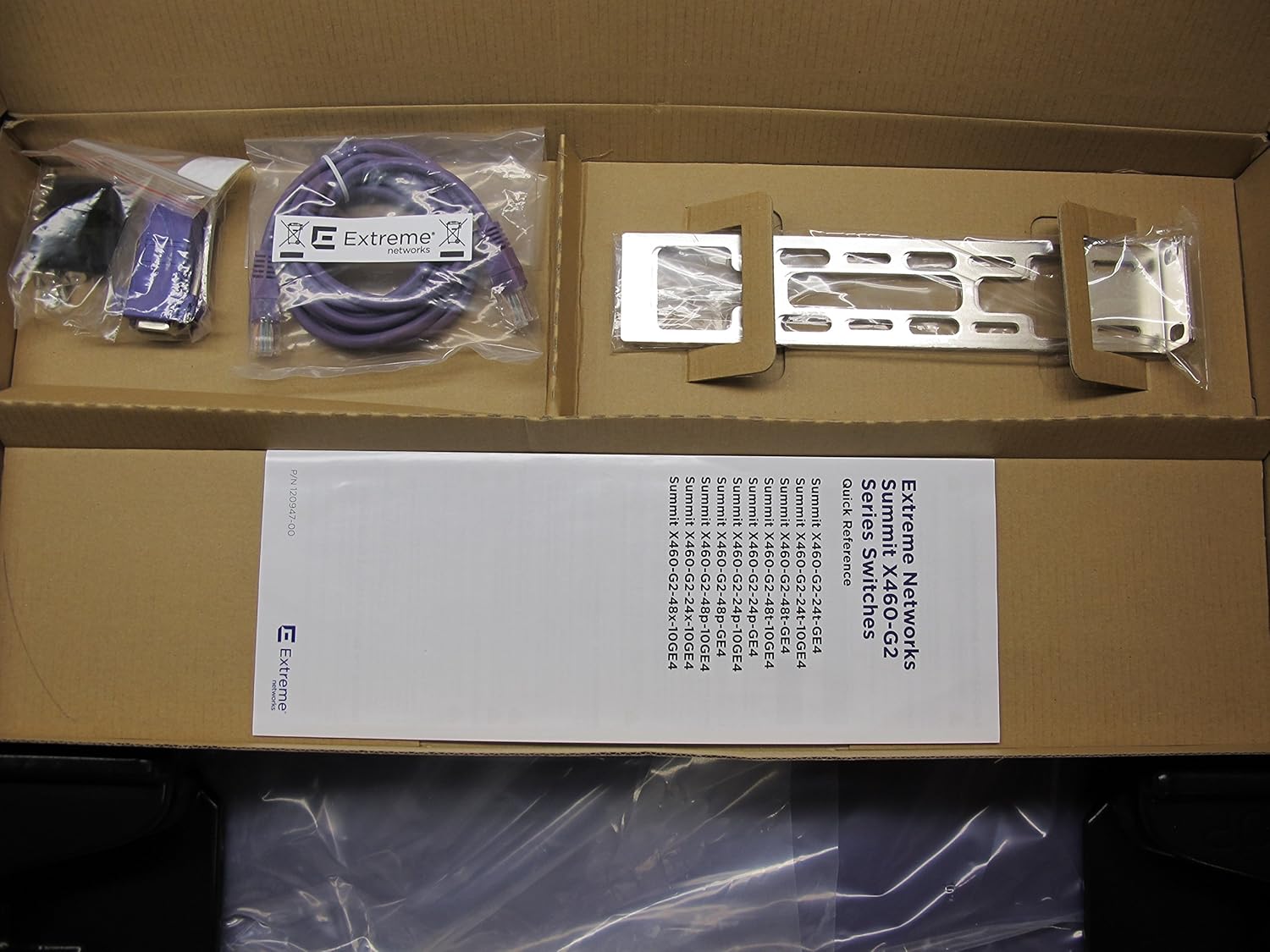
Image: Unboxed components of the switch, showing the main unit, a purple console cable, a power cable, rackmount brackets, and a Quick Reference Guide for Summit X460-G2 Series Switches.
4. 物理的な説明
4.1フロントパネル
The front panel of the Summit X460-G2-48T-10GE4 switch features 48 10/100/1000BASE-T Ethernet ports for standard network connections and 4 SFP+ ports for high-speed 10 Gigabit Ethernet uplinks or stacking. Status LEDs are present for each port and for system status.

Image: Front perspective of the Extreme Networks Summit X460-G2-48T-10GE4 switch, highlighting the array of 48 copper Gigabit Ethernet ports and the four SFP+ transceiver slots on the right side.
4.2 背面パネル
The rear panel includes bays for redundant power supplies, ensuring high availability. It also typically houses fan modules and a console port for out-of-band management.

画像: 背面 view of the Extreme Networks Summit X460-G2-48T-10GE4 switch, displaying two empty bays designed for hot-swappable power supply units.
5. セットアップ
5.1ラックへの取り付け
- Attach the provided rackmount ears to the sides of the switch using the screws included in the kit.
- Secure the switch into a standard 19-inch equipment rack using appropriate rack screws. Ensure the switch is level and adequately supported.
5.2電源接続
- Insert the power supply units (PSUs) into the bays on the rear of the switch until they click into place.
- Connect the power cord(s) to the PSU(s) and then to a grounded AC power outlet.
- Ensure the power source meets the specified voltage and current requirements (100-240 V~, 50-60 Hz, 1.25A max per PS).
5.3ネットワーク接続
- ネットワーク デバイス (コンピュータ、サーバー、その他のスイッチ) からのイーサネット ケーブルを、前面パネルの 10/100/1000BASE-T ポートに接続します。
- For high-speed uplinks or stacking, insert compatible SFP+ transceivers into the 10 Gigabit Ethernet SFP+ ports and connect fiber optic cables.
5.4 初期設定(コンソールアクセス)
- Connect the console cable from your management workstation to the console port on the switch.
- Open a terminal emulation program (e.g., PuTTY, Tera Term) and configure the serial port settings: 9600 baud, 8 data bits, no parity, 1 stop bit, no flow control.
- Power on the switch. The boot process will display messages in the terminal.
- Follow the on-screen prompts or refer to the Extreme Networks documentation for initial configuration, including IP address assignment and basic network settings.
6. 操作手順
6.1 電源オン/オフ
- 電源オン: Once connected to power, the switch will automatically power on. Observe the system status LEDs for boot sequence.
- 電源を切る: To power off, disconnect the power cords from the AC outlets. For controlled shutdown, use the command-line interface (CLI) to save configurations before disconnecting power.
6.2 LEDインジケーター
The switch features various LED indicators to provide status information:
- システムステータス LED: Indicates overall device health (e.g., green for normal operation, amber for warning, red for critical error).
- ポートステータス LED: Each network port has LEDs indicating link status (on for link, off for no link) and activity (blinking for data transmission).
- 電源LED: Indicate the status of each installed power supply unit.
6.3 基本的なネットワーク管理
After initial setup, the switch can be managed via:
- コマンドラインインターフェース (CLI): Accessible via console port, Telnet, or SSH for detailed configuration and monitoring.
- Webベースの管理インターフェース: If enabled, accessible via a web スイッチの IP アドレスを使用してブラウザにアクセスします。
- :SNMP: ネットワーク管理システムとの統合用。
Refer to the Extreme Networks EXOS User Guide for comprehensive CLI commands and management procedures.
7. メンテナンス
7.1 クリーニング
Periodically clean the exterior of the switch with a soft, dry cloth. Ensure ventilation openings are free from dust and debris to prevent overheating. Do not use liquid cleaners or aerosols directly on the device.
7.2ファームウェアアップデート
Regularly check the Extreme Networks support website for the latest firmware updates. Keeping the firmware up-to-date ensures optimal performance, security, and access to new features. Follow the provided instructions carefully when performing firmware upgrades.
7.3 環境への配慮
Ensure the switch operates within its specified environmental ranges for temperature and humidity. Maintain proper airflow around the device and within the rack to prevent thermal issues.
8。 トラブルシューティング
8.1 電源なし
- Verify that the power cords are securely connected to both the switch's power supply units and the AC outlets.
- Check the power source and ensure the outlet is functional.
- Confirm that the power supply units are fully seated in their bays.
8.2 ポートにリンクがありません
- Ensure the Ethernet or fiber optic cable is properly connected at both ends.
- ケーブルに損傷がないか確認してください。別のケーブルを試してください。
- 接続されているデバイスの電源がオンになっていて、正しく機能していることを確認します。
- Check the port configuration on the switch (e.g., speed, duplex settings).
8.3 Unable to Access Management Interface
- Verify the switch's IP address and your workstation's network settings.
- Ensure there is network connectivity between your workstation and the switch.
- Check firewall settings on your workstation or network.
- If using the console, ensure correct serial port settings.
For more advanced troubleshooting, consult the Extreme Networks support documentation or contact technical support.
9. 仕様
| モデル | Summit X460-G2-48T-10GE4 |
| 部品番号 | 16702 |
| シリアルナンバー | 1523N-47832 |
| ブランド | エクストリームネットワーク |
| メーカー | Extreme Network |
| ポート数 | 48 x 10/100/1000BASE-T, 4 x 10 Gigabit Ethernet SFP+ |
| インターフェースタイプ | RJ45、SFP+ |
| 製品寸法 | 17.36 x 17.01 x 1.73 インチ (44.09 x 43.19 x 4.39 cm) |
| アイテム重量 | 13.2 ポンド (6 キログラム) |
| 電源入力 | 100-240 V~, 50-60 Hz, 1.25A max per PS |
| UPC / GTIN | 786513729804 |
10. 保証とサポート
For information regarding product warranty, technical support, and service agreements, please refer to the official Extreme Networks website or contact your authorized Extreme Networks reseller.
Extreme Networks Support: https://www.extremenetworks.com/support/
Ensure you have your product's serial number (e.g., 1523N-47832) はサポートにお問い合わせの際にご利用いただけます。