
Natec SH4F
Natec FURY SHOBO SH4F RGB MIDI TOWER PCケース ユーザーマニュアル
Model: SH4F | Brand: Natec
1. はじめに
Welcome to the user manual for your Natec FURY SHOBO SH4F RGB MIDI TOWER PC Case. This guide provides essential information for the proper assembly, installation, operation, and maintenance of your new computer chassis. Please read this manual thoroughly before beginning installation to ensure optimal performance and longevity of your components.
2. 安全ガイドライン
- PC ケース内のコンポーネントを取り付けたり取り外したりする前に、必ず壁のコンセントから電源を外してください。
- 静電気放電(ESD)による損傷を防ぐため、コンポーネントを慎重に取り扱ってください。静電気防止リストストラップの使用を検討してください。
- Keep small parts, such as screws, away from children.
- 過熱を防ぐために、PC ケースの周囲に適切な換気を確保してください。
- Do not expose the case to extreme temperatures, humidity, or direct sunlight.
- ケースの上に重い物を置かないでください。
3. パッケージ内容
パッケージにすべてのアイテムが含まれていることを確認してください。
- Natec FURY SHOBO SH4F RGB MIDI TOWER PC Case
- 付属品ボックス(ネジ、ケーブルタイ、その他の小さな部品が含まれています)
- ユーザーマニュアル(このドキュメント)
4.製品オーバーview
The Natec FURY SHOBO SH4F is a MIDI TOWER PC case designed for gaming and general-purpose computing, offering ample space for components and efficient cooling. It features a modern design with RGB lighting.
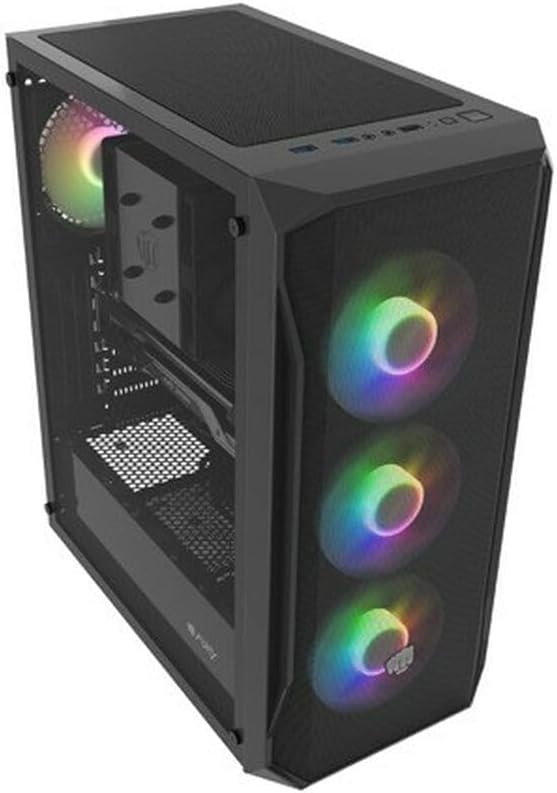
図4.1: 角度付き view of the Natec FURY SHOBO SH4F RGB MIDI TOWER PC Case, showcasing its black metal and tempered glass construction. The front panel features a mesh design with three illuminated RGB fans, and a single RGB fan is visible at the rear exhaust. The top panel includes I/O ports and a mesh filter.
4.1 フロントI/Oパネル
- 電源ボタン
- リセットボタン
- USB 2.0ポート(x1)
- オーディオジャック(ヘッドフォン/マイク)
- RGB Control Button (if applicable)
4.2 内部レイアウト
The case supports Micro ATX and Mini ATX motherboards and features a bottom-mounted power supply bay. It includes dedicated areas for storage drives and efficient cable management.
5. セットアップとコンポーネントのインストール
Follow these steps to install your PC components into the FURY SHOBO SH4F case.
5.1 ケースの準備
- ケースを平らで安定した面に置きます。
- Remove the side panels. Typically, the tempered glass side panel is secured with thumbscrews.
5.2マザーボードの取り付け
- I/O シールドを(マザーボードに事前に取り付けられていない場合)ケースの背面開口部に取り付けます。
- Ensure the motherboard standoffs are correctly aligned for your Micro ATX or Mini ATX motherboard. Adjust or install additional standoffs if necessary.
- ネジ穴を合わせながら、マザーボードをスタンドオフの上に慎重に置きます。
- 付属のネジでマザーボードを固定してください。締めすぎないようにしてください。
5.3 電源の設置
- Locate the power supply bay at the bottom rear of the case.
- Slide your power supply unit (PSU) into the bay from the rear of the case, ensuring the fan faces downwards (if the case has a bottom vent) or upwards.
- ケースの背面からネジを使用して PSU を固定します。
5.4 ストレージドライブのインストール
Refer to your case's specific drive bay design for 2.5" SSDs and 3.5" HDDs. Typically, these involve trays or direct screw mounting.
5.5 拡張カードのインストール(例:グラフィックカード)
- ケースの背面から必要な PCI-E スロット カバーを取り外します。
- 拡張カードをマザーボード上の対応する PCI-E スロットに挿入します。
- Secure the card with a screw or the case's retention mechanism.
5.6 ケーブル管理
マザーボードトレイの背面にある切り欠きと固定ポイントを活用してケーブルを配線・固定します。これにより、エアフローと美観が向上します。
5.7 Connecting RGB Fans
The pre-installed RGB fans typically connect to a central RGB controller or directly to your motherboard's RGB headers. Consult your motherboard manual for specific RGB header locations and software control. Ensure all fan power cables are connected to appropriate fan headers on the motherboard or a fan hub.
6. PCケースの操作
6.1 電源のオン/オフ
After all components are installed and cables connected, plug your power supply into a wall outlet. Press the power button on the front I/O panel to turn on your system. To turn off, use the operating system's shutdown function or press and hold the power button for several seconds.
6.2 RGB照明制御
If your case features an RGB control button on the front I/O panel, press it to cycle through various lighting modes and colors. For advanced customization, use your motherboard's RGB software (e.g., ASUS Aura Sync, MSI Mystic Light, Gigabyte RGB Fusion) if the fans are connected to compatible headers.
7. メンテナンス
定期的なメンテナンスを行うことで、最適なパフォーマンスが確保され、PC コンポーネントの寿命が延びます。
7.1 ダストフィルターのクリーニング
The FURY SHOBO SH4F case includes dust filters (e.g., on the top and bottom). Periodically remove and clean these filters by rinsing them with water and allowing them to dry completely before re-installing. This prevents dust buildup and maintains airflow.
7.2 外装清掃
ケースの外側を柔らかくて乾いた布で拭いてください。amp 布で拭いてください。仕上げや強化ガラスを傷つける可能性のある研磨剤入りの洗剤や溶剤は使用しないでください。
8。 トラブルシューティング
問題が発生した場合は、次の一般的なトラブルシューティング手順を参照してください。
- 電源なし: Ensure the power supply is properly connected to the wall outlet and the motherboard. Check all internal power cables (24-pin ATX, 8-pin CPU, GPU power). Verify the power button cable is correctly connected to the motherboard's front panel header.
- ファンが回転しない: Check if fan power cables are securely connected to the motherboard or fan hub. Ensure the power supply is functioning.
- RGB 照明が機能しない: Verify RGB cables are correctly connected to the RGB controller or motherboard header. If using a button, try cycling through modes. If using software, ensure it's installed and configured correctly.
- 過熱: Ensure all fans are spinning correctly and oriented for proper airflow (intake/exhaust). Clean dust filters and internal components. Verify CPU cooler and GPU cooler are properly installed.
9. 仕様
| ブランド | Natec |
| シリーズ | SH4F |
| モデル番号 | NFO-2154 |
| ケースタイプ | ミディタワー |
| マザーボードの互換性 | Micro ATX, Mini ATX |
| 色 | 黒 |
| 材料 | 金属 |
| 製品寸法(長さx幅x高さ) | 19.69 x 16.93 x 9.84 インチ (50 x 43 x 25 cm) |
| アイテム重量 | 9.46 ポンド (4.3 キログラム) |
| 電源取付タイプ | ボトムマウント |
| 冷却方法 | 空気 |
| USB 2.0 ポートの数 | 1 |
10. 保証とサポート
Natec products are manufactured to high-quality standards. For information regarding warranty terms and conditions, please refer to the warranty card included with your product or visit the official Natec website. If you encounter any issues not covered in this manual or require further assistance, please contact Natec customer support through their official channels.
メーカー: Natec
Ask a question about this manual
Ask about setup, troubleshooting, compatibility, parts, safety, or missing instructions. Manuals+ will review the question and use this page’s manual context to help answer it.