
導入
The Amazon Kindle Scribe is a digital notebook and e-reader designed for writing, reading, and document management. It offers a paper-like experience for note-taking and provides access to a vast library of digital content.
- Digital Notebook: Replaces physical notebooks with a single device optimized for writing and reading.
- AI Notebook Tools: Features for converting handwriting to text, summarizing notes, and adjusting length or tone.
- Premium Pen: Provides a natural writing experience without the need for charging or setup.
- ドキュメント管理: Allows importing and marking up documents and PDFs.
- Active Canvas: Enables note-taking directly on book pages with adjustable margins.
- グレアフリーディスプレイ: A 10.2-inch, 300 ppi front-lit display for comfortable reading and writing in various lighting conditions.
- バッテリー寿命の延長: Designed for weeks of writing or months of reading on a single charge.

The Kindle Scribe functions as a versatile digital notebook for various writing tasks.
設定
箱の中身
- Wi-Fi対応Kindle Scribeデバイス
- プレミアムペン
- USB-C充電ケーブル
- 交換用ペン先5個
- チップ交換ツール
- 充電式バッテリー内蔵
デバイスの初期設定
The Kindle Scribe features Amazon Wi-Fi simple setup, which automatically connects to your home Wi-Fi network. No computer is required to download content or complete the initial setup process.
- 電源オン: 画面がアクティブになるまで電源ボタンを押し続けます。
- 言語の選択: 画面上の指示に従って、希望の言語を選択してください。
- Wi-Fiに接続します: The device will guide you through connecting to a Wi-Fi network. If you have previously used Amazon Wi-Fi simple setup, it may connect automatically.
- デバイスを登録: Register your Kindle Scribe to your Amazon account. This links your device to your Kindle library and allows access to the Kindle Store.
- チュートリアル: Complete the brief on-screen tutorial to familiarize yourself with basic navigation and pen functions.
操作手順
Reading on Kindle Scribe
The Kindle Scribe provides a dedicated reading experience with its glare-free display.
- 書籍へのアクセス: Your purchased Kindle books will appear on the device's home screen. Tap a book cover to open it.
- ページナビゲーション: Tap the right side of the screen to turn to the next page, or the left side for the previous page. Swiping left or right also works.
- ディスプレイの調整: Tap the top of the screen to access the reading toolbar. Here you can adjust font size, font face, line spacing, margins, and the built-in light's brightness and warmth.
- ハイライト: Use your finger or the Premium Pen to drag across text to highlight it.
- 辞書検索: Tap and hold a word to see its definition.
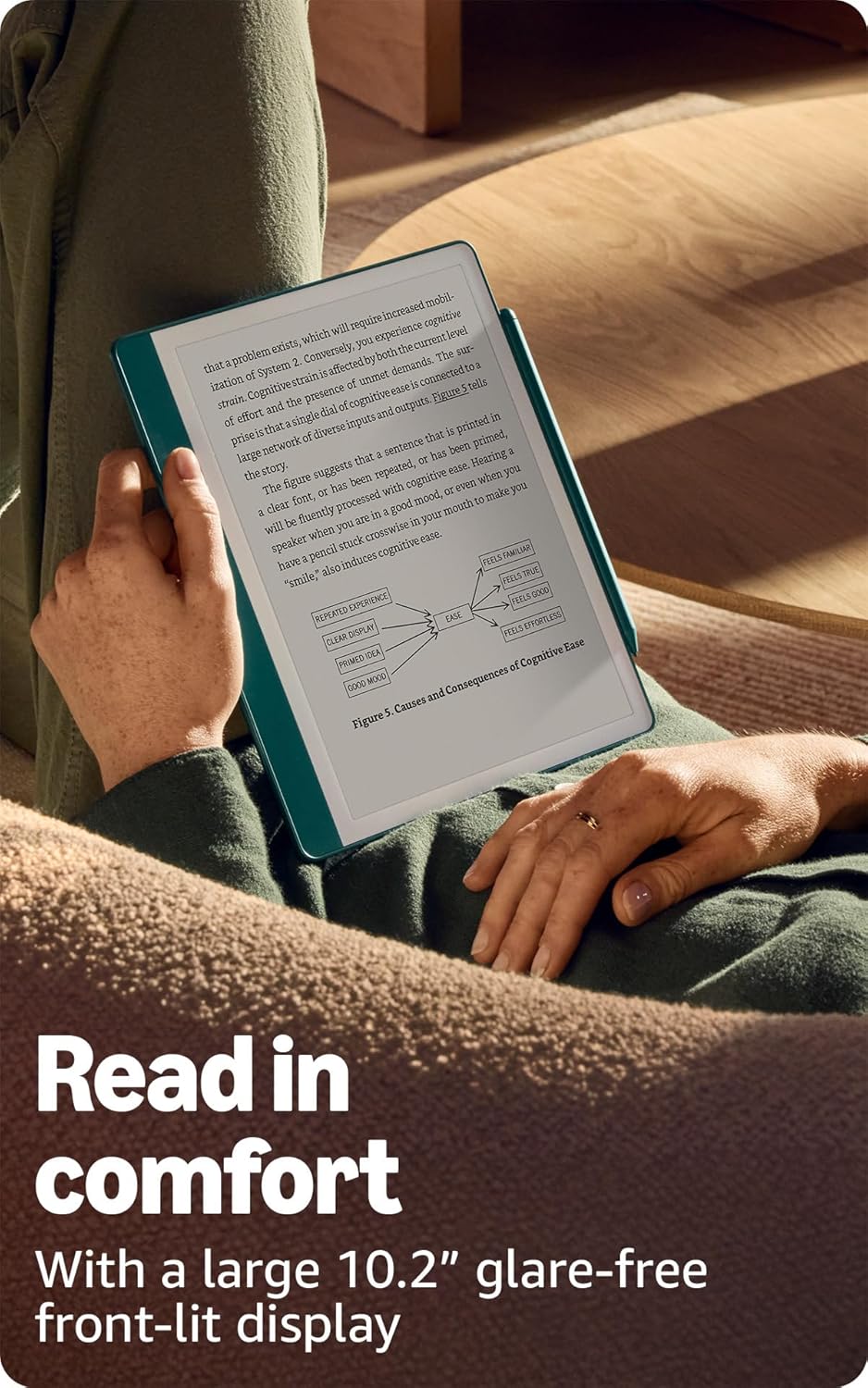
The 10.2-inch glare-free display is designed for comfortable reading.
Writing and Note-Taking
The Premium Pen allows for a natural writing experience directly on the Kindle Scribe's screen.
- ノートブックの作成: From the home screen, select the 'Notebooks' section to create new notebooks. Choose from various templates like lined, grid, blank, or specialized planners.
- Using the Premium Pen: Simply touch the pen to the screen to write. The pen does not require charging.
- Pen Tools: In a notebook or document, a toolbar will appear, allowing you to select different pen types (e.g., fountain pen, marker), adjust stroke thickness, and use an eraser. The Premium Pen also features a dedicated eraser on its top end.
- Marking Up Documents: Import PDFs and other documents to write directly on them. Use the pen to annotate, highlight, and add comments.
- Active Canvas: When reading a book, you can activate Active Canvas to create space for notes directly on the page. Expand or collapse margins as needed.

Utilize AI notebook tools to summarize and refine your handwritten notes.
AI Notebook Tools
The Kindle Scribe includes built-in AI capabilities to enhance your note-taking:
- 手書きからテキストへの変換: Convert your handwritten notes into editable typed text.
- メモの要約: Generate summaries of your notes.
- Length and Tone Adjustment: Modify the length and tone of your summarized notes.
ドキュメント管理
You can easily import and manage documents on your Kindle Scribe:
- Send to Kindle: Use the 'Send to Kindle' feature to wirelessly send documents and PDFs from your computer or mobile device to your Scribe.
- サポートされている形式: The device supports Kindle Format 8 (AZW3), Kindle (AZW), TXT, PDF, unprotected MOBI, PRC natively. It also supports PDF, DOCX, DOC, HTML, EPUB, TXT, RTF, JPEG, GIF, PNG, BMP through conversion. Audible audio format (AAX) is also supported.
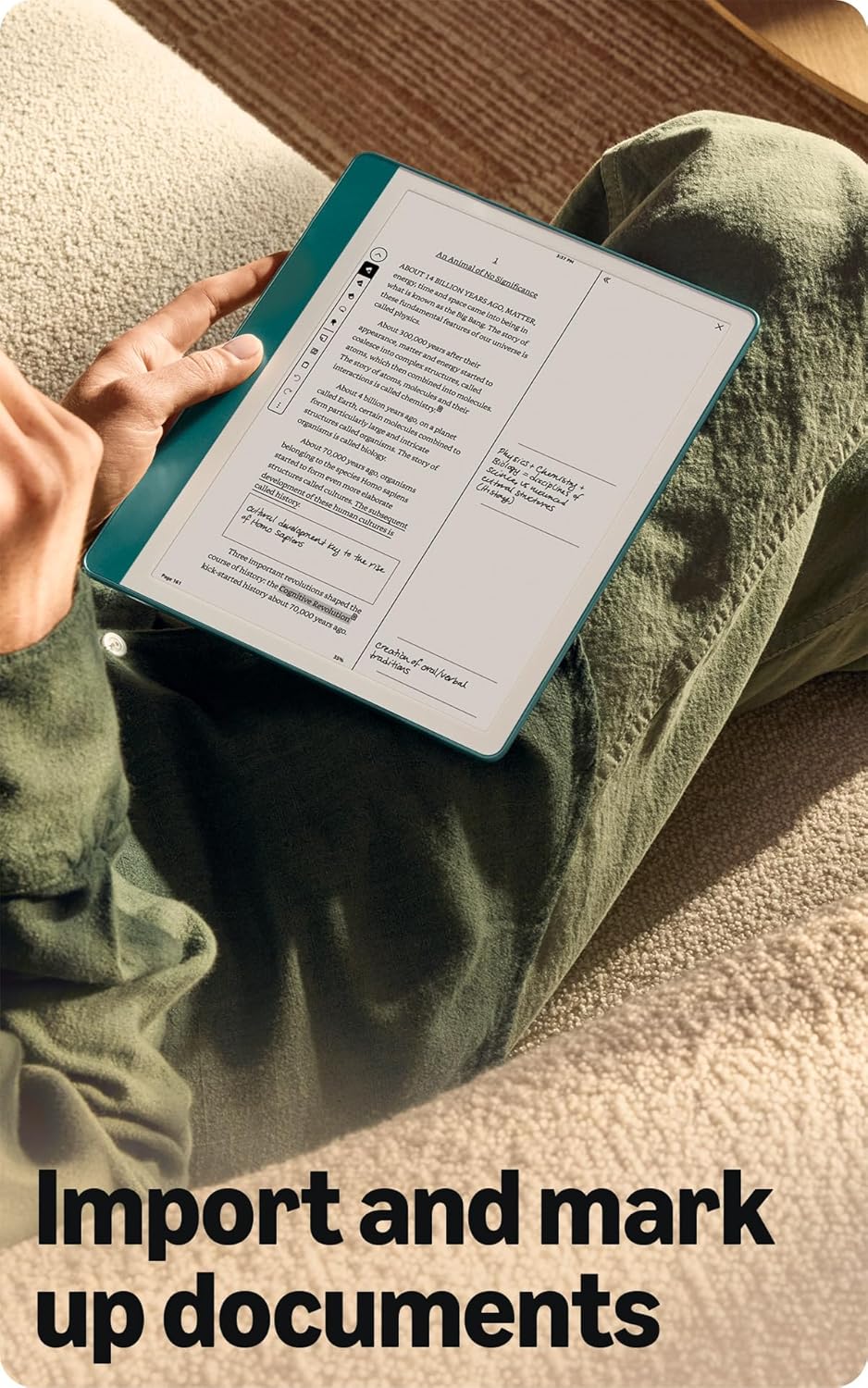
Import and mark up various documents directly on your Kindle Scribe.
アクセシビリティ機能
Kindle Scribe には、アクセシビリティを強化する機能が含まれています。
- 声View スクリーンリーダー: Available over Bluetooth audio, VoiceView provides spoken feedback for navigating the device and reading books with text-to-speech (English only).
- 表示調整: Ability to invert black and white, adjust font size, font face, line spacing, and margins for personalized reading comfort.
メンテナンス
バッテリー寿命と充電
To ensure optimal performance, follow these guidelines for battery management:
- Reading Battery Life: Up to 12 weeks based on 30 minutes of reading per day with wireless off and light setting at 13.
- Writing Battery Life: Up to 3 weeks based on 30 minutes of writing per day with wireless off and light setting at 13.
- 充電: Fully charges in approximately 7 hours from a computer via USB-C cable, or approximately 2.5 hours with a 9W USB-C power adapter.
- Factors Affecting Battery: Battery life will vary based on usage, Audible audiobook streaming, and content annotation.
Premium Pen Maintenance
The Premium Pen comes with replaceable tips to maintain a consistent writing experience.
- チップの交換: Use the included tip replacement tool to carefully remove worn tips and insert new ones. Five replacement tips are provided in the box.
- クリーニング: Wipe the pen and device screen with a soft, lint-free cloth. Avoid abrasive materials or harsh chemicals.
トラブルシューティング
If you encounter issues with your Kindle Scribe, consider the following basic troubleshooting steps:
- デバイスを再起動します: Press and hold the power button for 7 seconds until the power dialog appears, then tap 'Restart'. If unresponsive, hold the power button for 40 seconds to force a restart.
- Wi-Fi 接続を確認します。 Ensure your device is connected to a stable Wi-Fi network for content downloads and updates.
- 充電バッテリー: If the device is not responding, connect it to a power source using the USB-C cable and allow it to charge for at least 30 minutes before attempting to restart.
- ペンが応答しない: Ensure the pen tip is securely in place. If writing feels inconsistent, consider replacing the pen tip.
- ソフトウェアアップデート: Ensure your device has the latest software. Updates often resolve bugs and improve performance. Check for updates in the device settings.
For more detailed troubleshooting or persistent issues, refer to the official Kindle User Guide available online or contact Amazon Customer Service.
仕様
| 特徴 | 詳細 |
|---|---|
| 画面 | Amazon の 10.2 インチ Paperwhite ディスプレイ テクノロジー (内蔵ライト、300 ppi、最適化されたフォント テクノロジー、16 段階グレースケール)。 |
| デバイスサイズ | 7.7インチ x 9.0 x 22インチ(196 x 230 x 5.7mm、脚を除く) |
| プレミアムペンサイズ | 6.4インチ x 35インチ x 33インチ (162 x 8.8 x 8.4 mm) |
| デバイス内ストレージ | 16 GB、32 GB、または 64 GB (このモデル: 64 GB) |
| デバイスの重量 | 15.3オンス(本体のみ433g) |
| プレミアムペン重量 | 60オンス(17g) |
| Wi-Fi接続 | Wi-Fi 5 with support for WPA2/WPA3 personal or Wi-Fi Protected Setup (WPS). Bluetooth 5.2 |
| サポートされているコンテンツ形式 | Kindle Format 8 (AZW3)、Kindle (AZW)、TXT、PDF、保護されていない MOBI、PRC にネイティブ対応。PDF、DOCX、DOC、HTML、EPUB、TXT、RTF、JPEG、GIF、PNG、BMP には変換対応。Audible オーディオ形式 (AAX)。 |
| バッテリー寿命(読み取り) | 最大12週間(1日30分、ワイヤレスオフ、ライト13) |
| バッテリー寿命(書き込み時) | 最大3週間(1日30分、ワイヤレスオフ、ライト13) |
| Charge Time (USB-C) | Approx. 7 hours from computer; approx. 2.5 hours with 9W USB-C power adapter. |
| 世代 | Kindle Scribe 第1世代 - 2024年リリース |
| 利用可能な色 | タングステンとメタリックジェイド |
保証とサポート
保証情報
The Kindle Scribe includes a 1-year limited warranty and service. Optional 1-year, 2-year, or 3-year Extended Warranty plans are available for U.S. customers and sold separately. Use of Kindle is subject to Amazon's Conditions of Use.
Documentation and Software Updates
For further information, quick start guides, and the full Kindle User Guide, please visit the official Amazon Kindle support website. Software updates are periodically released to enhance device functionality and security. You can find information about these updates and manage your device-specific settings on the Amazon webサイト。