
導入
This manual provides detailed instructions for setting up and operating your blurams 3MP 2.4/5GHz WiFi Indoor PTZ Security Camera (Model A31). This camera is designed for versatile indoor monitoring, offering features such as high-resolution video, pan-tilt-zoom functionality, two-way audio, and intelligent detection capabilities. Please read this manual thoroughly before use to ensure proper installation and optimal performance.
パッケージ内容
以下にリストされているすべてのアイテムがパッケージに含まれていることを確認してください。
- カメラユニット
- 電源アダプター
- USBケーブル
- Screw Set (for mounting)
- 取り付けシート
- 日本語取扱説明書

Image: All components included in the blurams A31 package, including the camera, power adapter, USB cable, mounting accessories, and manual.
製品終了view
Familiarize yourself with the main components of your blurams A31 camera:
- レンズ: ビデオと画像をキャプチャします。
- MicroSDカードスロット: ローカルビデオストレージ用 (最大 256 GB をサポート、別売)。
- 電源ポート: 電源アダプタに接続します。
- リセットボタン: カメラを工場出荷時の設定にリセットするために使用されます。
- インジケーターライト: Displays the camera's status (e.g., red/blue flashing for pairing, solid blue for connected).
- スピーカー/マイク: 双方向の音声通信用。

画像: 前面と背面 views of the blurams A31 camera, highlighting the lens, microSD card slot, power port, reset button, and indicator light.
設定
1.アプリのインストール
Download the "blurams" app from the App Store (iOS) or Google Play Store (Android). The app is compatible with iOS 10+ and Android 5+.

Image: Screenshots illustrating the process of downloading and installing the blurams app from an app store.
2. 電源接続
Connect the camera to a power source using the provided USB cable and power adapter. The indicator light will illuminate.
3。 Wi-Fi接続
- Blurams アプリを開き、アカウントを作成するかログインします。
- 「+」アイコンをタップして新しいデバイスを追加します。
- Select your camera model (A31) and choose "Bluetooth Wi-Fi Connection".
- Follow the on-screen prompts to connect the camera to your 2.4GHz or 5GHz Wi-Fi network. The camera supports both frequencies for stable connection.
- 接続されると、インジケーター ライトが青色に点灯します。
Video: A step-by-step guide on how to connect the blurams camera to Wi-Fi using Bluetooth pairing via the app.
4. MicroSDカードの取り付け
To enable 24-hour continuous recording, insert a microSD card (up to 256GB, sold separately) into the camera's card slot. Gently push the lens upwards to reveal the slot.

Image: A hand inserting a microSD card into the designated slot on the camera.
操作手順
1.ライブ View
セットアップが成功したら、 view the live feed from your camera anytime, anywhere through the blurams app.
2. パン/チルト/ズーム(PTZ)制御
The camera features 360° horizontal and 110° vertical rotation. Use the app to remotely control the lens direction and digitally zoom up to 4x to view 詳細。

Image: The blurams A31 camera rotating horizontally and vertically, showcasing its PTZ capabilities within a room setting.
3. 双方向オーディオ
Engage in real-time two-way conversations through the app. This feature is ideal for communicating with family members or pets.
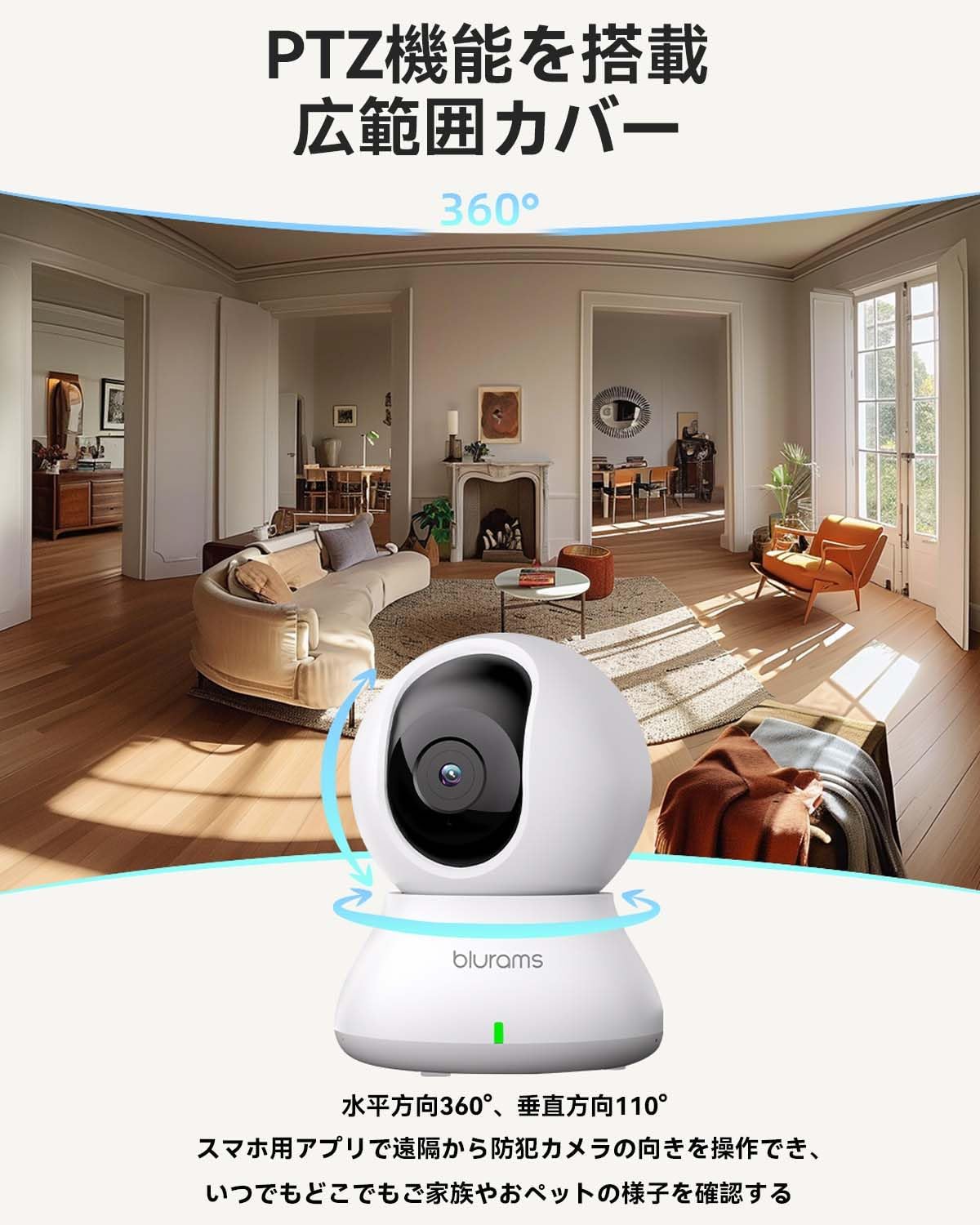
Image: A dog looking at the blurams A31 camera, with a speech bubble indicating two-way audio communication.
4. Motion, Sound, and Human Detection & Alerts
The camera is equipped with AI detection systems for motion, sound, and human recognition. Enable notifications in the app to receive real-time alerts on your smartphone when activity is detected.
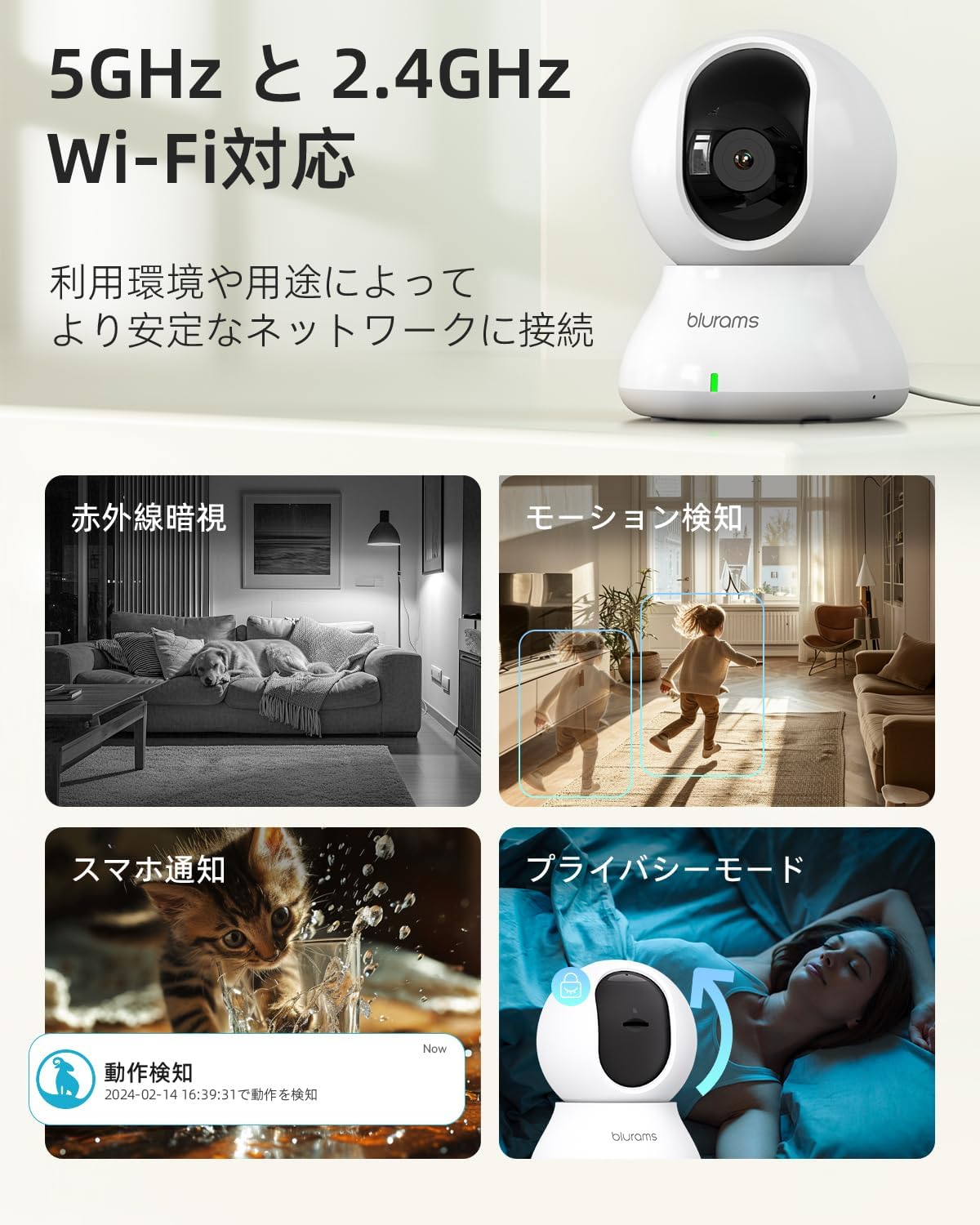
Image: Visual representation of the camera's features including 2.4/5GHz WiFi, motion detection, night vision, and privacy mode.
5. ナイトビジョンモード
The camera features 6*850nm infrared LEDs for night vision up to 10 meters. It automatically switches between color images in bright conditions and monochrome images in dark conditions. You can also manually select different night vision modes via the app.
6.プライバシーモード
For privacy, you can manually turn off the camera lens via the app, physically blocking the view and stopping recording.
7. 記録と保存
Recordings can be saved to a microSD card (up to 256GB, sold separately) for 24-hour continuous recording, or to the optional paid cloud storage service. The product also records past 24-hour motion events (approx. 12 seconds) without a microSD card or cloud service.

Image: Comparison of H.265 and H.264 compression, and a close-up of the microSD card slot on the camera.
8. アクセスの共有
You can share camera access with multiple users through the app, allowing family members to monitor simultaneously.

