
1. はじめに
This manual provides detailed instructions for the INNOCN Portable Monitor 13.3" OLED 1080P (Model E13K1F-C8). Please read this manual thoroughly before using the product to ensure proper operation and to maximize its performance and lifespan. This monitor is designed to provide a high-quality visual experience for various applications, including professional work, creative tasks, and entertainment.
2. 主な特徴
- Stunning OLED Display: Experience vibrant colors and deep blacks with a 13.3-inch Full HD (1080P) Self-Lit OLED IPS panel. Features include 100% DCI-P3 color gamut, a 100,000:1 contrast ratio, and 400 nits brightness for an immersive viewing experience with low latency (1ms response time).
- 優れた色精度: Engineered with full lamination production workmanship and advanced color calibration technology, this monitor delivers precise color contrast, making it an excellent choice for photography, video editing, and graphic design.
- 多彩な接続性: Equipped with both USB-C and Mini HDMI inputs, ensuring broad compatibility with a wide range of devices.
- 幅広いデバイス互換性: Seamlessly connect to most 11.6-17.3 inch laptops, tablets, Surface Pro devices, USB-C smartphones, Nintendo Switch, Xbox, PlayStation (PS5/4/3), mini PCs, and digital cameras. Enjoy plug-and-play functionality without the need for additional drivers.
- 目の快適性の向上: Incorporates flicker-free and low blue light technologies to reduce eye strain and provide a comfortable view長時間使用しても快適な体験が得られます。
- 超薄型・軽量設計: With an ultra-slim profile of 0.28 inches and a weight of 1.39 lbs, this monitor is highly portable, making it ideal for multi-tasking on the go.
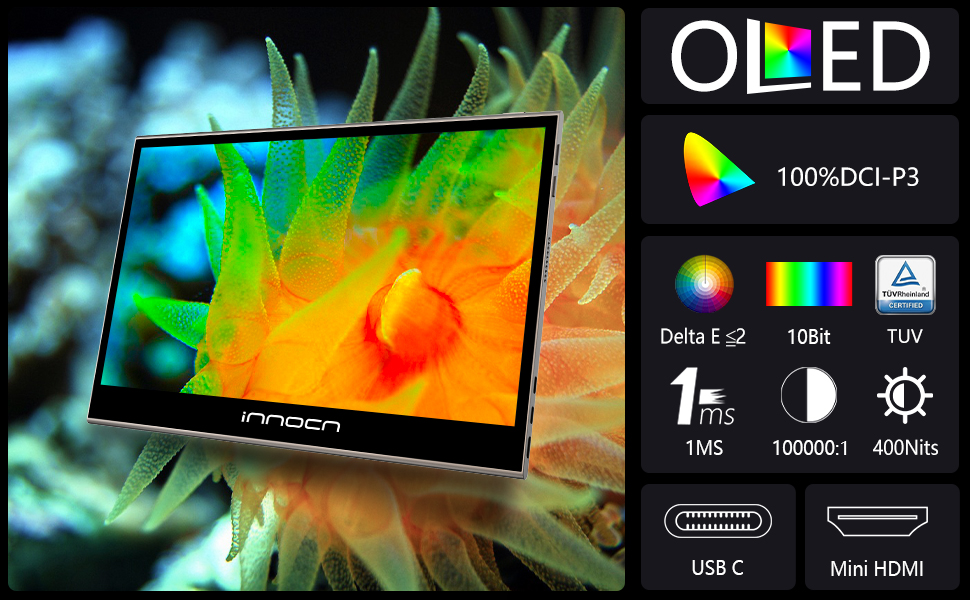
Image: Visual comparison demonstrating the superior color and contrast of the OLED display compared to a standard LCD, featuring vibrant fish imagery. The OLED display achieves 100% DCI-P3 color gamut, 130% sRGB color gamut, 400cd/m² brightness, and a 100,000:1 contrast ratio.
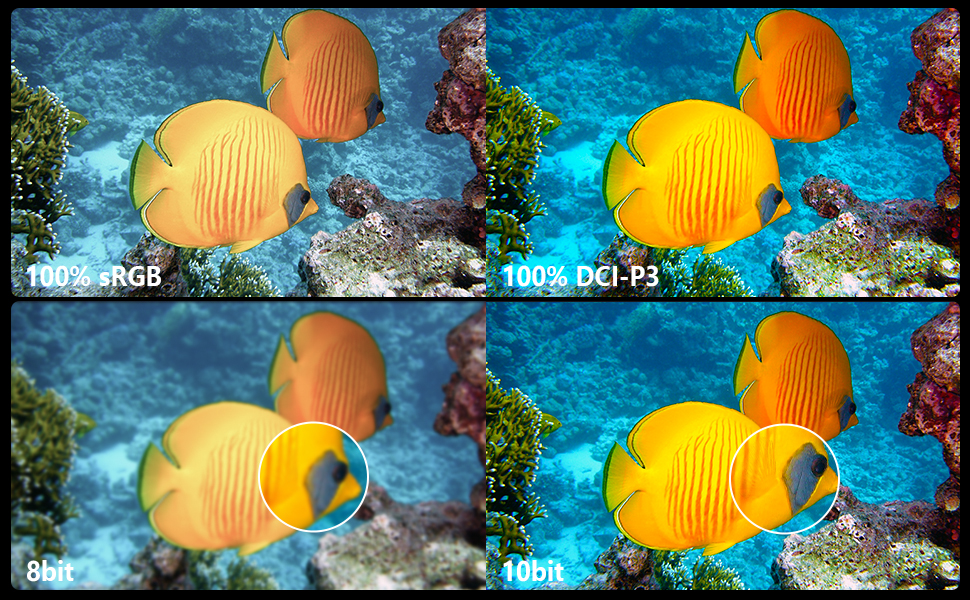
Image: The INNOCN portable monitor showcasing photo editing software, emphasizing its color accuracy and suitability for professional photo and video editing, as well as design work.

Image: A visual representation of the monitor's ultra-slim (0.2 inches) and lightweight (2 lbs) design, highlighting its portability.
3.セットアップガイド
3.1 開梱と初期検査
- モニターとすべての付属品をパッケージから慎重に取り出します。
- Inspect the monitor for any signs of damage during transit. If damage is found, contact customer support immediately.
- リストされているアクセサリがすべて揃っていることを確認してください。
3.2 モニターの接続
The INNOCN portable monitor supports both USB-C and Mini HDMI connections for video and power. No drivers are typically required for basic functionality.
- USB-C 接続 (シングル ケーブル ソリューション):
If your device (laptop, tablet, smartphone) has a full-featured USB-C port that supports DisplayPort Alternate Mode (DP Alt Mode) and power delivery, you can connect the monitor using a single USB-C to USB-C cable. This cable will transmit video, audio, and power simultaneously.
- Connect one end of the USB-C cable to the USB-C port on the monitor.
- Connect the other end of the USB-C cable to the compatible USB-C port on your device.
- モニターは自動的に信号を検出し、電源がオンになります。
- Mini HDMI + USB-C (Power) Connection:
If your device does not have a full-featured USB-C port, or if you prefer to use HDMI, you will need two cables:
- Mini HDMI-HDMI ケーブルの一方の端をモニターの Mini HDMI ポートに接続します。
- Connect the other end of the HDMI cable to the HDMI port on your device (laptop, PC, console).
- Connect one end of a USB-C to USB-A (or USB-C to USB-C) cable to the power input USB-C port on the monitor.
- Connect the other end of the USB cable to a power source (e.g., a USB wall adapter, laptop USB port, or power bank) to provide power to the monitor.
- The monitor should detect the HDMI signal and power on.

画像: クローズアップ view of the monitor's side, highlighting the USB-C and Mini HDMI input ports for connectivity.
3.3 Using the Magnetic Kickstand
The monitor comes with a magnetic kickstand for versatile positioning. Attach the kickstand to the back of the monitor. Adjust the angle to your preferred viewing position. The kickstand can be easily detached for portability.
4. 操作手順
4.1 電源オン/オフ
- To power on the monitor, ensure it is connected to a power source and press the power button.
- To power off the monitor, press and hold the power button for a few seconds until the screen turns off.
4.2 オンスクリーンディスプレイ(OSD)メニュー
The OSD menu allows you to adjust various display settings. The power button often doubles as the menu/select button, and other buttons (if present) navigate the menu.
- Press the menu button (often the power button with a short press) to open the OSD menu.
- Use the navigation buttons to scroll through options such as Brightness, Contrast, Color Temperature, Input Source, etc.
- Press the select button (often the menu button again) to enter a sub-menu or confirm a selection.
- ナビゲーション ボタンを使用して値を調整したり、オプションを選択したりします。
- Exit the OSD menu by selecting the "Exit" option or waiting for it to time out.
4.3 Display Settings on Connected Device
For optimal performance, configure your connected device's display settings:
- 解決: Set the resolution to 1920x1080 (1080P) for the best visual clarity.
- リフレッシュレート: The monitor supports a maximum refresh rate of 60Hz.
- 表示モード: Choose between "Extend" (to use the portable monitor as a second screen) or "Duplicate" (to mirror your primary display).
- カラープロfile: For Windows users, if colors appear washed out, adjust the color format in your graphics card settings (e.g., Nvidia Control Panel) to 4:4:4 instead of sRGB. This can significantly improve OLED color representation.

Image: The portable monitor extending a laptop's display, demonstrating its utility for multitasking and increased productivity.

Image: The monitor positioned vertically, connected to a tablet, illustrating its flexibility for different viewing modes and creative applications.
5. メンテナンス
5.1 モニターの掃除
- 清掃する前に必ずモニターの電源をオフにし、電源から外してください。
- 柔らかく糸くずの出ない布で軽く拭き取ってください。amp水または非研磨性のスクリーンクリーナーで拭いてください。
- Gently wipe the screen and exterior surfaces. Avoid excessive pressure.
- Do not use alcohol, ammonia-based cleaners, or abrasive materials, as these can damage the screen or finish.
5.2 ストレージ
- 使用していないときは、モニターを直射日光や極端な温度を避け、涼しく乾燥した場所に保管してください。
- For travel, use a protective sleeve or case to prevent scratches and impacts. The monitor's glass finish is durable but can still be damaged by sharp objects or drops.
6。 トラブルシューティング
| 問題 | 考えられる原因 | 解決 |
|---|---|---|
| 画面が表示されない/電源がオフ | No power, incorrect cable connection, or device not outputting signal. |
|
| Washed out colors / Grey blacks (Windows) | Incorrect color format setting on the source device. |
|
| Monitor does not wake with Windows | Power management settings or compatibility issue. |
|
| 音声なし | Audio output not selected, or volume too low. |
|
7. 仕様
| 特徴 | 詳細 |
|---|---|
| モデル番号 | E13K1F-C8 |
| 画面サイズ | 13.29インチ |
| 表示タイプ | 有機EL |
| 解決 | 1920 x 1080 (FHD 1080p) |
| アスペクト比 | 16:9 |
| 色域 | 100% DCI-P3 |
| コントラスト比 | 100,000:1 |
| 輝度 | 400 candela/square meter (nits) |
| 応答時間 | 1ミリ秒 |
| 接続性 | USB-C、ミニHDMI |
| 製品寸法 | 0.25 x 12.12 x 7.87インチ |
| アイテム重量 | 2.77ポンド |
| スクリーン表面 | 光沢のある |
| メーカー | 広西センチュリーイノベーションディスプレイエレクトロニクス株式会社 |
8. 保証とサポート
For warranty information and technical support, please refer to the documentation included with your purchase or visit the official INNOCN website. You may also contact the manufacturer, Guangxi Century Innovation Display Electronics Co.,Ltd, for assistance.
さらにサポートが必要な場合は、 AmazonのINNOCNストア.


