
導入
This manual provides detailed instructions for the setup, operation, and maintenance of your Prechen 10.1 inch Portable Touchscreen Monitor, Model HD-101. Please read this manual thoroughly before using the device to ensure proper functionality and to prevent damage.
製品の特徴
- Portable Touchscreen: This 10.1-inch monitor is compact and lightweight, designed for portability. The touchscreen functionality allows for intuitive navigation and interaction, enhancing productivity on the go.
- High-Resolution IPS Display: Features a 1920x1200 resolution with a 16:10 aspect ratio, delivering clear and vibrant visuals. IPS technology provides wide viewing angles and accurate color reproduction, suitable for various applications.
- 多彩な接続性: Equipped with HDMI and USB-C ports, offering flexible connection options. It can be easily connected to Windows PCs, laptops, and gaming consoles like Xbox. Note: USB-C is for touch functionality and power.
- 内蔵スピーカー: Built-in speakers provide clear and dynamic audio, eliminating the need for external speakers during media consumption, gaming, or virtual meetings.
- VESA マウント対応: The monitor supports VESA mounting standards, allowing for attachment to compatible stands or arms for customized workspace setups and comfortable view角度を変える。
設定
パッケージ内容
パッケージにすべてのアイテムが揃っていることを確認します。
- Prechen 10.1 inch Portable Touchscreen Monitor
- HDMIケーブル
- USB-C から USB-C へのケーブル
- USB-A to USB-C Cable (for power/touch)
- 電源アダプター
- ユーザーマニュアル(このドキュメント)
モニターの接続
- 電源接続: Connect the provided power adapter to the DC Power Port on the monitor and plug it into a power outlet. Alternatively, if your device supports power delivery, connect a USB-C to USB-C cable to the USB-C (Power & Touch) port for both power and signal.
- ビデオ接続:
- HDMI: Connect one end of the HDMI cable to the HDMI port on the monitor and the other end to the HDMI output of your computer or device.
- USB-C (DisplayPort Alternate Mode): If your device supports DisplayPort Alternate Mode over USB-C, connect a USB-C to USB-C cable to the USB-C (Power & Touch) port on the monitor and your device. This single cable can provide video, power, and touch functionality.
- タッチ機能: For touch functionality, ensure the USB-C (Power & Touch) port is connected to your device. If using HDMI for video, you will also need to connect a USB-A to USB-C cable from your device's USB-A port to the monitor's USB-C (Power & Touch) port.
- オーディオ出力: If you wish to use external headphones or speakers, connect them to the 3.5mm Audio Port on the monitor.
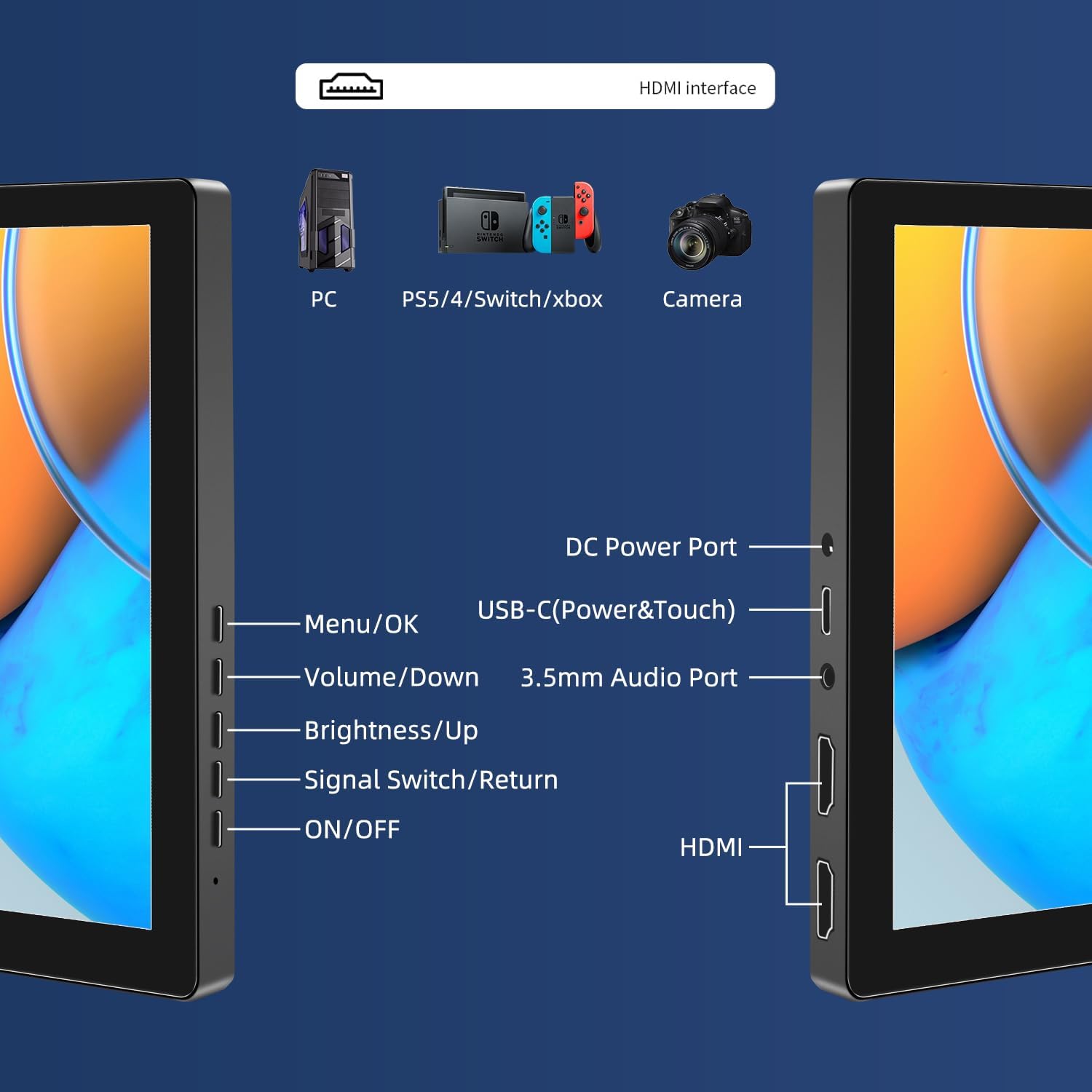
画像: 上view of the monitor's ports including DC Power, USB-C (Power & Touch), 3.5mm Audio, HDMI, and control buttons.
操作手順
電源のオン/オフ
- モニターの電源をオンにするには、 オン/オフ ボタン。
- 電源を切るには、 を長押しします オン/オフ 画面がオフになるまでボタンを数秒間押し続けます。
オンスクリーンディスプレイ(OSD)メニューの使用
OSD メニューでは、さまざまな表示設定を調整できます。
- を押す メニュー/ OK ボタンを押して OSD メニューを開きます。
- 使用 音量/ダウン そして 明るさ/アップ メニュー オプションを移動するためのボタン。
- プレス メニュー/ OK オプションを選択したり、設定を確定したりします。
- を押す Signal Switch/Return ボタンを押すと、前のメニューに戻るか、OSD を終了します。
Adjusting Display Modes
モニターは、コンピューターに接続すると複数の表示モードをサポートします。
- 複製モード: メイン画面とポータブル モニターの両方に同じコンテンツを表示します。
- 拡張モード: デスクトップを両方の画面に拡張し、作業スペースを広くします。
- セカンドスクリーンモード: ディスプレイとしてポータブルモニターのみを使用します。
These modes are typically configured through your operating system's display settings (e.g., Windows Display Settings, macOS System Preferences).
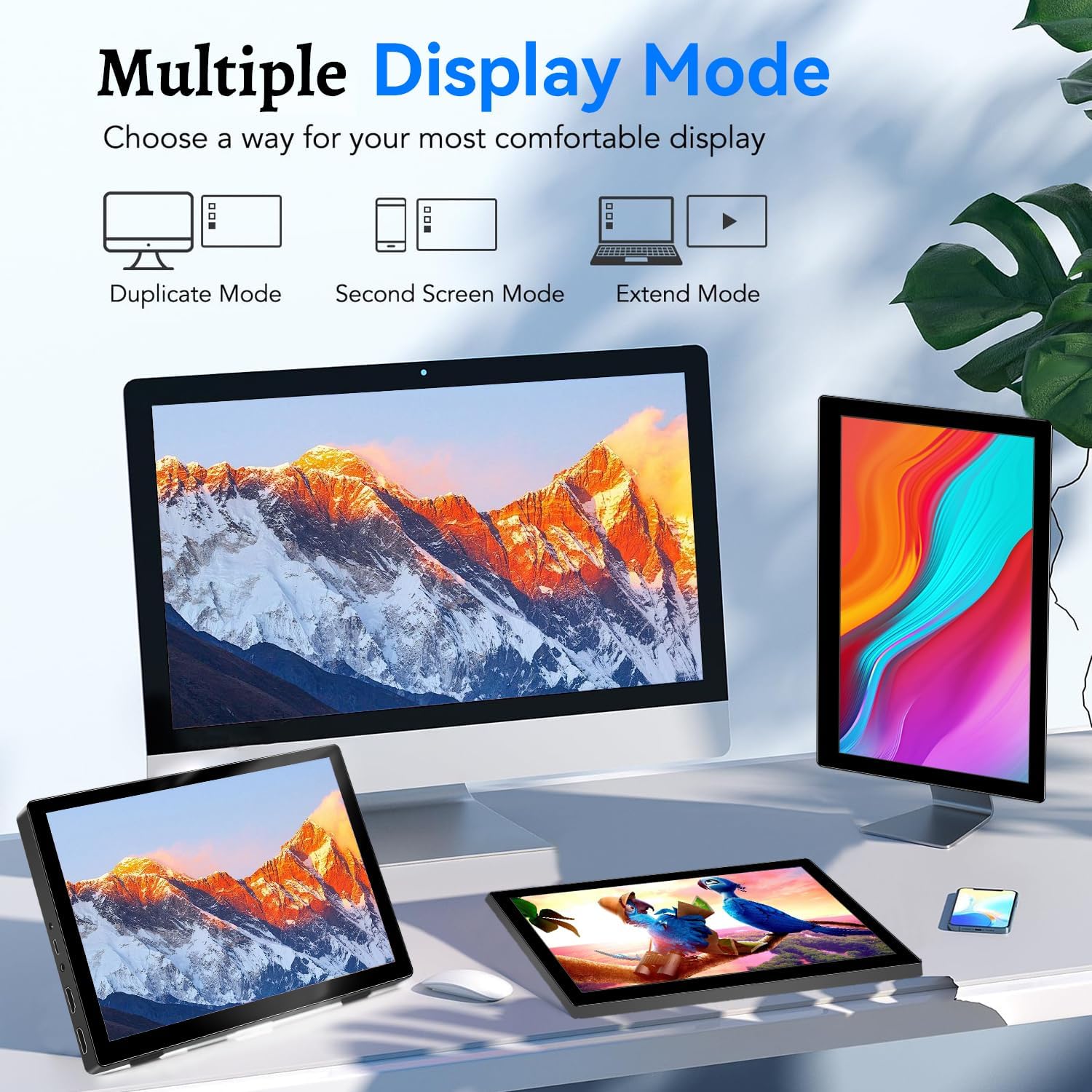
Image: Visual representation of Duplicate, Second Screen, and Extend display modes.
Using Touchscreen Functionality
The monitor supports 10-point touchscreen technology. Ensure the USB-C (Power & Touch) port is correctly connected to your device for touch input to function.

画像: Examples of 10-point touchscreen gestures for interaction.
メンテナンス
- 画面の掃除: 柔らかく糸くずの出ない布で軽く拭き取ってください。amp水または研磨剤を含まないスクリーンクリーナーで拭き取ってください。スクリーンに直接クリーナーを吹き付けないでください。
- Cのクリーニングasing: モニターを拭くasin柔らかく乾いた布で拭いてください。強力な洗剤や溶剤の使用は避けてください。
- ストレージ: 使用していないときは、モニターを直射日光や極端な温度を避け、涼しく乾燥した場所に保管してください。
- 取り扱い: モニターを落としたり、強い衝撃を与えたりしないでください。モニターの上に重い物を置かないでください。
トラブルシューティング
| 問題 | 考えられる原因 | 解決 |
|---|---|---|
| 画面が表示されない/黒い画面 |
|
|
| タッチスクリーンが反応しない |
|
|
| スピーカーから音声が出ない |
|
|
| Image quality issues (blurry, distorted) |
|
|
仕様
| 特徴 | 詳細 |
|---|---|
| ブランド | プレチェン |
| モデル番号 | HD-101 |
| 画面サイズ | 10.1インチ |
| 解決 | 1920 x 1200 (UXGA Wide) |
| アスペクト比 | 16:10 |
| パネルタイプ | IPS |
| リフレッシュレート | 60Hz |
| 応答時間 | 1ミリ秒 |
| 接続性 | 1x HDMI, 1x USB-C (Power & Touch), 1x 3.5mm Audio Jack, 1x DC Power Port |
| 寸法(長さ×幅×高さ) | 21.8 x 15.8 x 1.4 cm |
| 重さ | 990グラム |
| メーカー | 深センケノワエレクトロニクス株式会社 |
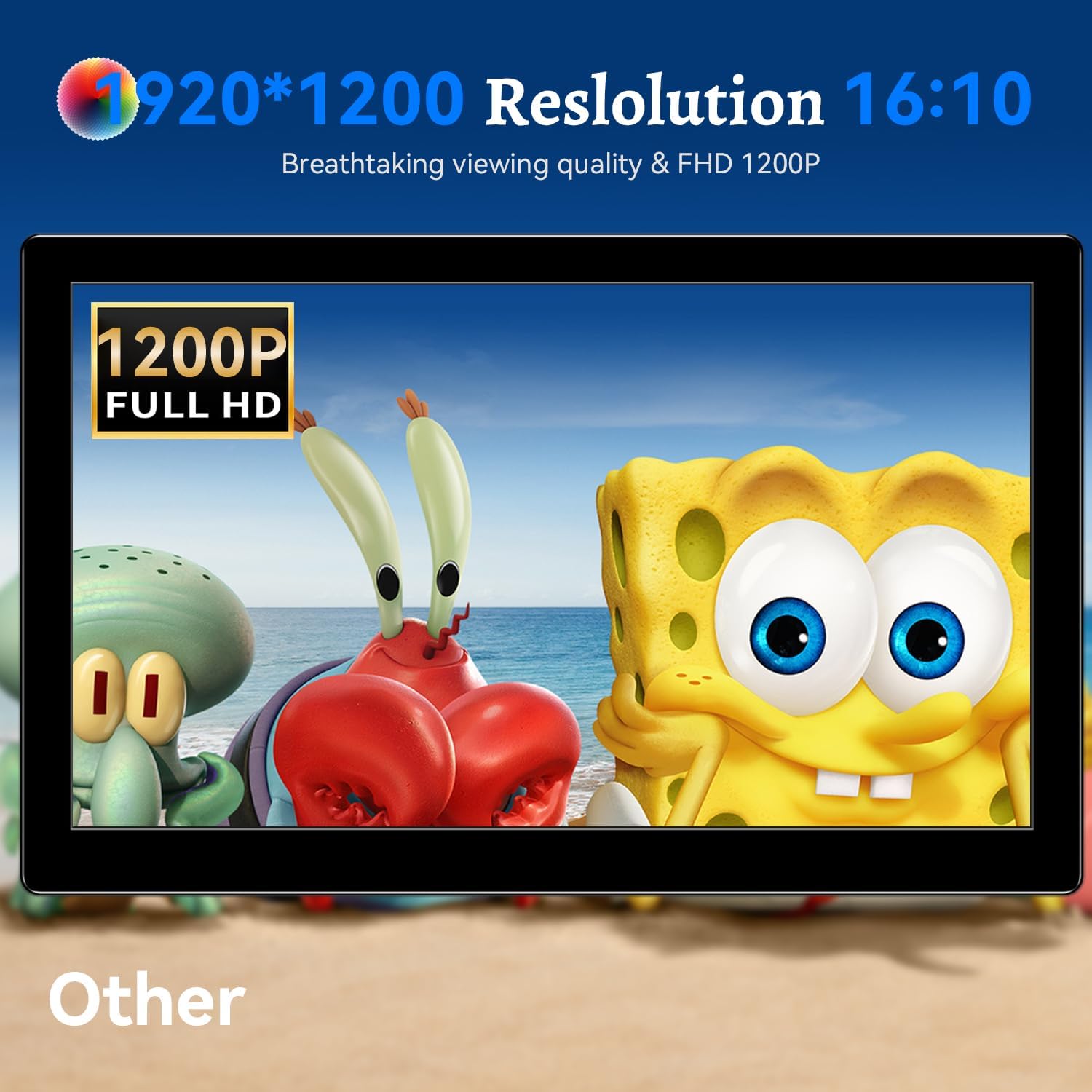
画像: モニターショーasing its 1920x1200 Full HD resolution.

Image: The monitor's IPS panel offering wide viewing angles and rich colors.
保証とサポート
For warranty information and technical support, please refer to the warranty card included with your product or contact Prechen customer service through their official website. Please have your model number (HD-101) and purchase details ready when contacting support.