
symcode 2D QR Orange (B0CS6M178X)
Symcode Bluetooth 2Dバーコードスキャナー取扱説明書
Model: 2D QR Orange (B0CS6M178X)
導入
This manual provides comprehensive instructions for the setup, operation, and maintenance of your Symcode Bluetooth 2D Barcode Scanner. This portable scanner offers versatile 3-in-1 connectivity (Bluetooth, 2.4G Wireless, USB Wired) and is designed for efficient scanning of both 1D and 2D barcodes across various platforms.
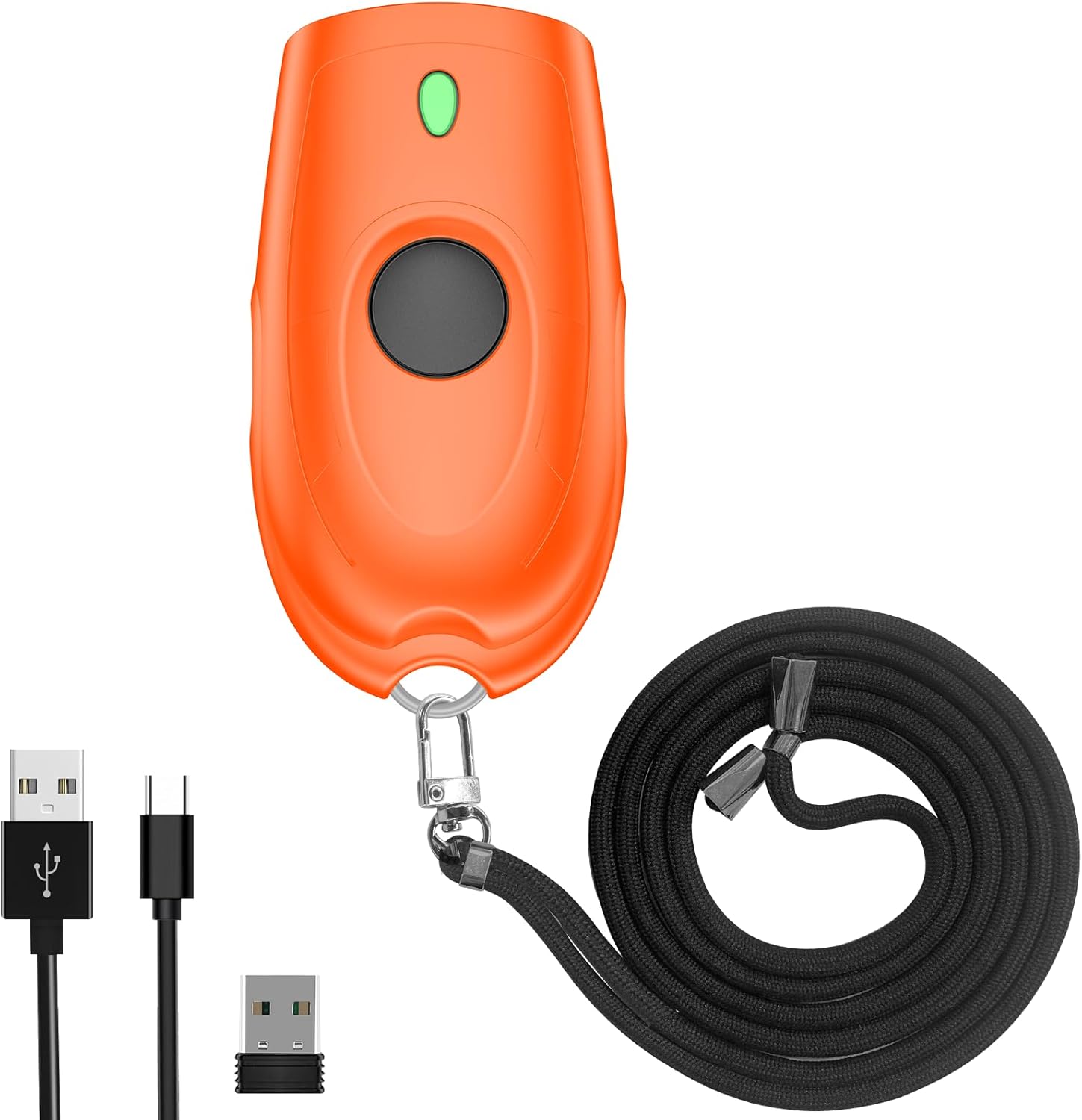
Image: The Symcode Bluetooth 2D Barcode Scanner in orange, shown with its accessories: USB charging cable, 2.4G USB dongle, and a black lanyard.
製品終了view およびパッケージの内容
Before using your scanner, please ensure all components are present in the package.

Image: A visual representation of the package contents, including the scanner, 2.4GHz wireless dongle, user manual, USB cable, and sling.
パッケージ内容:
- 1x Symcode 2D Barcode Scanner
- 1x USB充電ケーブル
- 2.4G USBドングル×1
- ユーザーマニュアル x 1
- スリング1個
仕様
| 特徴 | 説明 |
|---|---|
| 寸法 | 5.43 x 4.21 x 2.13インチ(パッケージ) |
| 重さ | 4.2オンス(商品) |
| バッテリー | 650mAh リチウムポリマー(充電可能、付属) |
| 充電時間 | 約2時間 |
| 連続スキャン時間 | 最大5時間 |
| 待機時間 | 最大30日間(720時間) |
| 接続性 | Bluetooth、2.4Gワイヤレス、USB有線 |
| 伝送距離(2.4Gワイヤレス) | 150m(492フィート)(バリアフリー)、15m(49フィート)(障害物あり) |
| 伝送距離(Bluetooth) | 50m(164フィート)(バリアフリー)、20m(66フィート)(障害物あり) |
| ストレージ容量 | 16MB(オフラインモードで100,000以上のバーコードを保存) |
| Decoding Ability (2D) | QRコード、データマトリックス、PDF417、アステカコード、マキシコード |
| Decoding Ability (1D) | JAN/EAN-13, JAN/EAN-8, UPC-A, UPC-E, Code11, Code32, Code39, Code 39 Full ASCII, Code93, Code128, Codabar (NW-7), Interleaved 2 of 5, Matrix 2 of 5, Industrial 2 of 5, Standard 2 of 5, PLESSEY, MSI, ITF14, ISBN, ISSN, GS1 Databar, GS1-128 (UCC/EAN128), ISBT-128 |
| 対応OS | Windows XP/7/8/10、Mac OS、Linux、Android、iOS |

Image: Detailed battery specifications and internal components of the scanner, highlighting its 650mAh battery and long standby time.

Image: Transmission range capabilities of the scanner in different environments for both 2.4G wireless and Bluetooth connections.

Image: Visual representation of the scanner's mini portable design and dimensions, demonstrating its ease of carrying.
設定
1. スキャナの充電
Before first use, fully charge the scanner. Connect the provided USB charging cable to the scanner's charging port and to a USB power source (e.g., computer USB port, USB wall adapter). The charging indicator light will show the charging status. A full charge takes approximately 2 hours.
2. 接続モード
The Symcode scanner supports three connection modes: USB Wired, 2.4G Wireless, and Bluetooth Wireless.

Image: Illustration of the three versatile connection options: USB wired, 2.4G wireless via dongle, and Bluetooth wireless.
USB有線モード:
- 付属の USB ケーブルを使用して、スキャナーをコンピューターに直接接続します。
- The scanner will be recognized as a keyboard device, and scanned data will appear wherever your cursor is placed.
- No drivers are required for this mode.
2.4Gワイヤレスモード:
- 2.4G USB ドングルをコンピューターの使用可能な USB ポートに差し込みます。
- スキャナーの電源を入れます。ドングルと自動的にペアリングされます。
- This mode offers a transmission distance of up to 150m (492ft) in barrier-free environments.
Bluetoothワイヤレスモード:
- デバイス (スマートフォン、タブレット、ラップトップ) で Bluetooth が有効になっていることを確認します。
- Turn on the scanner and put it into Bluetooth pairing mode (refer to the specific steps in the included user manual for pairing instructions, as this typically involves scanning a specific configuration barcode).
- On your device, search for Bluetooth devices and select "Symcode Scanner" or similar from the list.
- This mode supports Bluetooth HID, SPP, and BLE protocols and offers a transmission distance of up to 50m (164ft) in barrier-free environments.
3. システムの互換性
The scanner is highly compatible with a wide range of operating systems and devices.

Image: The scanner's broad compatibility with various operating systems including iOS, Android, Windows, Mac OS, and Linux, connecting to devices like PCs, POS systems, laptops, tablets, and smartphones.
- オペレーティング システム: Windows XP, Win7, Win8, Win10, Mac OS, Linux
- デバイス: PC, Laptop, POS systems, Smartphones (Android, iOS), Tablets
操作手順
1. 基本的なスキャン
To scan a barcode, point the scanner's window at the barcode and press the trigger button. A successful scan will typically be indicated by a beep and/or vibration.

Image: The scanner in action, demonstrating its ability to decode various 1D and 2D barcodes, even if they are blurred or incomplete. Examples of scannable codes are shown, including QR Code, Data Matrix, and PDF417.
The scanner can decode a wide range of 1D and 2D symbologies, including:
- 2D: QRコード、データマトリックス、PDF417、アステカコード、マキシコード
- 1D: JAN/EAN-13, JAN/EAN-8, UPC-A, UPC-E, Code11, Code32, Code39, Code 39 Full ASCII, Code93, Code128, Codabar (NW-7), Interleaved 2 of 5, Matrix 2 of 5, Industrial 2 of 5, Standard 2 of 5, PLESSEY, MSI, ITF14, ISBN, ISSN, GS1 Databar, GS1-128 (UCC/EAN128), ISBT-128
Example Barcodes from image:
- Data Matrix: 2125551212
- QRコード: 20123456789
- PDF417: 00614141999996
- ITF: 1234567890135
- プロfiled Barcode: 4603146002134
2. 音響・振動制御
The scanner allows you to turn off the sound and vibration feedback according to your preference or work environment. Refer to the detailed instructions in the included user manual for the specific configuration barcodes to enable or disable these features.

Image: Options for controlling the scanner's sound and vibration feedback, allowing for quiet operation when needed.
3. データアップロードモード
スキャナーは、主に 2 つのデータアップロード モードをサポートしています。
- インスタントアップロードモード: スキャンしたバーコードは接続されたデバイスに即座に送信されます。これがデフォルトモードです。
- ストレージモード(オフラインスキャン): Barcodes are stored in the scanner's internal memory (16MB, capable of storing over 100,000 barcodes) and can be uploaded later when connected. This is useful for inventory tasks where real-time connection is not always available. To switch to storage mode and upload data, refer to the specific configuration barcodes in the included user manual.
4. カスタマイズオプション
The scanner offers various customization options to tailor its output to your needs:
- Hide/Add custom prefix/suffix digits.
- スキャンしたデータから文字を削除します。
- Add keyboard keys (e.g., TAB, CR&LF) to the scanning operation for automated data entry.
Detailed instructions and configuration barcodes for these options are provided in the comprehensive user manual included with your product.
メンテナンス
バッテリーのケア:
- バッテリーの寿命を延ばすには、バッテリーを頻繁に完全に放電しないようにしてください。
- 継続的に使用しない場合でも、スキャナーを定期的に充電してください。
- スキャナーを長期間使用しない場合は、涼しく乾燥した場所に保管してください。
クリーニング:
- スキャナーの外側を清掃するには、柔らかく乾いた糸くずの出ない布を使用してください。
- For the scanning window, use a soft cloth slightly damp低刺激性で研磨剤を含まない洗剤で洗ってください。刺激の強い化学薬品や研磨剤は使用しないでください。
- Do not immerse the scanner in water or any other liquid.
トラブルシューティング
Symcode バーコード スキャナーで問題が発生した場合は、次の一般的な問題と解決策を参照してください。
| 問題 | 考えられる解決策 |
|---|---|
| スキャナーがオンになりません。 | バッテリーが充電されていることを確認してください。USBケーブルを使用してスキャナーを電源に接続し、少なくとも30分間充電してから、再度電源を入れてください。 |
| スキャナーはバーコードをスキャンしません。 |
|
| スキャンしたデータが画面に表示されません。 |
|
| Bluetooth接続の問題。 |
|
| ボタンが動かなくなったり、反応しなくなったりします。 | Gently check for any physical obstruction around the button. If the issue persists, contact customer support. Avoid forcing the button. |
保証とサポート
Your Symcode barcode scanner comes with a standard manufacturer's warranty. For specific warranty terms and conditions, please refer to the documentation included in your product packaging or contact Symcode customer support.
For any technical assistance, troubleshooting not covered in this manual, or warranty inquiries, please contact Symcode customer service.
Symcode Customer Service: Please refer to the contact information provided in your product's original packaging or visit the official Symcode webサポート詳細のサイト。
The seller, Symcode, offers 24/7 pre-sale and after-sales service. If you experience a problem with your Symcode scanner, please contact the seller directly for assistance.
Ask a question about this manual
Ask about setup, troubleshooting, compatibility, parts, safety, or missing instructions. Manuals+ will review the question and use this page’s manual context to help answer it.