
1.製品オーバーview
The Keyscaper Star Wars Darth Vader Wireless Mouse is designed for comfort and precision, featuring a distinctive Darth Vader color block design. This wireless mouse connects via a USB nano-receiver and is powered by two AAA batteries. It offers laser-optical precision and an auto-sleep function to maximize battery life.

Figure 1: Keyscaper Star Wars Darth Vader Wireless Mouse
主な特徴:
- Officially licensed Star Wars product.
- Easy plug & play functionality via included USB nano-receiver.
- Laser-optical precision for accurate and responsive tracking.
- Auto-sleep feature to conserve battery power.
- Durable full-color printed logo.
2. セットアップ手順
2.1 箱の中身
- Keyscaper Star Wars Darth Vader Wireless Mouse
- USBナノレシーバー
- 単2電池4本(プリインストールまたは別途付属)
2.2 バッテリーの取り付け
- マウスの裏側にある電池ボックスのカバーを見つけます。
- カバーをゆっくりスライドまたは持ち上げてコンパートメントを開きます。
- 電池ボックス内の指示に従って、極性 (+/-) が正しいことを確認して、単 4 電池 2 本を挿入します。
- 電池ボックスのカバーを、カチッと音がしてしっかりと固定されるまで元に戻します。

Figure 2: Mouse components and battery installation
2.3 Connecting the USB Nano-Receiver
- Locate the USB nano-receiver, typically stored within a slot in the battery compartment for convenience.
- Remove the nano-receiver from its storage slot.
- Plug the USB nano-receiver into an available USB-A port on your computer or laptop.
- コンピュータは必要なドライバを自動的に検出し、インストールします。これには数分かかる場合があります。

Figure 3: USB nano-receiver storage
2.4 電源のオン/オフ
- On the underside of the mouse, locate the ON/OFF switch.
- マウスを起動するには、スイッチを「オン」の位置にスライドします。
- To conserve battery life when not in use, slide the switch to the "OFF" position.
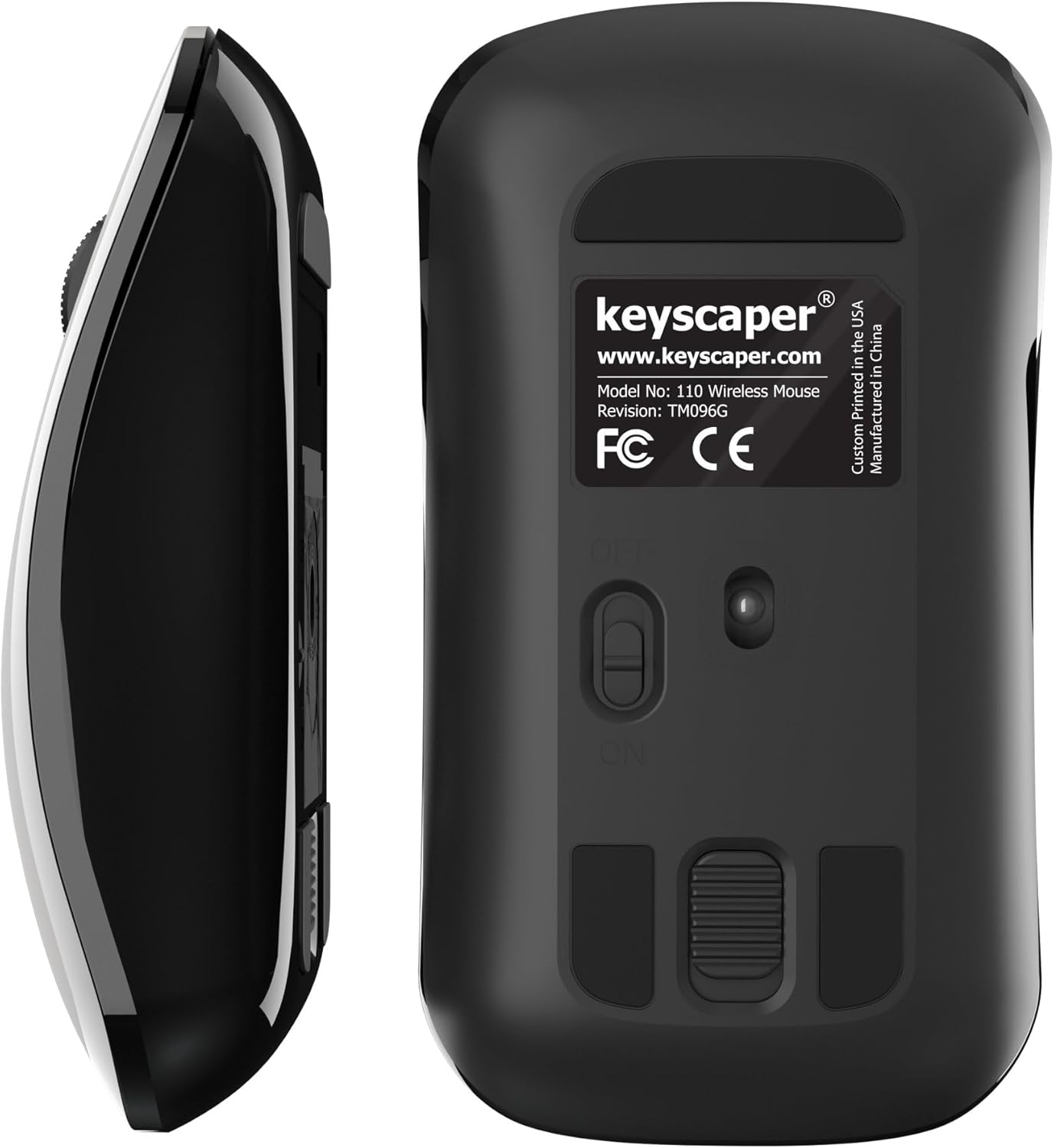
Figure 4: Underside of the mouse
3. 操作手順
3.1 基本的な使用法
- 左クリック: Press the left button for primary actions (selecting, opening).
- 右クリック: Press the right button for secondary actions (context menus).
- スクロールホイール: Roll the wheel up or down to scroll through documents or web ページ。スクロールホイールを押すと、中クリック機能(リンクを新しいタブで開くなど)が使用できます。
3.2 自動スリープ機能
The mouse is equipped with an auto-sleep feature. If inactive for a period, it will enter a low-power sleep mode to save battery. To wake the mouse, simply move it or click any button.
4. メンテナンス
4.1 電池の交換
When the mouse performance degrades or it stops responding, it's time to replace the AAA batteries. Follow the steps in Section 2.2 for battery installation.
4.2 クリーニング
最適なパフォーマンスを維持するには、マウスを定期的にクリーニングしてください。
- Ensure the mouse is turned OFF.
- 柔らかく糸くずの出ない布を軽く拭いてください。amp外側を拭くときは水か中性洗剤をお使いください。
- 開口部に湿気が入らないようにしてください。
- Use a dry cotton swab to gently clean the optical sensor on the underside.
5。 トラブルシューティング
5.1 マウスが反応しない
- マウスがオンになっていることを確認してください。
- 電池を確認してください。電池残量が少ない場合や消耗している場合は交換してください。
- Verify that the USB nano-receiver is securely plugged into a working USB-A port on your computer. Try a different USB port if necessary.
- Move the mouse closer to the USB nano-receiver to rule out range issues.
- コンピュータを再起動します。
5.2 カーソルの不規則な動き
- Clean the optical sensor on the underside of the mouse (refer to Section 4.2).
- Ensure you are using the mouse on a suitable surface. Highly reflective or uneven surfaces may cause issues. A mouse pad is recommended for best performance.
6. 仕様
- モデル番号: 110WL
- 製品寸法: 2 x 1 x 0.1インチ
- 商品の重量: 4オンス
- 接続技術: Radio Frequency (via USB nano-receiver)
- 動き検出技術: 光学
- 電池: 単2電池XNUMX本(付属)
- 色: Darth Vader (Color Block)
- メーカー: Dongguan Togran Electronic Technology Co, Ltd.
7. 保証とサポート
For warranty information or technical support, please refer to the official Keyscaper web公式サイトをご覧いただくか、カスタマーサービスまでお問い合わせください。保証請求のために購入時のレシートを保管してください。
This product is designed and printed by Keyscaper in Tualatin, Oregon, USA, and manufactured by Dongguan Togran Electronic Technology Co, Ltd.