
リアン・リー LANCOOL 206
LIAN LI LANCOOL 206 ATX PCケース ユーザーマニュアル
Model: LANCOOL 206
1. はじめに
The LIAN LI LANCOOL 206 is a powerful and stylish ATX PC case designed for enhanced thermal performance, ease of installation, and extensive cable management. Constructed from heavy-duty steel metal frame and 4.0mm tempered glass, this mid-tower chassis offers robust durability and a sleek aesthetic.
主な機能は次のとおりです。
- Optimized cooling support with airflow-optimized mesh panels at the front, top (magnetic dust filter), and PSU shroud side.
- Pre-installed 2 x 160mm ARGB PWM fans with individual control for outer ring and fan blade LEDs.
- Built-in GPU Anti-Sag support bracket for graphics card stability.
- Adjustable hard drive cage for flexible storage solutions.
- Spacious interior supporting ATX/Micro-ATX/Mini-ITX motherboards and large GPUs (up to 386mm).
- Extensive cable management solutions for a clean build.

図1.1: 左前方 view of the LIAN LI LANCOOL 206 ATX PC Case, showcasing the mesh front panel and tempered glass side panel.
2. セットアップとインストール
2.1コンポーネントオーバーview
Before beginning installation, familiarize yourself with the case components and included accessories. The LANCOOL 206 features a removable front mesh panel, a tempered glass side panel, and various mounting points for fans, radiators, and storage drives.

Figure 2.1: Internal features of the LANCOOL 206, including the adjustable hard drive cage, bottom dust filter, GPU anti-sag support bracket, and the tenon and mortise opening mechanism for the front panel.
2.2マザーボードの取り付け
- Remove the tempered glass side panel by unscrewing the thumbscrews and gently pulling it away.
- ATX、Micro-ATX、または Mini-ITX マザーボードに必要なマザーボード スタンドオフを取り付けます。
- ネジ穴を合わせながら、マザーボードをスタンドオフの上に慎重に置きます。
- マザーボードをネジで固定します。
2.3 GPU Installation and Anti-Sag Support
- ケースの背面から必要な PCIe スロット カバーを取り外します。
- グラフィック カードをマザーボード上の適切な PCIe スロットに挿入します。
- グラフィック カードをネジで固定します。
- Utilize the built-in GPU Anti-Sag support bracket to provide additional stability for your graphics card. Adjust its position to firmly support the GPU.

図2.2:詳細 views of the GPU Anti-Sag support bracket, designed to keep your graphics card stable.
2.4 ストレージデバイスのインストール
The LANCOOL 206 supports up to 4 SSDs or 3 HDDs. The adjustable hard drive cage provides flexibility for drive placement.
- Install 3.5" HDDs into the adjustable drive cage located in the PSU shroud area.
- Install 2.5" SSDs onto the dedicated mounting points behind the motherboard tray or within the drive cage.
2.5 ファンとラジエーターの取り付け
The case comes with 2 x 160mm ARGB PWM fans pre-installed at the front. It supports extensive cooling configurations.
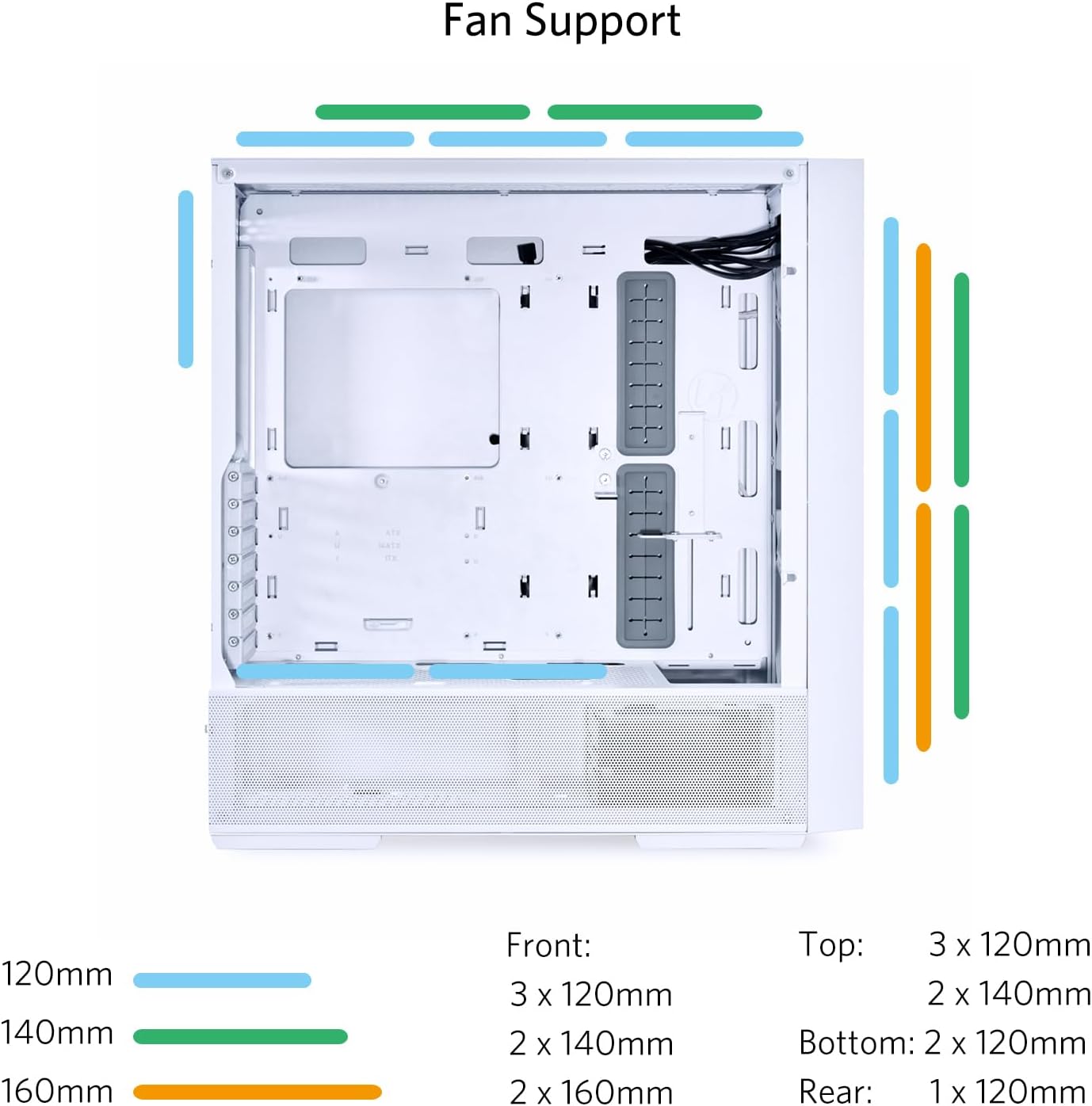
Figure 2.3: Fan and radiator support diagram, illustrating compatible sizes and locations for optimal airflow and cooling.
- フロント: Supports 3 x 120mm, 2 x 140mm, or 2 x 160mm fans. Can accommodate up to a 360mm radiator.
- トップ: Supports 3 x 120mm or 2 x 140mm fans. Can accommodate up to a 360mm radiator.
- 底: 2 x 120mm ファンをサポートします。
- 後方: 1 x 120mm ファンをサポートします。
2.6 ケーブル管理
The LANCOOL 206 offers extensive cable management solutions to ensure a clean and organized build. Utilize the cable routing cutouts and tie-down points behind the motherboard tray to neatly route and secure all power and data cables.

図2.4: 後部内装 view highlighting the cable management channels and mounting locations for storage drives.
2.7 I/Oパネル接続
Connect the front I/O panel cables (USB 3.0, USB Type-C, HD Audio, Power, Reset, LED control) to the corresponding headers on your motherboard. Ensure all connections are secure.
3. 操作手順
3.1電源オン
Once all components are installed and cables are connected, close the side panels. Connect your power supply to a wall outlet and flip the PSU switch to the 'ON' position. Press the power button on the top I/O panel of the case to power on your system.
3.2 ARGBファンコントロール
The pre-installed 160mm ARGB fans feature two channels of LEDs: the outer rim and the fan blades. These can be controlled separately or combined using the M/C buttons on the I/O Panel.

Figure 3.1: I/O Panel layout and ARGB controller guide for managing fan lighting effects.
Refer to the table below for ARGB lighting control:
| 関数 | 鍵 | 説明 |
|---|---|---|
| Fan blade lighting effect Mode | 1 | Cycle through fan blade lighting modes. |
| Fan blade lighting effect Color | 3 | Cycle through fan blade lighting colors. |
| Fan rim lighting effect Mode | 2 | Cycle through fan rim lighting modes. |
| Fan rim lighting effect Color | 4 | Cycle through fan rim lighting colors. |
| Combined lighting effect (Fan blade + Fan rim) | Press and hold Key 1 and Key 2 together for 3 seconds | Apply or disable combined lighting effects. |
4. メンテナンス
4.1 ダストフィルターのクリーニング
The LANCOOL 206 features a magnetic dust filter on the top and a removable dust filter at the bottom to prevent dust buildup inside the case. Regular cleaning of these filters is crucial for maintaining optimal airflow and cooling performance.

Figure 4.1: Airflow optimized mesh panels and dust filter locations.
- PCの電源をオフにして、電源から外します。
- Gently remove the magnetic top dust filter.
- Slide out the bottom dust filter from the rear of the case.
- フィルターは圧縮空気を使用するか、水ですすいで清掃してください。再取り付けする前に、完全に乾燥していることを確認してください。
- Re-attach the filters to their respective positions.
4.2一般的なクリーニング
ケースの外側を掃除するには、柔らかくて乾いた布を使用してください。amp cloth. Avoid using harsh chemicals or abrasive materials that could damage the finish or tempered glass. For internal cleaning, use compressed air to remove dust from components, ensuring the system is powered off and unplugged.
5。 トラブルシューティング
This section addresses common issues you might encounter with your LANCOOL 206 PC case.
5.1 ARGB Fans Not Lighting Up or Stuck on One Color
- 接続を確認してください: Ensure the ARGB cables from the fans are securely connected to the case's controller and that the controller is properly connected to the power supply and, if applicable, to your motherboard's ARGB header.
- I/O Panel Control: Use the M/C buttons on the I/O panel to cycle through modes and colors. Refer to Section 3.2 for detailed instructions.
- マザーボードソフトウェア: If connected to a motherboard ARGB header, ensure your motherboard's RGB software is installed and configured correctly. Sometimes, the case controller might override or conflict with motherboard software; try disconnecting the motherboard ARGB sync cable to test the case controller independently.
- 電力供給: Verify that the fan controller is receiving adequate power from the PSU.
5.2 USB Ports Not Functioning or Loose
- 内部接続: Check the internal USB 3.0 and USB Type-C cables from the front I/O panel. Ensure they are firmly seated in the correct headers on your motherboard. A loose connection can cause intermittent functionality or difficulty in device insertion/removal.
- ドライバーの問題: Ensure your motherboard's USB drivers are up to date.
- 他のデバイスでテスト: Try connecting different USB devices to confirm if the issue is with the port or the device itself.
5.3 システムが電源を入れない
- 電源: Verify that the power supply is connected to a working outlet and the PSU switch is in the 'ON' position.
- フロントパネルヘッダー: Double-check that the power button cable from the case's front panel is correctly connected to the motherboard's front panel header pins. Refer to your motherboard manual for the correct pinout.
- 内部コンポーネント: Ensure all major components (motherboard, CPU, GPU, RAM) are properly seated and connected to power.
6. 仕様
Below are the detailed specifications for the LIAN LI LANCOOL 206 ATX PC Case:
| 特徴 | 仕様 |
|---|---|
| ブランド | リアン・リー |
| モデル名 | ランクール 206 |
| ケースタイプ | ミッドタワー |
| 寸法(長さx幅x高さ) | 18.23 x 8.66 x 18.82インチ(462mm x 220mm x 488mm) |
| アイテム重量 | 23.2ポンド |
| 材料 | 強化ガラス、金属 |
| 色 | LANCOOL 206 - ATX - White |
| マザーボードの互換性 | ATX、Micro-ATX、Mini-ITX |
| GPU 長さクリアランス | 最大386mm |
| プレインストールされたファン | 2 x 160mm ARGB PWM Fans (Front) |
| ファンサポート(前面) | 3 x 120mm, 2 x 140mm, or 2 x 160mm |
| ファンサポート(トップ) | 3 x 120mm または 2 x 140mm |
| ファンサポート(下) | 2×120mm |
| ファンサポート(背面) | 1×120mm |
| ラジエーターサポート(フロント) | 最大360mm |
| ラジエーターサポート(上) | 最大360mm |
| ドライブベイ | Max 4 x 2.5" SSD or 3 x 3.5" HDD |
| I/O ポート | 2 x USB 3.0, 1 x USB Type-C, Audio Jack |
| 電源取付タイプ | ボトムマウント |
| 冷却方法 | 水、空気 |
| ライトカラー | RGB |
7. 保証とサポート
The LIAN LI LANCOOL 206 PC Case is manufactured by Lian Li. For detailed warranty information, terms, and conditions, please refer to the official Lian Li webサイトまたは製品に付属の保証カードをご覧ください。
For technical support, product inquiries, or service requests, please visit the official Lian Li support page or contact their customer service directly. You may also find additional resources and a downloadable PDF user manual at the following link: LIAN LI LANCOOL 206 User Manual (PDF)
保証請求のために購入証明書を保管してください。
Ask a question about this manual
Ask about setup, troubleshooting, compatibility, parts, safety, or missing instructions. Manuals+ will review the question and use this page’s manual context to help answer it.