
1.製品オーバーview
The POLONO P31S is a compact and portable thermal label printer designed for various labeling needs in home, office, and school environments. It connects wirelessly via Bluetooth to your smartphone or tablet, allowing you to design and print labels using the dedicated mobile application. This device features a built-in cutter and operates without ink, utilizing thermal printing technology for clear, durable labels.
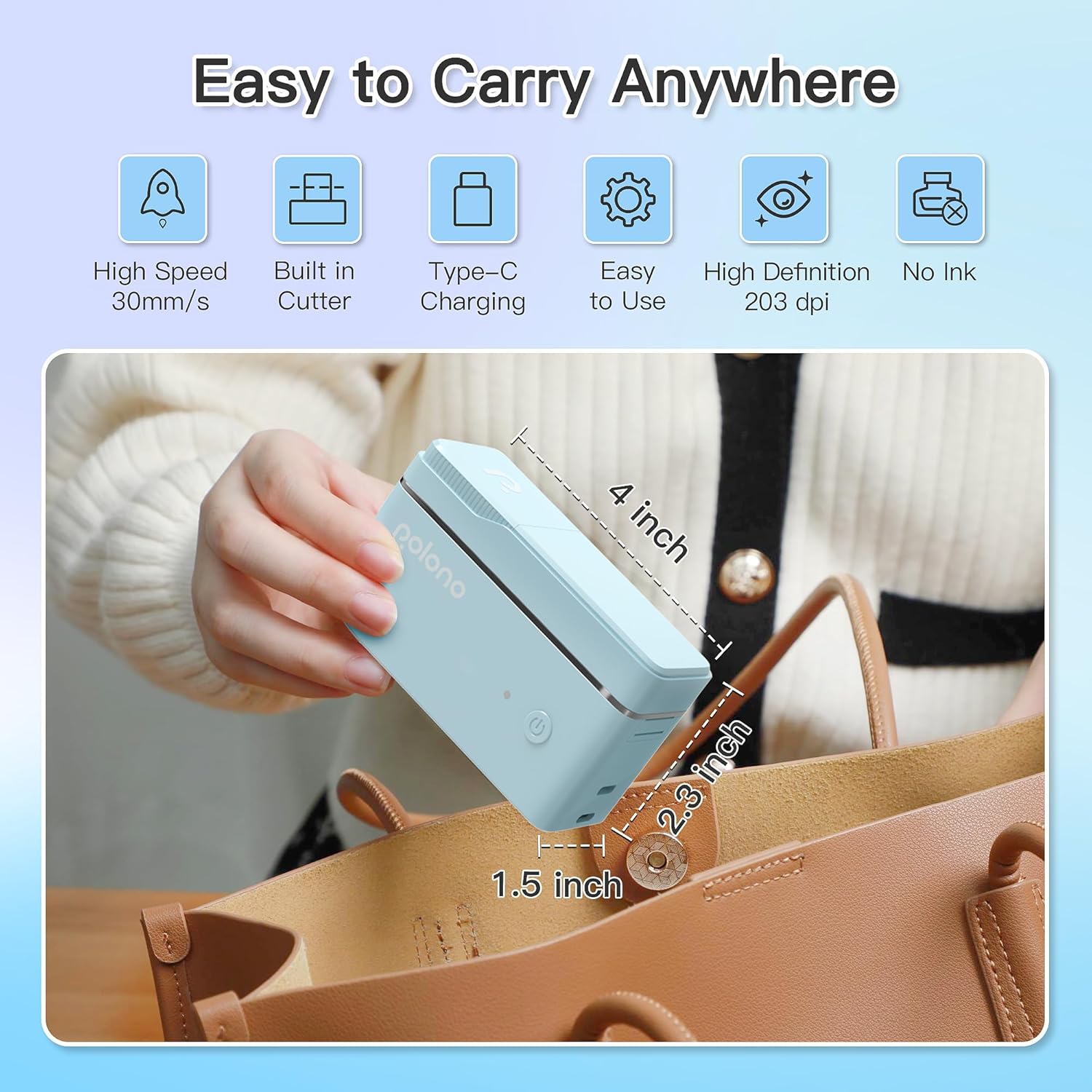
図1: POLONO P31S Label Printer highlighting its compact design and dimensions (approximately 4 inches long, 2.3 inches high, 1.5 inches wide).
主な特徴:
- ポータブルで軽量なデザイン。
- ワイヤレス印刷用の Bluetooth 接続。
- Thermal printing technology (no ink required).
- Built-in label cutter.
- Supports various label types including text, QR codes, barcodes, and images.
- 充電式バッテリー。
2. 安全情報
Please read and understand all safety instructions before using the POLONO P31S label printer to prevent injury or damage to the device.
- デバイスを分解、修理、または変更しないでください。
- デバイスを水、湿気、極端な温度から遠ざけてください。
- Use only POLONO-approved label tapes to ensure optimal performance and prevent damage.
- 印刷直後はプリントヘッドが熱くなっている可能性があるので、触らないでください。
- お子様の手の届かない場所に保管してください。
- 付属の充電ケーブルまたは認定された同等品を使用してください。
3. パッケージ内容
パッケージにすべてのアイテムが揃っていることを確認します。
- POLONO P31S Label Printer
- Label Tape Roll (starter roll)
- USB充電ケーブル
- ユーザーマニュアル(このドキュメント)
4. セットアップ
4.1デバイスの充電
Before first use, fully charge the label printer. Connect the provided USB charging cable to the printer's charging port and to a USB power adapter (not included) or a computer's USB port. The indicator light will show charging status.
4.2 ラベルテープを取り付ける
- ラベルコンパートメントカバーを開きます。
- Insert the label tape roll with the printing surface facing up, ensuring it is properly seated.
- Pull a small portion of the label tape out, extending it past the cutter blade.
- ラベルコンパートメントカバーをしっかりと閉じます。

図2: Proper installation of POLONO P31S label tape. Ensure the green sticker on the tape is not removed or damaged, as it contains chip technology for optimal performance. Do not pull the label out directly; use the cutting blade.
4.3 アプリのダウンロードとBluetooth接続
- Download the "Labelnize" app from the Apple App Store or Google Play Store.
- Turn on the POLONO P31S label printer by pressing and holding the power button.
- スマートフォンまたはタブレットでBluetoothを有効にします。
- Open the "Labelnize" app. The app will prompt you to allow Bluetooth access. Grant permission.
- Within the app, search for available devices and select "P31S" to connect.
- Once connected, the app will indicate a successful connection, and you are ready to create labels.
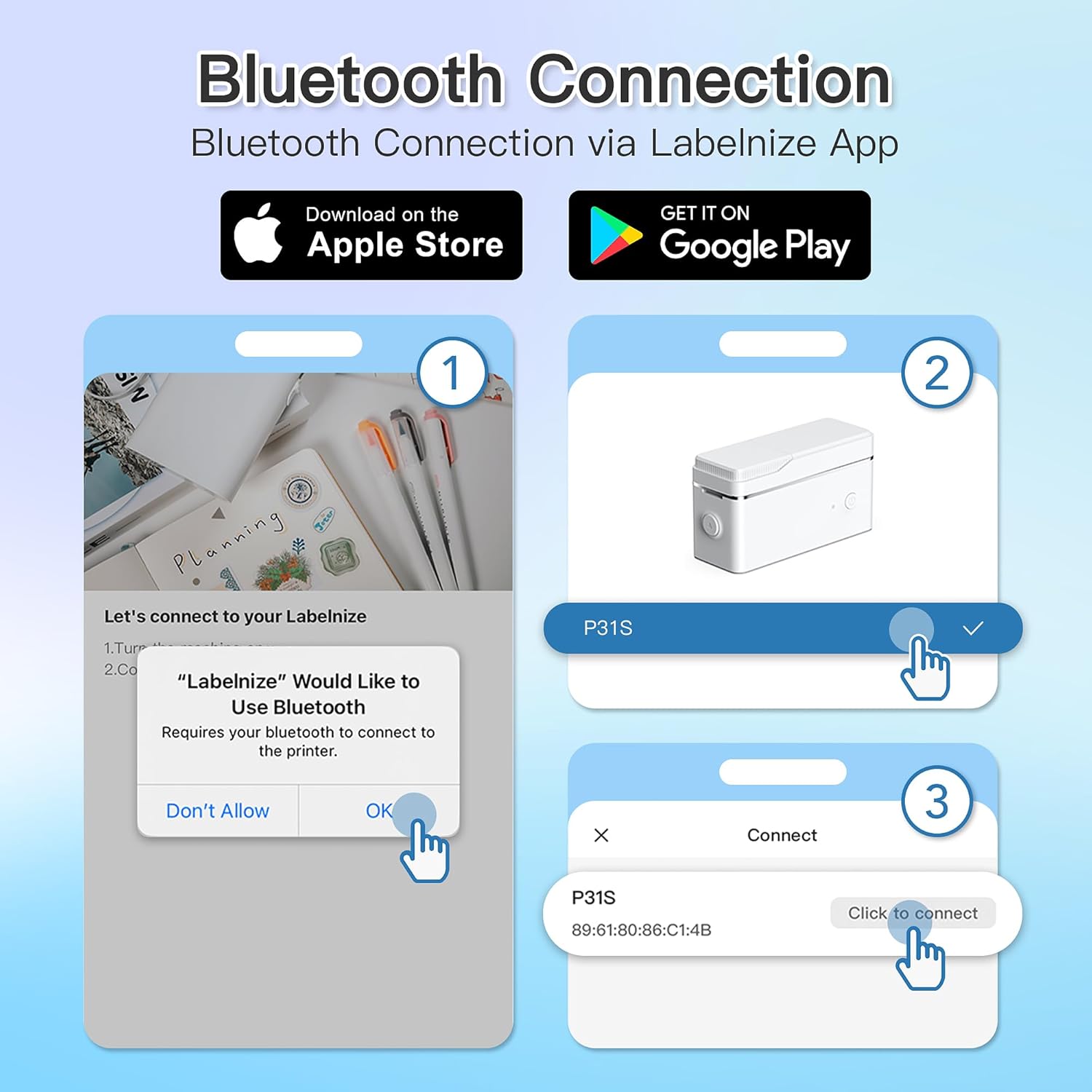
図3: Steps for Bluetooth connection via the Labelnize App. Download the app, allow Bluetooth access, select "P31S" from the device list, and click "Connect".
5. 操作手順
5.1 Creating Labels with the Labelnize App
The Labelnize app offers a variety of tools to design your labels:
- 文章: Enter custom text, choose from over 90 fonts, adjust size, style (bold, italic), and alignment.
- 境界線: Select from over 95 border designs to frame your labels.
- Icons/Graphics: Access a library of over 670 tab icons and other graphics to enhance your labels.
- QR Code/Barcode: Generate QR codes or barcodes for various applications.
- 画像: Insert images from your device's gallery.
- テンプレート: 一般的なラベル付けタスクには、事前に設計されたテンプレートを活用します。

図4: The Labelnize app interface for creating labels, offering extensive customization options including borders, fonts, and icons. The app supports multiple languages.
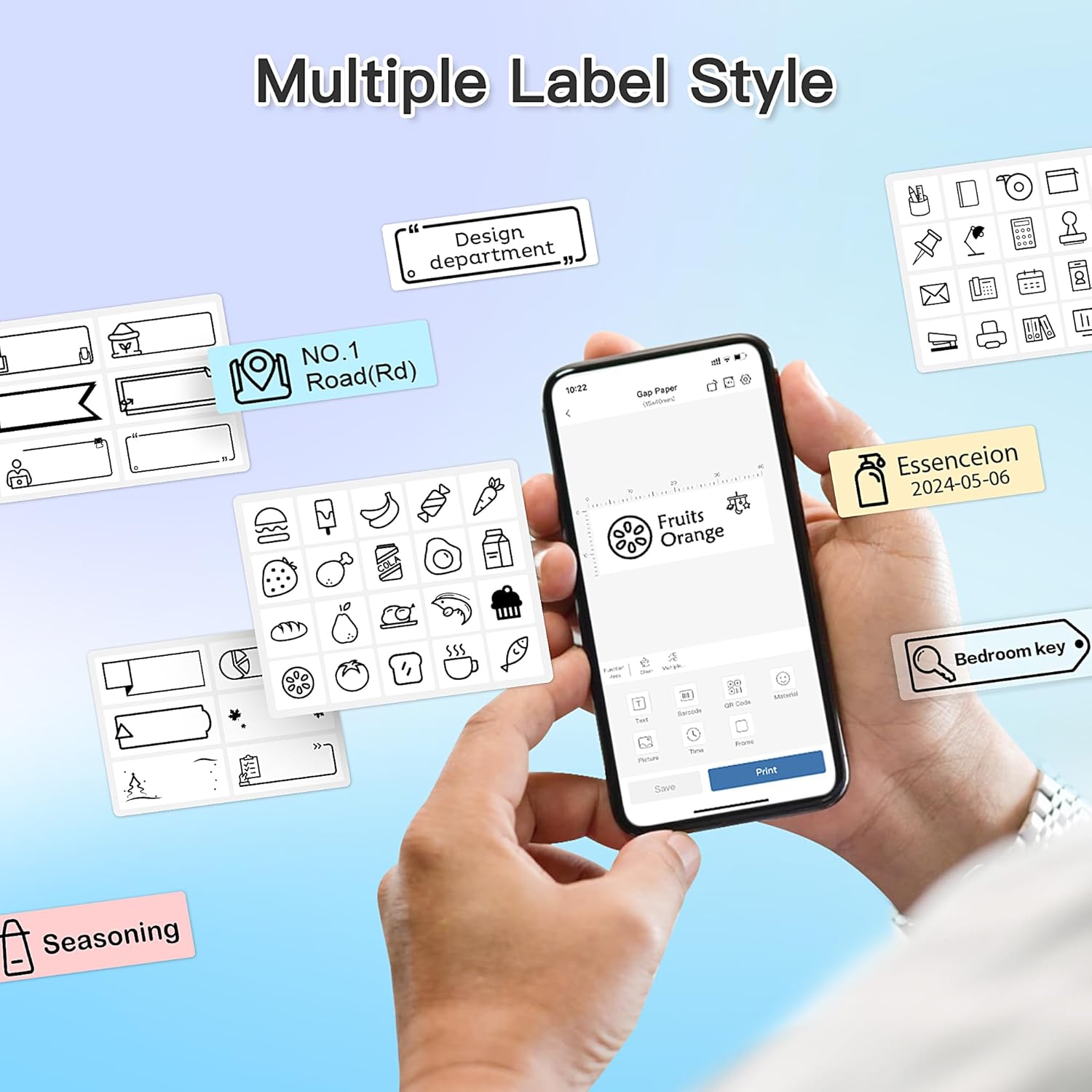
図5: Examples of diverse label styles achievable with the POLONO P31S, demonstrating the flexibility in design for different organizational needs.
5.2 ラベルの印刷
After designing your label in the Labelnize app:
- Review アプリ画面でラベルのデザインを確認できます。
- アプリ内の「印刷」ボタンをタップします。
- Confirm print settings (e.g., number of copies) if prompted.
- プリンターはラベルを自動的に送り、印刷します。
5.3 内蔵カッターの使用
The POLONO P31S features a built-in cutter for clean and precise label separation. After printing, gently press the cutter button or lever (depending on model variation) to cut the label. Do not pull the label manually to tear it, as this may damage the printer or result in uneven cuts.
6. メンテナンス
6.1 プリントヘッドのクリーニング
To maintain print quality, clean the print head periodically:
- プリンタの電源をオフにして、電源ケーブルを外します。
- ラベルコンパートメントカバーを開きます。
- プリントヘッドを綿棒で軽く拭きます。ampイソプロピルアルコールで消毒しました。
- カバーを閉じてプリンタの電源を入れる前に、プリントヘッドが完全に乾くまでお待ちください。
6.2バッテリーケア
- Charge the battery regularly, even if the printer is not used frequently, to prolong its lifespan.
- 長期間にわたってバッテリーを完全に放電することは避けてください。
- プリンターを使用しないときは、涼しく乾燥した場所に保管してください。
7。 トラブルシューティング
| 問題 | 考えられる原因 | 解決 |
|---|---|---|
| プリンターの電源が入りません。 | バッテリー残量が少ない、または電源がありません。 | 付属のUSBケーブルを使用してプリンターを充電します。 |
| Bluetooth経由で接続できません。 | Bluetooth がオフになっているか、プリンターがオフになっているか、アプリに問題があります。 | Ensure printer is on, Bluetooth is enabled on your device, and restart the Labelnize app. Try re-pairing. |
| 印刷品質が悪い。 | Dirty print head, incorrect label tape, or low battery. | Clean the print head (Section 6.1). Ensure you are using POLONO P31S compatible label tape. Charge the printer. |
| Label jam. | Improper tape installation or foreign object. | Turn off the printer, open the cover, carefully remove any jammed tape. Reinstall tape correctly. |
| プリンターが応答しません。 | 一時的なソフトウェアの不具合。 | Restart the printer and the Labelnize app. |
8. 仕様
| 特徴 | 詳細 |
|---|---|
| モデル | P31S |
| 印刷技術 | サーマル |
| 接続性 | ブルートゥース |
| 印刷解像度 | 203×203 DPI |
| 最大印刷速度(モノクロ) | 15ppm |
| 最大メディアサイズ | Label rolls (2 inches / 24 millimeters) |
| インクの色 | Black (thermal print) |
| 電源 | 1 リチウムポリマー電池 (付属) |
| 製品寸法 | 7.2 x 7.4 x 12.7 cm; 260 g |
| 含まれるコンポーネント | ラベル |
9. 保証とサポート
For warranty information and technical support, please refer to the official POLONO web公式サイトをご覧いただくか、カスタマーサービスまでお問い合わせください。保証請求の際は、購入証明としてレシートを保管してください。
正式 Webサイト: www.ポロノ.com (注: これはプレースホルダーです URL実際の公式を確認してください website for POLONO products.)