導入
Blackのユーザーマニュアルへようこそview Active 8 Pro Rugged Tablet. This device is engineered for durability and performance, designed to withstand challenging environments while providing a robust computing experience. Featuring a 10.36-inch display, a powerful MediaTek Helio G99 Octa-core processor, and a massive 22000mAh battery, the Active 8 Pro is built for extended use and demanding tasks. It is MIL-STD-810H certified and boasts IP68 & IP69K waterproof ratings, ensuring resilience against water, dust, and drops.
This manual provides essential information on setting up, operating, maintaining, and troubleshooting your tablet to ensure optimal performance and longevity.
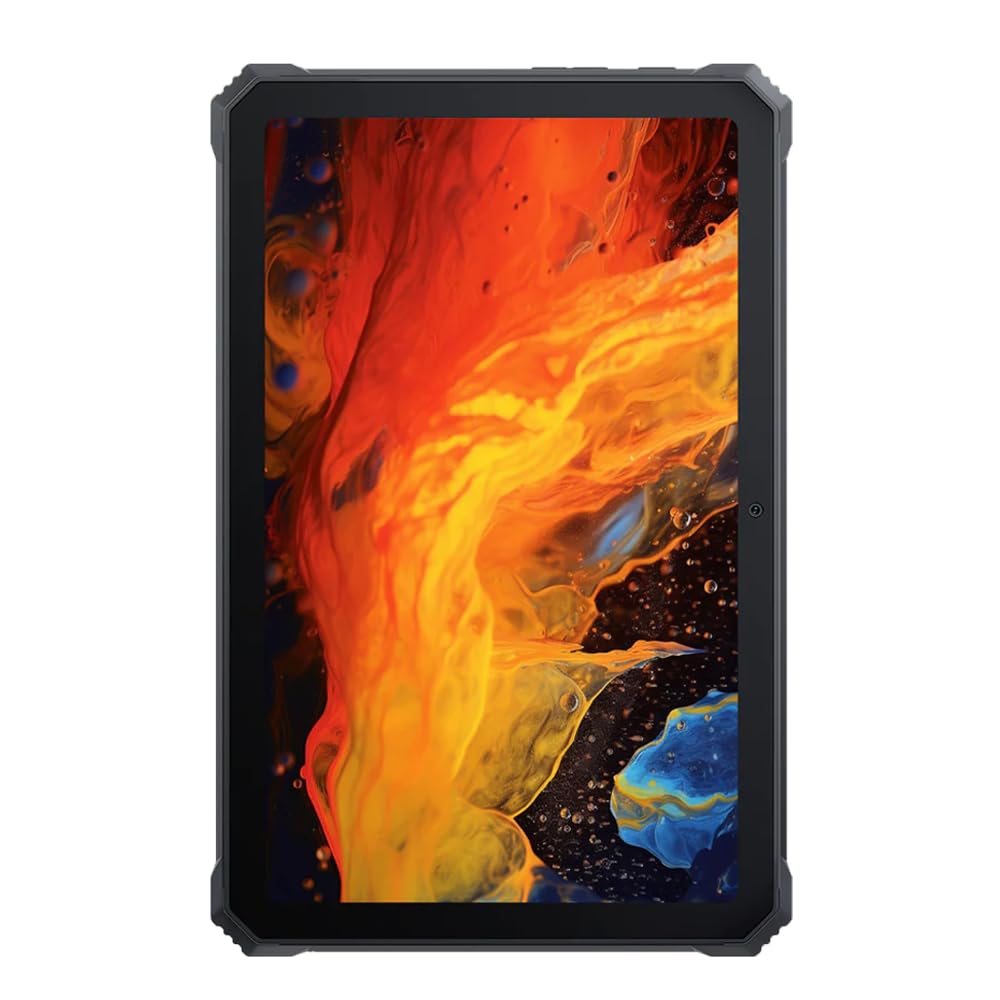
画像: 正面 view 黒のview Active 8 Pro Rugged Tablet, showcasing its display and robust bezel.
パッケージ内容
製品パッケージにすべてのアイテムが揃っていることを確認してください。
- 黒view Active 8 Pro 頑丈タブレット
- Padded Leather Strap
- 充電ケーブル
- 電源アダプター
- SIMイジェクターツール(該当する場合)
- クイックスタートガイド
デバイスのレイアウト
Familiarize yourself with the physical components and ports of your Active 8 Pro tablet.

画像: 正面 view 黒のview Active 8 Pro tablet, highlighting the display and front camera location.

画像: 背面 view 黒のview Active 8 Pro tablet, showing the camera module, speaker grilles, and the attached padded leather strap for secure handling.

画像: 斜め後ろ view 黒のview Active 8 Pro tablet, providing a perspective of its ruggedized corners and the ergonomic padded leather strap.
設定
1. デバイスの充電
Before first use, fully charge your Active 8 Pro tablet. Connect the provided charging cable to the tablet's charging port and the power adapter to a wall outlet. The tablet supports 33W fast charging for quick power replenishment.
- Use only the original Blackview charger and cable to ensure optimal charging speed and safety.
- 画面に充電インジケーターが表示されます。
2.電源のオン/オフ
- 電源を入れるには: Press and hold the Power button (typically located on the side) until the Blackview 画面にロゴが表示されます。
- 電源を切るには: 電源メニューが表示されるまで電源ボタンを長押しします。オプションから「電源を切る」を選択します。
- 再起動します: 電源メニューから「再起動」を選択します。
3. 初期設定
初めて電源を入れると、タブレットが初期設定の手順を案内します。画面の指示に従ってください。
- 言語を選択します。
- Wi-Fi ネットワークに接続します。
- Google アカウントでサインインするか、新しいアカウントを作成してください。
- 画面ロック(PIN、パターン、パスワード、または指紋)を設定します。
- Review 利用規約に同意します。
操作手順
1. 基本的なナビゲーション
Your Active 8 Pro runs on Android 14, offering an intuitive user interface. Use standard touchscreen gestures:
- タップ: 項目を選択するか、アプリを開きます。
- タップ&ホールド: コンテキスト メニューにアクセスしたり、アイコンを移動したりします。
- スワイプ: Scroll through pages, lists, or switch between home screens.
- ピンチしてズーム: 画像を拡大または縮小し、 web ページ。
2. 接続性
- Wi-Fi: Go to Settings > Network & internet > Wi-Fi to connect to available networks. The tablet supports 802.11ac, 802.11ax, 802.11g, and 802.11n standards.
- ブルートゥース: Go to Settings > Connected devices > Connection preferences > Bluetooth to pair with Bluetooth accessories like headphones or speakers.
- モバイルデータ(該当する場合): Insert a SIM card into the designated slot to access mobile data services.
3. カメラの使用
The tablet features a 48 MP rear camera. Open the Camera app to capture photos and videos. Tap on the screen to focus, and use the on-screen shutter button to take a picture.
4. Audio Enhancement
Experience enhanced audio quality with Sound By Harman AudioEFX. Adjust audio settings in the tablet's sound preferences to optimize your listening experience for music, movies, or calls.
5. Using the Padded Leather Strap
The included padded leather strap is designed to provide extra grip and comfort, reducing hand fatigue during extended use. Securely attach the strap to the designated points on the back of the tablet. Adjust for a snug fit that allows for comfortable one-handed or two-handed holding.
メンテナンス
1. タブレットのクリーニング
- 柔らかく糸くずの出ない布を使用して、タブレットの画面と本体を拭いてください。
- 頑固な汚れには、軽くamp布に水または画面に安全な洗浄液を含ませます。
- Avoid using harsh chemicals, abrasive materials, or excessive moisture, especially near ports.
- Ensure all port covers are securely closed before cleaning if exposing to water.
2. ストレージ
When not in use for extended periods, store your tablet in a cool, dry place away from direct sunlight and extreme temperatures. Ensure the battery is charged to approximately 50% before long-term storage to preserve battery health.
3. ソフトウェアの更新
タブレットに最新の機能、セキュリティパッチ、パフォーマンス向上が適用されるよう、定期的にソフトウェアアップデートを確認し、インストールしてください。利用可能なアップデートを確認するには、「設定」>「システム」>「システムアップデート」にアクセスしてください。
トラブルシューティング
このセクションでは、Blackで発生する可能性のある一般的な問題について説明します。view Active 8 Pro tablet.
- デバイスの電源が入っていない:
Ensure the tablet is sufficiently charged. Connect it to the charger for at least 30 minutes before attempting to power it on again. If it still doesn't power on, try holding the power button for 10-15 seconds to force a restart.
- Screen Unresponsive or Display Issues:
If the screen becomes unresponsive, try restarting the device. If the display fails or shows abnormalities, ensure the tablet has not sustained severe physical damage. Contact customer support if the issue persists after a restart.
- 充電の問題:
Verify that the charging cable and adapter are securely connected and undamaged. Try using a different compatible charger and cable if available. Ensure the charging port is free of debris.
- Wi-Fi/Bluetooth 接続の問題:
Toggle Wi-Fi or Bluetooth off and on. Restart your tablet and the router/Bluetooth device. Ensure you are within range and have the correct password for Wi-Fi networks.
- パフォーマンスが遅い:
Close unnecessary background applications. Clear cache data for apps that are frequently used. Consider performing a factory reset as a last resort (back up your data first).
仕様
| 特徴 | 仕様 |
|---|---|
| モデル名 | アクティブ8プロ |
| 表示サイズ | 10.36インチ |
| 画面解像度 | 1920 x 1080 ピクセル |
| プロセッサ | MediaTek Helio G99 オクタコア (2.2 GHz) |
| ラム | 8 GB (DDR4 SDRAM) |
| 内部ストレージ | 256ギガバイト |
| オペレーティング·システム | アンドロイド14 |
| バッテリー容量 | 22000mAh |
| 急速充電 | 33Wサポート |
| 耐久性評価 | MIL-STD-810H Certified, IP68 & IP69K Waterproof |
| スクリーン保護 | コーニングゴリラガラス5 |
| リアカメラ | 48 MP |
| ワイヤレス接続 | 802.11ac、802.11ax、802.11g、802.11n |
| 寸法(長さx幅x高さ) | 10.09 x 6.53 x 0.66インチ |
| アイテム重量 | 3.34ポンド |
保証とサポート
あなたのブラックview Active 8 Pro tablet comes with a limited warranty. Please refer to the warranty card included in your package for specific terms and conditions, including coverage duration and limitations. Keep your proof of purchase for warranty claims.
For technical support, service, or warranty inquiries, please visit the official Blackview サポート web公式サイトまたはカスタマーサービス部門にお問い合わせください。連絡先は通常、Blackview webサイトまたは製品に付属のドキュメントをご覧ください。
詳細については、 黒view Amazonで購入.