
FREEWOLF RK-K8
FREEWOLF RK-K8 ワイヤレスメカニカルゲーミングキーボード ユーザーマニュアル
Model: RK-K8
1. はじめに
This manual provides detailed instructions for the FREEWOLF RK-K8 Wireless Mechanical Gaming Keyboard. Please read this manual thoroughly before using the product to ensure proper operation and to maximize your user experience.
主な特徴:
- Triple-Mode Connectivity: Supports Type-C wired, 2.4GHz wireless, and Bluetooth 5.0 connections.
- Hot-Swappable Switches: Compatible with most 3-pin mechanical switches for customization.
- Gasket Mounted Structure: Enhances typing feel and reduces hollow sound.
- Customizable Rainbow Backlight: Features 18 backlight effects.
- Long-Lasting Battery: Equipped with a 4000mAh battery.
- 96% Layout: 100-key design that saves space while retaining essential keys.
- Wide Compatibility: Supports Windows and Mac operating systems.
2. パッケージ内容
パッケージにすべてのアイテムが含まれていることを確認してください。
- 1 x FREEWOLF RK-K8 Mechanical Keyboard
- USBレシーバー(2.4GHz)×1
- 1 x Type-C to USB-A Braided Coiled Cable
- キーキャッププーラー x 1
- スイッチプーラー x 1
- 2 x Original Switches (spare)
- ユーザーマニュアル (本書) x 1

Image 2.1: Contents of the FREEWOLF RK-K8 package, showing the keyboard, coiled USB-C cable, USB 2.4G receiver, keycap puller, switch puller, and two spare switches.
3. セットアップと接続
3.1 キーボードの充電
Before first use, it is recommended to fully charge the keyboard. Connect the provided Type-C cable to the keyboard's Type-C port and the USB-A end to a power source (e.g., computer USB port, USB wall adapter). The keyboard features a 4000mAh battery.
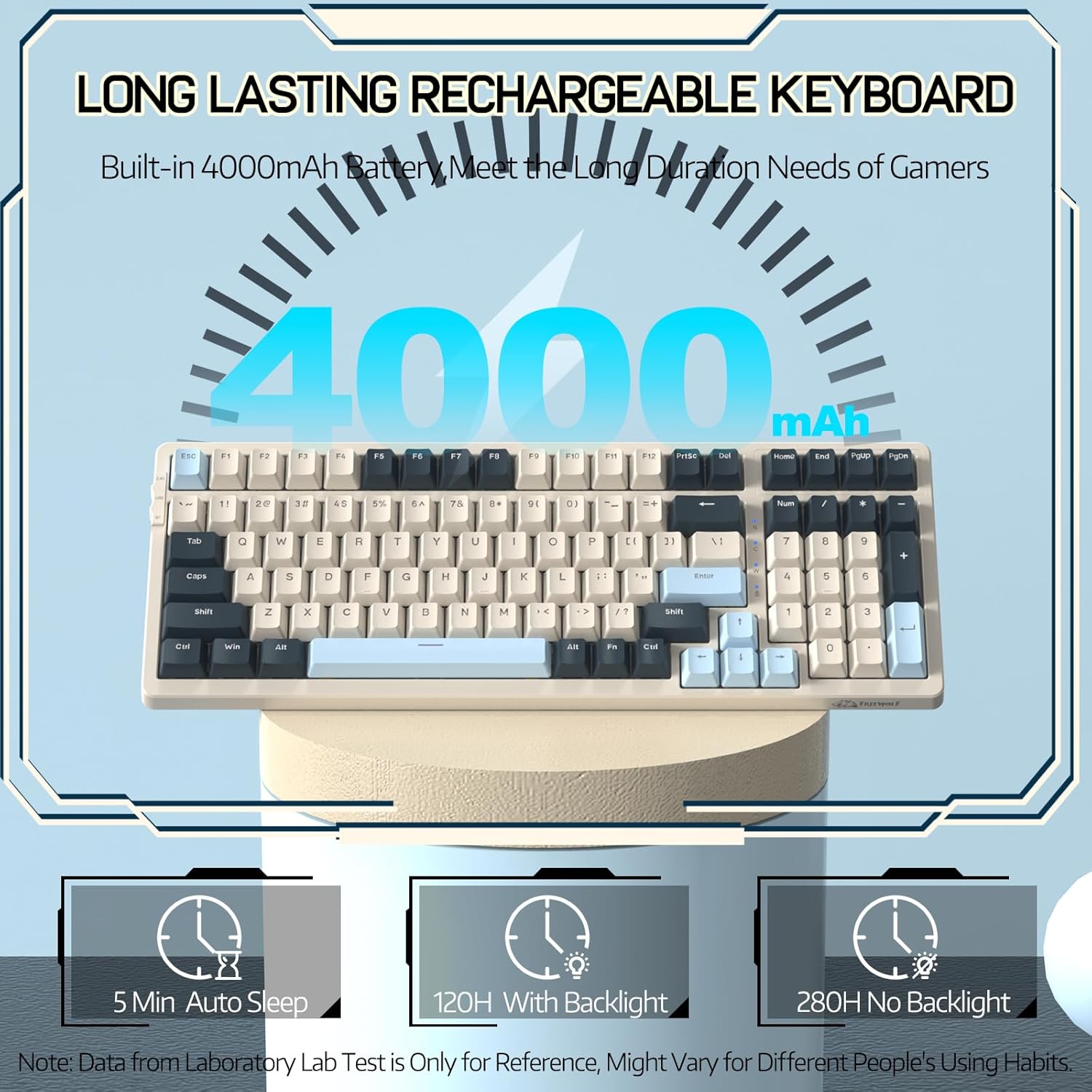
Image 3.1: The keyboard's 4000mAh battery capacity, indicating extended usage time.
3.2 接続モード
The RK-K8 keyboard supports three connection modes: Wired, 2.4GHz Wireless, and Bluetooth 5.0.

Image 3.2: Visual guide for switching between 2.4G wireless, wired, and Bluetooth connection modes.
3.2.1 有線モード
- Connect the provided Type-C coiled cable to the keyboard's Type-C port.
- ケーブルの USB-A 端子をコンピューターの USB ポートに接続します。
- Ensure the mode switch on the keyboard is set to "USB" (or wired mode indicator).
- キーボードはシステムによって自動的に認識されます。

Image 3.3: The Type-C to USB-A braided coiled cable, featuring a metal aviation connector for wired connection.
3.2.2 2.4GHzワイヤレスモード
- 通常、キーボードのスロットに格納されている 2.4GHz USB レシーバーを見つけます。
- USBレシーバーをコンピューターの使用可能なUSBポートに接続します。
- Toggle the mode switch on the keyboard to "2.4G".
- キーボードは自動的に接続されるはずです。
3.2.3 Bluetooth 5.0 モード
キーボードは最大 3 台の Bluetooth デバイスへの接続をサポートします。
- Toggle the mode switch on the keyboard to "BT".
- ペアリングモードに入るには、長押しします。 FN+Q, FN+W、 または FN + E 3~5秒間押し続けます。対応するキーのバックライトが高速点滅し、ペアリング準備完了を示します。
- On your device (PC, Mac, tablet, phone), open Bluetooth settings and search for "RK-K8" or a similar device name.
- Select the keyboard to pair. Once connected, the backlight on the chosen key (Q, W, or E) will stop flashing and remain steadily lit.
- ペアリングされたBluetoothデバイスを切り替えるには、 FN+Q, FN+W、 または FN + E.
3.3 システムの互換性
The RK-K8 keyboard is compatible with both Windows and Mac operating systems. Use the appropriate FN key combinations for specific functions on each system.
ビデオ3.1: オーバーview of the FREEWOLF K8 mechanical keyboard, showcasing its features including customizable keycaps, lighting effects, hot-swappable design, compact layout, and multi-device compatibility across Windows, Mac, and mobile devices.
4. 操作
4.1 バックライトコントロール
The RK-K8 features 18 customizable rainbow backlight effects.
- キー: Switch between 18 backlight effects.
- FN + ↑ / ↓: バックライトの明るさを調整します。
- FN + ← / →: ダイナミックバックライト効果の流れ速度を調整します。
- FN+X: Turn on/off backlight.
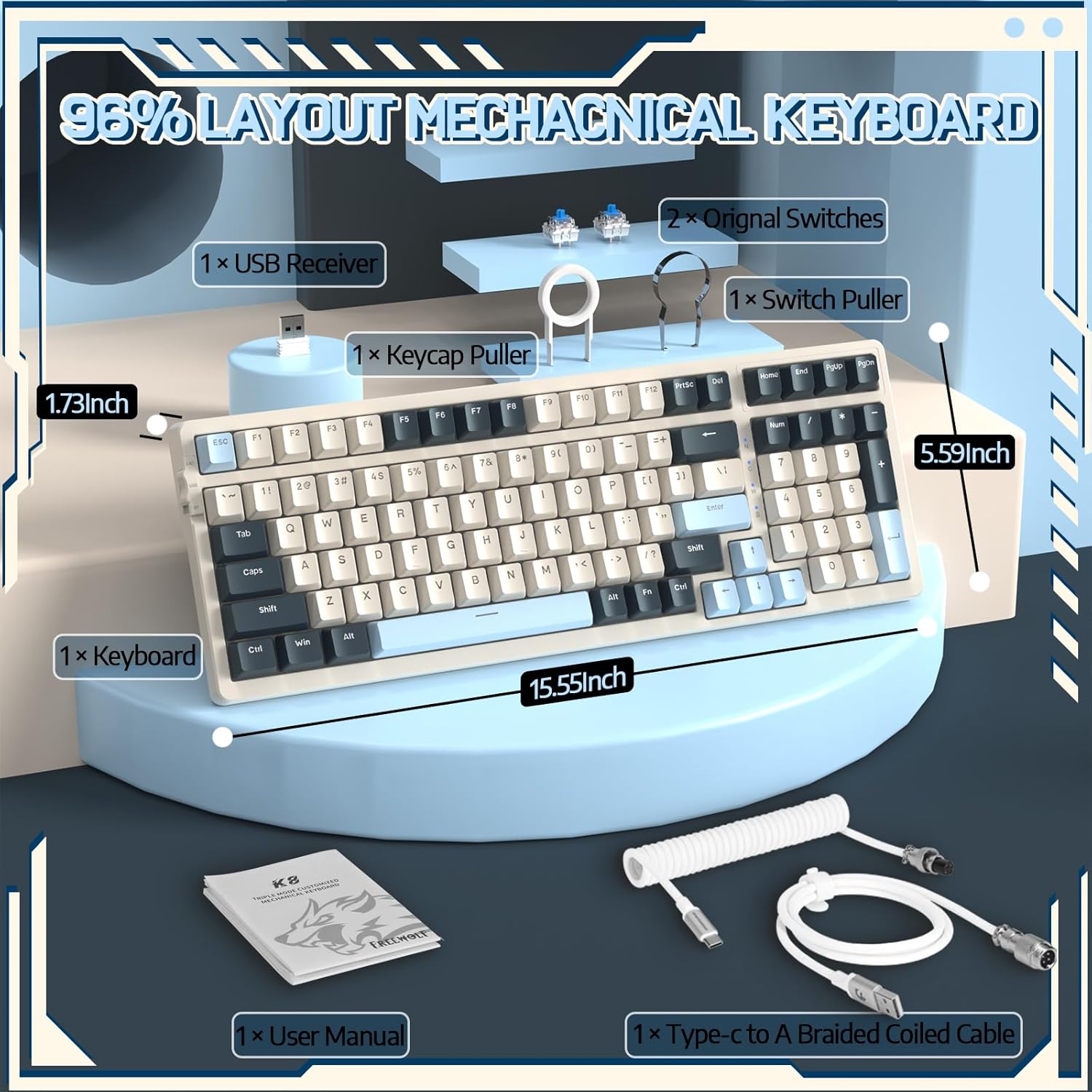
Image 4.1: The RK-K8 keyboard displaying various customizable rainbow backlight patterns.
4.2 ホットスワップ可能なスイッチ
The keyboard is equipped with a hot-swappable PCB, allowing you to change switches without soldering. It is compatible with most 3-pin mechanical switches (e.g., Cherry MX, Gateron, Kailh Box, AKKO, Epomaker, Glorious switches).
- 付属のスイッチプーラーを使用して、既存のスイッチを慎重に取り外します。スイッチをしっかりと握り、まっすぐ上に引き抜きます。
- 新しい 3 ピン スイッチのピンを PCB の穴に合わせます。
- Gently press the new switch into place until it clicks. Ensure the switch is seated properly and the pins are not bent.
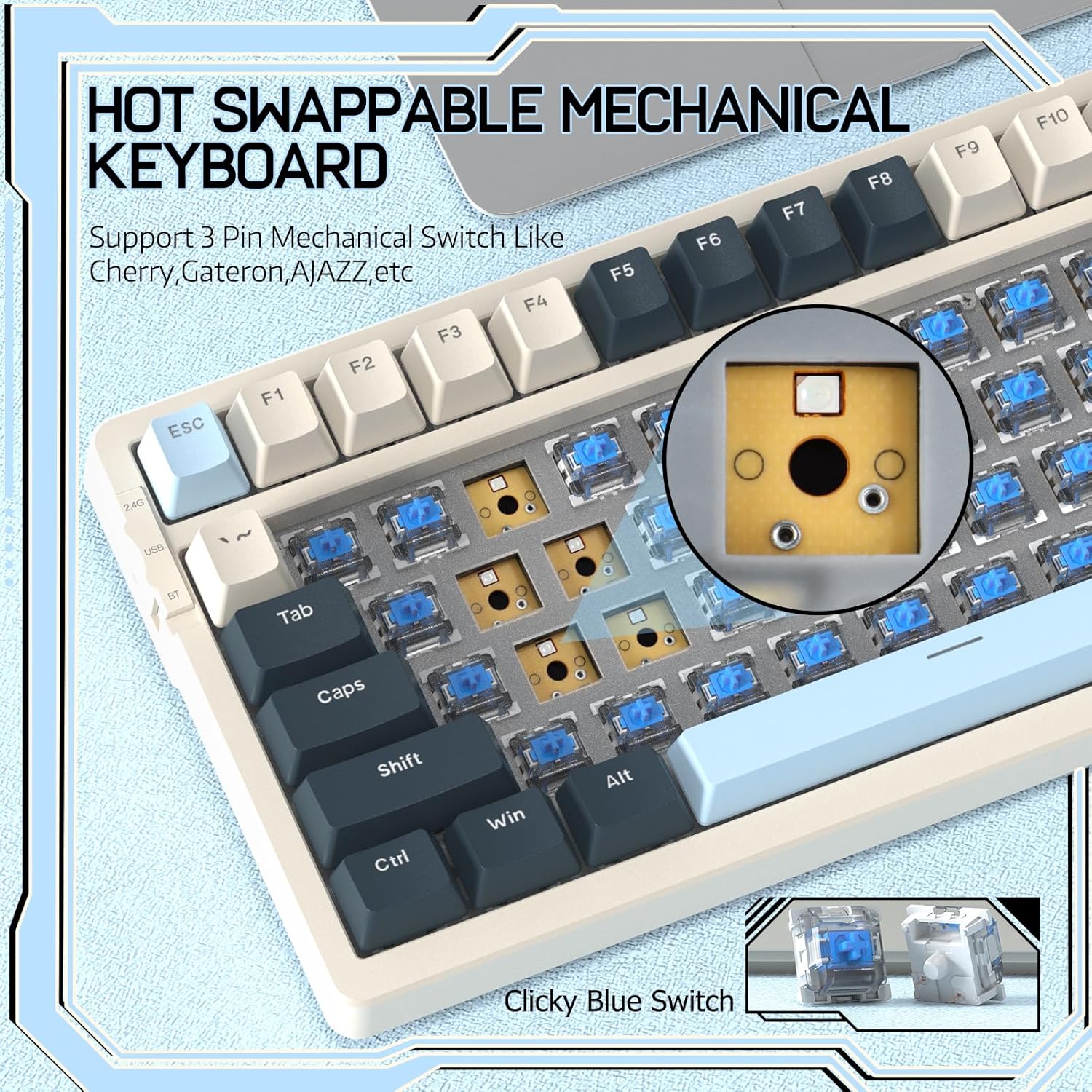
Image 4.2: Demonstrating the hot-swappable feature, showing a switch being removed from the keyboard.
4.3 ガスケットマウント構造
The keyboard features a gasket-mounted design with sound-dampening materials between the plate and the housing. This construction reduces hollow sounds and provides a more consistent and comfortable typing experience.

Image 4.3: Diagram illustrating the internal layers of the gasket-mounted keyboard structure, designed for improved acoustics and feel.
4.4 主な機能とレイアウト
The RK-K8 utilizes a 96% layout with 100 keys, retaining essential modifiers, arrow keys, a separate numpad, and function row while maintaining a compact form factor.
Refer to the keyboard layout for specific key placements. Many keys have secondary functions accessible via the FN 鍵。
- FN + F1-F12: Multimedia and system control functions (e.g., volume, play/pause).
- FN +勝利: Windows キーをロック/ロック解除します。
- FN+A: Switch to Windows layout.
- FN+S: Switch to Mac layout.
5. メンテナンス
5.1 クリーニング
キーボードの外観と機能を維持するには:
- 清掃する前に、キーボードをコンピューターから取り外してください。
- 柔らかく糸くずの出ない布で軽く拭き取ってください。ampキーキャップとシャーシを水または中性洗浄液で拭いてください。
- キーキャップ間のほこりやゴミを取り除くには、圧縮空気または付属のキーキャップ プーラーを使用してキーキャップを取り外し、下側を掃除します。
- 強力な化学薬品、研磨剤、溶剤の使用は避けてください。
5.2 キーキャップとスイッチの交換
The provided keycap and switch pullers facilitate easy replacement of keycaps and switches. Refer to section 4.2 for switch replacement instructions.
6。 トラブルシューティング
If you encounter issues with your FREEWOLF RK-K8 keyboard, please refer to the following common solutions:
- キーボードが反応しない:
- キーボードが充電されていることを確認してください。
- 接続モード スイッチ (有線、2.4G、BT) が目的の接続と一致していることを確認します。
- For wired mode, ensure the cable is securely connected to both the keyboard and the computer.
- For 2.4G wireless, ensure the USB receiver is plugged in and the keyboard is in 2.4G mode.
- For Bluetooth, re-pair the device if necessary (see section 3.2.3).
- キーが繰り返し押されるか登録されない:
- This can sometimes occur with wireless connections. Try switching to wired mode to see if the issue persists.
- Ensure the switches are properly seated. If a switch is loose, carefully remove and re-insert it.
- 影響を受けたキーの周囲のゴミを取り除いてください。
- バックライトが機能しない、または点灯しない:
- バックライトがオフになっていないことを確認してください( FN+X).
- 明るさを調整する FN + ↑ / ↓.
- Try cycling through backlight effects with キー.
- Bluetooth接続の問題:
- Ensure the keyboard is in Bluetooth mode and sufficient battery.
- Forget the device on your computer/phone and re-pair it.
- デバイスの Bluetooth が有効になっていて、正しく動作していることを確認してください。
7. 仕様
| 特徴 | 詳細 |
|---|---|
| ブランド | フリーウルフ |
| モデル | RK-K8 |
| 接続技術 | Bluetooth 5.0 / 2.4GHz Wireless / Wired (Type-C) |
| キーボードの説明 | 機械 |
| スイッチタイプ | Tactile Blue Switch (Hot-Swappable 3-pin) |
| バッテリー容量 | 4000mAh |
| バックライト | Rainbow Backlit (18 effects) |
| レイアウト | 96% (100 キー) |
| 対応デバイス | PC, Mac, PS4 (via USB) |
| 材料 | アクリロニトリルブタジエンスチレン(ABS) |
| アイテム重量 | 2.25ポンド(約1.02kg) |
| パッケージ寸法 | 16.14 x 6.69 x 2.01インチ |
8. 保証とサポート
For warranty information or technical support, please refer to the contact details provided with your purchase or visit the official FREEWOLF webサイト。 保証請求に備えて購入時のレシートを保管しておいてください。
Ask a question about this manual
Ask about setup, troubleshooting, compatibility, parts, safety, or missing instructions. Manuals+ will review the question and use this page’s manual context to help answer it.