
1. はじめに
This document serves as a comprehensive guide for the Dell Precision 7540 Mobile Workstation. It provides detailed instructions for initial setup, operation, maintenance, and troubleshooting to ensure optimal performance and longevity of your device. The Dell Precision 7540 is a powerful mobile workstation designed for demanding professional tasks, featuring a 15.6-inch Full HD IPS display, a 9th Generation Intel Core i7-9850H processor, 32GB of DDR4 RAM, and a 512GB NVMe PCIe Solid State Drive.

Figure 1: Dell Precision 7540 Laptop (Closed View)
2. 箱の中身
Upon unboxing your Dell Precision 7540, please verify that all the following items are included:
- Dell Precision 7540 ノートパソコン
- ACアダプター
- バッテリー
- ドキュメント(このマニュアルを含む)
- Webカム(一体型)
3. セットアップ
3.1 初期電源投入
- AC アダプターをノートパソコンの電源ポートに接続し、電源コンセントに接続します。
- ノートパソコンの蓋を開けます。
- 通常、キーボード デッキの右上にある電源ボタンを押します。
- 画面の指示に従って、Windows 10 Home のセットアップを完了します。
3.2 周辺機器の接続
The Dell Precision 7540 offers a variety of ports for connecting external devices:
- USB-Aポート: マウス、キーボード、外部ストレージなどの USB デバイスを接続します。
- USB-C Thunderbolt 3 Ports: 高速データ転送、ビデオ出力、対応機器の充電に。
- HDMI 2.0出力: 外部ディスプレイまたはプロジェクターに接続します。
- Mini DisplayPort 1.4出力: Another option for connecting to external displays.
- 3.5 mmヘッドフォン出力: ヘッドフォンまたは外部スピーカーへのオーディオ出力用。
- RJ45 (イーサネット) ポート: 有線ネットワーク接続用。
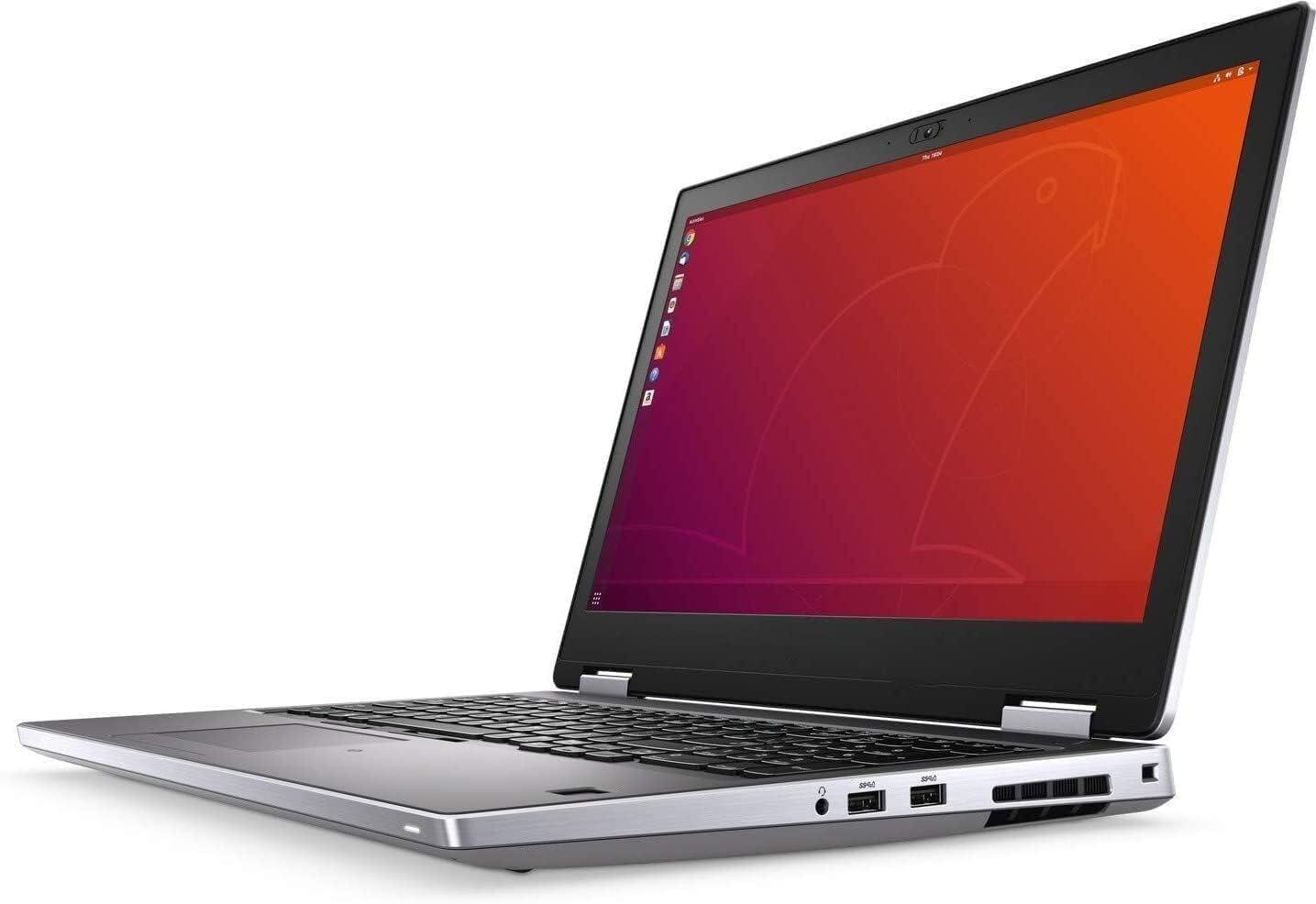
図2:側面 View 接続ポート付き
4. 操作手順
4.1 キーボードとタッチパッド
The laptop features an Internal US English Dual Pointing Backlit Keyboard for comfortable typing in various lighting conditions. The touchpad supports multi-touch gestures for navigation.

Figure 3: Open Laptop View
4.2 ディスプレイ
The 15.6-inch UltraSharp FHD IPS (1920 x 1080) Anti-Glare, Non-Touch Display provides clear visuals. Adjust brightness and display settings through the Windows operating system.
4.3 Webカム
The integrated camera and microphone are suitable for video conferencing and online communication.
5. 仕様
| 特徴 | 詳細 |
|---|---|
| プロセッサ | 9th Generation Intel Core i7-9850H (6 Cores, 12 Threads, 2.60GHz, 4.60GHz Turbo, 12MB Cache) |
| オペレーティング·システム | Windows 10 ホーム |
| 画面 | 15.6" UltraSharp FHD IPS (1920 x1080) Anti-Glare, Non-Touch Display |
| メモリ | 32GB DDR4メモリ |
| ストレージ | 512GB NVMe PCIe Solid State Drive |
| グラフィックス | NVIDIA Quadro T2000 w/4GB GDDR5 |
| 接続性 | Intel Wi-Fi 6 AX200 2x2 .11ax 160MHz + Bluetooth 5.1 |
| ポート | 2 x USB-A 3.0, 2 x USB-C Thunderbolt 3, 1 x HDMI 2.0, 1 x Mini DisplayPort 1.4, 1 x 3.5 mm Headphone Output, 1 x RJ45 |
| バッテリー | 6 Cell 97 WHr Long Life Cycle Lithium Ion Polymer Battery |
| 寸法(高さx幅x奥行き) | 0.98 x 14.87 x 9.89 インチ (25 x 377.6 x 251.3 mm) |
| 重さ | Starts at 5.56 lb (2.52 kg) |
6. メンテナンス
6.1 クリーニング
- 画面と外部の表面を清掃するには、柔らかく糸くずの出ない布を使用してください。
- 強力な化学薬品や研磨材の使用は避けてください。
- キーボードの場合は、圧縮空気を使用してほこりやゴミを取り除きます。
6.2ソフトウェアアップデート
Regularly update your operating system and drivers to ensure security and optimal performance. Windows Update can be accessed through the Settings menu.
6.3バッテリーケア
バッテリーの寿命を延ばすには、極端な温度を避け、頻繁にバッテリーを完全に放電してください。長期間使用しない場合は、ノートパソコンを涼しく乾燥した場所に保管してください。
7。 トラブルシューティング
7.1 電源の問題
- ノートパソコンが起動しない: ACアダプターがしっかりと接続され、電源コンセントが正常に機能していることを確認してください。必要に応じて別のコンセントを試してください。
- バッテリーが充電されない: Check the AC adapter and cable for damage. Ensure the battery is properly seated (if removable).
7.2 表示の問題
- 空白の画面: 外付けモニターを接続して、問題がノートパソコンのディスプレイにあるのか確認してください。ノートパソコンを再起動してください。
- 画面のちらつき: グラフィックドライバーを更新してください。Windowsの設定でディスプレイのリフレッシュレートを調整してください。
7.3 パフォーマンスの問題
- パフォーマンスが遅い: 不要なアプリケーションを閉じてください。マルウェアがないか確認してください。SSDに十分な空き容量があることを確認してください。
- 過熱: 通気口が塞がれていないことを確認してください。ノートパソコンは硬くて平らな面に置いて使用してください。
8. 保証とサポート
保証情報およびテクニカルサポートについては、デルの公式サポートサイトをご覧ください。 website or the documentation included with your product. Keep your product's serial number handy when contacting support.