
Inkbird ITH-20R-O with WiFi Gateway
INKBIRD ITH-20R-O Wireless Thermometer Hygrometer and IBS-M2S WiFi Gateway
ユーザーマニュアル
1. はじめに
Thank you for choosing the INKBIRD ITH-20R-O Wireless Temperature and Humidity Monitoring System. This system combines a high-precision thermometer and hygrometer with a WiFi gateway (IBS-M2S) to provide remote monitoring capabilities via the INKBIRD app. It is designed to help you maintain optimal environmental conditions in various indoor and outdoor settings.
This manual provides detailed instructions for the proper setup, operation, and maintenance of your device. Please read it thoroughly before use to ensure safe and efficient operation.
2. 安全情報
- デバイスを極端な温度、直射日光、腐食性物質から遠ざけてください。
- Do not immerse the gateway in water. The sensors are rain-resistant but not waterproof for prolonged submersion.
- Use only specified batteries (2 AAA for sensors). Ensure correct polarity when inserting.
- 自分でデバイスを分解したり修理したりしないでください。 サポートが必要な場合は、カスタマー サポートにお問い合わせください。
- 電池や電子部品は、地域の規制に従って責任を持って廃棄してください。
3.製品オーバーview
The INKBIRD ITH-20R-O system consists of a WiFi Gateway (IBS-M2S) and multiple wireless temperature and humidity sensors (ITH-20R-O). The gateway connects to your home WiFi network, allowing the sensors to transmit data to the INKBIRD app on your smartphone.

Figure 3.1: INKBIRD ITH-20R-O System Components
This image displays the main components of the INKBIRD ITH-20R-O system, including the central WiFi gateway, three compact wireless sensors, and a smartphone screen showing the INKBIRD app's real-time temperature and humidity readings.
主な特徴:
- リモート監視: View temperature and humidity data from anywhere via the INKBIRD app.
- 高精度センサー: Swiss-made sensors provide accurate readings with ±0.3°C temperature and ±3% RH humidity accuracy.
- スマートアラート: Receive notifications on your phone when readings exceed preset ranges.
- データの保存とエクスポート: Access historical data for up to one year and export it as a CSV file.
- マルチセンサーサポート: The gateway can connect and monitor up to 10 sensors simultaneously.
- 幅広い用途: Suitable for various environments including homes, greenhouses, wine cellars, and more.
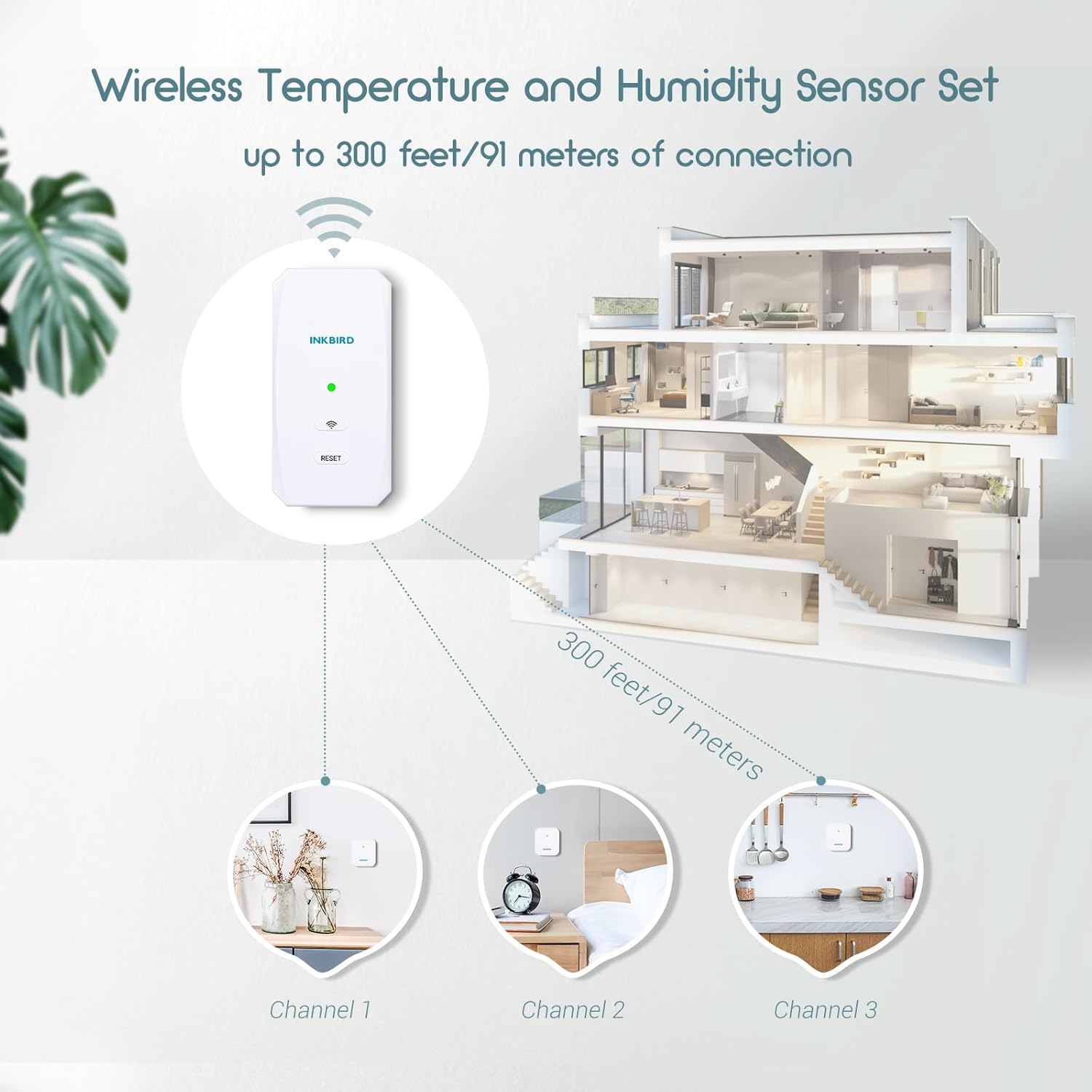
Figure 3.2: Wireless Connection Range
This diagram illustrates the wireless connection capability of the INKBIRD system, showing the gateway centrally located and sensors placed in different rooms (Channel 1, Channel 2, Channel 3) with a connection range of up to 300 feet (91 meters).
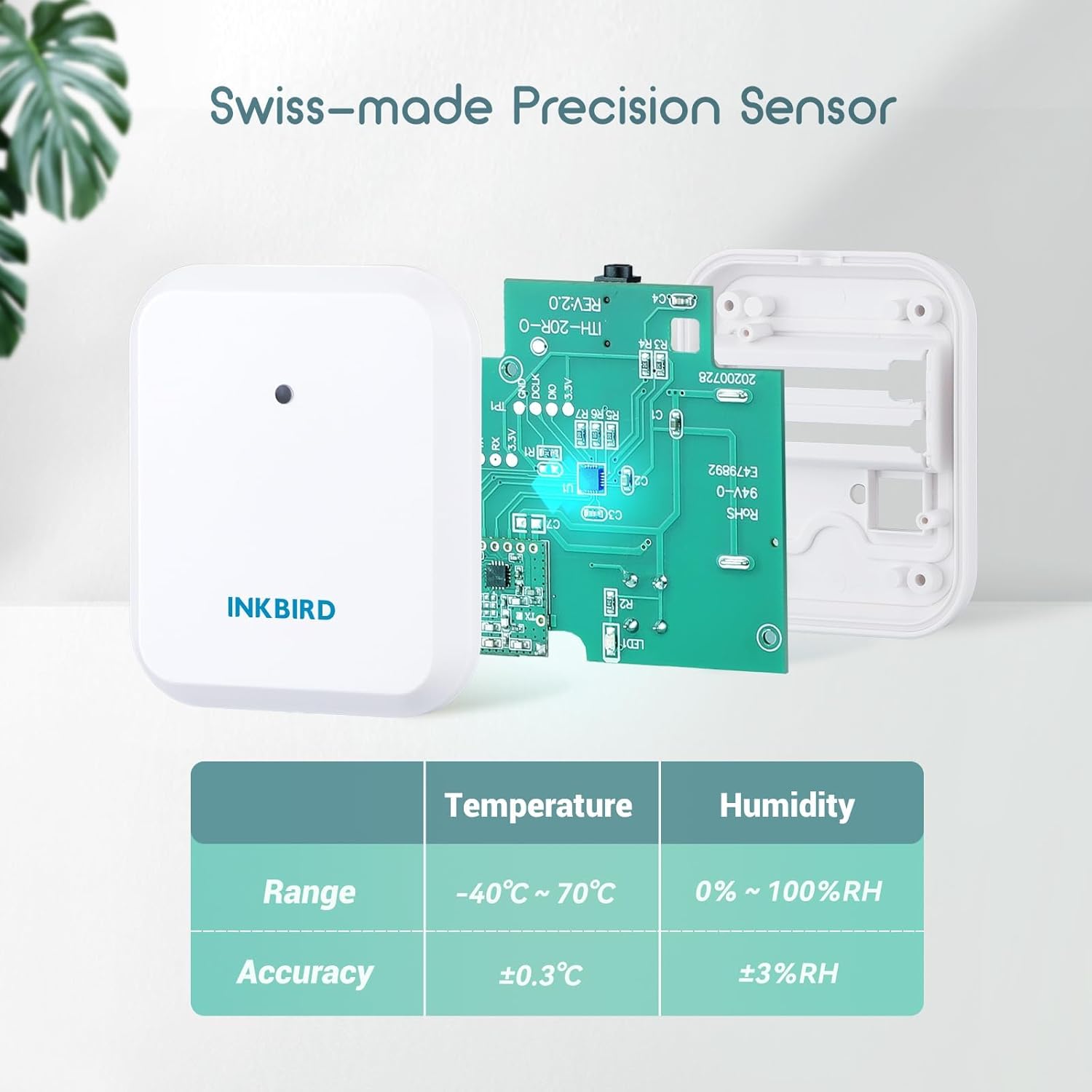
Figure 3.3: Swiss-made Precision Sensor Details
この画像は詳細な view of the INKBIRD sensor's internal components, highlighting the Swiss-made precision sensor. A table below specifies the measurement ranges and accuracies: Temperature Range -40°C ~ 70°C with ±0.3°C accuracy, and Humidity Range 0% ~ 100% RH with ±3% RH accuracy.
4.セットアップガイド
4.1. INKBIRD App Installation
- Scan the QR code below or search for "INKBIRD" in your smartphone's app store (Google Play or Apple App Store) to download and install the INKBIRD app.
- Register an account and log in if you are a new user.

Figure 4.1: Scan to Download INKBIRD App
This image shows a QR code that can be scanned to quickly download the INKBIRD app for your smartphone.
4.2. WiFi Gateway (IBS-M2S) Setup
- Plug the IBS-M2S WiFi Gateway into a power outlet. The WiFi indicator light will start blinking.
- Open the INKBIRD app. Tap the "+" icon in the upper right corner to add a new device.
- Select "IBS-M2S" from the device list to begin the connection process.
- Ensure your smartphone is connected to a 2.4GHz WiFi network. The gateway only supports 2.4GHz WiFi. Enable Bluetooth on your phone.
- Press and hold the "RESET" button on the gateway until the WiFi indicator light blinks rapidly, indicating it's in pairing mode.
- Follow the on-screen prompts in the app to complete the pairing process. Once successful, the WiFi indicator light will turn solid.

Figure 4.2: Adding a New Device in App
This screenshot of the INKBIRD app shows the process of adding a new device, with the IBS-M2S gateway highlighted as an option to select.

Figure 4.3: WiFi and Bluetooth Settings
This image displays a smartphone screen confirming the selection of a 2.4GHz WiFi network and the activation of Bluetooth, both necessary steps for gateway setup.

Figure 4.4: Pressing Reset Button
This image shows a hand pressing the 'RESET' button on the INKBIRD WiFi gateway, a step required to initiate the pairing process.

Figure 4.5: Pairing Successful
This diagram visually confirms a successful pairing, showing the smartphone connected to the WiFi gateway, which in turn is connected to the sensors.
4.3. Sensor (ITH-20R-O) Setup
- Install 2 AAA batteries into each ITH-20R-O sensor, ensuring correct polarity.
- Place the sensors within range of the WiFi gateway.
- In the INKBIRD app, navigate to the IBS-M2S gateway interface. Tap the "+" icon in the upper right corner to add a new sensor.
- The app will automatically search for and connect to nearby ITH-20R-O sensors. Select the sensor you wish to add.
- Once connected, the sensor's readings will appear in the app, along with its assigned channel number.

Figure 4.6: Sensor Battery Installation
This image demonstrates how to correctly install the batteries into the ITH-20R-O sensor, showing the battery compartment and the required AAA batteries.

Figure 4.7: Multiple Sensors Connected in App
This image displays the INKBIRD app interface, demonstrating how multiple ITH-20R-O sensors can be connected and monitored simultaneously, showing their respective temperature and humidity readings.
5. 操作手順
5.1. Monitoring Data via App
- Open the INKBIRD app and select your IBS-M2S gateway. You will see real-time temperature and humidity readings from all connected sensors.
- Tap on a specific sensor to view its detailed data, including historical graphs (hourly、日次、月次、年次)。

図5.1: データの保存とエクスポート
This image shows the INKBIRD app on a smartphone displaying historical data graphs, alongside a laptop screen illustrating the export of data as a CSV file, highlighting the system's data logging and export capabilities.
5.2. Setting Smart Alerts
- In the app, select a sensor and navigate to its settings.
- Set custom high and low temperature/humidity thresholds.
- Enable notifications to receive instant alerts on your smartphone when readings fall outside your defined safe range. The app can also alert for low battery or offline status.
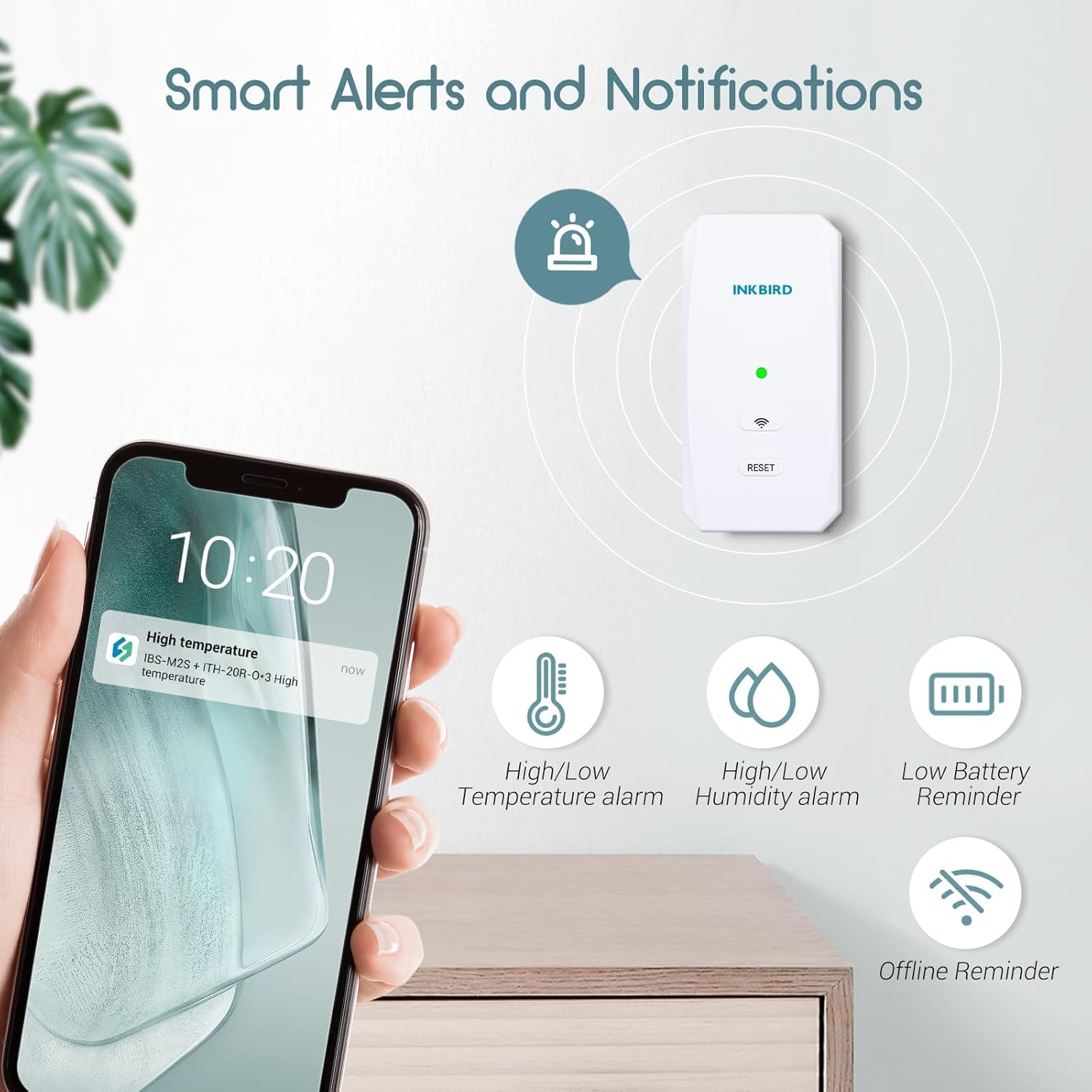
Figure 5.2: Smart Alerts and Notifications
This image depicts a smartphone displaying a "High temperature" alert notification from the INKBIRD app, with the WiFi gateway visible in the background, illustrating the system's intelligent alert feature.
5.3. センサー配置ガイドライン
The ITH-20R-O sensors are designed for versatile placement, both indoors and outdoors. Consider the following for optimal performance:
- 屋内使用: Place sensors in areas where temperature and humidity monitoring is critical, such as living rooms, bedrooms, kitchens, bathrooms, or wine cellars.
- 屋外での使用: The sensors are rain-resistant. For outdoor placement, choose a location that is sheltered from direct heavy rain and direct sunlight to ensure accurate readings and prolong device life. Examples include under eaves or in a covered patio area.
- 範囲: Ensure sensors are within the 300ft/91m wireless range of the WiFi gateway. Obstacles like thick walls can reduce this range.

Figure 5.3: Versatile Placement Exampレ
This collage illustrates various suitable locations for placing the INKBIRD sensors, including under eaves, in a living room, kitchen, bathroom, bedroom, and wine cellar, demonstrating its adaptability for different environments.
5.4. Using External Probes (Optional)
The ITH-20R-O sensors are compatible with external temperature/humidity probes (sold separately). These probes can be used for specialized measurements, such as monitoring liquid temperatures or hard-to-reach areas.
- Connect the external probe to the designated port on the side of the ITH-20R-O sensor.
- The sensor will automatically switch to reading data from the external probe.

Figure 5.4: External Probe Usage
This image shows an INKBIRD sensor connected to an external temperature probe, which is submerged in a glass of water, demonstrating its capability to measure temperatures in liquids or specific environments. Note that external probes are sold separately.
6. メンテナンス
- バッテリー交換: When the app indicates a low battery for a sensor, replace the 2 AAA batteries. Ensure the device is powered off before replacing batteries.
- クリーニング: 柔らかく乾いた布でデバイスを拭いてください。研磨剤入りの洗剤を使用したり、水に浸したりしないでください。
- ストレージ: If storing the device for an extended period, remove the batteries from the sensors to prevent leakage. Store in a cool, dry place.
7。 トラブルシューティング
| 問題 | 考えられる原因 | 解決 |
|---|---|---|
| Gateway not connecting to WiFi. | Incorrect WiFi password; Router is 5GHz only or combined; Gateway too far from router. | Double-check password. Ensure your router supports 2.4GHz and your phone is connected to it during setup. Move gateway closer to router. Try resetting the gateway and re-pairing. |
| Sensors not connecting to Gateway. | Low sensor battery; Sensor out of range; Interference. | Replace sensor batteries. Move sensor closer to the gateway. Reduce potential interference from other electronic devices. |
| 不正確な測定値。 | Sensor placed in direct sunlight or near heat/cold sources; Sensor exposed to extreme conditions. | Relocate the sensor to a more stable environment. Ensure proper ventilation around the sensor. Allow time for readings to stabilize after relocation. |
| アプリが通知を受信していません。 | App notifications disabled; App not running in background; Phone's power saving mode. | Check app notification settings and phone's system notification settings. Ensure the app is allowed to run in the background. Disable power saving modes that restrict app activity. |
8. 仕様
| 特徴 | 詳細 |
|---|---|
| モデル番号 | ITH-20R-O with WiFi Gateway |
| ブランド | インクバード |
| 温度範囲 | -40°C ~ 70°C (-40°F ~ 158°F) |
| 温度精度 | ±0.3°C (±0.5°F) |
| 湿度範囲 | 0%~100% RH |
| 湿度精度 | ±3% 相対湿度 |
| ワイヤレス範囲 | Up to 300ft / 91m (unobstructed, 2.4GHz WiFi) |
| ゲートウェイ接続 | 2.4GHz WiFi |
| センサー電池タイプ | 単2電池XNUMX本(別売) |
| アイテム重量 | 350グラム(パッケージ全体) |
| パッケージ寸法 | 19.4 x 12.7 x 7.9 cm |
9. 保証とサポート
INKBIRD products are designed and manufactured to the highest quality standards. For information regarding warranty coverage and terms, please refer to the warranty card included with your product or visit the official INKBIRD webサイト。
If you encounter any issues or have questions about your INKBIRD ITH-20R-O system, please contact INKBIRD customer support. You can usually find contact details on the official INKBIRD website or through the "Help" or "Support" section within the INKBIRD app.
Ask a question about this manual
Ask about setup, troubleshooting, compatibility, parts, safety, or missing instructions. Manuals+ will review the question and use this page’s manual context to help answer it.