
Zenwire E520h
Zenwire E520h Projector User Manual
Model: E520h | Brand: Zenwire
1. はじめに
This manual provides detailed instructions for the setup, operation, and maintenance of your Zenwire E520h projector. Please read this manual thoroughly before using the device to ensure proper functionality and to maximize your viewing の経験。
The Zenwire E520h is a Full HD 1080p projector with 4K support, featuring Android 9.0, dual-band WiFi (2.4/5 GHz), and Bluetooth 5.0 for versatile home theater entertainment.
2. パッケージ内容
パッケージにすべてのアイテムが揃っていることを確認します。
- Zenwire E520h Projector
- リモコン(電池は付属しません)
- 電源ケーブル
- HDMIケーブル
- AV Cable (stereo)
- ユーザーマニュアル

The image above displays the Zenwire E520h projector along with its standard accessories: a remote control, power cable, HDMI cable, and AV cable. These components are essential for setting up and operating your projector.
3.製品オーバーview
Familiarize yourself with the various parts and connections of your Zenwire E520h projector.

この画像は包括的な view of the projector from different angles, highlighting the lens, control panel, ventilation grilles, and various input/output ports located on the sides and rear of the device.

The Zenwire E520h projector supports a wide range of multimedia devices, including streaming sticks (Roku, Fire TV, Chromecast), external audio systems, USB storage, gaming consoles (Xbox, PlayStation), mobile devices (phones, tablets), DVD players, and computers (laptops, desktops) via its various input ports.
4. セットアップ
4.1 配置
Position the projector on a stable, flat surface. Ensure adequate ventilation around the device. The optimal projection distance ranges from 1.2 to 6 meters, allowing for screen sizes from 36 to 200 inches.

This image demonstrates how varying the distance between the projector and the screen affects the projected image size, showing examples for 45, 120, and 200-inch displays.
4.2電源接続
Connect the power cable to the projector's power input and then plug it into a suitable electrical outlet.
4.3初期電源オン
Press the power button on the projector or the remote control to turn on the device. The projector will boot into the Android 9.0 operating system.
5. 操作手順
5.1 フォーカスとキーストーン補正
Adjust the focus ring around the lens until the image is clear. Use the 4D keystone correction feature to adjust the image shape if the projector is not perfectly perpendicular to the screen. This can be done via the remote control or on-screen settings.

This image illustrates the process of adjusting the focus ring on the projector lens and demonstrates the effect of keystone correction on the projected image, ensuring a rectangular display even when the projector is angled.
5.2 Android 9.0 スマートシステム
The projector runs on Android 9.0, allowing direct access to streaming applications like YouTube, Netflix, HBO, and Spotify. Navigate the interface using the remote control.

The image above shows the projector's smart interface, featuring a grid of popular streaming applications, demonstrating the integrated Android 9.0 system's capability to run apps directly.
5.3 ワイヤレス接続(WiFi と Bluetooth)
Wi-Fi: Connect to your home network using the integrated 2.4/5 GHz WiFi. This enables Miracast and Airplay for wireless screen mirroring from iOS, Android, and Windows devices.

This image illustrates the projector's wireless connectivity, showing it mirroring content from a smartphone and tablet, and highlighting its compatibility with iOS, Android, and Windows 10 devices for screen sharing.
Bluetooth 5.0: Pair with external Bluetooth speakers, soundbars, or headphones for enhanced audio. Go to the settings menu to manage Bluetooth devices.
5.4 有線接続
The projector features multiple ports for wired connections:
- HDMI(×2): Connect laptops, gaming consoles, Blu-ray players, or streaming devices.
- USB: USB ドライブから直接メディアを再生します。
- AV: 付属の AV ケーブルを使用して古いデバイスを接続します。
- Mini-Jack: 外部オーディオ出力用。
- Micro-SD/TF Card Reader: メモリカードからメディアを再生します。
6. メンテナンス
6.1 レンズのクリーニング
プロジェクターレンズは、光学面専用の柔らかく糸くずの出ない布で優しく拭いてください。研磨剤入りのクリーナーを使用したり、過度の力で拭いたりしないでください。
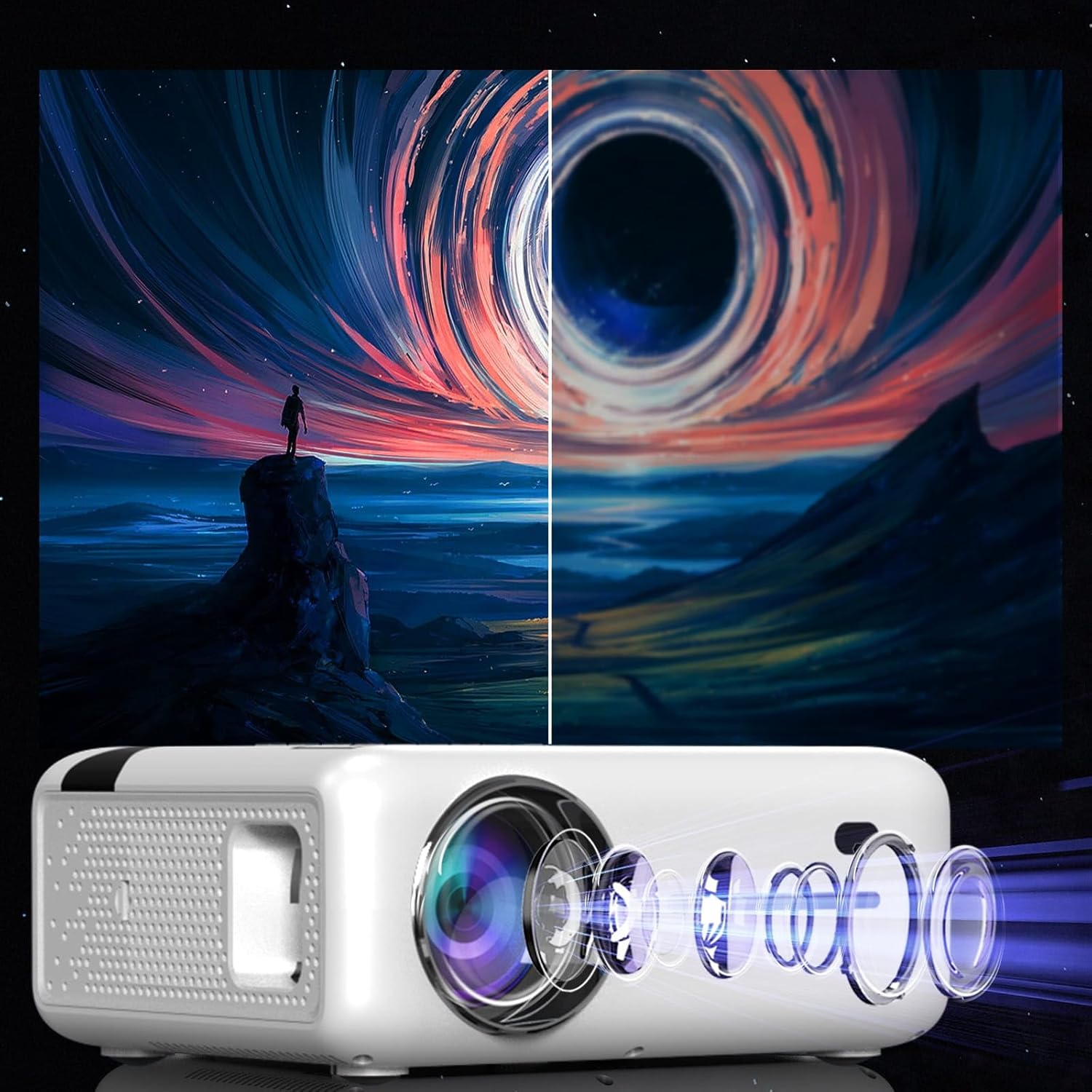
This diagram illustrates the multi-element lens system of the projector, highlighting the precision optics that require careful handling during cleaning to maintain image quality.
6.2換気
Ensure that the projector's ventilation openings are not blocked to prevent overheating. Regularly check for dust accumulation and clean if necessary using compressed air.
6.3 ストレージ
When not in use for extended periods, store the projector in a cool, dry place, away from direct sunlight and excessive dust. Use the original packaging or a protective case.
7。 トラブルシューティング
| 問題 | 考えられる原因 | 解決 |
|---|---|---|
| 画像が表示されない | 電源ケーブルが外れている、入力ソースが正しくない、レンズキャップが装着されている。 | 電源接続を確認し、正しい入力ソース (HDMI、USB など) を選択し、レンズキャップを取り外します。 |
| ぼやけた画像 | Focus not adjusted, keystone incorrect. | フォーカスリングを調整し、キーストーン補正を使用します。 |
| 音が出ない | Volume too low, incorrect audio output selected, external device muted. | Increase projector volume, check audio settings, ensure external device is not muted. |
| WiFi接続の問題 | Incorrect password, router too far, interference. | Verify WiFi password, move projector closer to router, check for other wireless devices. |
8. 仕様
| 特徴 | 詳細 |
|---|---|
| モデル | Zenwire E520h |
| ネイティブ解像度 | 1920 x 1080p(フルHD) |
| サポートされている解像度 | 最大4K |
| 輝度 | 9000 lumens (300 ANSI) |
| コントラスト比 | 2000:1 |
| オペレーティング·システム | アンドロイド9.0 |
| Wi-Fi | 2.4/5 GHz (Miracast, Airplay support) |
| ブルートゥース | 5.0 |
| 接続性 | 2x HDMI, USB, AV, Mini-Jack, Micro-SD/TF |
| 投影サイズ | 36~200インチ |
| 投影距離 | 1.2~6メートル |
| キーストーン補正 | 4D (manual and auto) |
| 巻tage | 230ボルト |
| 寸法(パッケージ) | 23 x 18.5 x 10.5 cm |
| 重量(パッケージ) | 1.2キロ |
9. 保証とサポート
For warranty information and technical support, please refer to the contact details provided with your purchase documentation or visit the official Zenwire webサイトでご確認ください。保証請求に備えて購入証明書を保管してください。
Ask a question about this manual
Ask about setup, troubleshooting, compatibility, parts, safety, or missing instructions. Manuals+ will review the question and use this page’s manual context to help answer it.