
1. はじめに
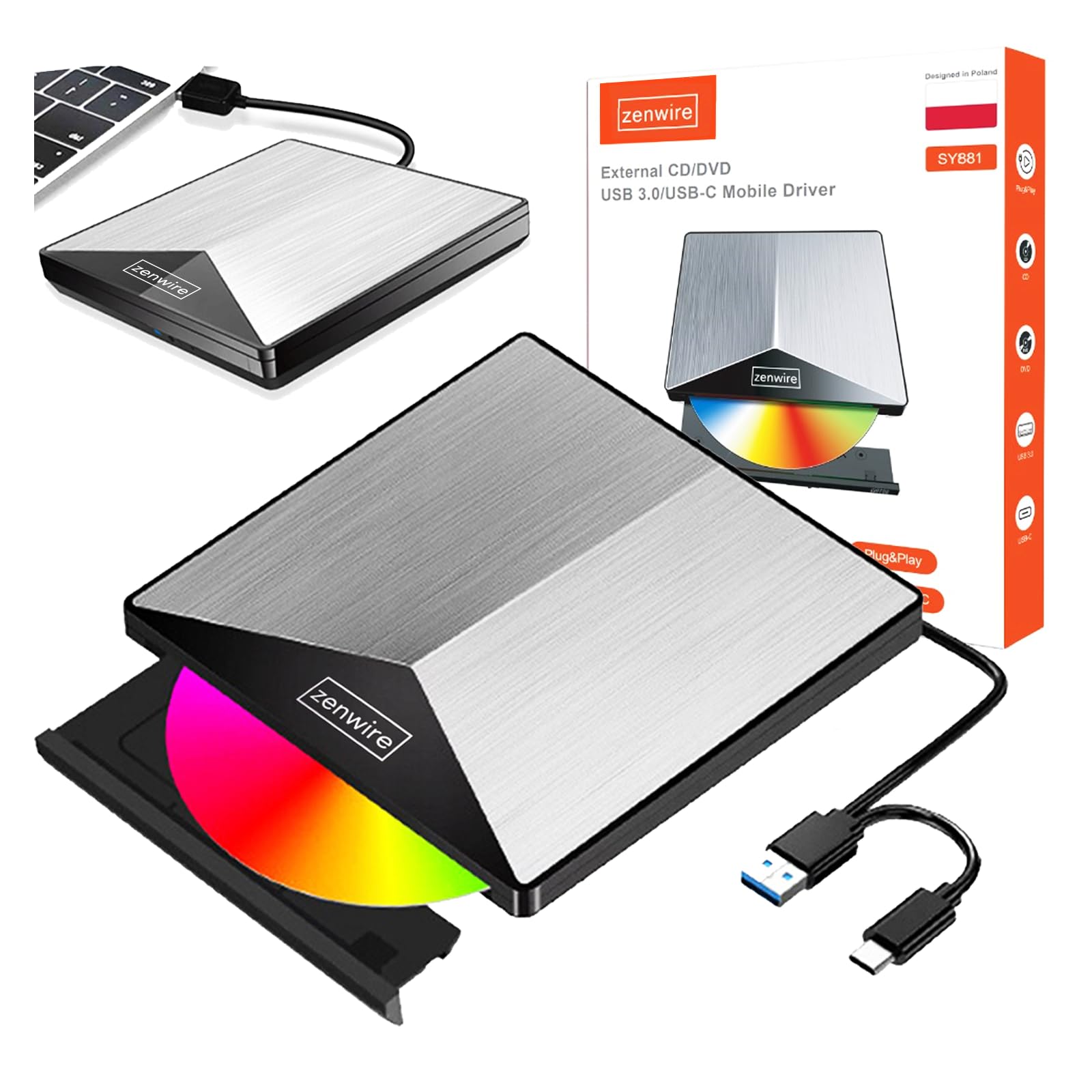
Thank you for choosing the Zenwire External CD/DVD Drive. This device is a versatile and portable solution for both reading and writing optical discs, designed for use with laptops and desktop computers. It features modern USB 3.0 and USB-C 3.1 interfaces, ensuring rapid data transfer speeds up to 5 Gb/s. Its durable aluminum casing provides efficient heat dissipation and a sleek design. This drive is compatible with various operating systems, including Windows, Mac OS, and Linux, offering broad utility for a wide range of users.
主な機能は次のとおりです。
- USB 3.0 and USB-C 3.1 Support: Offers very high data transfer speeds up to 5 Gb/s, enhancing efficiency for large fileおよびマルチメディア。
- アルミニウムCasing: Durable and elegant, effectively dissipates heat for long-lasting and safe use.
- オペレーティング システムの互換性: Seamless operation across multiple platforms, including Windows, Mac OS, and Linux.
- 移植性: Slim design and low weight allow for easy transport, ideal for users on the go.
- プラグアンドプレイ: Simple installation without the need for additional drivers, enabling quick use immediately after connection.
2. 安全情報
適切な操作を保証し、デバイスの損傷や怪我を防ぐために、以下の安全ガイドラインを読んで従ってください。
- デバイスを水、湿気、または極端な温度にさらさないでください。
- 落としたり、強い衝撃を与えないでください。
- ご自身でデバイスの分解や修理を試みないでください。資格のあるサービス担当者にご相談ください。
- Use only compatible discs and cables.
- デバイスを強い磁場から遠ざけてください。
3. パッケージ内容
パッケージにすべてのアイテムが含まれていることを確認します。
- Zenwire External CD/DVD Drive
- Integrated USB 3.0 / USB-C 3.1 Cable
- ユーザーマニュアル(このドキュメント)
4.製品オーバーview
Familiarize yourself with the components and dimensions of your Zenwire External CD/DVD Drive.

画像: 閉じる views of the Zenwire External CD/DVD Drive, highlighting the integrated USB cable, the disc eject button, and the anti-slip feet on the bottom. These details illustrate the device's connectivity and stable design.

画像: The Zenwire External CD/DVD Drive displayed with its approximate dimensions: 5.9 inches (148mm) in length, 5.9 inches (149mm) in width, and 0.6 inches in thickness. This illustrates the compact and slim profile デバイスの。
5. セットアップ
The Zenwire External CD/DVD Drive is designed for simple plug-and-play operation. No additional drivers are typically required for most operating systems.
- Locate an available USB 3.0 or USB-C port on your computer (laptop or desktop).
- Connect the integrated USB cable from the Zenwire drive directly into the chosen port on your computer.
- オペレーティングシステムは必要なドライバーを自動的に検出し、インストールします。この処理には数分かかる場合があります。
- Once installed, the drive will appear as a removable storage device in your computer's file エクスプローラーまたはデスクトップ。
画像: The Zenwire External CD/DVD Drive shown connected to a laptop via its integrated USB cable. This illustrates the simple plug-and-play connection process.
6. 操作手順
6.1 ディスクの挿入
- ドライブ前面にあるイジェクトボタンを押します。ディスクトレイがスライドして出てきます。
- Carefully place the disc onto the tray with the label side facing up. Ensure the disc is seated correctly in the center.
- Gently push the tray back into the drive until it clicks into place. Do not force the tray.

画像: A hand carefully inserting a CD into the open disc tray of the Zenwire External CD/DVD Drive. This demonstrates the correct method for disc placement.
6.2 ディスクの読み取りと書き込み
ディスクが挿入され、コンピュータに認識されると、さまざまな操作を実行できます。
- 読む: For data discs, open 'This PC' or 'My Computer' (Windows) or 'Finder' (Mac) and click on the drive icon to access its contents. For movie DVDs or audio CDs, your operating system may prompt you to open a media player.
- Writing (Burning): To burn data to a blank CD or DVD, insert a blank disc. Your operating system or third-party burning software will guide you through the process of selecting files and initiating the burn.
6.3 サポートされているディスクフォーマット
The drive supports a variety of optical disc formats:
- CD-ROM、CD-R、CD-RW
- DVD-ROM, DVD-R, DVD+R, DVD-RW, DVD+RW
- ビデオCD

画像: The Zenwire External CD/DVD Drive displayed alongside icons representing VCD, CD, and DVD, clearly indicating the range of optical disc formats supported by the device.
6.4 オペレーティングシステムの互換性
The drive is compatible with the following operating systems:
- Windows (XP, Vista, 7, 8, 10, 11)
- Mac OS
- リナックス

画像: The Zenwire External CD/DVD Drive depicted in a setup demonstrating its compatibility with multiple operating systems, including various versions of Windows, Mac OS, and Linux. This highlights its universal usability.
7. メンテナンス
適切なメンテナンスを行うことで、ドライブの寿命が長くなり、最適なパフォーマンスが確保されます。
- ドライブのクリーニング: Use a soft, dry, lint-free cloth to wipe the exterior of the drive. Do not use liquid cleaners or abrasive materials. For the optical lens, use a specialized CD/DVD lens cleaning kit if necessary, following its instructions carefully.
- クリーニングディスク: Always handle discs by their edges. If a disc is dirty, gently wipe it from the center outwards with a soft, lint-free cloth.
- ストレージ: Store the drive in a cool, dry place away from direct sunlight and extreme temperatures when not in use. Keep discs in their cases to prevent scratches and dust accumulation.
- 保護フィルム: Upon first use, you may need to remove any protective film from the device's surface.

画像: A hand demonstrating the removal of a protective film from the surface of the Zenwire External CD/DVD Drive. This step is often performed during the initial setup or maintenance to ensure optimal appearance and function.
8。 トラブルシューティング
If you encounter issues with your Zenwire External CD/DVD Drive, refer to the following common problems and solutions:
- Drive not recognized by the computer:
- USB ケーブルがドライブとコンピュータの両方にしっかりと接続されていることを確認します。
- ドライブをコンピューターの別の USB ポートに接続してみてください。
- コンピュータ固有の問題を排除するために、別のコンピュータでドライブをテストします。
- コンピュータを再起動します。
- ディスクの読み取りまたは書き込みができない:
- ディスクに傷、汚れ、損傷がないか確認してください。別のディスクでお試しください。
- ディスクがラベル面を上にして正しく挿入されていることを確認します。
- For writing, ensure you are using a blank, compatible disc (CD-R/RW, DVD-R/RW, DVD+R/RW).
- Clean the drive's optical lens using a specialized cleaning disc.
- データ転送速度が遅い:
- Ensure the drive is connected to a USB 3.0 or USB-C 3.1 port on your computer for optimal speed. USB 2.0 ports will result in slower performance.
- Avoid using USB hubs if possible, or ensure the hub is powered and supports USB 3.0/USB-C speeds.
- Drive makes unusual noises:
- This can sometimes occur with unbalanced or damaged discs. Try a different disc.
- ドライブが安定した平らな面に置かれていることを確認してください。
9. 仕様
| 特徴 | 説明 |
|---|---|
| ブランド | ゼンワイヤー |
| モデル番号 | 5904507529123 |
| インタフェース | USB 3.0、USBタイプC |
| データ転送速度 | Up to 5 Gb/s (via USB 3.0 / USB-C 3.1) |
| Optical Write Speed | 10倍 |
| サポートされているオペレーティングシステム | Windows、Mac OS、Linux の場合 |
| 特集 | プラグアンドプレイ |
| 材料 | アルミニウムCasing |
| 寸法(約) | 148mm (長さ) x 149mm (幅) x 15mm (高さ) / 5.9インチ (長さ) x 5.9インチ (幅) x 0.6インチ (高さ) |
10. 保証情報
Warranty terms and conditions are typically provided with your purchase documentation. Please refer to the specific warranty information included with your product or contact the retailer/manufacturer for details regarding warranty coverage and claims.
11. サポート
If you require further assistance or have questions not covered in this manual, please contact Zenwire customer support or your product retailer. Please have your model number (5904507529123) and purchase details ready when contacting support.