
1. はじめに
The ELECOM EX-G Left Hand Wired USB Ergonomic Mouse (M-XGL31UBSKBK) is designed to provide comfort and efficiency for left-handed users. Its unique ergonomic shape supports a natural hand posture, reducing strain during extended use. This manual provides essential information for setting up, operating, and maintaining your mouse.

Image: A person's left hand resting comfortably on the ELECOM ergonomic mouse, demonstrating its left-handed design.

Image: Diagram illustrating the ergonomic shape of the mouse, highlighting the concave nest for fingers and angled shape to reduce wrist stress.

Image: Comparison image showing the difference in hand posture between a vertical mouse and the EX-G Half-Vertical mouse, emphasizing easier clicking with gravity.
2. 主な特徴
- 人間工学に基づいた形状: Designed with a specific height and angle to allow for a relaxed posture from the palm to the wrist and arm.
- Left-Handed Design: Exclusively crafted for left-handed users, with the left click button positioned on the right side for primary index finger operation.
- Silent Click Switch: Equipped with a silent switch to eliminate clicking sounds, ideal for quiet environments like meetings or late-night work.
- カスタマイズ可能なボタン: Utilize the ELECOM Mouse Assistant software (available for download) to assign preferred functions to the mouse buttons.
- 高精度光学センサー: Features a 2000 DPI optical sensor with BlueLED technology, ensuring comfortable operation and accurate tracking on various surfaces.
- 有線USB接続: Provides a reliable plug-and-play connection without concerns about radio interference.

Image: A hand fitment chart with measurements to help users determine the correct mouse size.
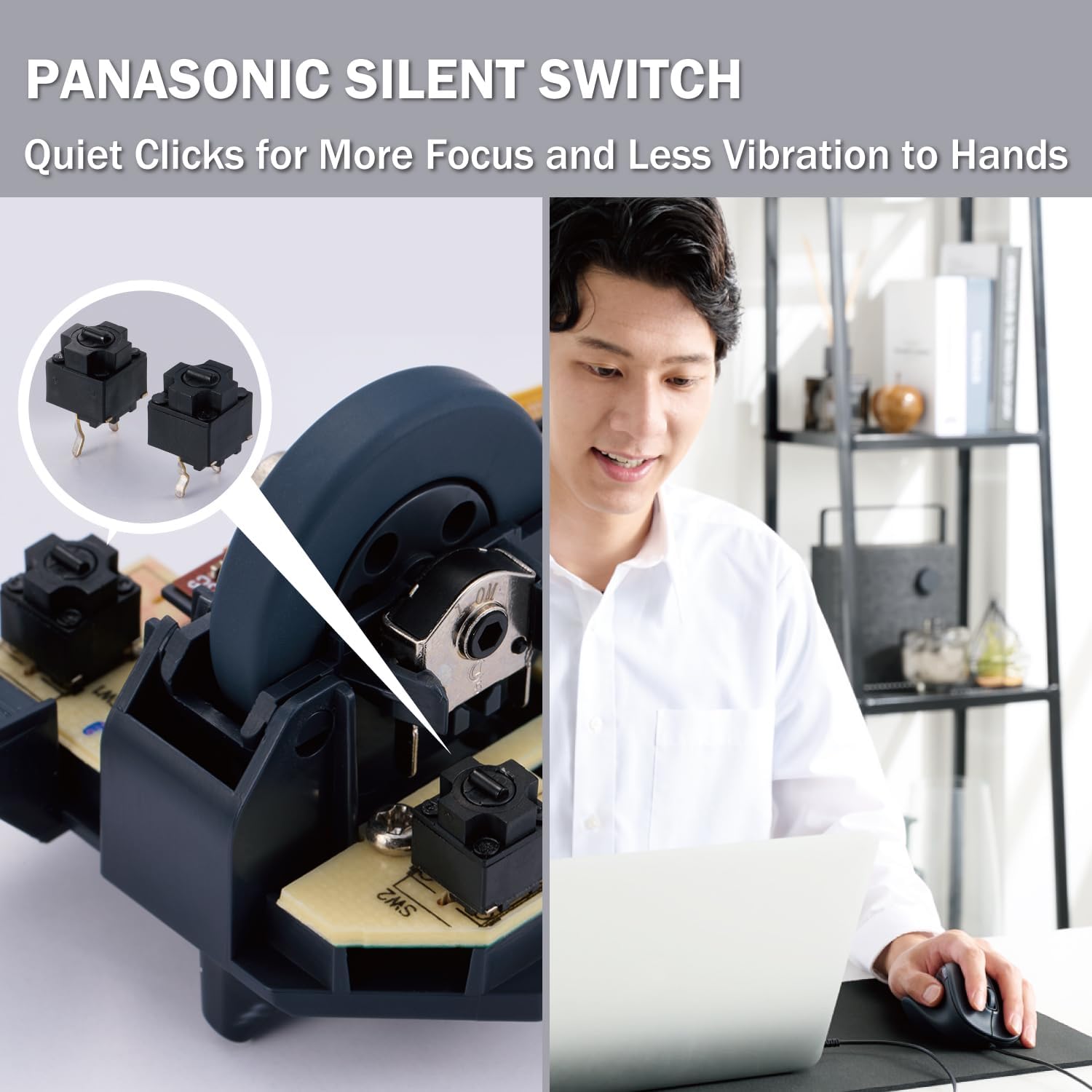
Image: Close-up of the Panasonic silent click switch components and a user operating the mouse quietly.

Image: A hand on the mouse with a DPI gauge, indicating 2000 DPI for comfortable operation.
3. セットアップ
The ELECOM EX-G mouse is a plug-and-play device, requiring no additional driver installation for basic functionality.
- コンピューター (PC、Mac、またはラップトップ) で使用可能な USB ポートを見つけます。
- Plug the USB connector of the mouse cable into the USB port.
- Your operating system will automatically detect and install the necessary drivers. The mouse will be ready for use within a few moments.

Image: The wired USB connection of the mouse to a laptop, with a coiled 1.5m USB cable shown next to it.
4. 操作手順
ボタンの機能
- Left Click (Primary Button): Located on the right side of the mouse, operated by the index finger. Performs primary selection and activation functions.
- Right Click (Secondary Button): Located on the left side of the mouse, typically operated by the thumb. Accesses contextual menus and secondary functions.
- スクロールホイール: Located on the top surface. Scroll up or down to navigate documents and web pages. Can also be pressed for middle-click functionality (e.g., opening links in new tabs).
- サイドボタン: Two additional buttons are located on the side for customizable functions, often used for 'forward' and 'back' navigation in web ブラウザ。
DPI調整
The mouse operates at 2000 DPI, providing a balance of speed and precision for most tasks. No manual DPI adjustment button is present on this model, as it is optimized for consistent performance.
カスタマイズソフトウェア
For advanced customization of button functions and other settings, download the ELECOM Mouse Assistant software from the official ELECOM website (elecomusa.com).
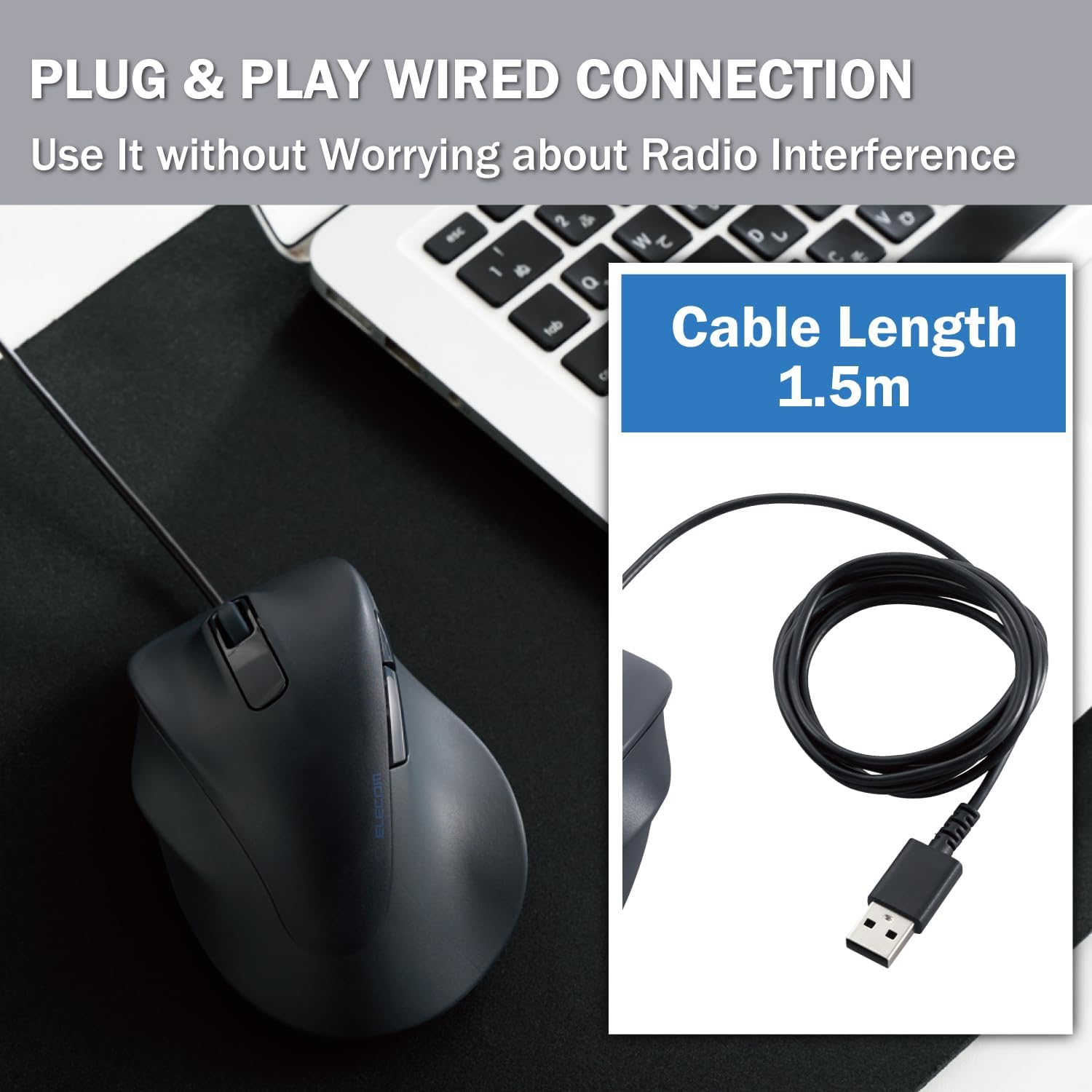
Image: Screenshot of the ELECOM Mouse Assistant software interface on a laptop, showing customization options for buttons and cursor speed.
5. メンテナンス
- クリーニング: マウスの表面は定期的に柔らかく乾いた布で拭いてください。頑固な汚れには、軽くこすった布を使用してください。amp 布と中性洗剤で拭き、完全に乾かしてください。刺激の強い化学薬品や研磨剤は使用しないでください。
- センサーのケア: 正確なトラッキングを確保するために、マウスの下側にある光学センサーを清潔に保ち、ほこりやごみを除去してください。
- ケーブル管理 損傷を防ぐため、USB ケーブルを急激に曲げたり、過度に引っ張ったりしないでください。
- ストレージ: 使用していないときは、マウスを極端な温度を避け、清潔で乾燥した環境に保管してください。
6。 トラブルシューティング
- マウスが反応しない:
- USB ケーブルが動作している USB ポートにしっかりと差し込まれていることを確認します。
- Try plugging the mouse into a different USB port or a different computer to rule out port or system issues.
- コンピュータを再起動します。
- カーソルの動きが不規則:
- マウスの底面にある光学センサーを清掃します。
- マウスを適切な表面で使用してください。反射率の高い表面や透明な表面では、マウスのトラッキングに影響が出る可能性があります。マウスパッドの使用をお勧めします。
- ボタンが機能しない:
- Check if the ELECOM Mouse Assistant software is installed and configured correctly. Reset settings to default if necessary.
- Test the mouse on another computer to determine if it's a hardware or software issue.
7. 仕様
| 製品寸法 | 4.72 x 3.11 x 2.28インチ |
| アイテム重量 | 4.1オンス |
| 商品型番 | M-XGL31UBSKBK |
| ブランド | エレコム |
| 色 | Left-Hand Black |
| 接続技術 | USB (有線) |
| 特集 | サイレントスイッチ |
| 動き検出技術 | 光学 |
8. 保証とサポート
This ELECOM product comes with a 2年間保証. In the unlikely event of a product defect, ELECOM offers a product warranty for quality issues. Within 2 years of purchase, you may be eligible for a replacement of the defective product by applying for a return or exchange through the return/exchange request form on the official ELECOM USA website (elecomusa.com).
For more information regarding warranty terms, product support, or to download the ELECOM Mouse Assistant software, please visit the official ELECOM USA webサイト。