1. はじめに
Thank you for choosing the Cherry KW 7100 Mini Multi-Device Compact Keyboard. This manual provides essential information for setting up, operating, and maintaining your new keyboard. Designed for versatility and portability, this keyboard offers seamless connectivity across multiple devices.
2. 箱の中身
- Cherry KW 7100 Mini Multi-Device Compact Keyboard
- USB-C to USB-A Charging/Connection Cable
- 単2電池XNUMX本
- 2.4 GHz Wireless Nano Receiver (stored magnetically in the keyboard)
- キャリングケース
- 取扱説明書

図1: トップダウン view of the Cherry KW 7100 Mini Keyboard.
3. セットアップ
3.1. バッテリーの取り付け
- キーボードの裏側にある電池ボックスを見つけます。
- バッテリーコンパートメントカバーをスライドさせて開きます。
- 正しい極性 (+/-) を確認して、単 4 電池 2 本を挿入します。
- 電池カバーをしっかりと閉じてください。
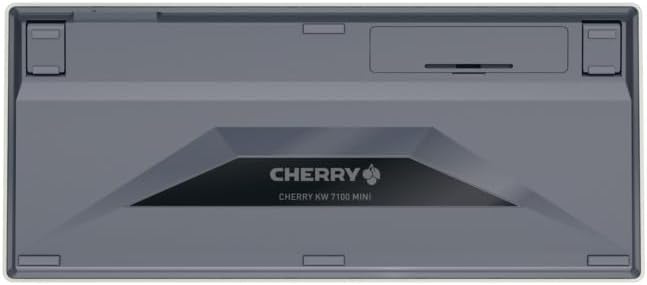
図 2: 電池ボックスがあるキーボードの裏側。
3.2. キーボードの接続
The Cherry KW 7100 Mini supports three connection methods: Bluetooth, 2.4 GHz Wireless, and Wired USB-C.
3.2.1. Bluetooth接続(最大3台のデバイス)
- 側面にある電源スイッチを使用してキーボードの電源をオンにします。
- Press and hold one of the Bluetooth channel keys (F1, F2, or F3) for 3-5 seconds until the corresponding LED indicator blinks rapidly. This indicates pairing mode.
- On your device (laptop, smartphone, tablet), navigate to Bluetooth settings and search for available devices.
- Select "Cherry KW 7100" from the list to pair. The LED will stop blinking and remain solid for a few seconds upon successful connection.
- Repeat for up to two additional devices using the other Bluetooth channel keys (F1, F2, or F3).
3.2.2. 2.4GHzワイヤレス接続
- Locate the 2.4 GHz wireless nano receiver, typically stored magnetically in a slot on the underside of the keyboard.
- ナノレシーバーをコンピューターの使用可能な USB-A ポートに挿入します。
- 電源スイッチを使ってキーボードの電源を入れます。キーボードは自動的にレシーバーに接続されます。
3.2.3. 有線USB-C接続
- 付属の USB-C ケーブルの一方の端をキーボードの USB-C ポートに接続します。
- USB-C ケーブルのもう一方の端をコンピューターの使用可能な USB-A ポートに接続します。
- The keyboard will function as a wired keyboard.
Video 1: Demonstrating the setup and typing experience of the Cherry KW 7100 Mini Keyboard.
4. キーボードの操作
4.1. 接続されたデバイス間の切り替え
To switch between paired Bluetooth devices, simply press the corresponding Bluetooth channel key (F1, F2, or F3) that your device is paired to. The keyboard will automatically connect to the selected device.
4.2. ファンクションキー(FN)
The keyboard features a dedicated FN key, typically located near the right Shift key. This key, in combination with other keys, activates secondary functions such as media controls, screen brightness, and other system commands. Refer to the keycap legends for specific FN key combinations.
4.3.LEDインジケーター
LED indicators on the keyboard provide information about its status:
- Bluetooth Channel LEDs (F1, F2, F3): Indicate the currently active Bluetooth connection or pairing mode.
- Caps Lock LED: Caps Lock がアクティブなときに点灯します。
- バッテリーステータスLED: 電池残量が少ないことを示します。
4.4.調節可能な足
The keyboard is equipped with stable, fold-out feet on the underside. These allow you to adjust the typing angle for improved ergonomics and comfort.
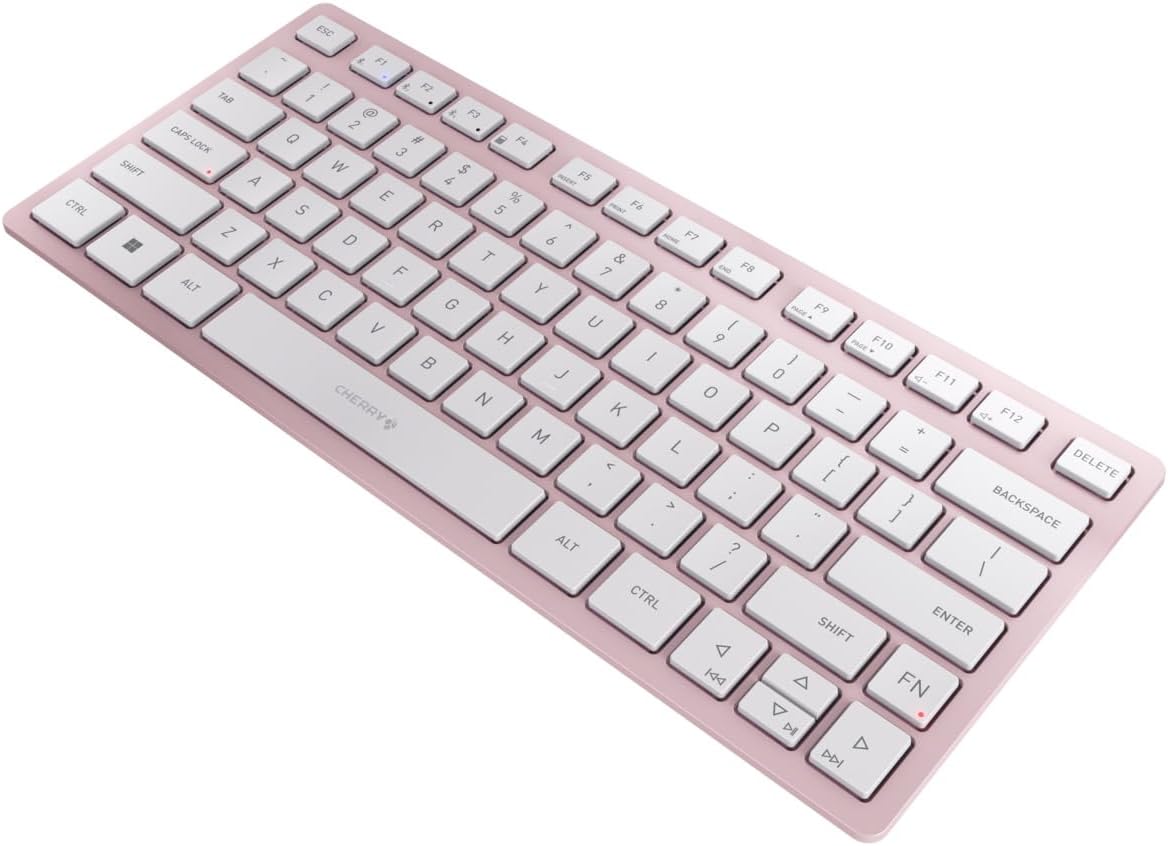
図3: 角度付き view キーボードのスリムなプロを強調file.

図4:側面 view showing the adjustable feet extended for an ergonomic typing angle.
5. メンテナンス
5.1. 清掃
To clean your keyboard, gently wipe the keycaps and surface with a soft, lint-free cloth. For stubborn dirt, slightly damp布に水または低刺激性の非研磨性洗浄液を含ませてください。過度の湿気を避け、キーボードに直接クリーナーを吹きかけないでください。
5.2. ストレージ
When not in use, especially during travel, store the keyboard in its included carrying case to protect it from dust, scratches, and minor impacts.

Figure 5: The keyboard stored in its protective carrying case.
6。 トラブルシューティング
6.1. キーボードが接続されない
- キーボードの電源がオンになっていることを確認してください。
- 電池を確認し、必要に応じて交換してください。
- For Bluetooth, ensure the correct channel (F1, F2, or F3) is selected and the keyboard is in pairing mode (blinking LED).
- For 2.4 GHz wireless, ensure the nano receiver is securely plugged into a USB-A port.
- ワイヤレスの問題を排除するために、USB-C ケーブル経由で接続してみてください。
- デバイスを再起動し、ペアリングを再度試してください。
6.2. キーが反応しない
- Check the connection as described above.
- キーの下にゴミが詰まっていないことを確認してください。
- 有線接続を使用している場合は、別の USB ポートまたはケーブルを試してください。
6.3. バッテリー寿命が短い
- 新しい高品質の AAA 電池を使用していることを確認してください。
- バッテリー電力を節約するために、使用していないときはキーボードをオフにしてください。
7. 仕様
| 特徴 | 仕様 |
|---|---|
| モデル名 | KW 7100 |
| 商品型番 | JK-7100US-19 |
| ブランド | チェリー |
| 接続技術 | Bluetooth 5.1 (3 channels), 2.4 GHz Wireless, USB-C Wired |
| 対応デバイス | ノートパソコン、スマートフォン、タブレット |
| キーボードの説明 | Compact, Multi-Device |
| 主要なメカニズム | CHERRY SX シザーメカニズム |
| 電源 | 単2電池XNUMX本 |
| 暗号化 | AES-128 |
| 製品寸法 | 11.6 x 5.1 x 0.6インチ |
| アイテム重量 | 1.4ポンド |
| 材料 | 金属、プラスチック |
| 色 | 桜 |
8. 保証とサポート
This product is covered by Cherry's standard manufacturer warranty. For detailed warranty information, technical support, or service inquiries, please visit the official Cherry webサイトをご覧いただくか、カスタマー サポートに直接お問い合わせください。
メーカー: チェリー
Webサイト: www.cherry.de