
1. はじめに
This manual provides essential instructions for setting up, operating, maintaining, and troubleshooting your VIBOX VI-63 PC Gamer. Please read this guide thoroughly before using your new computer to ensure optimal performance and longevity.
2. 安全情報
- PC が十分な換気のある安定した平らな面に設置されていることを確認してください。
- PC ケースの通気口を塞がないでください。
- PC を直射日光、熱源、液体から遠ざけてください。
- Use only the power adapter supplied with your PC.
- 清掃やメンテナンスを行う前に、電源ケーブルを外してください。
- Avoid opening the PC case unless instructed by VIBOX support, as this may void your warranty.
3. パッケージ内容
以下にリストされているすべてのアイテムがパッケージに含まれていることを確認してください。
- VIBOX VI-63 PC Gamer Tower
- 22型モニター
- RGBゲーミングキーボード
- RGBゲーミングマウス
- Black Mouse Pad
- マイク付きゲーミングヘッドセット
- Wireless WiFi Network Adapter (600 Mbps)
- 電源ケーブル
- Display Cable (HDMI or VGA, depending on monitor)
- ドキュメント(このマニュアル)
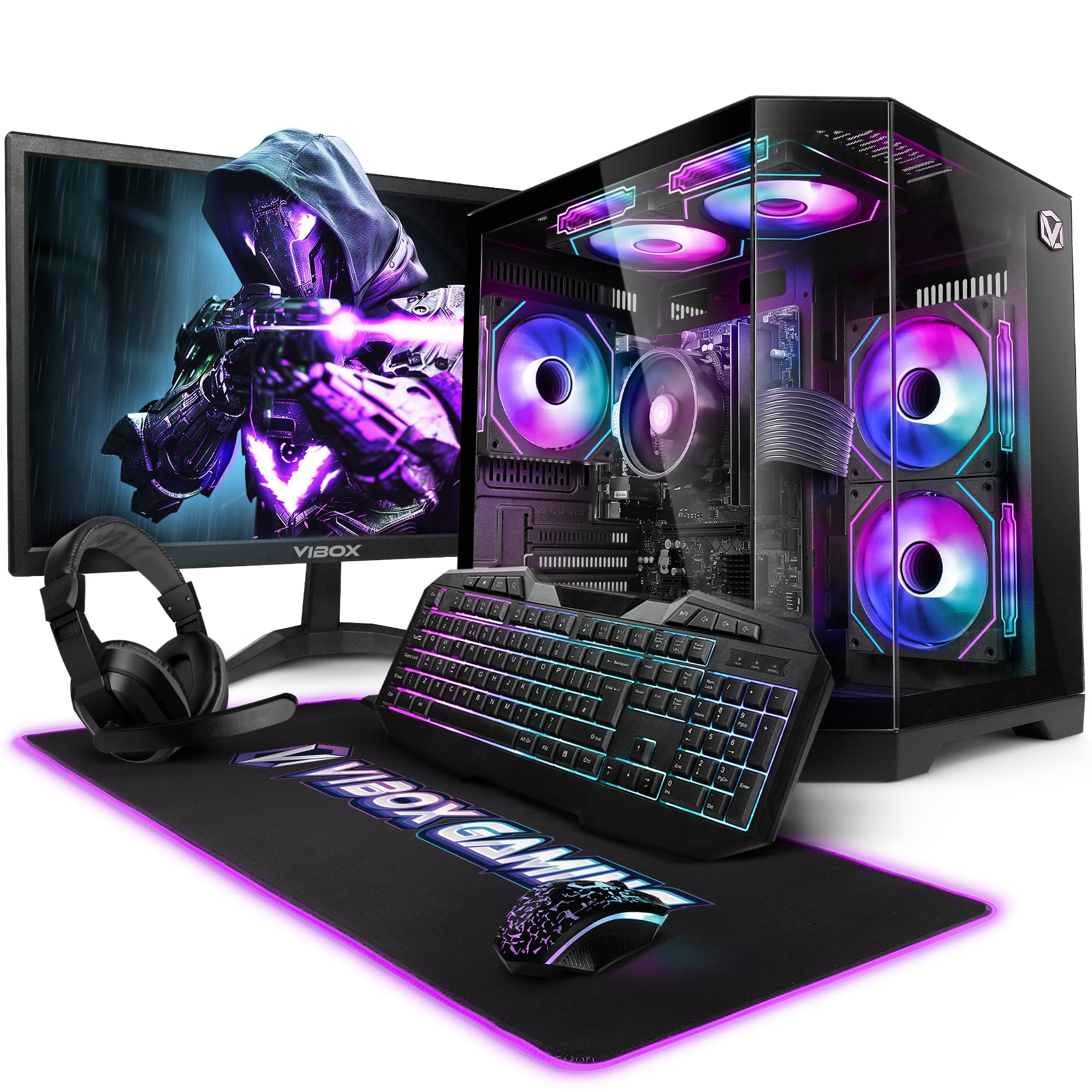
Image 3.1: VIBOX VI-63 PC Gamer Tower with internal RGB lighting.
4. セットアップ手順
4.1. 開梱と設置
- すべてのコンポーネントをパッケージから慎重に取り出します。
- Place the PC tower on a flat, stable surface. Ensure there is sufficient space around the tower for proper airflow.
- Place the monitor on a stable surface at a comfortable view高さ。
4.2. 周辺機器の接続
- モニター: Connect one end of the display cable (HDMI or VGA) to the corresponding port on the back of the PC and the other end to the monitor.
- キーボードとマウス: Connect the USB cables of the keyboard and mouse to any available USB ports on the PC.
- ヘッドセット: Connect the headset to the audio jacks (headphone and microphone) on the front or rear of the PC.
- WiFiアダプター: Insert the wireless WiFi network adapter into an available USB port.
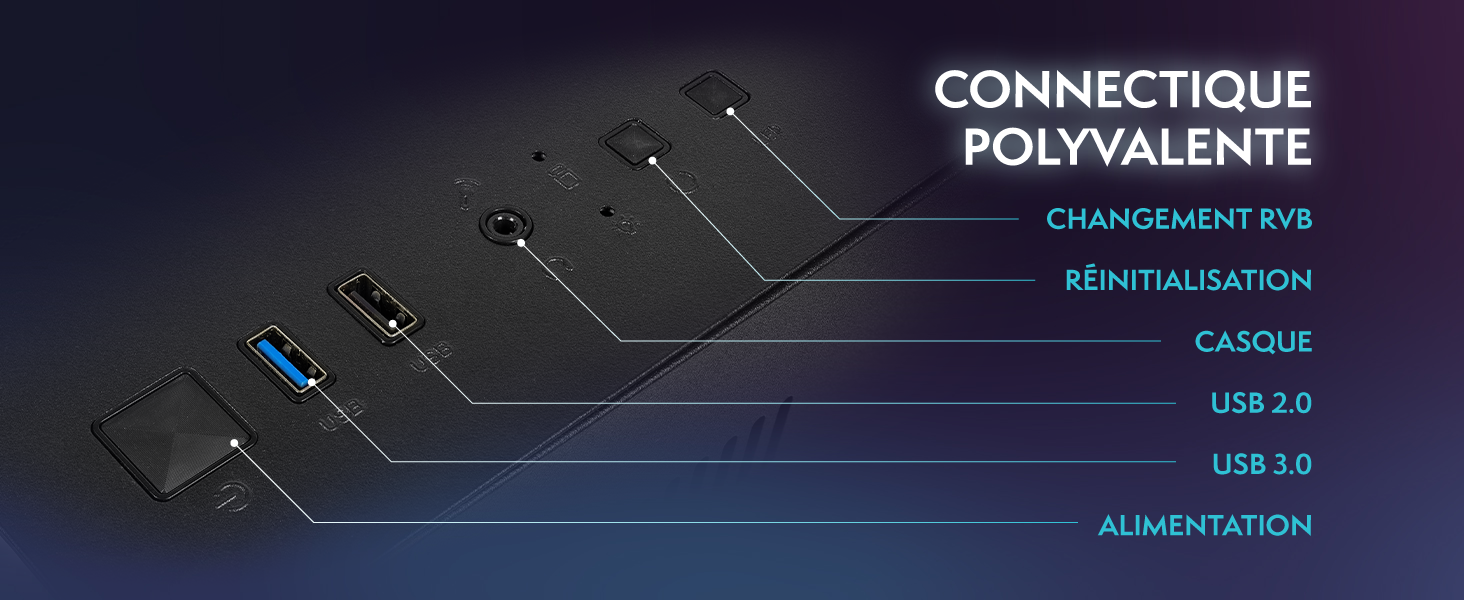
Image 4.1: Front panel connections including USB 2.0, USB 3.0, headset jack, reset button, and RGB change button.
4.3. 電源接続
- Connect the power cable to the power supply unit (PSU) at the back of the PC.
- Connect the other end of the power cable to a wall outlet.
- Connect the monitor's power cable to a wall outlet.
4.4. 初期起動とWindows 11のセットアップ
- Press the power button on the front of the PC tower.
- モニターをオンにします。
- Follow the on-screen instructions to complete the Windows 11 Home setup. This typically involves selecting your region, language, creating a user account, and connecting to a Wi-Fi network.
5. 操作手順
5.1. 基本操作
- 電源オン/オフ: 電源ボタンを押してPCの電源を入れます。シャットダウンするには、Windowsのスタートボタンをクリックし、「電源」>「シャットダウン」をクリックします。
- 再起動: [スタート] メニューから、[電源] > [再起動] を選択します。
- スリープモード: [スタート] メニューから、[電源] > [スリープ] を選択します。
5.2. Windows 11 Features
Your VIBOX VI-63 PC Gamer comes with Windows 11 Home pre-installed, offering features designed to enhance your computing and gaming experience:
- DirectStorage: Enables faster loading times for compatible games.
- AutoHDR: Automatically enhances visuals for a wider range of games.
- Xbox Game Pass Integration: Seamless access to a library of games (subscription may be required).
- Optimized CPU Performance: Windows 11 is designed to optimize CPU usage for gaming and multitasking.
5.3. ゲームパフォーマンス
The VIBOX VI-63 is equipped with an AMD Ryzen 3 3200GE processor and integrated Radeon Vega 8 graphics, providing solid performance for everyday computing and gaming at 720p to 1080p resolutions.

画像5.1: 以上view of internal components including CPU, GPU, RAM, and storage.
5.4. RGB照明制御
Your PC features RGB lighting. Use the dedicated RGB change button on the front panel (refer to Image 4.1) to cycle through different lighting modes and colors.
6. メンテナンス
6.1. PCのクリーニング
- 外観: 柔らかくてamp cloth to wipe down the exterior of the PC case and monitor. Avoid abrasive cleaners.
- ほこり: Periodically use compressed air to clear dust from the ventilation openings and fan grilles. Ensure the PC is powered off and unplugged before doing so.
- 周辺機器: Clean your keyboard and mouse regularly to prevent dust and debris buildup.
6.2. ソフトウェアの更新
- システムの安定性とセキュリティを確保するため、Windows Updateを定期的に確認し、インストールしてください。[設定] > [Windows Update] に移動してください。
- Keep your graphics drivers updated for optimal gaming performance. You can usually download the latest drivers from the AMD webサイト。
6.3. システムケア
- Avoid installing unnecessary software to keep your system lean and fast.
- Run regular antivirus scans to protect against malware. Windows Defender is pre-installed.
- Ensure proper airflow around the PC to prevent overheating. The inverted airflow design helps with cooling.
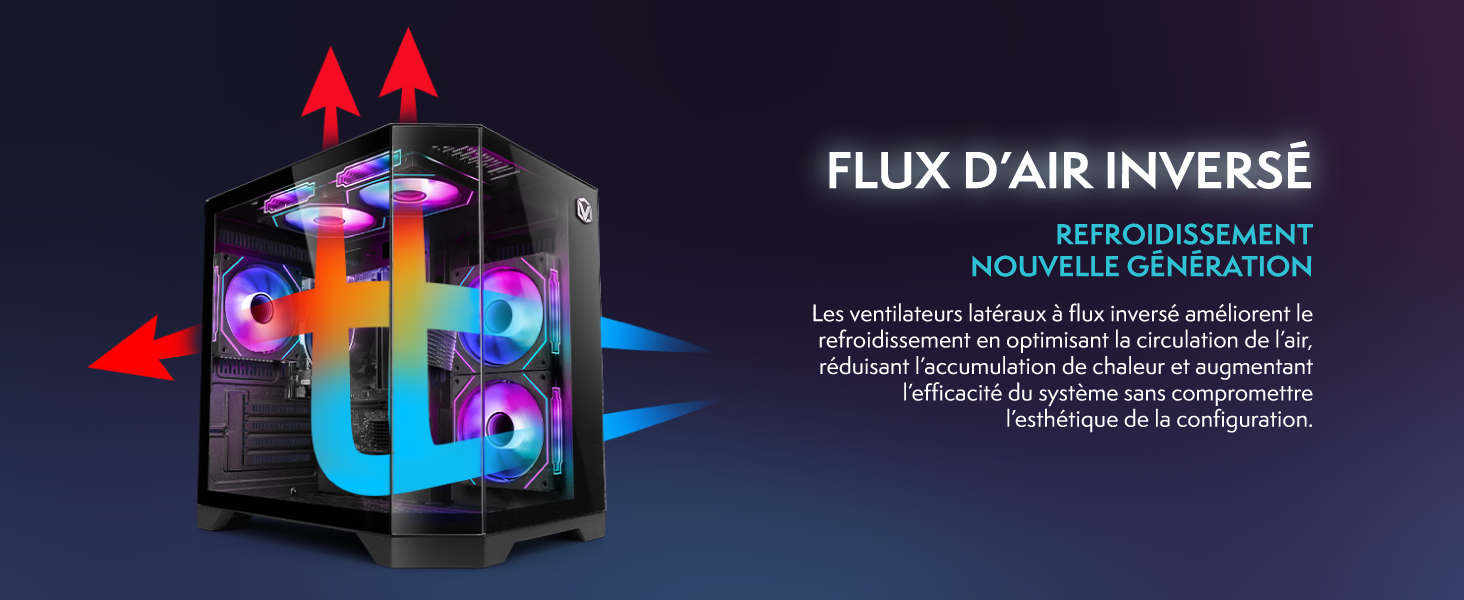
Image 6.1: Inverted airflow design for efficient cooling.
7。 トラブルシューティング
- 電源なし: Check all power cable connections. Ensure the wall outlet is functional.
- 表示なし: Ensure the monitor is powered on and the display cable is securely connected to both the PC and the monitor. Try a different display cable or port if available.
- インターネット接続なし: Verify the WiFi adapter is properly installed. Check your router and internet service. In Windows, go to Settings > Network & internet to troubleshoot.
- PC Freezes/Crashes: Restart the PC. Ensure all drivers are updated. Check for overheating (ensure good airflow).
- 周辺機器が動作しない: Try connecting the keyboard, mouse, or headset to different USB/audio ports. Ensure drivers are installed if required.
8. 仕様
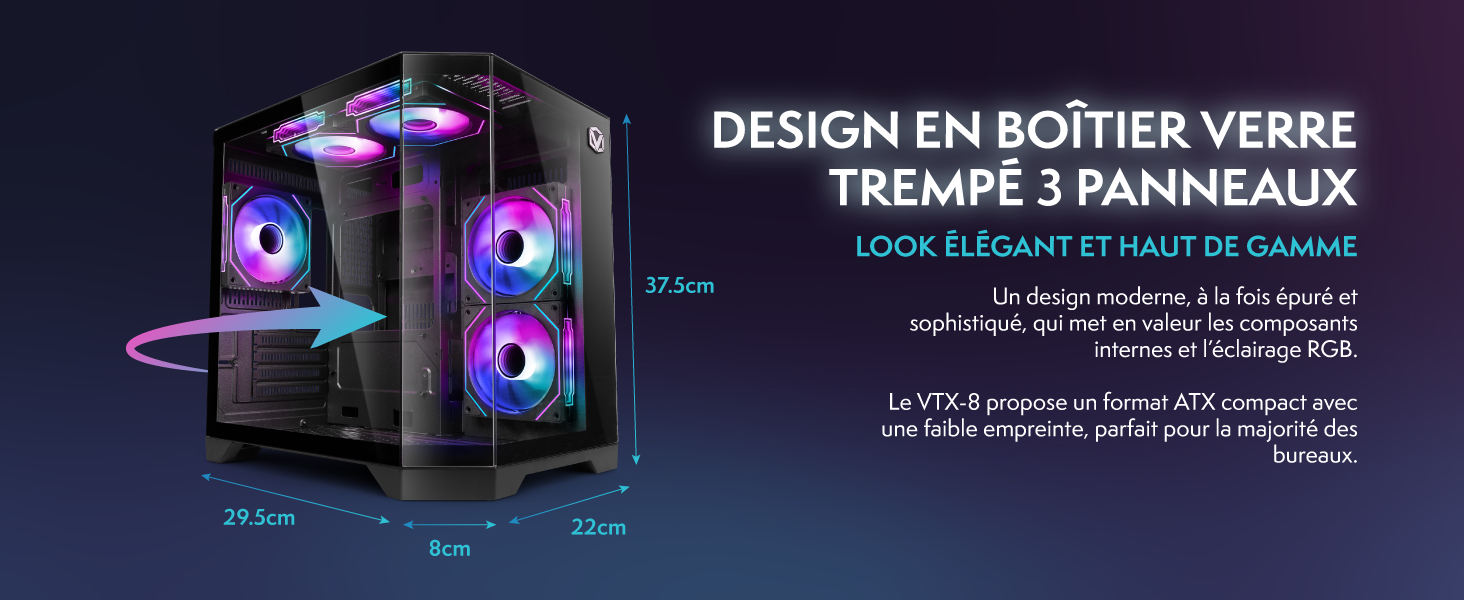
Image 8.1: VIBOX VI-63 PC Gamer case dimensions.
| 特徴 | 仕様 |
|---|---|
| ブランド | ヴィボックス |
| モデル名 | Vibox VI-63 Gaming PC |
| オペレーティング·システム | Windows 11 ホーム |
| CPUモデル | AMD ライゼン 3 3200G |
| CPU速度 | 3.6 GHz (4 GHz ターボ) |
| CPUコア | 4 |
| グラフィックスコプロセッサ | Radeon Vega 8 (Integrated) |
| グラフィック RAM | 2 GB(共有) |
| RAM Installed | 16GB DDR4 |
| RAM Speed | 2666 MHz |
| ストレージ容量 | 1TB SSD |
| ハードドライブ技術 | ソリッドステートドライブ |
| モニターサイズ | 22インチ |
| 最大ディスプレイ解像度 | 1920x1080ピクセル |
| ビデオ出力インターフェース | HDMI、VGA |
| 接続技術 | AMD Radeon Vega 8, Ethernet, HDMI, USB, Wi-Fi |
| 寸法(長さ×幅×高さ) | 32.6 x 19.5 x 42 cm |
| 色 | VTX-1 Black |
9. 保証とサポート
9.1. 保証情報
Your VIBOX VI-63 PC Gamer comes with a 2年間保証 on spare parts. This warranty covers manufacturing defects and component failures under normal use. Please retain your proof of purchase for warranty claims.
9.2. カスタマーサポート
For technical assistance, troubleshooting, or warranty inquiries, please contact VIBOX customer support. Refer to the contact information provided with your purchase documentation or visit the official VIBOX webサポート詳細のサイト。
オンラインリソース: For additional support and FAQs, please visit the VIBOX official webサイト。