
1.製品オーバーview
This manual provides instructions for the Baseus 7-in-1 Laptop Docking Station and the Baseus Retractable USB Type-C Cable for Car. These products are designed to enhance connectivity and charging capabilities for your devices.
1.1 Baseus 7-in-1 ノートパソコンドッキングステーション
The 7-in-1 docking station expands your laptop's connectivity with multiple ports for various peripherals and external displays.
- HDMIポート×1: Supports up to 4K@60Hz resolution for video output, compatible with 1080P@120Hz for high refresh rate displays.
- 3つのUSB 3.0ポート: Provides high-speed data transfer up to 5Gbps.
- 1 SD/TF Card Slot: Allows direct access to SD and TF memory cards.
- 1 USB-C PD Port: Supports Power Delivery up to 100W for charging your host laptop.

Image 1.1: The Baseus 7-in-1 Docking Station illustrating its multiple ports and connectivity options for enhanced efficiency.
1.2 Baseus Retractable USB Type-C Cable for Car
This coiled USB-A to USB-C cable is designed for convenient use in vehicles, offering both fast charging and data transfer capabilities.
- コイルデザイン: Retractable cable with a tensile length of 0.8-3.3 feet (approximately 24-100 cm) for tangle-free storage and flexible use.
- Fast Charge & Data Transfer: Supports 2A fast charging and data transfer speeds up to 480Mb/s.
- Smart Security Chip: Integrated chip for safe and reliable operation.
- Android Auto Support: Compatible with Android Auto for in-car connectivity.

Image 1.2: The Baseus Retractable USB Type-C Cable for Car, shown connected to a smartphone for charging in a vehicle.
2. セットアップ手順
2.1 Baseus 7-in-1 ノートパソコンドッキングステーション
- ホストデバイスに接続します: Plug the integrated USB-C cable of the docking station into an available USB-C port on your laptop, tablet, or smartphone. Ensure your device's USB-C port supports DisplayPort Alternate Mode (Alt Mode) for video output and Power Delivery for charging.
- 外部ディスプレイを接続する(HDMI): Connect an HDMI cable from your monitor or TV to the HDMI port on the docking station.
- USB周辺機器を接続する: Plug your USB devices (e.g., mouse, keyboard, external hard drive, USB flash drive) into the USB 3.0 ports on the docking station.
- メモリーカードを挿入します: Insert your SD or TF (Micro SD) card into the corresponding slot on the docking station.
- 電力供給(オプション): To charge your host laptop through the docking station, connect a compatible USB-C Power Delivery (PD) charger (not included) to the USB-C PD input port on the docking station. The docking station requires an external power supply to charge the connected laptop.
Video 2.1: This video demonstrates the setup and various functions of a USB-C to HDMI adapter, including connecting to a laptop, extending and mirroring displays, power delivery, and data transfer. It highlights compatibility with devices like Nintendo Switch, Steam Deck, and ROG Ally, and its use in meetings, home offices, and gaming.
2.2 Baseus Retractable USB Type-C Cable for Car
- 電源に接続します: Plug the USB-A end of the cable into a compatible USB-A port in your car (e.g., car charger, car's built-in USB port).
- デバイスに接続します: Plug the USB-C end of the cable into your smartphone, tablet, or other USB-C compatible device.
- 長さを調整: Gently pull both ends of the cable simultaneously to extend it to the desired length. To retract, pull both ends slightly again and release to allow it to coil back.
3. 操作手順
3.1 Using the 7-in-1 Laptop Docking Station
- ビデオ出力: Once connected via HDMI, your laptop's display settings can be configured to extend or mirror your screen to the external monitor. The docking station supports 4K@60Hz for clear visuals and 1080P@120Hz for smoother motion.
- データ転送: The USB 3.0 ports allow for rapid data transfer between your host device and connected USB storage devices. The SD/TF card slots enable quick access to photos and fileメモリーカードから。
- 電力供給: When an external USB-C PD charger is connected to the docking station's PD port, it will pass up to 100W of power to charge your host laptop. This allows you to use all other ports while simultaneously charging your device.

Image 3.1: A laptop connected to an external display through the docking station, demonstrating 4K@60Hz clarity for an enhanced viewing の経験。

Image 3.2: The Baseus docking station highlighting its USB 3.0 ports, capable of super-fast data transfer at 5Gbps.

Image 3.3: A laptop receiving power through the docking station's PD port, demonstrating powerful pass-through charging up to 100W.
3.2 Using the Retractable USB Type-C Cable for Car
- 充電: Connect the cable to a suitable car charger or USB port to charge your USB-C devices. The cable supports 2A fast charging.
- データ転送: When connected to a compatible car USB port or computer, the cable facilitates data transfer at speeds up to 480Mb/s.
- Androidオート: Connect your Android smartphone to a car's USB port that supports Android Auto for seamless integration and access to navigation, music, and communication features.
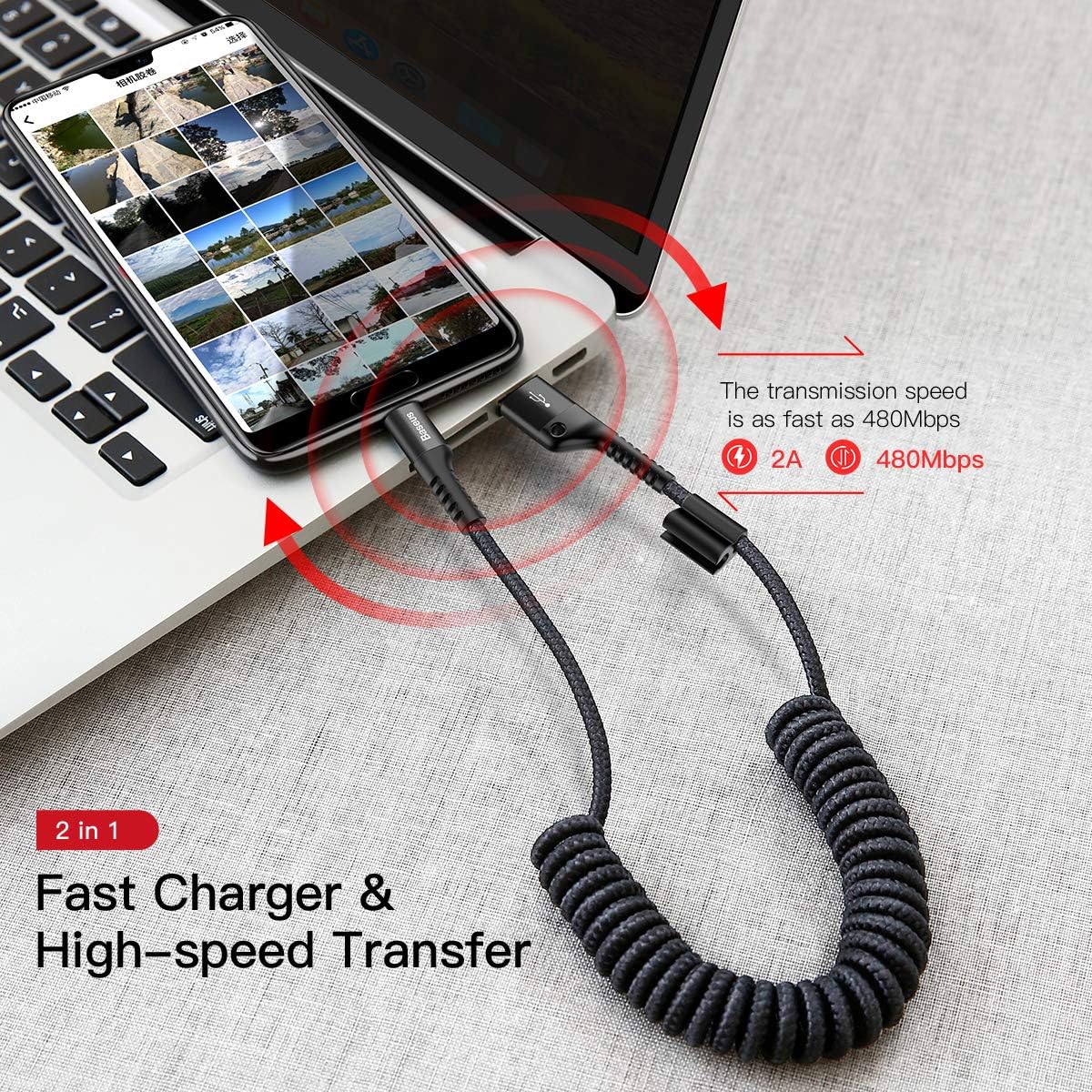
Image 3.4: The retractable USB-C cable demonstrating its dual functionality for fast charging and high-speed data transfer.
4. 仕様
4.1 Baseus 7-in-1 ノートパソコンドッキングステーション
- モデル: B0CF9L4D1F (Part of the product bundle)
- ハードウェアインターフェイス: USB、USBタイプC
- ポート: 1 x HDMI, 3 x USB 3.0, 1 x SD Card Slot, 1 x TF Card Slot, 1 x USB-C Power Delivery
- HDMI出力: Up to 4K@60Hz, compatible with 1080P@120Hz
- USB 3.0 Data Transfer Speed: 最大5Gbps
- USB-C PD 入力: Up to 100W (requires external PD charger)
- 対応デバイス: Laptops, tablets, and smartphones with USB-C ports supporting Power Delivery, DisplayPort Alternate Mode, and data transfer.
4.2 Baseus Retractable USB Type-C Cable for Car
- モデル: B0CF9L4D1F (Part of the product bundle)
- ケーブルタイプ: USB-AからUSB-Cへ
- デザイン: Coiled, Retractable
- Tensile Length: 0.8 - 3.3 feet (approx. 24 - 100 cm)
- 充電電流: 2A
- データ転送速度: 最大480Mb/秒
- 特徴: Built-in smart security chip, supports Android Auto.
- 互換性: Devices with USB-C ports.

Image 4.1: The Baseus retractable USB-C cable illustrating its broad compatibility with various Type-C devices, including MacBooks, Note series, S series, and other smartphones.
5。 トラブルシューティング
5.1 Docking Station Issues
- ビデオ出力なし:
- ホスト デバイスの USB-C ポートが DisplayPort 代替モードをサポートしていることを確認します。
- Check that the HDMI cable is securely connected to both the docking station and the monitor.
- モニターの入力ソースが HDMI に正しく設定されていることを確認します。
- ホストデバイスを再起動してみてください。
- ノートパソコンが充電されない:
- Confirm that an external USB-C PD charger is connected to the docking station's USB-C PD input port. The docking station does not provide power to the laptop without an external charger.
- Ensure the external PD charger has sufficient wattage (例: 65W または 100W) をノートパソコンに割り当てます。
- すべてのケーブル接続を確認してください。
- USBデバイスが認識されない、またはデータ転送が遅い:
- Ensure USB devices are properly inserted into the USB 3.0 ports.
- For optimal speed, use high-quality USB 3.0 compatible devices and cables.
- If connecting high-power devices, ensure the docking station is receiving power via its PD port.
- SD/TF カードが検出されません:
- カードが正しいスロットに完全に挿入されていることを確認してください。
- カードが破損または壊れていないかどうかを確認してください。
- Try the card directly in another device to confirm functionality.
5.2 Car Cable Issues
- デバイスが充電されない:
- Ensure the USB-A end is securely plugged into a functional car charger or USB port.
- Verify the USB-C end is correctly connected to your device.
- Check if the car charger or USB port is providing power.
- 遅い充電:
- Ensure your car charger supports fast charging.
- The cable supports 2A charging; if your device requires higher amperage, charging may be slower.
- Android Auto Not Working:
- Confirm your car's infotainment system supports Android Auto and that the USB port is enabled for data transfer.
- Ensure Android Auto is installed and updated on your smartphone.
- Try connecting directly to the car's USB port without other adapters.
6. メンテナンス
- クリーニング: Use a soft, dry cloth to clean the surfaces of the docking station and cable. Avoid liquid cleaners or abrasive materials.
- ストレージ: Store the products in a cool, dry place away from direct sunlight and extreme temperatures. For the retractable cable, ensure it retracts smoothly and is not forced.
- 取り扱い: Avoid dropping or subjecting the products to strong impacts. Do not bend the cables excessively or apply undue force to the connectors.
7. 保証とサポート
For warranty information or technical support, please refer to the documentation included with your purchase or visit the official Baseus website. You may also contact Baseus customer service directly for assistance with product issues or inquiries.
Baseus公式 Webサイト: www.baseus.com